Write questions and send them to your students. There are five answer types: choose one, choose several, a number, a word, and free writing. Choice, number and word questions are graded the moment the student answers.
Send pairs of words and meanings, and students practise by flipping, matching and taking a test. Google Forms quizzes, word sets from Quizlet and the like, and question tables in a spreadsheet can be brought in as they are.
Write questions and send them
Questions (writing questions)
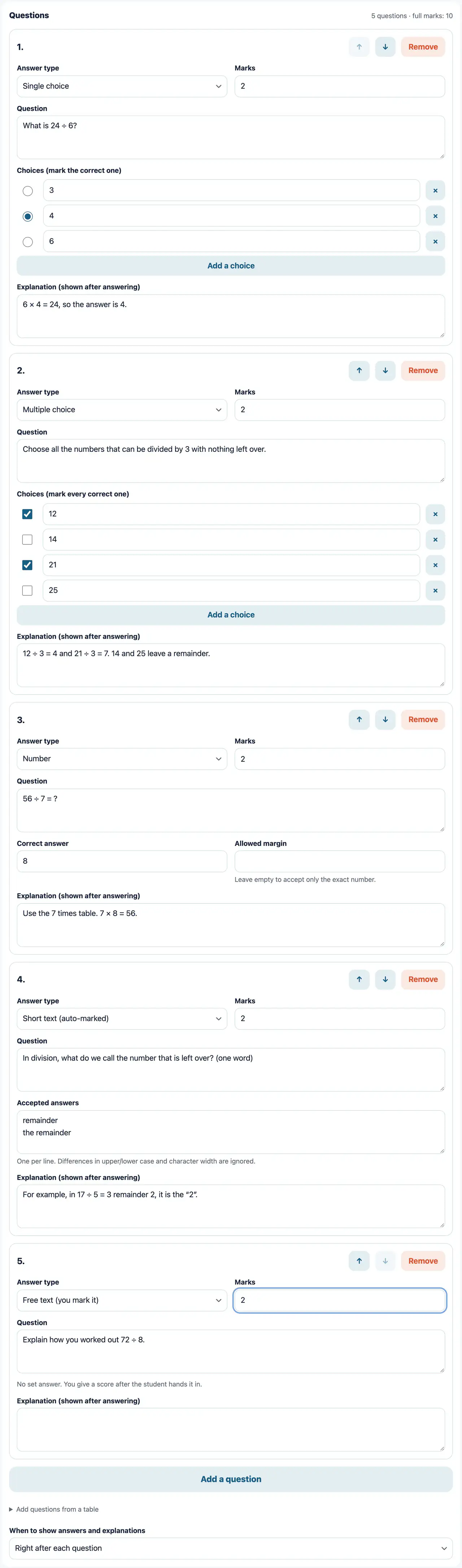
WebThere are five answer types: single choice, multiple choice, number, short text and free text. You can set marks and add an explanation. Choice, number and short-text questions are graded automatically. You can also attach a YouTube video, so students answer while they watch.
Up to 50 questions per assignment. Only “Free text” questions are graded by the teacher.
Questions
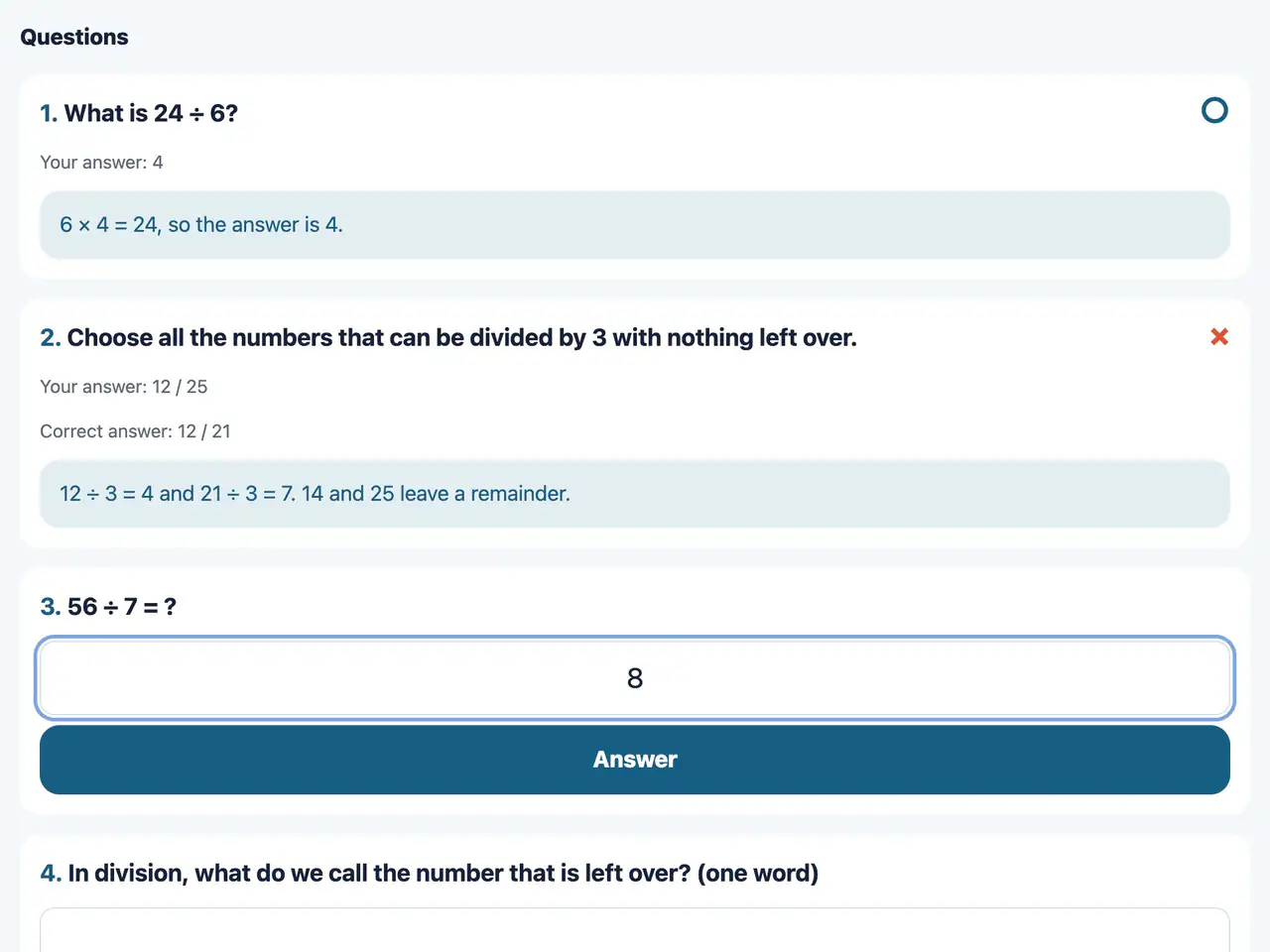
Web & appChoose, enter a number, enter a word, or write freely. When you answer, you see right away whether it was right or wrong.
You can answer each question only once.
Automatic grading; you mark free writing
Automatic grading
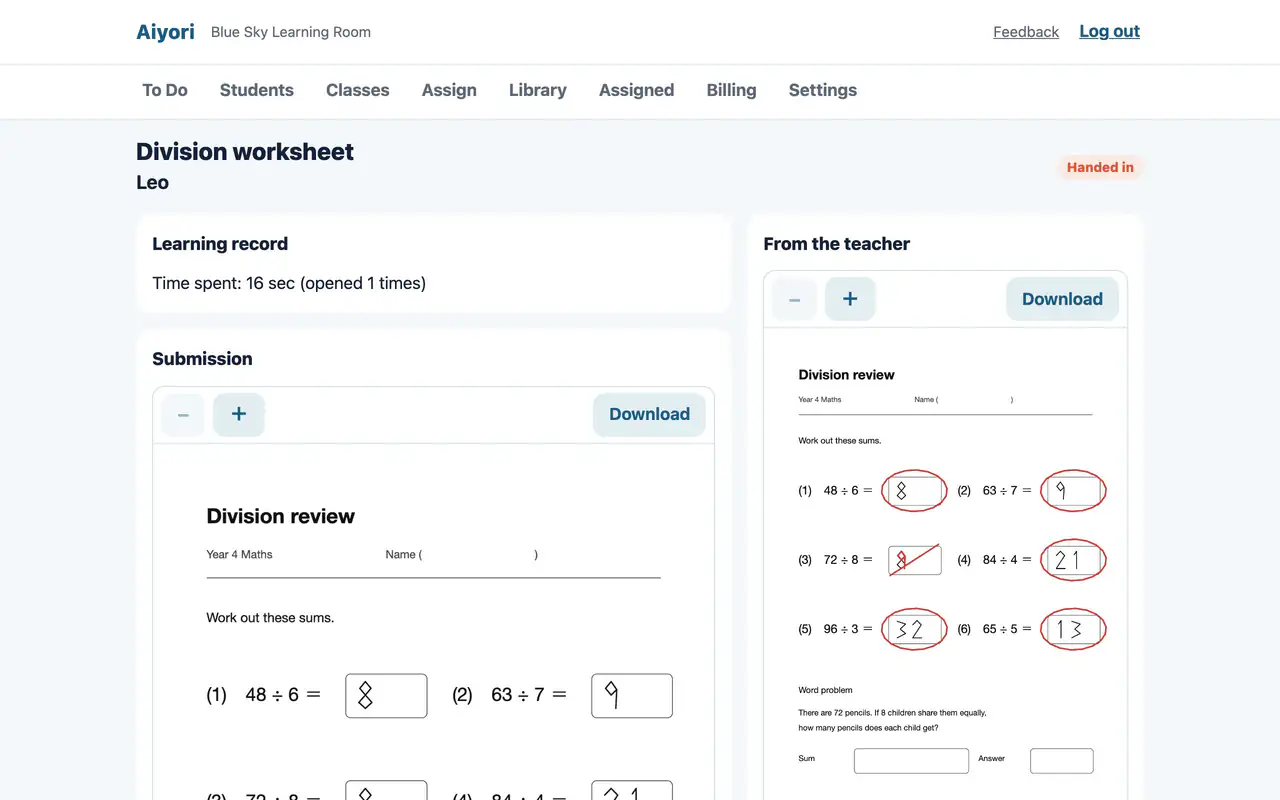
Web & appChoice, number and short-text questions are graded the moment the student answers. The teacher’s screen shows the answer to each question, whether it was right, and the time taken.
Grading free-text questions
Web & appRead the written answers one by one and give each a score within its marks.
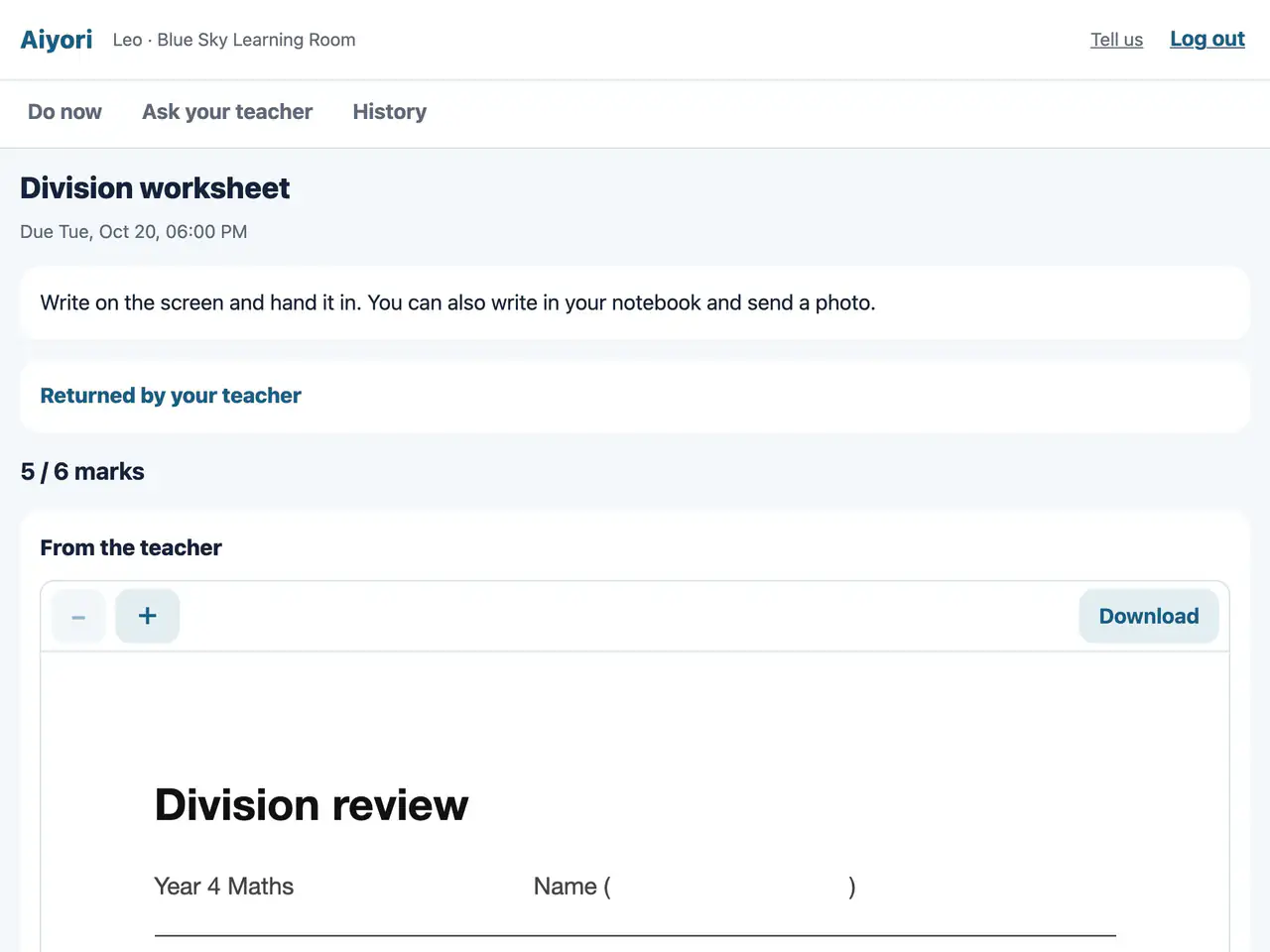
Returned
Web & appWork the teacher has returned appears in a separate section. Open it to check the red-pen marks and the teacher’s voice message.
If the teacher asked for a redo, you can hand the work in again.
Vocabulary tests with word cards
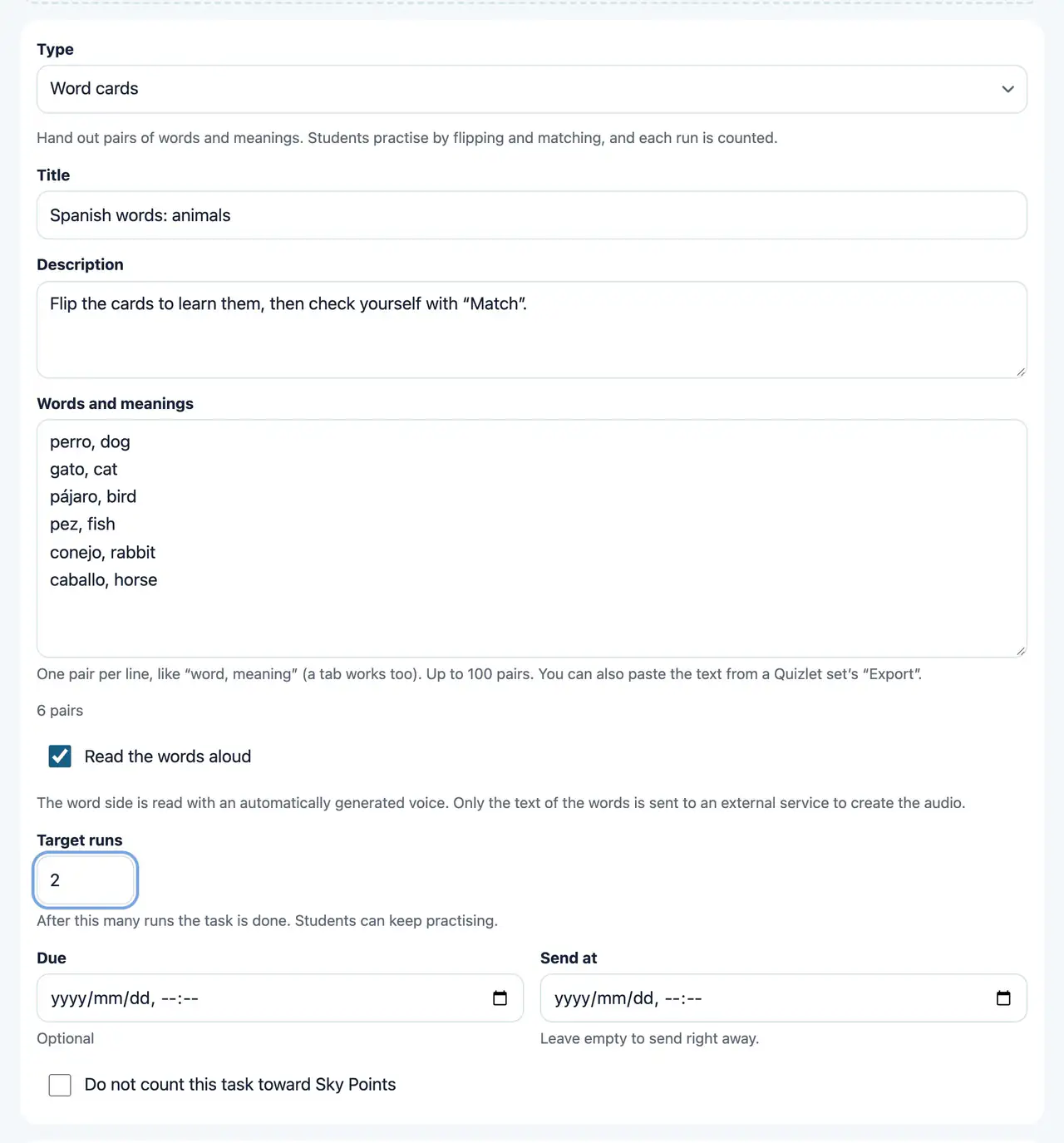
Word cards
WebHand out pairs of words and meanings (images can be added). Students practice with Flip, Match and Test. Words are read out by an automatic voice, and the teacher sees how many times each mode was done and the best result.
Up to 100 pairs. You can also paste text exported from a Quizlet set as it is.
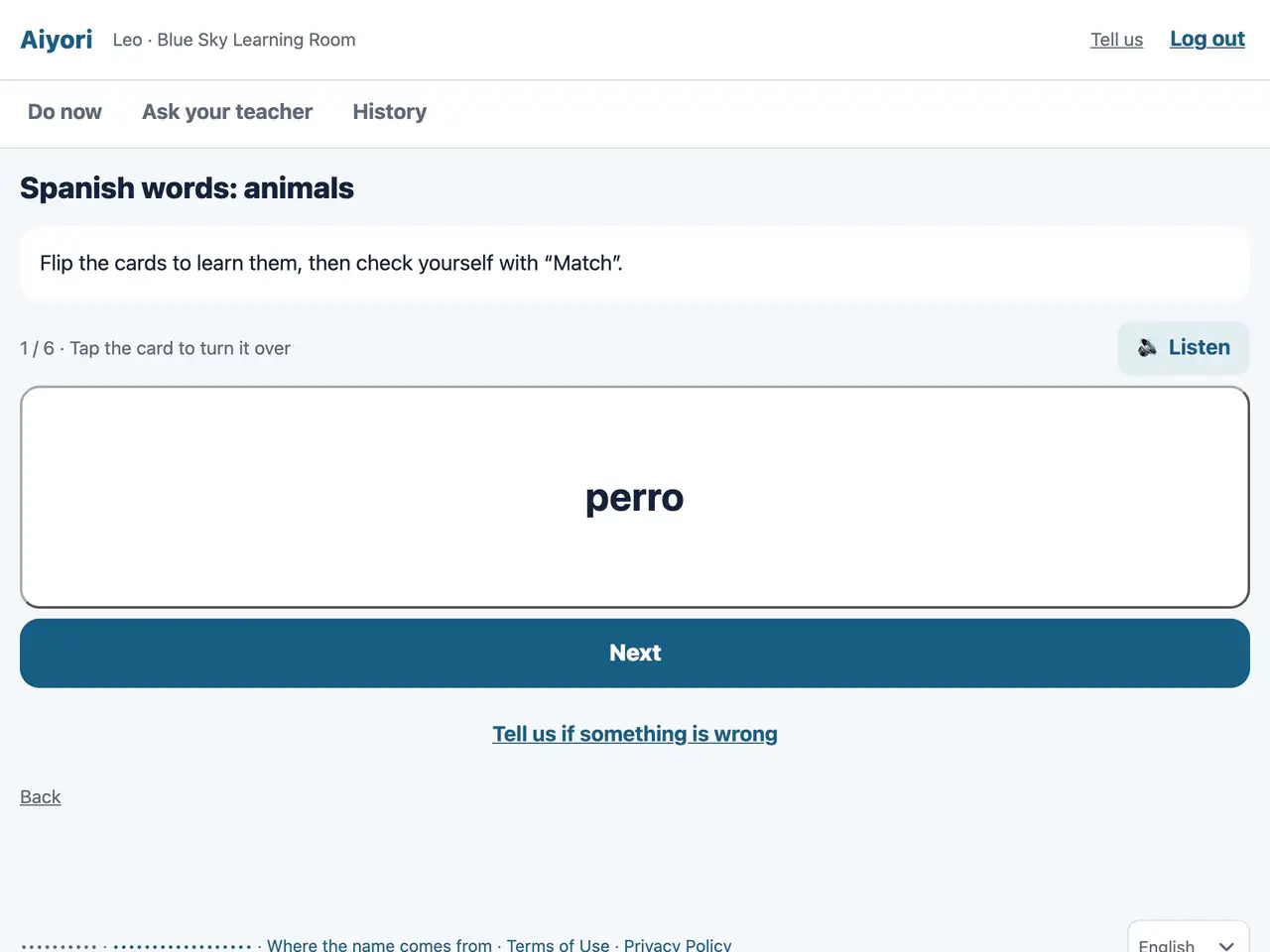
Word cards (Flip)
Web & appFlip the cards to learn the words and their meanings. The words are read aloud.
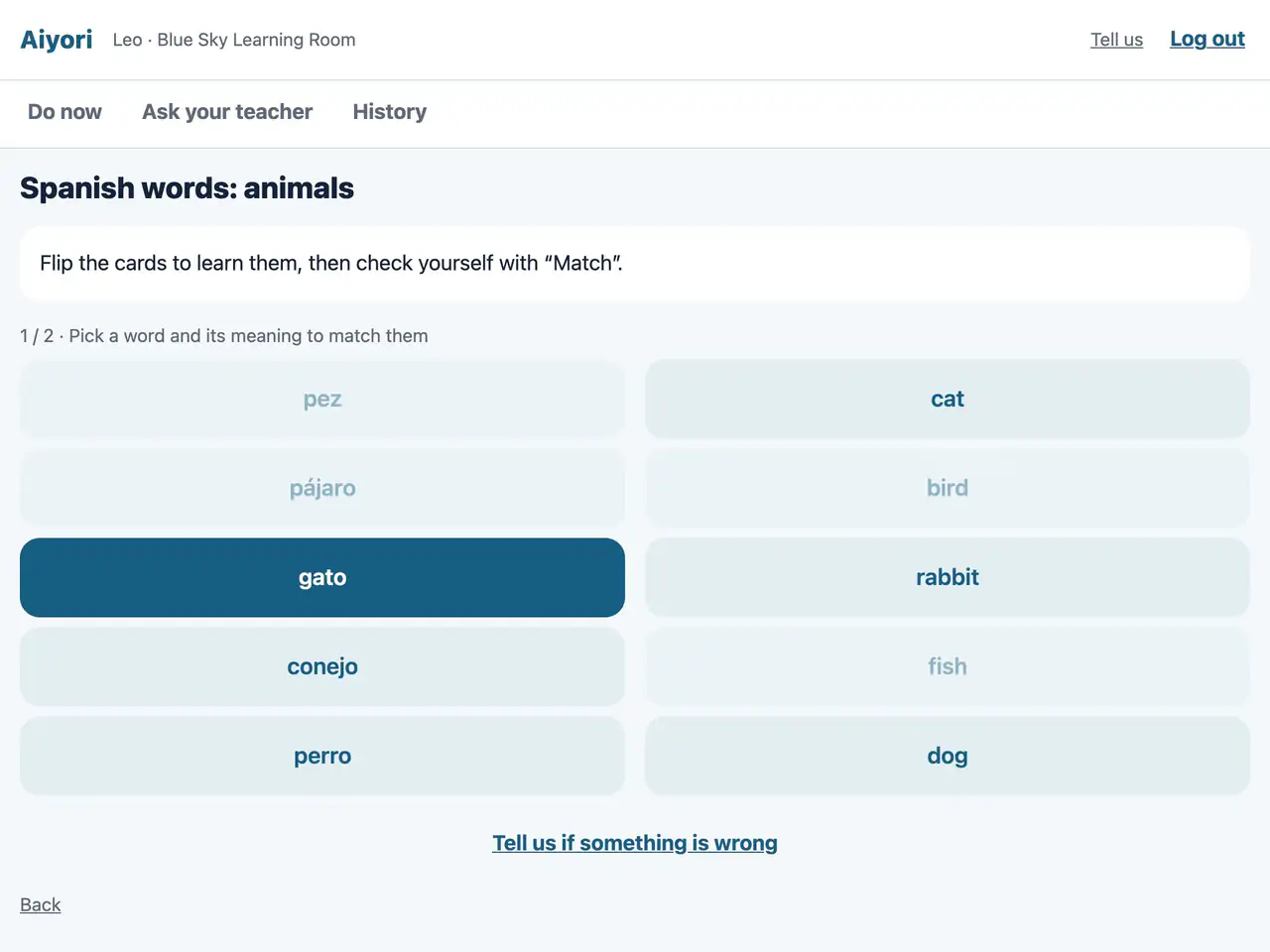
Word cards (Match)
Web & appMatch each word to its meaning, as if drawing a line between them. The time taken is shown, and for assignments where the teacher chose to show it, the class ranking too.
Word cards (Test)
WebCheck what you remember with multiple-choice, true/false, matching and written questions. Answers are graded automatically.
Bring in the questions you already have
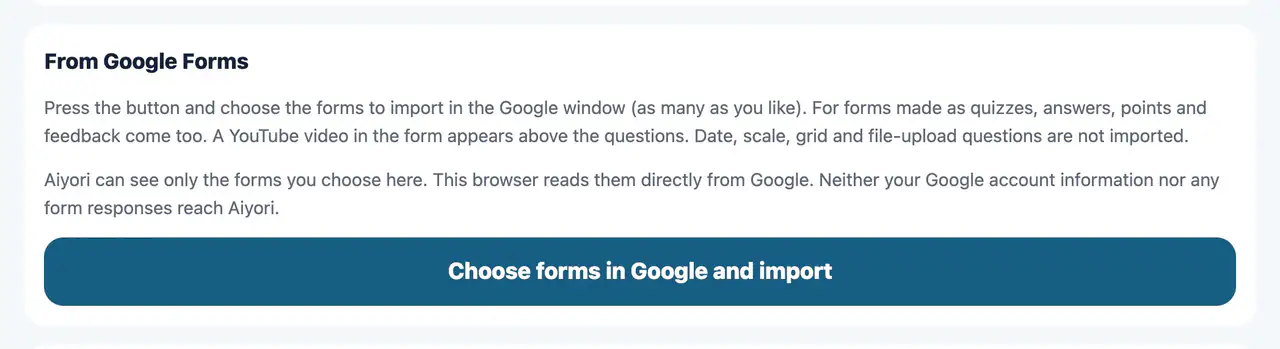
Import from Google Forms
WebChoose forms you made in Google Forms, and their questions go into the library. If the form was made as a quiz, the answers, marks and explanations come with it. YouTube videos in the form appear above the question.
Aiyori can see only the forms you choose. Neither your Google account details nor the form responses reach Aiyori. Date, scale, grid and file-upload questions are not imported.
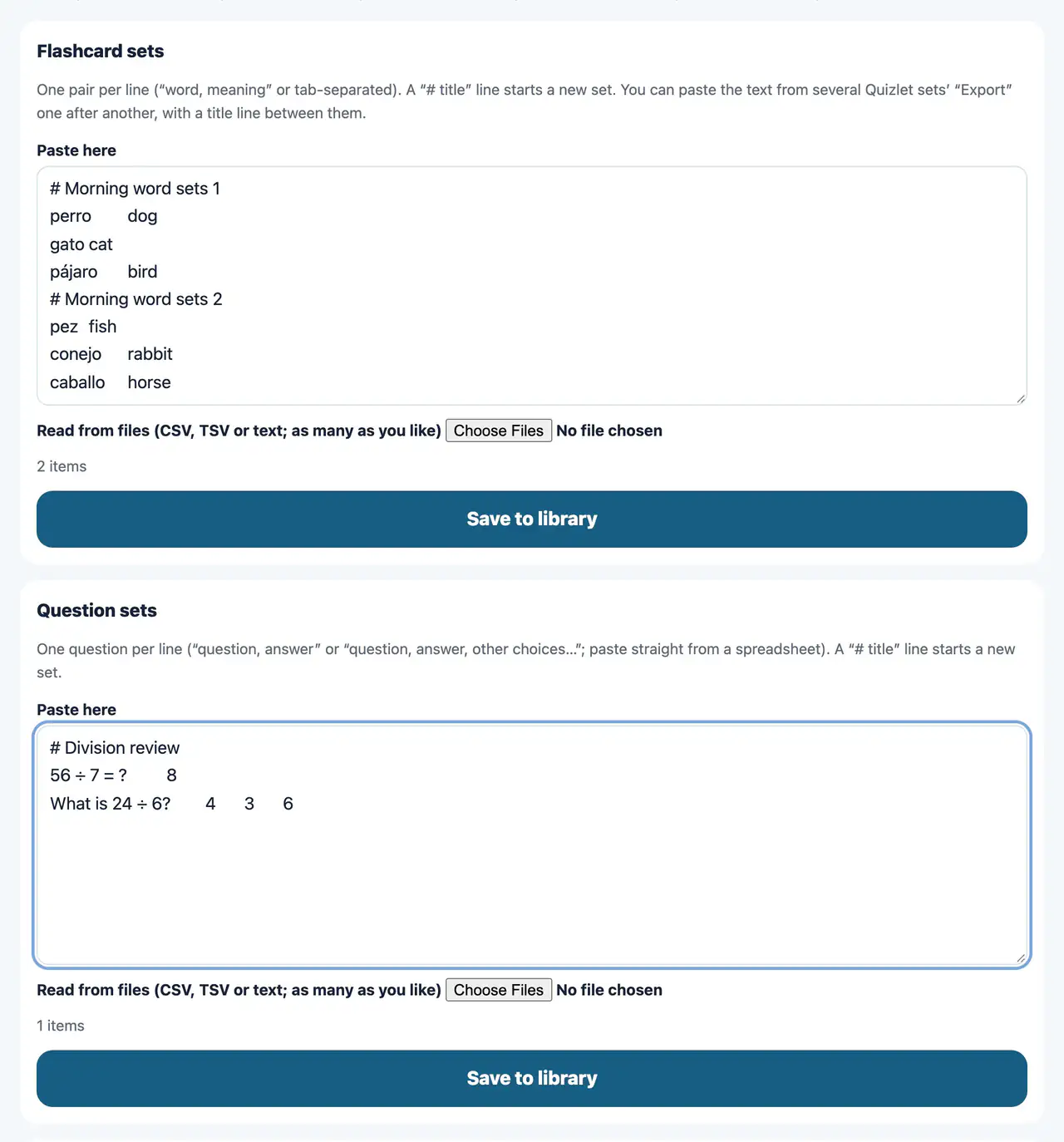
Bulk import
WebPut word lists such as Quizlet sets, question tables from a spreadsheet, and PDF, image and video files into the library in one go. You can also export the library to a single file and import it in another classroom.
Word lists take one pair per line. Questions take the form “question, answer” or “question, answer, other choices…”. PDFs and images become worksheets; videos become lesson videos. Videos take a few minutes to convert and cannot be handed out until they are ready.
Who gets it, when, and points
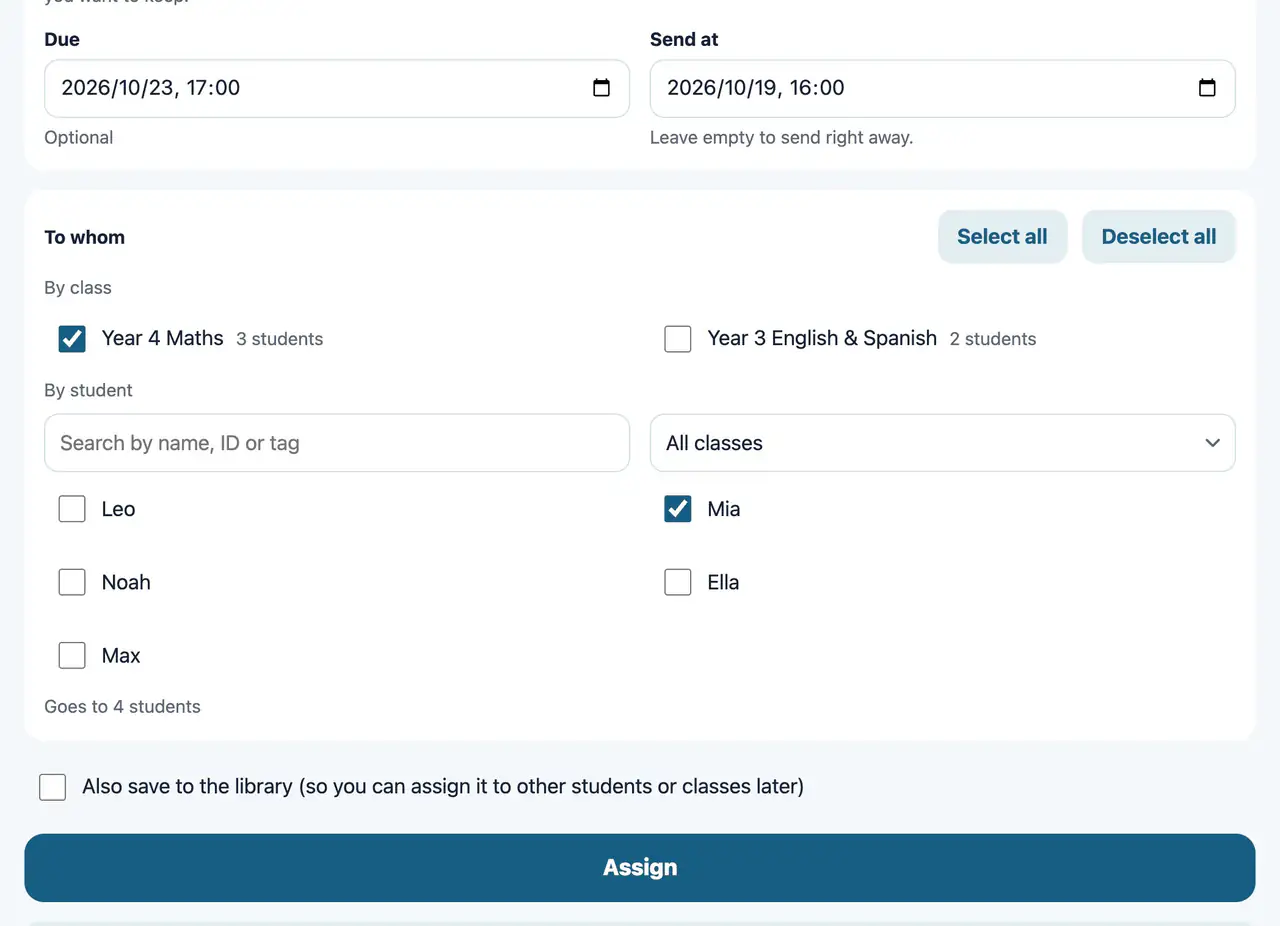
Who gets it, and when
Web & appChoose a class or individual students. You can combine both. With many students, you can search by name, ID or tag, filter by class, or select everyone with a tag at once. Set a date and time, and it goes out by itself at that time. You can also set a due date.
It does not reach students who are suspended or withdrawn.
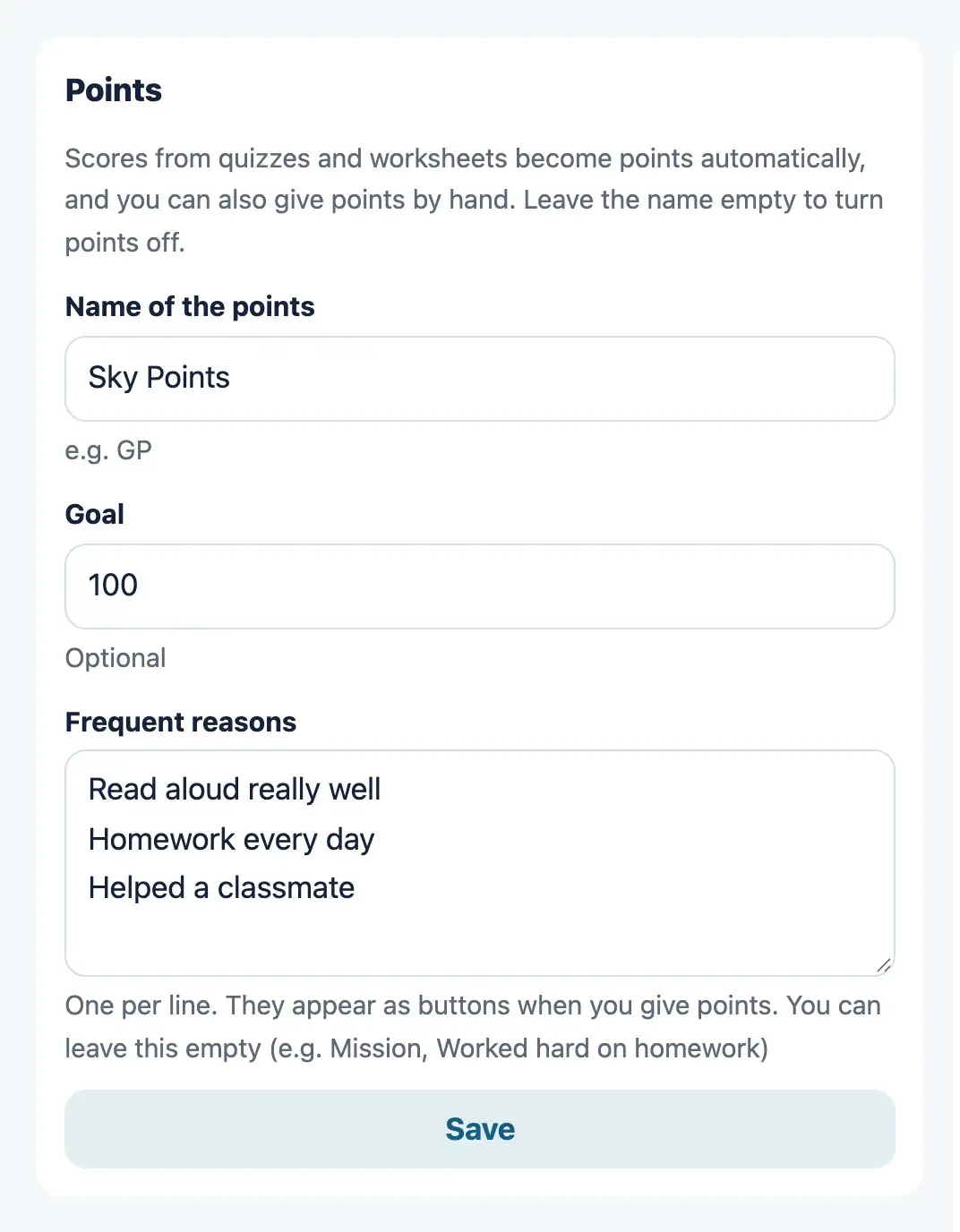
Points and rewards
WebScores on questions and worksheets add up as points. Choose a name for the points, how many points make a reward and the reward’s name. Each time a student reaches that number, a reward is earned and a “send” item appears in the teacher’s To-do.
Start free
Free for 30 days after you create the classroom (organization). You don’t need to add a payment method during the trial.