
Learners who use Aiyori for company training don’t sign up themselves. They log in with the organization code, ID and PIN from their training organizer, or with their company account.
The company pays the usage fee. Learners pay nothing.
Go to training loginiPhone and iPad app (App Store in Japan)
Your training organizer sends you the login details.
Getting started
- Receive login details from your training organizer (organization code, ID and PIN, or a message or email with a link).
- Log in. There are three ways to log in (see the table below).
- First, read “Before you start: usage guidelines” and press “Agree and start”.
- The training handed out to you is listed in “Training to complete”.
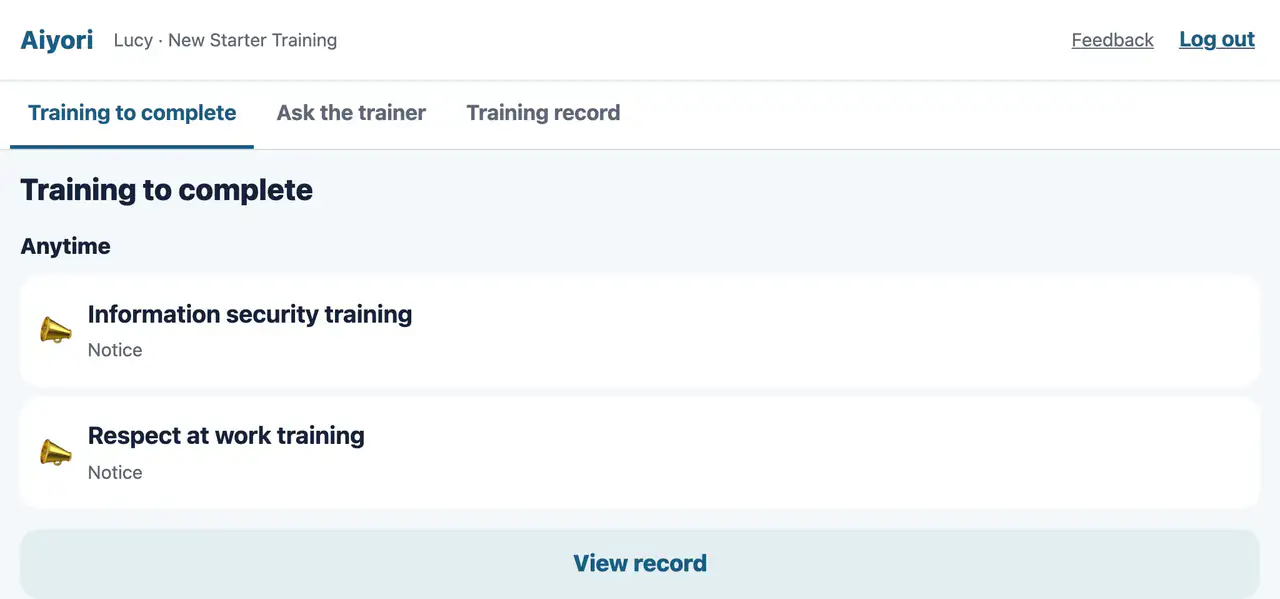
Training to complete
Web & appThe learner’s screen lists the training handed out, from the top. Finished training stays in “Training record”.
Three ways to log in
| Method | What you need | Notes |
|---|---|---|
| PIN | Organization code, ID and PIN (4–6 digits) | No email address needed. |
| QR code | A QR code shown on the trainer’s screen | Log in without a PIN. It expires after 5 minutes and can be used once. |
| Company account (SSO) | The organization code, and the Microsoft Entra ID, Google Workspace, Okta or other account your company has set up | Log in from the browser. The login screen of the iPhone and iPad app sends you to the browser. |
In organizations that allow only company-account login, PINs and QR codes can’t be used. In the iPhone and iPad app, choose “Students” on the first screen and enter the organization code in the “Classroom code” field (the app’s login screen uses these words because the organization isn’t known yet). On a shared device, choose “Shared device” on the login screen and your ID won’t be remembered.
If you can’t log in
- Forgot your PIN
- Ask a trainer or your training organizer to create a new PIN. Once it is reset, you need to log in again on every device.
- Too many wrong attempts
- After several wrong attempts in a row, you can’t log in for a while. The wait gets longer with each wrong attempt.
- Can’t log in with your company account
- The screen shows the reason (this domain is not allowed, you are not registered as a learner yet, your company’s settings don’t allow it, and so on). Please contact your training organizer.
- It says “Use of this organization is currently paused”
- Please contact your training organizer.
The learner screen and what you do
The learner screen has three parts: “Training to complete”, “Ask the trainer” and “Training record”. No money, bills or ads appear.
- Training videos and quizzes
- Writing on handouts and handing in photos
- Voice role-plays (phone handling, customer service, languages)
- Live training (a Zoom, Google Meet or other link with the date and time), notices, surveys and term cards
- Trainers send back scores and comments (text, voice or video). They may also ask for a redo. If something is unclear, you can ask one-to-one from “Ask the trainer”.
Rules for training videos
Trainers can set rules on training videos: block skipping ahead, block faster playback, stop when the sound is muted, and pause when you switch to another app or tab.
Trainers can see a record of how many times you skipped ahead, how long you played with the sound off, and how many times you left the screen during playback.
Certificates
When you finish training, you can save a certificate PDF from “Training record” on the web. You can get one for a single piece of training or for finishing a whole course. It shows the organization name, your name, the training name, the completion date, the certificate number and the issue date. For the same training, the number stays the same however many times you issue it.
Certificates can be issued in Japanese, English, Spanish, German and French (from the Korean and Chinese screens, they are in English). You can’t save them in the iPhone and iPad app.
What your company can see
| Who | Can see | Can’t see |
|---|---|---|
| Trainers | Name, ID, company email address, employee number and groups; training handed out, when it was opened, answers, scores, submissions, how much of each video and audio was played and time spent; messages with the trainer; term card records. Training status can be exported as CSV. | The record of actions on screen (used by Aiyori only to investigate problems) |
| Managers | If your company registers managers: for each learner in the groups they may see: the number of items handed out, the number finished, what is overdue and the last day opened. The training status CSV that managers export also includes name, ID, company email address, employee number and groups, plus, for each training item, its status, score, when it was first opened, when it was finished, time spent and whether it was finished by the due date. When term cards are handed out, it also includes how many times they were done, the best result and when they were last done. | The content of submissions, answers and messages (on screen or in CSV) |
| Other learners | Only the nickname and best time on term cards for which the trainer has chosen to show rankings | Training records and names |
How data is handled
- Who the data belongs to
- Training data belongs to the company. The company is the controller, and Aiyori handles it as the processor. It is not sold or used for ads.
- Storage
- In Japan (the Amazon Web Services Tokyo Region). Data is encrypted in transit and at rest, and names and email addresses are additionally encrypted field by field.
- When it is deleted
- Uploaded files are automatically deleted after 365 days (training records, scores and text stay). When a trainer deactivates a learner or the organization is closed, personal data and certificate numbers are deleted 30 days later.
- Leaving or changing roles
- If your company connects its identity provider with SCIM, you can no longer log in from the moment you are disabled there. Training records are kept. Changes to groups such as departments are also reflected in Aiyori’s groups.
- Access and deletion requests
- Your company handles requests to see, correct or delete your data. Please talk to your training organizer.
Notifications
- App notifications
- In the iPhone and iPad app, you are notified of new training, work sent back by a trainer, messages from a trainer, the day before and the day of a deadline, and 30 and 10 minutes before live training.
- If a trainer has entered your email address, you also get an email when new training arrives. You can stop it with the link in the email.
- What is left out
- Notifications and emails never include message text, scores or comments.
If you need help
- For how to use it, logging in or the content of the training, ask your training organizer (trainer).
- If something is hard to raise with a trainer, you can report it to Aiyori from the “Ask the trainer” screen. The trainer is not told who reported it. You can also talk to your company’s HR or compliance contact.
- App problems and feedback can be sent from any screen with “Feedback”.
FAQ for learners
Do I need to sign up myself?
No. Your training organizer registers learners and sends login details. Depending on your company’s settings, you may be registered automatically the first time you log in with your company account.
Does it cost learners anything?
No. The company pays the usage fee. Downloading the iPhone and iPad app (for now, available only on the App Store in Japan) is also free. Outside Japan, you can take training in a browser.
Can I log in to the iPhone and iPad app with my company account?
The app’s login screen sends you to the browser. With a company account, please log in from the browser. In organizations that use PINs, you can log in to the app with the organization code, ID and PIN, or with a QR code.
Can my manager see my answers or what I handed in?
No. On screen, managers see the number of items handed out, the number finished, what is overdue and the last day opened. The training status CSV that managers export also includes, for each training item, its status, score, when it was first opened, when it was finished, time spent and whether it was finished by the due date, plus, for term cards, how many times they were done, the best result and when they were last done.
Why can’t I watch a training video at a faster speed?
Because the trainer has set a rule on that video that blocks faster playback. Trainers set the rules for each piece of training.
Where do I get my certificate?
You can save the PDF from “Training record” on the web. You can’t save it in the iPhone and iPad app.
What happens to my training records if I leave the company?
Leaving does not automatically stop your login. You can no longer log in once your company disables you in the identity provider it connects with SCIM, or a trainer suspends or deactivates you (in organizations that have turned off PIN login and allow company accounts only, you can no longer log in once you are disabled in the identity provider). Training records stay in the company’s organization. If a trainer deactivates you, your personal data is deleted 30 days later.
Where is the data stored?
In Japan (the Amazon Web Services Tokyo Region).
For training organizers
The company is responsible for telling learners how Aiyori is used and how their data is handled. You can include the URL of this page in your instructions to learners. Setup and pricing are on the Workplace training page, connecting your company’s identity provider is on Connecting SSO and SCIM, and our security measures are on the Security page.