
The guardian screen in Aiyori is free. Enter the invite code from your child’s teacher to see assignment progress, study time, the teacher’s replies and messages with the teacher.
Guardians pay nothing to Aiyori. The classroom pays the usage fee. Tuition is between the classroom and the guardian, and the classroom decides the amount and how to pay.
Log in and enter an invite codeiPhone and iPad app (App Store in Japan)
Your child’s teacher creates the invite code.
How to start
- Open the invite link or QR code from the teacher. If you only received an invite code, continue from “Log in and enter an invite code” on this page.
- Enter your email address and log in with the 6-digit code you receive. There is no password. If this is your first time, read and agree to the Terms of Use.
- On the “Get started” screen, in the “Guardians (with an invite code)” section, enter the invite code (8 characters) and your name, then tap “Link to child” to link to your child. If you opened an invite link, the invite code is already filled in.
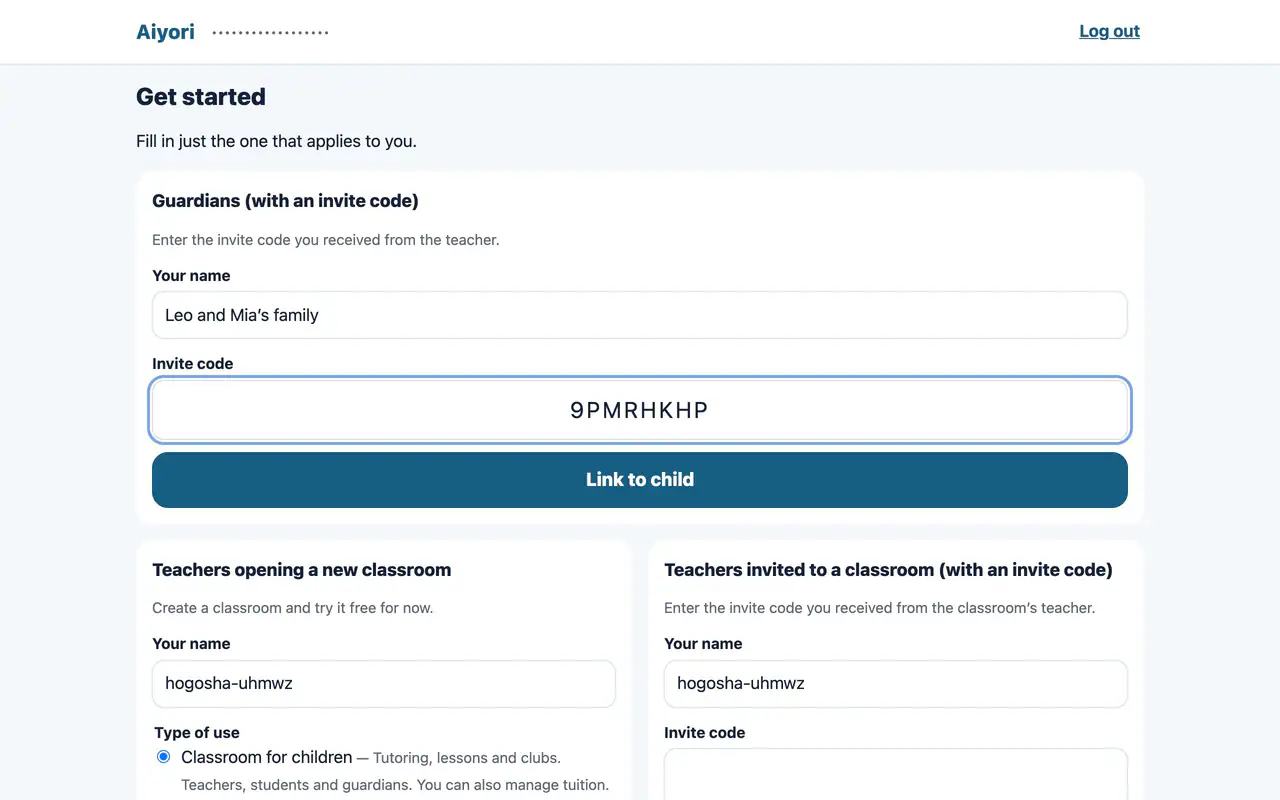
Link to your child
Web & appEnter the invite code you received from the teacher to be linked to your child. Brothers and sisters can be seen from the same account.
In the iPhone and iPad app, choose “Teacher / Guardian” on the first screen and log in, then enter the invite code in the “I’m a parent or guardian” section.
If something goes wrong
- The 6-digit code doesn’t arrive
- Please check your spam folder. If you send it again, the previous code stops working.
- The invite code doesn’t work
- An invite code is valid for 14 days and can be used once. If it has expired or has already been used, ask the teacher for a new code.
- Linking siblings
- Siblings in the same classroom can all be linked with one family code from the teacher. If they are in different classrooms, enter the code in “Add a child”. One account can follow any number of children.
What guardians can see
Your home screen shows a card for each child. At a glance, you see the number of tasks not done, the number done in the last 7 days, study time, progress on today’s set and upcoming lessons.
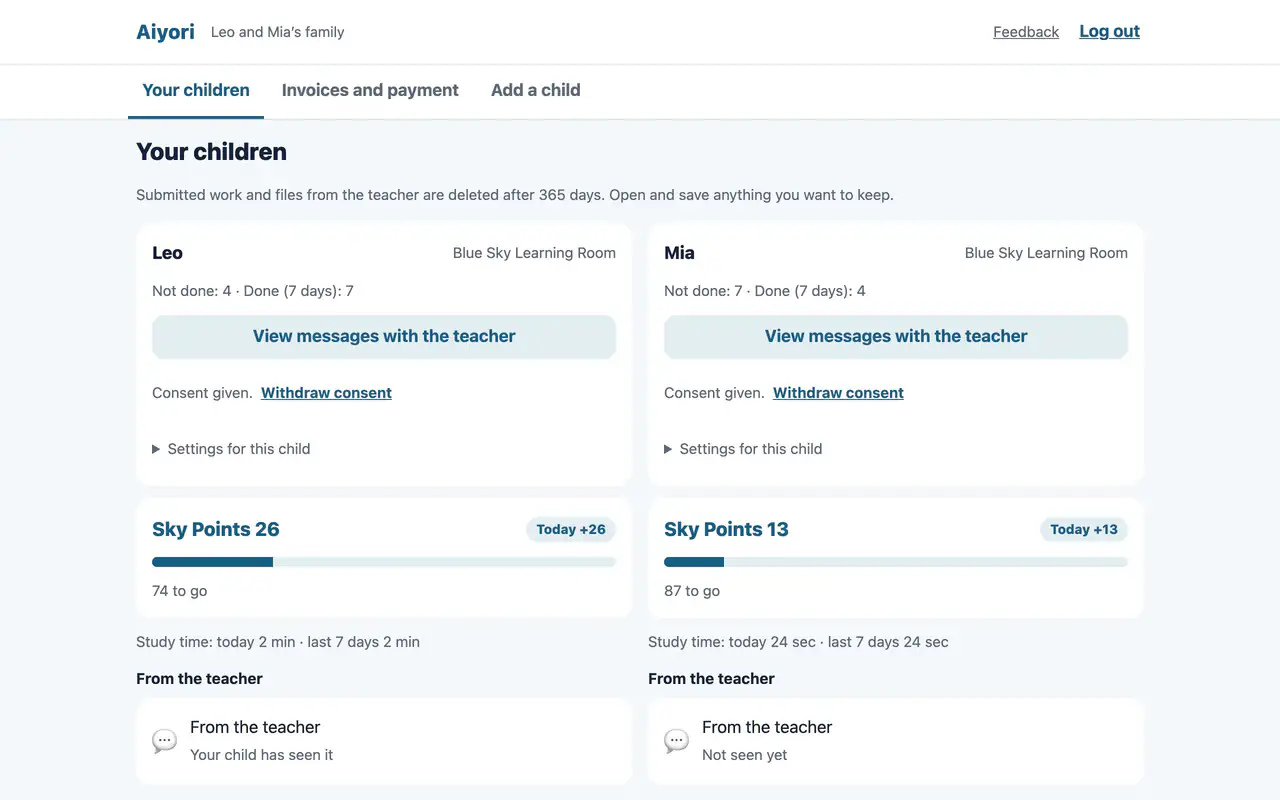
Your children
Web & appFor each child, shows the number not done, the number done in the last 7 days, points and study time (today and the last 7 days). Upcoming lessons, overdue items, items not done and items done are listed too. For a set, it shows how many of its items are finished.
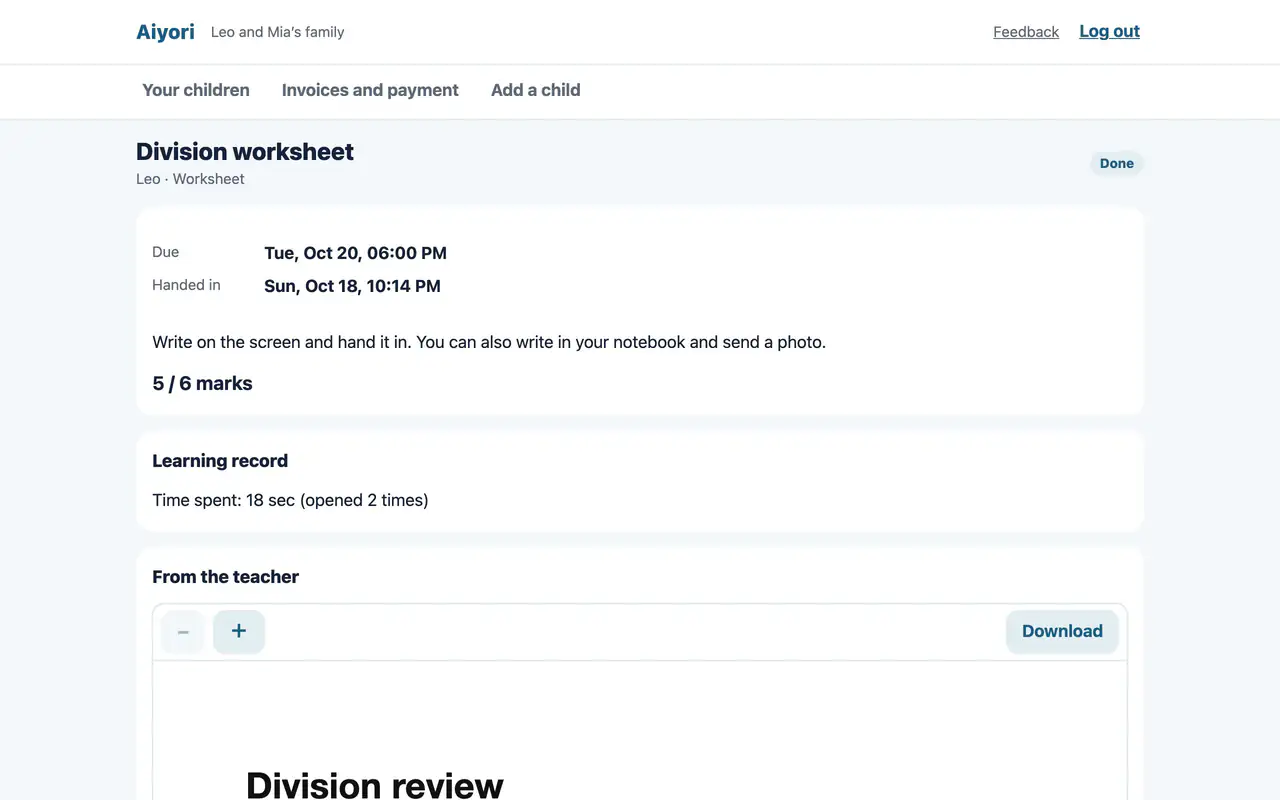
Assignment details
Web & appSee the submission, the score, the teacher’s comment and red-pen marks, the questions and your child’s answers, and the learning record.
From the teacher
Web & appGuardians can also see the voice and video messages the teacher sent to the child. You can see whether the child has played them, too.
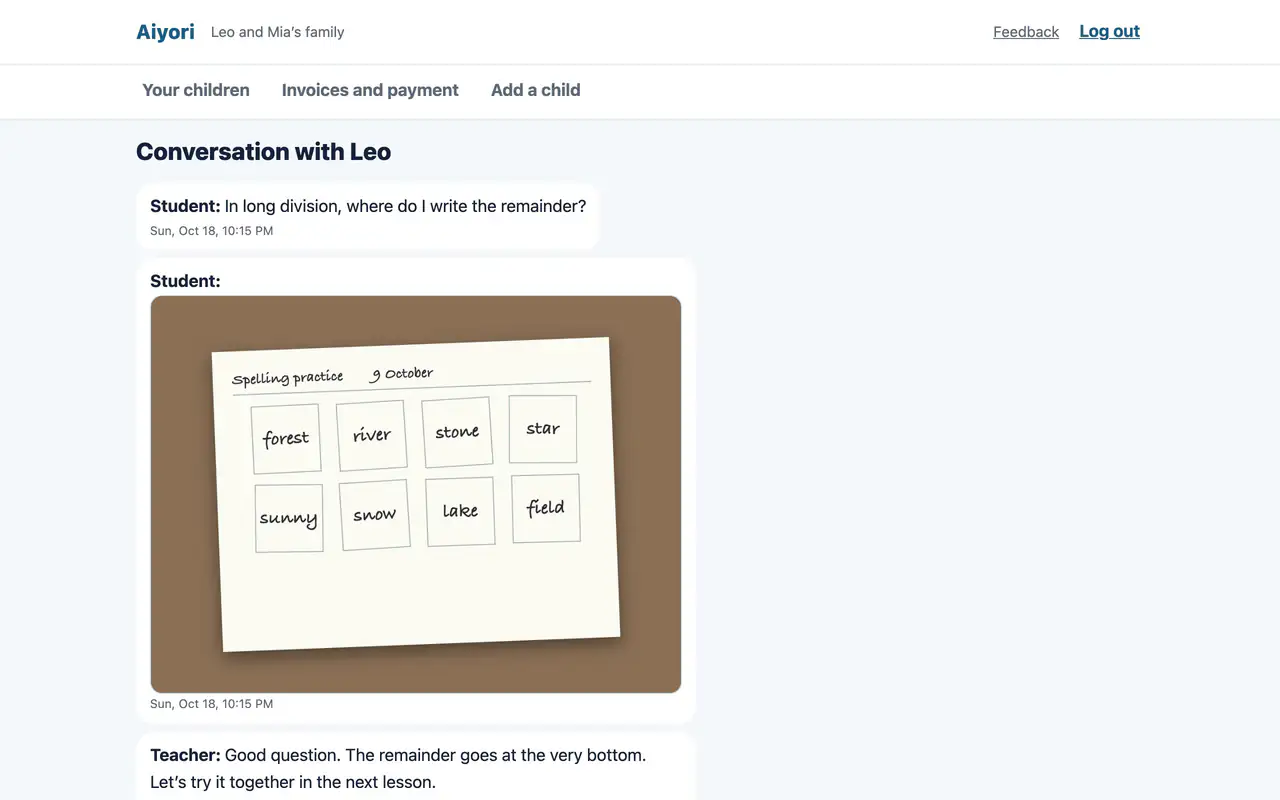
View messages with the teacher
Web & appRead all of the messages between your child and the teacher.
You can only view, not edit. Scores for work the teacher grades (worksheets, free-writing questions and so on) don’t appear until the teacher has graded it.
What guardians can do
“Choose” and “Survey” for guardians
Web & appChoose a meeting date or answer a survey addressed to guardians. These do not appear on the child’s screen.
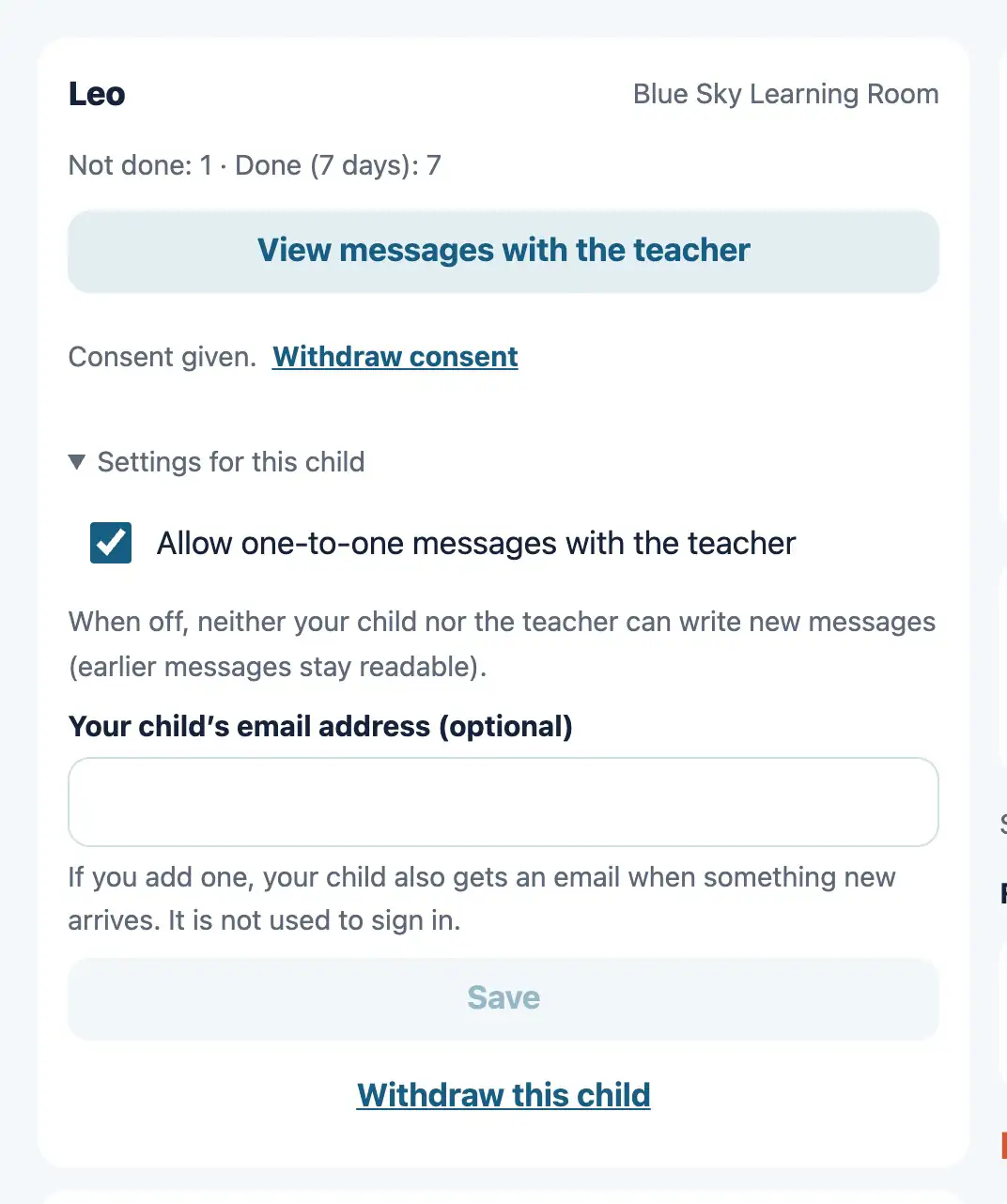
Turn off messages with the teacher
Web & appA guardian can turn off one-to-one messages between the child and the teacher. While they are off, neither the child nor the teacher can write new messages.
Alarm before a lesson
AppAn alarm sounds on the guardian’s device 10 minutes before your child’s live lesson starts. When brothers and sisters have the same lesson, it sounds once.
Share one iPad with your child
AppFrom the guardian screen, hand the device straight to your child. Your child does their assignments on their own screen without entering a PIN. To go back to the guardian screen, Face ID, Touch ID or the passcode is checked.
Money
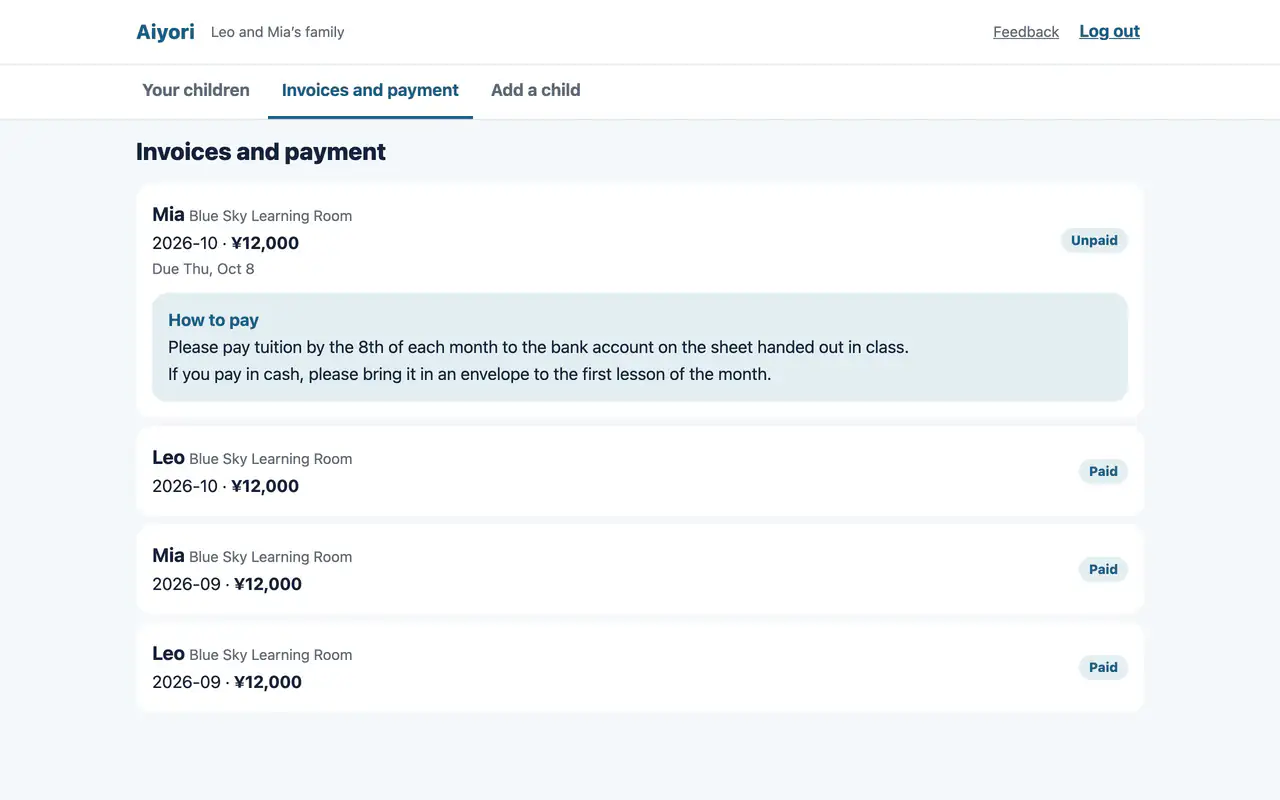
Invoices and payment
WebSee the amount, due date and status for each child and each month. For transfer or cash, the teacher’s “How to pay” note is shown. You are told by email when a new invoice is created and when a payment is confirmed.
- Guardian usage fee
- Free. The classroom pays Aiyori’s usage fee, and guardians are not counted.
- Tuition
- Tuition is between the classroom and the guardian. The classroom decides the amount, billing day and how to pay. Aiyori does not hold tuition and takes no fee.
- How to pay
- Depending on the classroom, there is card, bank transfer or cash (invoice), and so on. In a classroom that takes cards, you register your card from the link the teacher sends. Card numbers are handled by the payment company Stripe; Aiyori never receives them.
- Checking bills
- In “Invoices and payment” on the web, you can see the amount, due date and status for each child and month, and a PDF of the invoice. The iPhone and iPad app shows unpaid bills with the child’s name, the month, the amount and the due date (in classrooms that take bank transfer or cash, the teacher’s payment instructions are shown too). You pay and register cards on the web.
- Late payment
- After the due date, you are reminded up to 3 times by email and notification. Nothing is stopped automatically; the teacher decides what to do.
Guardian consent
In classrooms in Japan, children under 16 can’t hand in photos, videos or voice recordings, or exchange one-to-one messages with the teacher, until a guardian gives consent (they can still hand in text and handwriting on screen).
On the consent screen, you read five points before agreeing: what is collected, who can see it, when it is deleted, messages, and withdrawing consent. You can withdraw consent later from the guardian screen on the web.
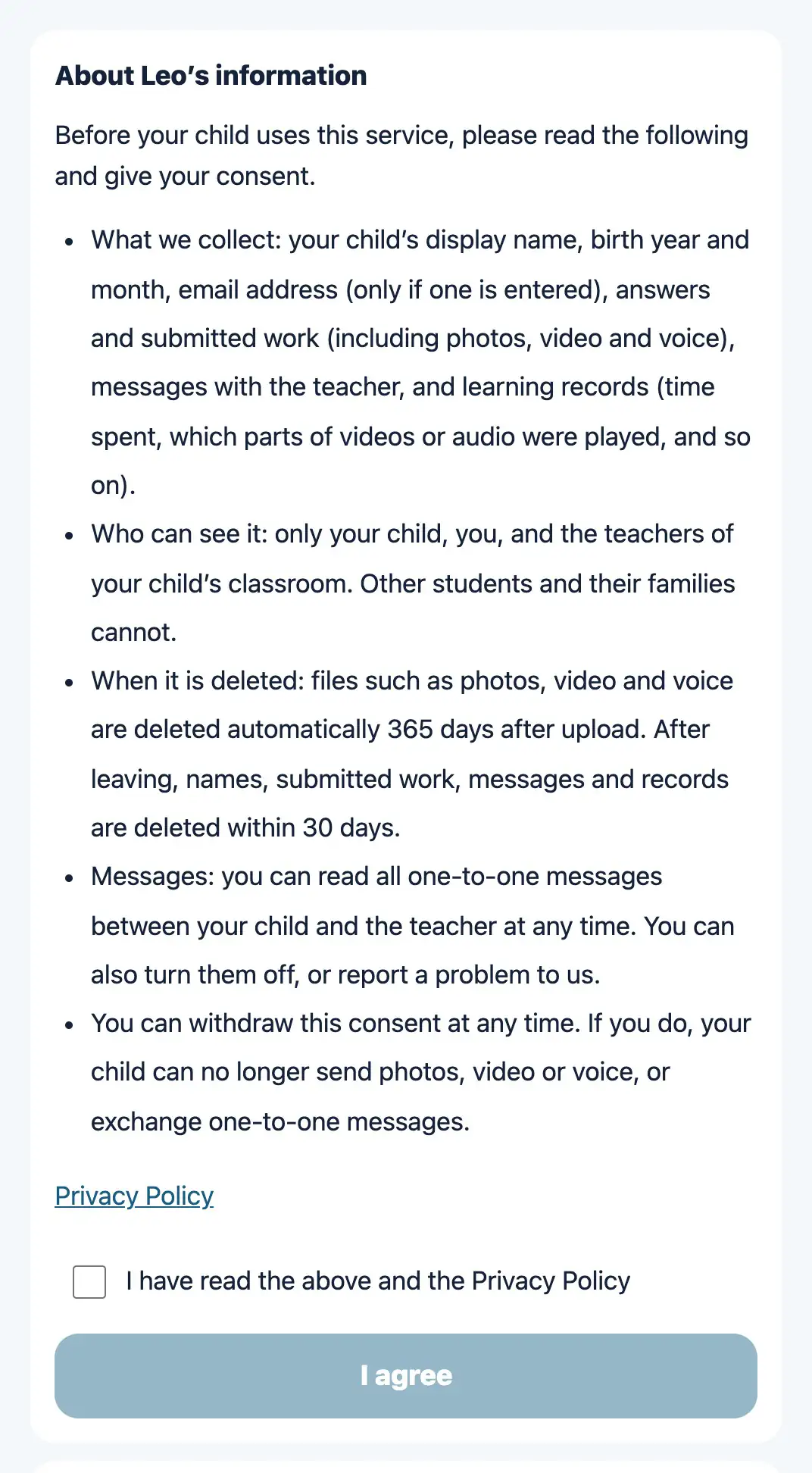
Consent to how information is handled
Web & appIf your child is under 16, we ask for guardian consent before they can hand in photos, video or voice, or start one-to-one messages with the teacher.
Your child’s information
- Who can see it
- Only your child, their guardians and the classroom’s teachers. Other students, their guardians and other classrooms can’t see it. However, if the teacher chooses, other students who did the same assignment can see only the word card nickname and time.
- What is collected
- Display name, grade, year and month of birth, ID within the classroom, email address (only if entered), answers and submissions, messages with the teacher, learning records, word card nickname and times, and a record of actions on screen (not including what is typed).
- What is not collected
- We don’t collect addresses, phone numbers, dates of birth or location.
- Storage and deletion
- Stored in Japan. Photos, videos, voice recordings and other files are automatically deleted 365 days after upload. Names, submissions, messages and records are deleted 30 days after withdrawal.
- Ads
- We show no ads and do not sell data. YouTube videos that teachers hand out may include YouTube ads.
- Guardian email addresses
- They do not appear on the teacher’s screen or in roster exports.
For details, see the Security page.
How updates reach you
- Right after a new assignment is handed out, and a daily summary (only on days with something to report). You can stop these two in “How you get updates” on screen or with the link in the email. If the classroom bills tuition through Aiyori, emails about bills, late payment and payment confirmation also arrive each time.
- App notifications
- New assignments, deadlines, work handed back, messages from the teacher, 30 and 10 minutes before lessons, schedule changes and bills.
- What notifications show
- Only your child’s display name and the assignment title. Message text, scores and amounts are not shown. You can also hide the name and title.
Devices
- Browser
- Use it in the browser on computers, Chromebooks, tablets and smartphones.
- iPhone and iPad app
- iOS and iPadOS 17.0 or later (App Store in Japan). The alarm 10 minutes before lessons, locking the guardian screen with Face ID and similar, and sharing one device between guardian and child are available only in the app.
- Android
- There is no dedicated app. Please use the browser.
- Language
- Each person can choose from eight languages. Guardian and child can use different languages.
Leaving
- To leave the classroom, you can press “Withdraw this child” on the guardian screen. Submissions, messages, learning records and the name are deleted after 30 days.
- You can delete your guardian account yourself after confirming with a code sent to your email.
FAQ for families
Is there a fee for guardians?
It is free for guardians. The classroom pays Aiyori’s usage fee. You pay tuition to the classroom, in the amount the classroom sets.
Is there a password?
No. You log in with a 6-digit code sent to your email address.
Can guardians write in messages with the teacher?
No. You can read the messages between the teacher and your child, and stop them. What guardians can answer are “Choose” and “Survey” items addressed to guardians.
Can the guardian screen be used on Android?
Yes, in the browser. There is no dedicated app.
Can I withdraw consent later?
Yes. You can withdraw it later from the guardian screen on the web (the iPhone and iPad app has no option to withdraw).
If I forget to pay tuition, does it stop right away?
Nothing stops automatically. After the due date, you are reminded up to 3 times, and the teacher decides what to do.
Is there a guardian screen for classes for adults or workplace training?
No. Only classrooms for children have a guardian screen.
Who should I contact?
For classroom matters such as tuition amounts or schedules, please ask the teacher. Once you are connected to your child, app problems and feedback can be sent from “Feedback” on the screen. Anything troubling or upsetting can be sent from “Report a problem to Aiyori” on the assignment or message screen (the teacher is not told).