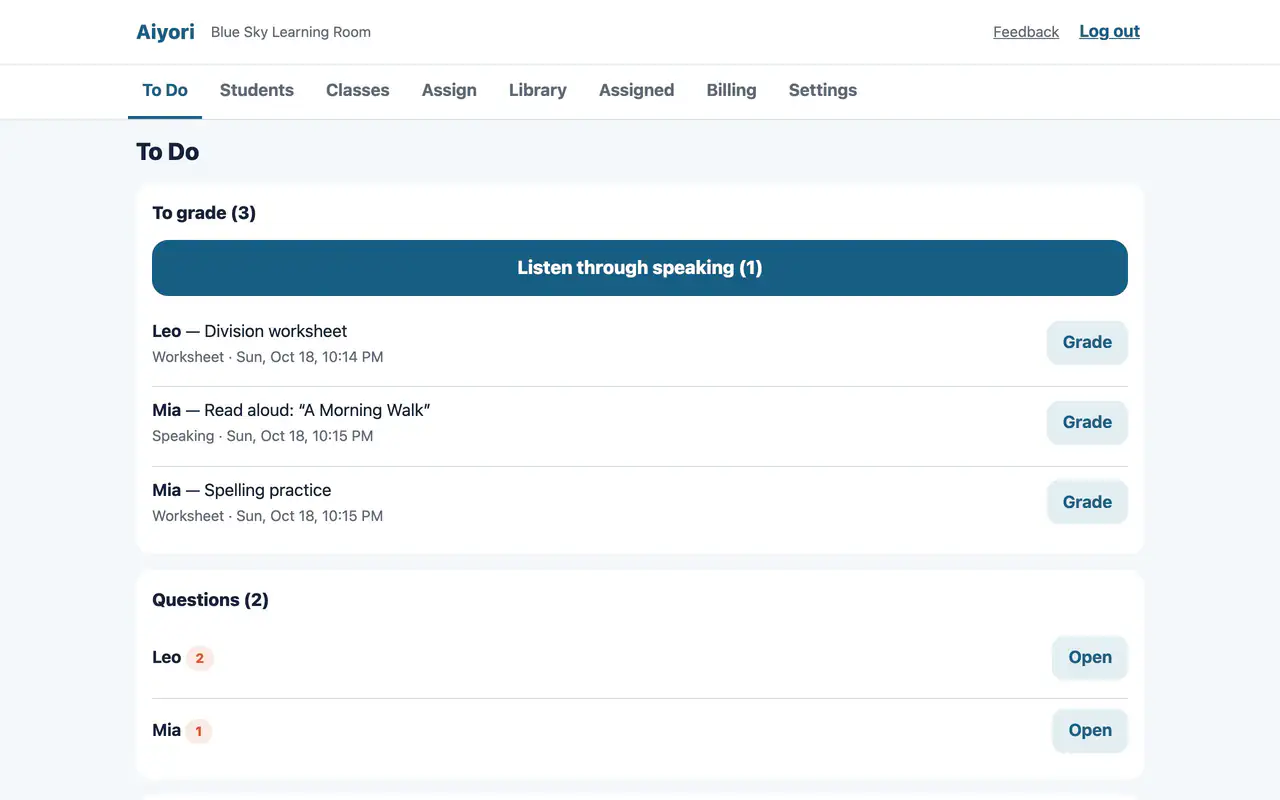
To Do
Web & appWork to grade, questions from students, quiz results, payments to review and today’s live lessons sit on one screen, each with a count. Clear them from the top and the day’s work is done.

All Features
Everything Aiyori can do, in one list.
It is split into six parts: teachers, students, guardians, adult classes, workplace training and everyone. All 112 features are shown with the real screens.
The screens are real (the content is demo data). “App” means the iPhone and iPad app, available on the App Store. For the steps, see the User guide.
Hand out. Receive. Return. A teacher’s work comes together in one list.
Work to grade, questions from students, quiz results, payments to review and today’s live lessons sit on one screen, each with a count. Clear them from the top and the day’s work is done.
Shows the time of today’s lessons and how many students they are for. On the web, you can join a lesson or copy its link from here.
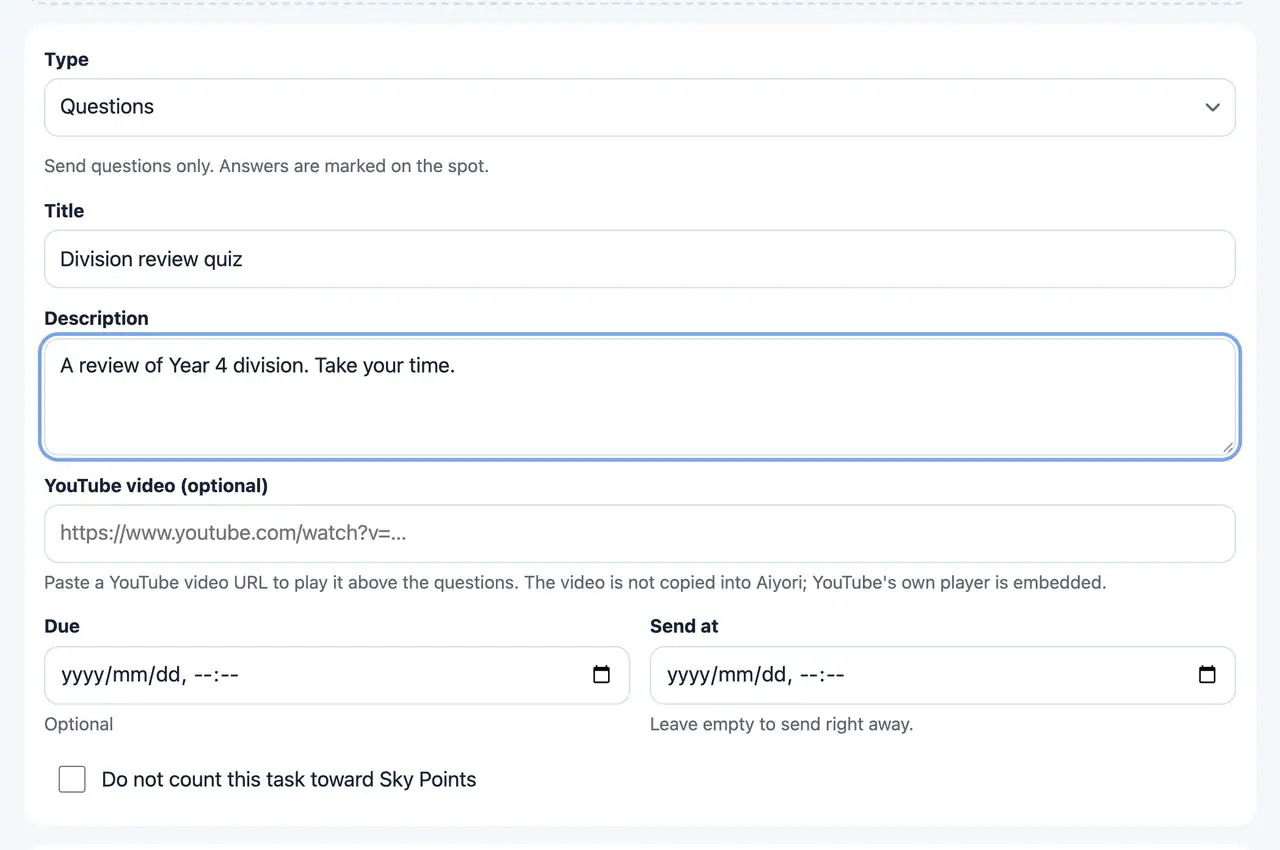
Choose from 11 types: Questions, Video, Speaking, Word cards, Worksheet, Link, Live lesson, Notice, Choose, Survey and From the teacher.
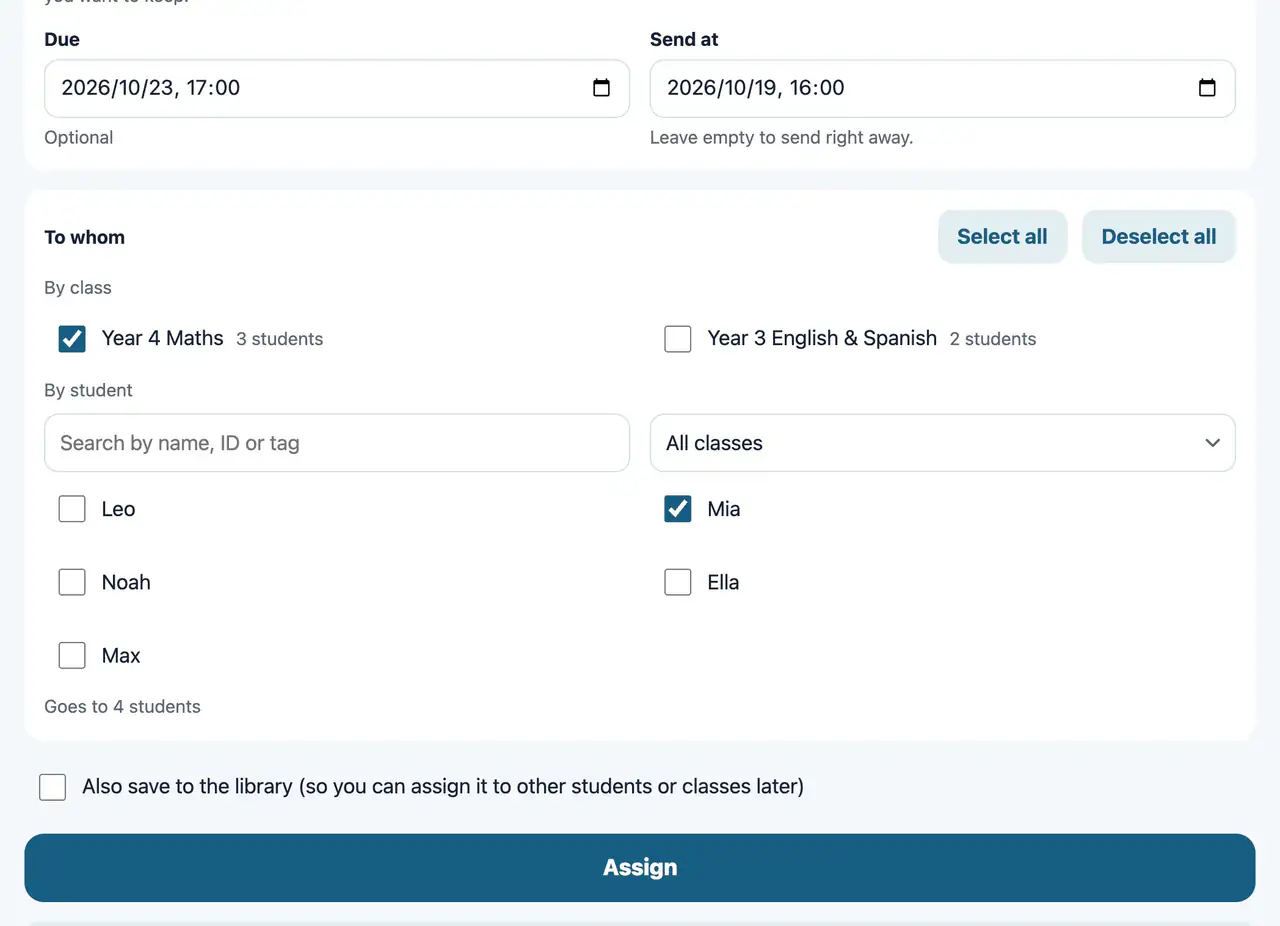
Choose a class or individual students. You can combine both. With many students, you can search by name, ID or tag, filter by class, or select everyone with a tag at once. Set a date and time, and it goes out by itself at that time. You can also set a due date.
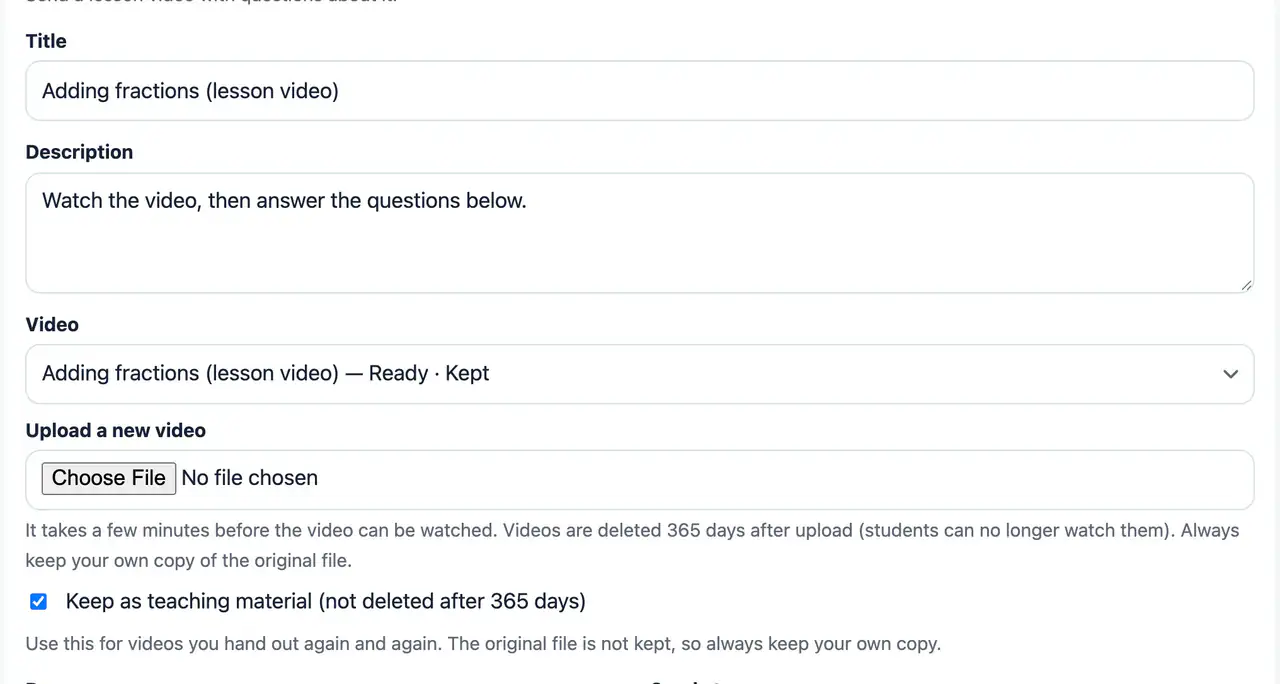
Hand out a lesson video together with questions about it. Choose a video you uploaded before, or upload a new one.
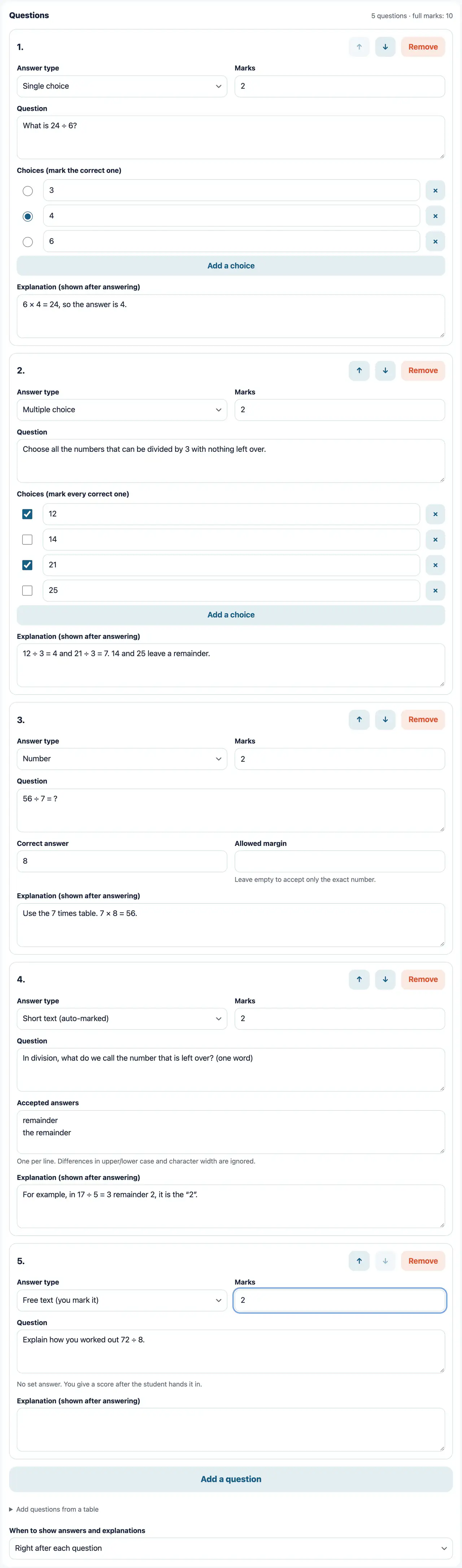
There are five answer types: single choice, multiple choice, number, short text and free text. You can set marks and add an explanation. Choice, number and short-text questions are graded automatically. You can also attach a YouTube video, so students answer while they watch.
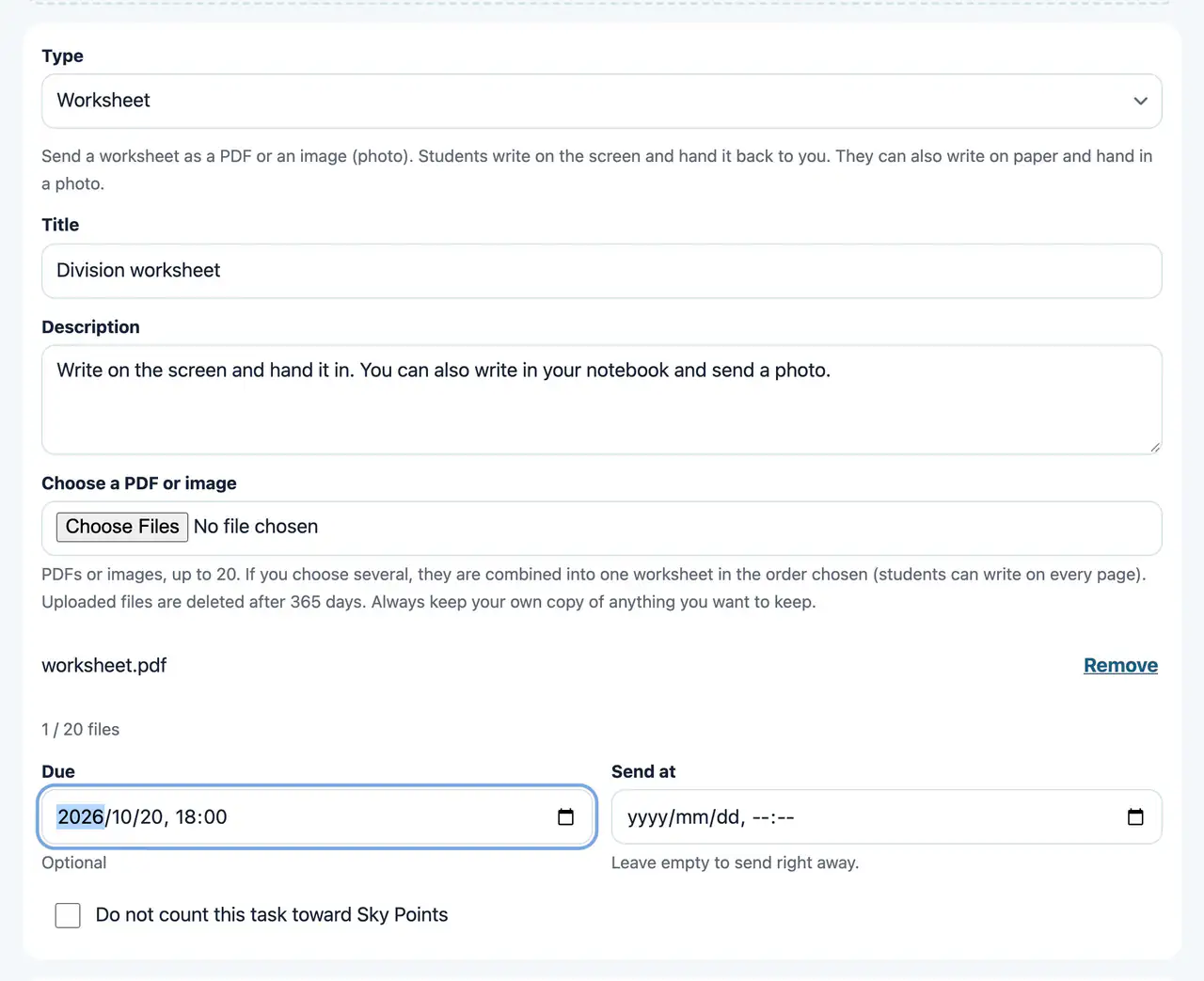
Hand out a PDF worksheet. Students write on the screen, or write on paper and hand in a photo.
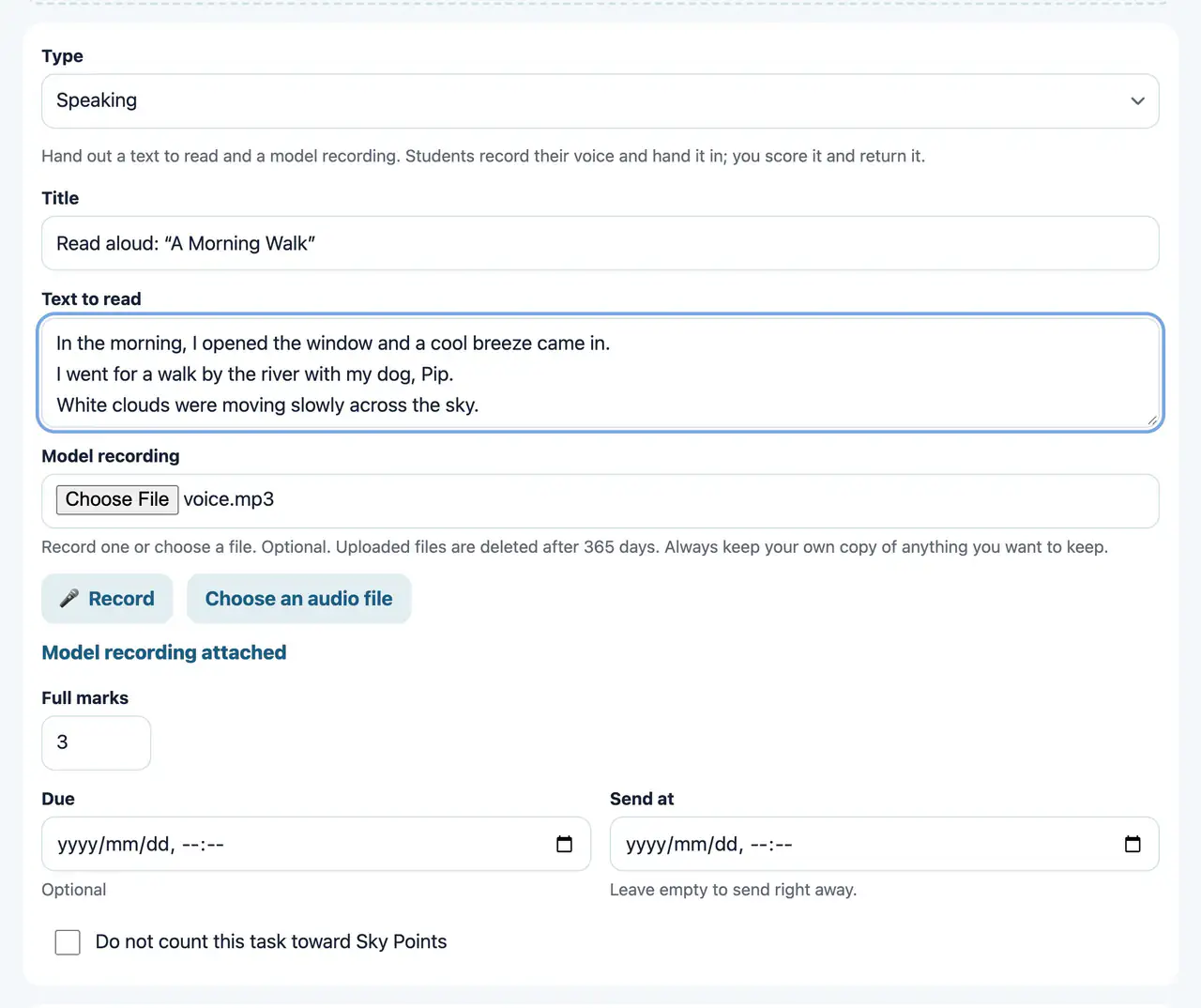
Hand out a text to read and a model recording. The student records their voice and hands it in. The teacher scores it and returns it.
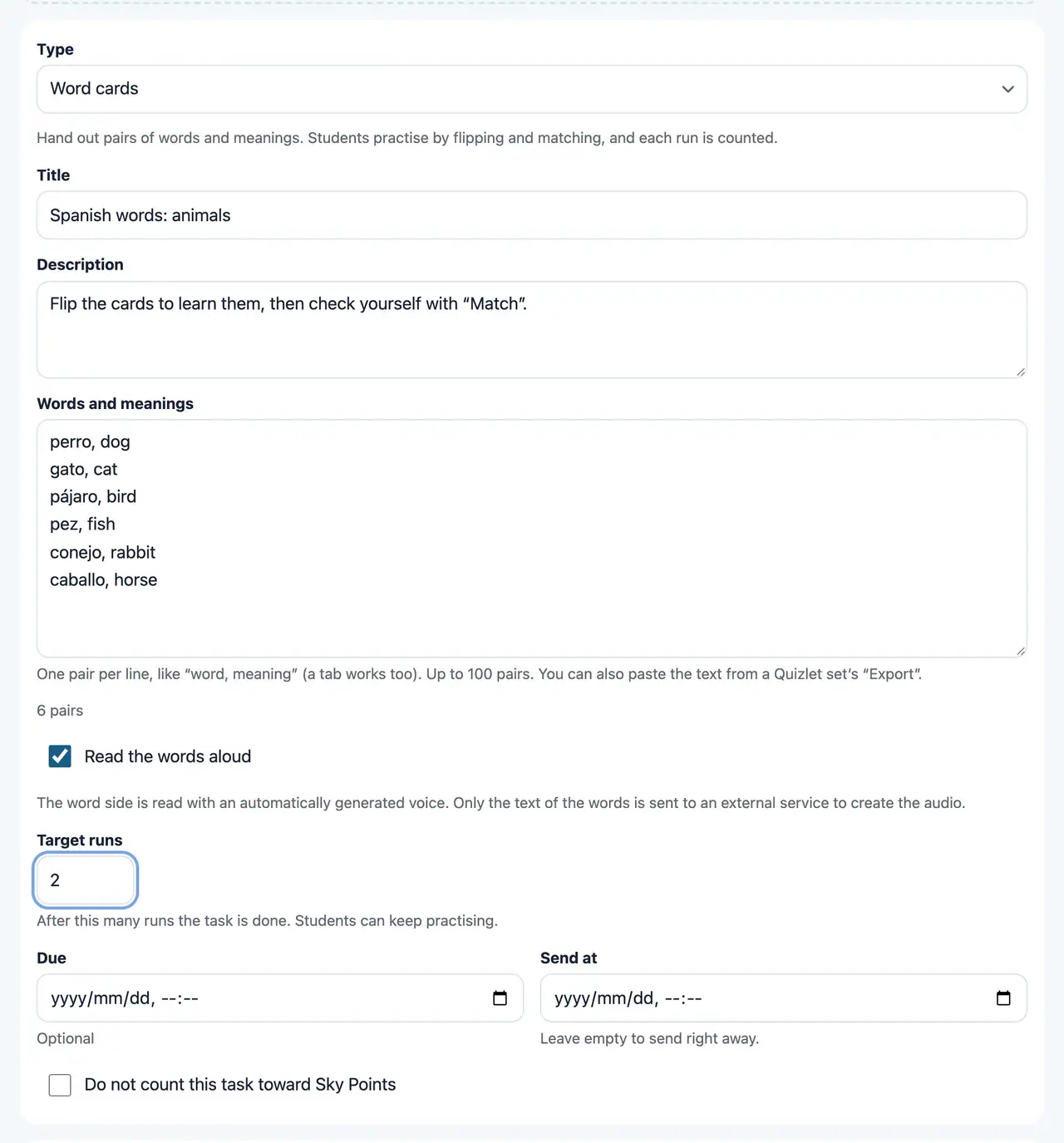
Hand out pairs of words and meanings. Students practise by flipping and matching. The words are read aloud by an automatic voice, and each run is counted.
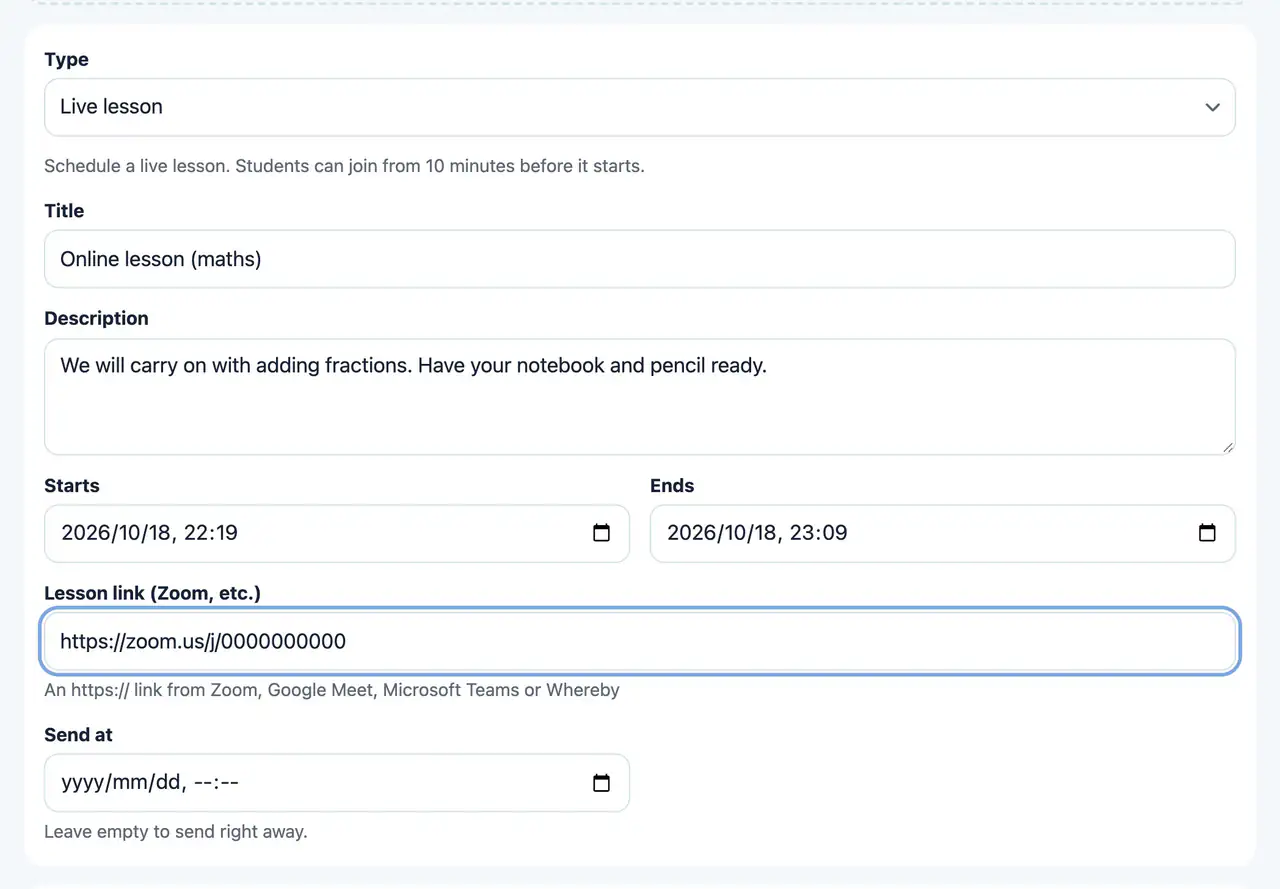
Hand out the start and end times of a lesson and its Zoom or Google Meet link. It appears in the student’s “Do now”, and they can join from 10 minutes before the start.
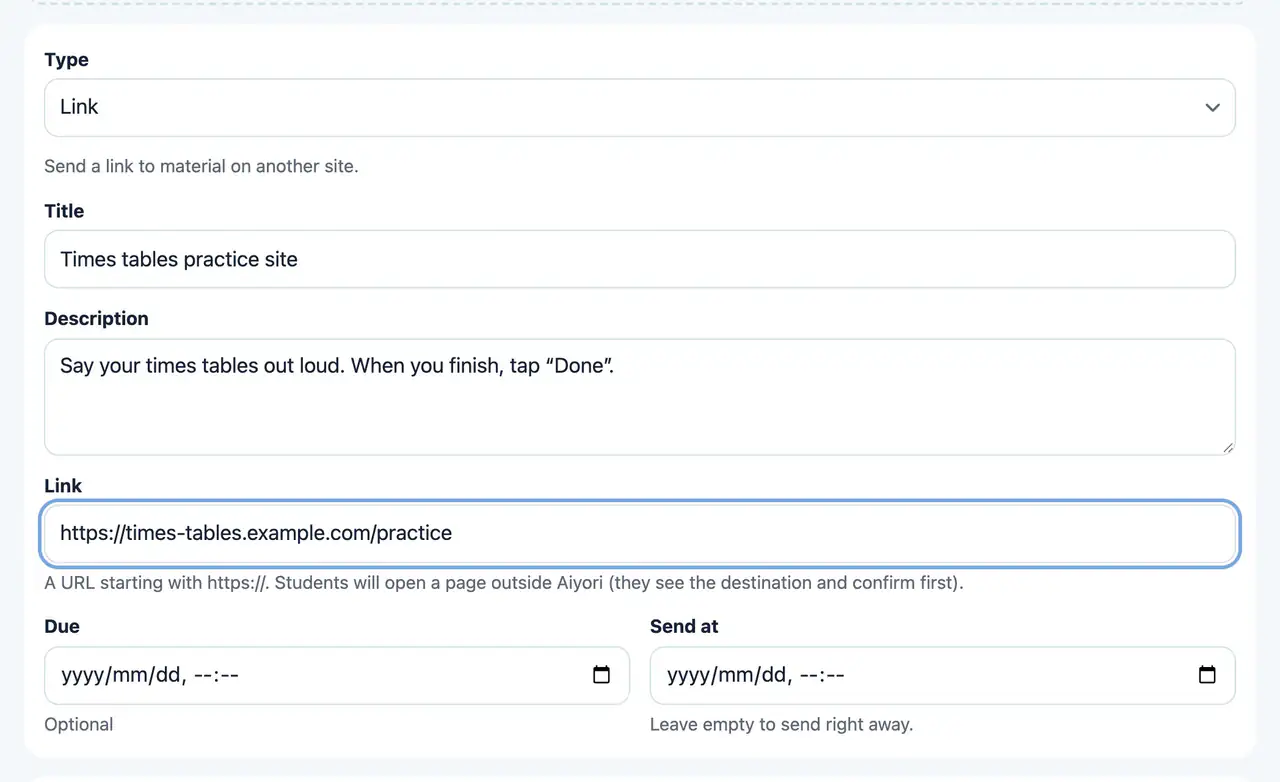
Hand out a link to material on another site. Before it opens, the student sees a screen that confirms where it goes. If the link is a YouTube video, students can play it inside Aiyori.
Hand out a message with attachments (PDFs and images). It is complete when the student taps “Read it”, and you can see who has read it.
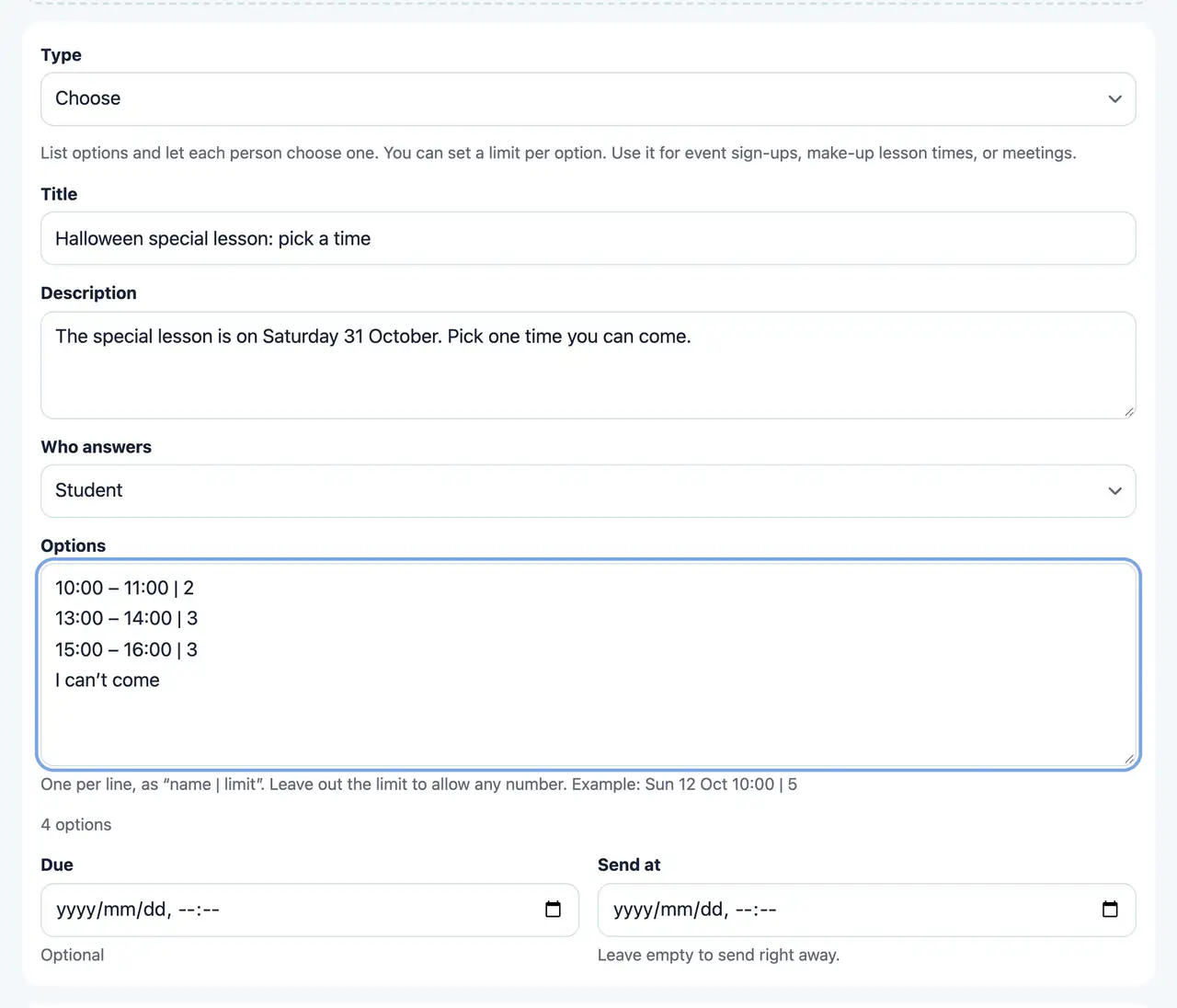
List options and let each person choose one. You can set a limit per option, so it works for meeting dates, make-up lesson times and event sign-ups. Choose whether the student or the guardian answers.
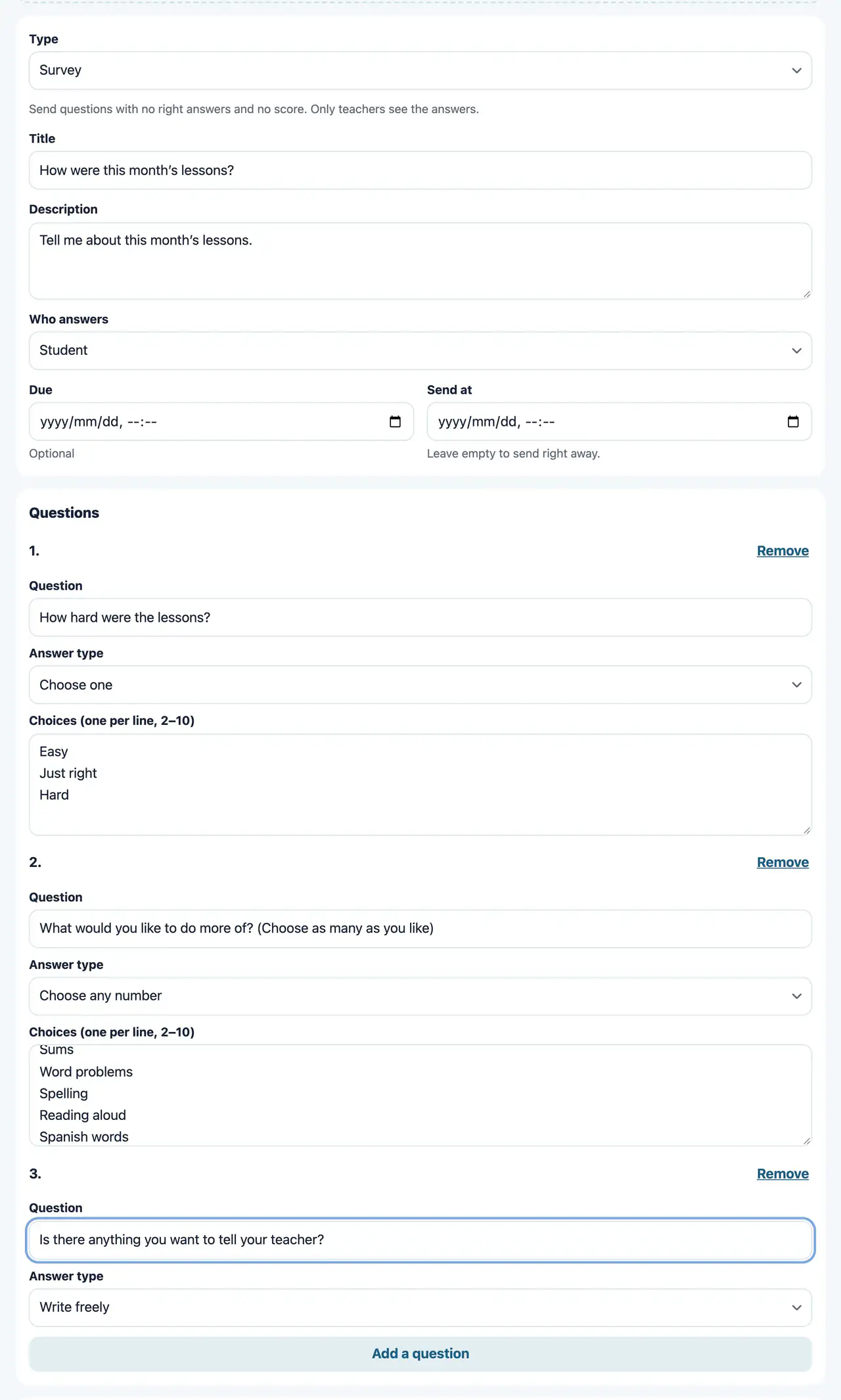
Hand out questions with no correct answers and no scores. Only the teacher sees the answers. You can also send it to guardians.
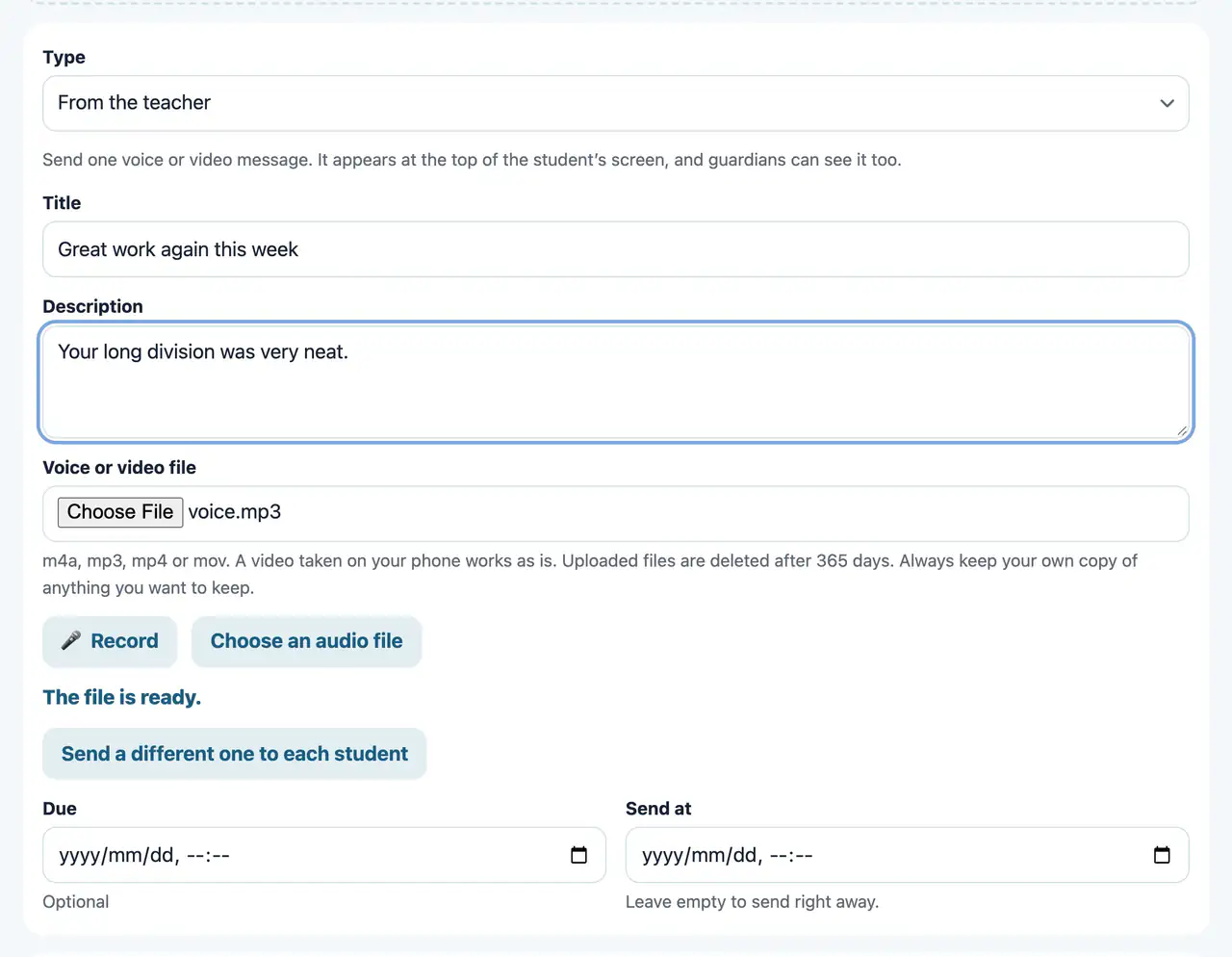
Send one voice or video message from the teacher. It appears large at the top of the student’s “Do now”, and guardians can see it too.
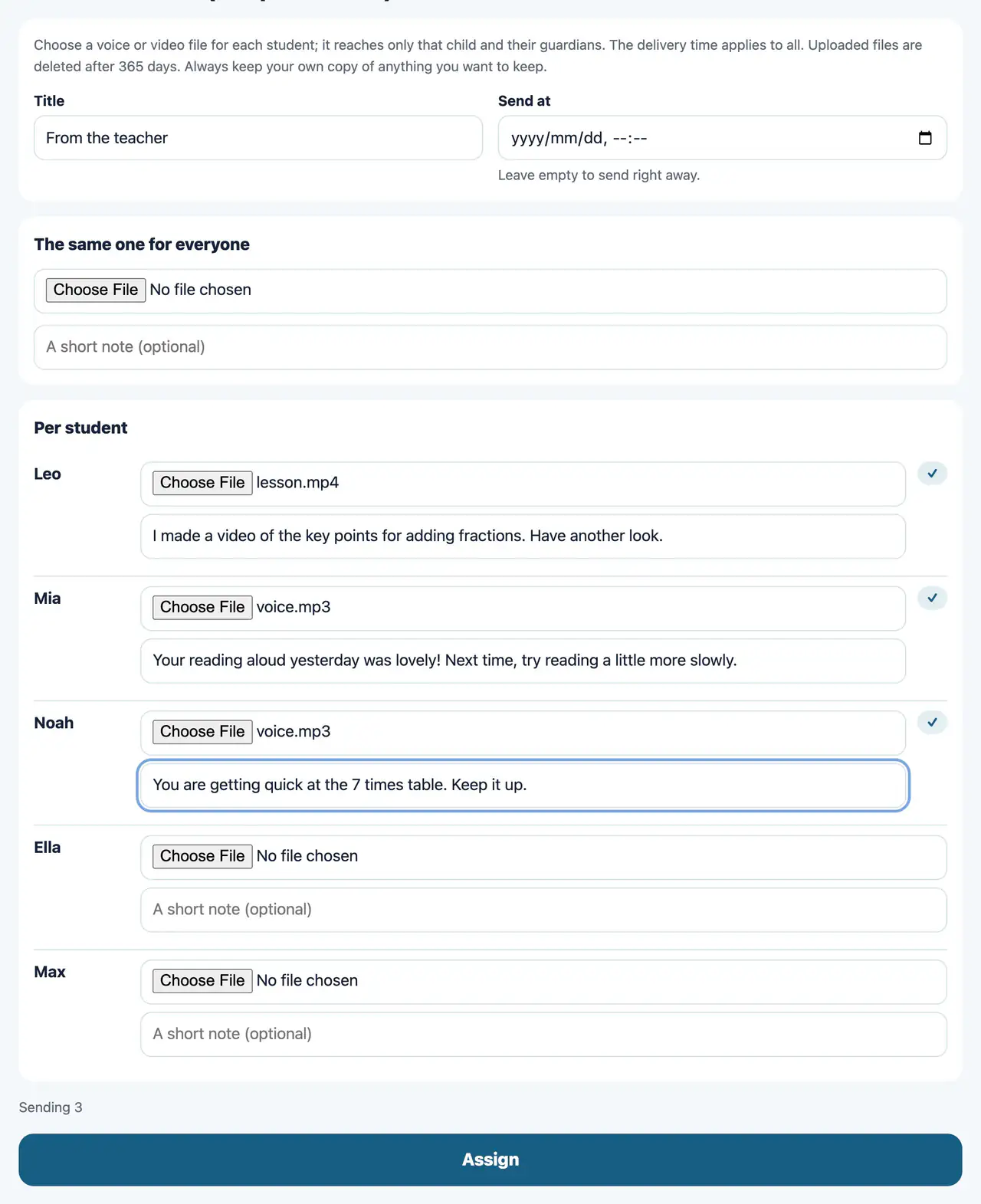
Send each student a different voice message and note, all from one screen. You can also attach one message that is the same for everyone.
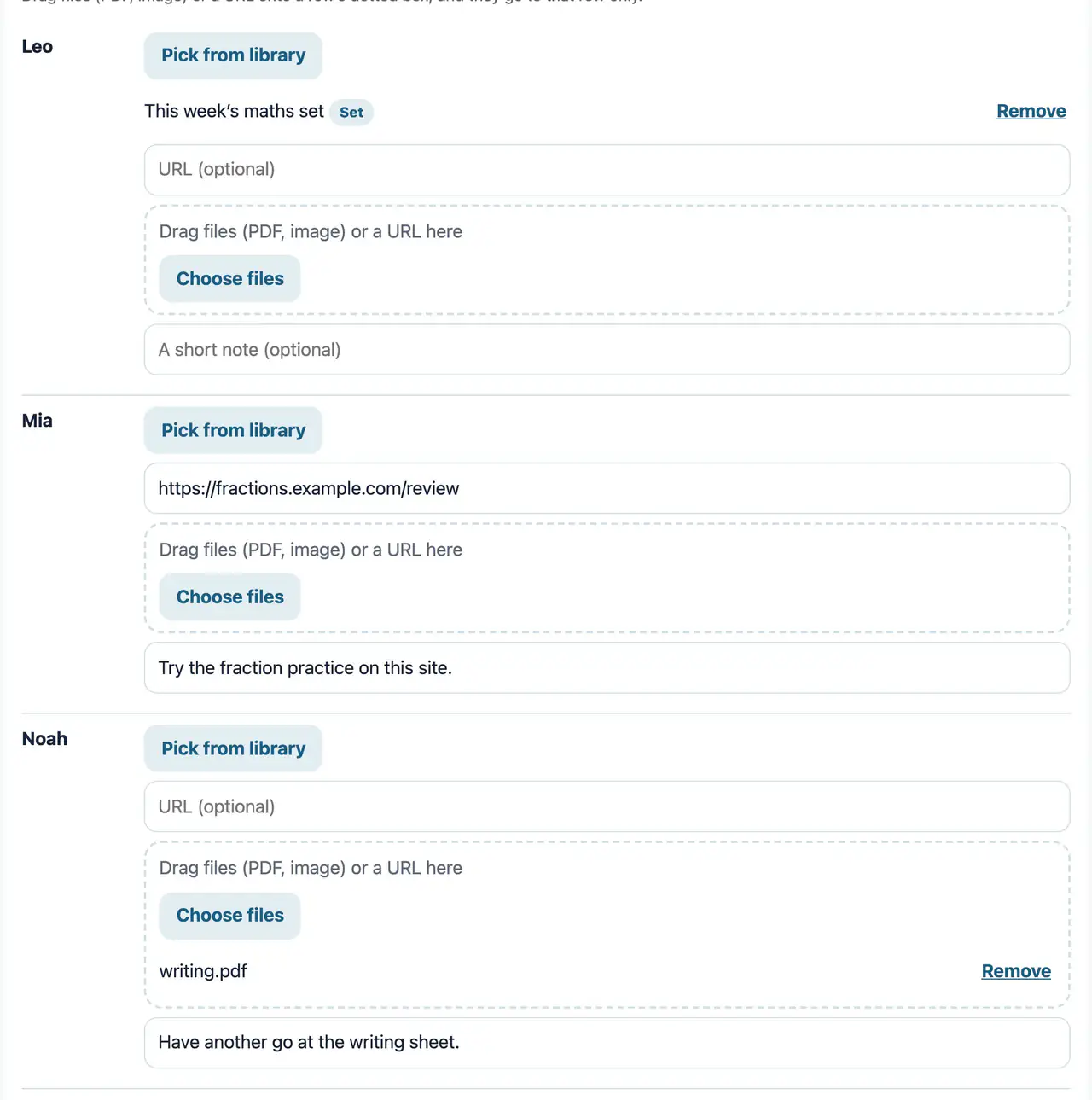
In a table with one row per student, hand out a different assignment to each student at once. Each row can take materials or sets from the library, a URL, files (PDF or images) and a short message. You can paste rows from a spreadsheet, or drag files and URLs onto a row.
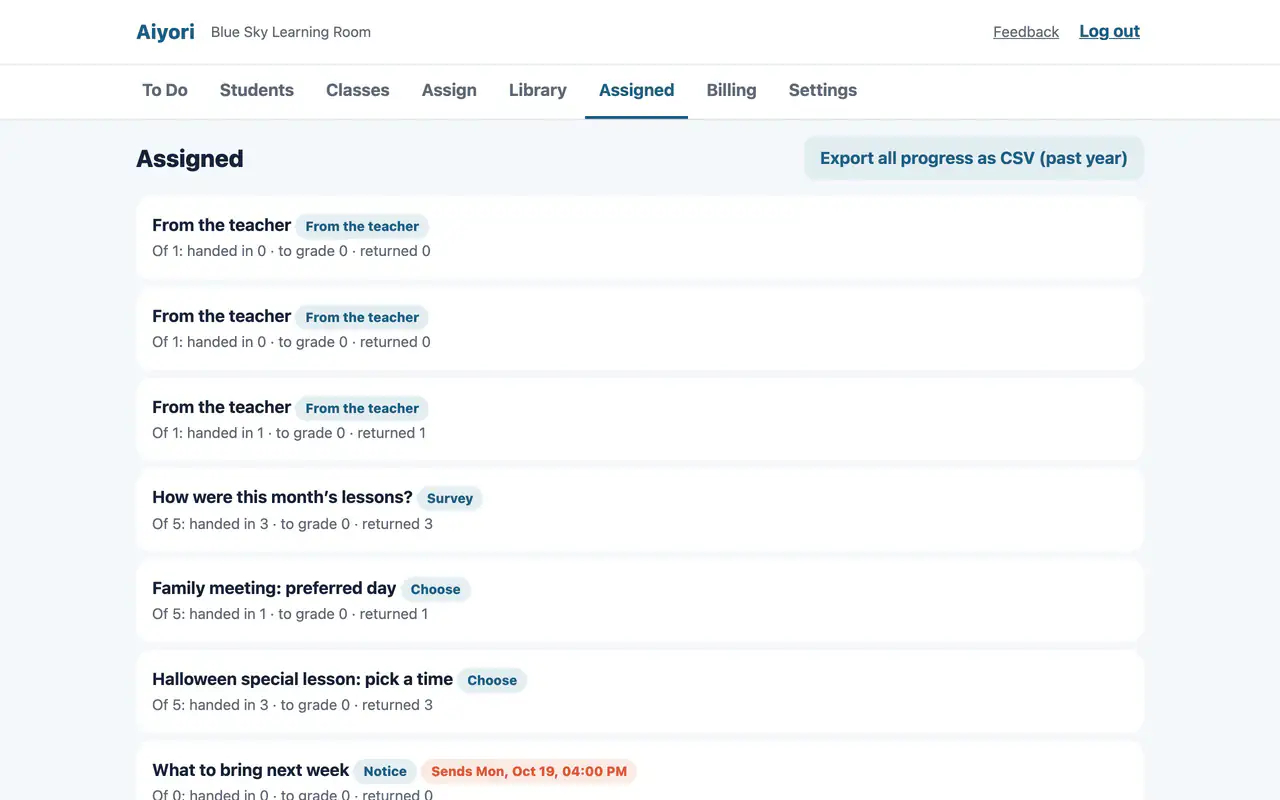
Everything you handed out is listed. Each row shows, out of the total, how many have handed in, how many are to grade and how many have been returned. Scheduled items show the date and time they go out.
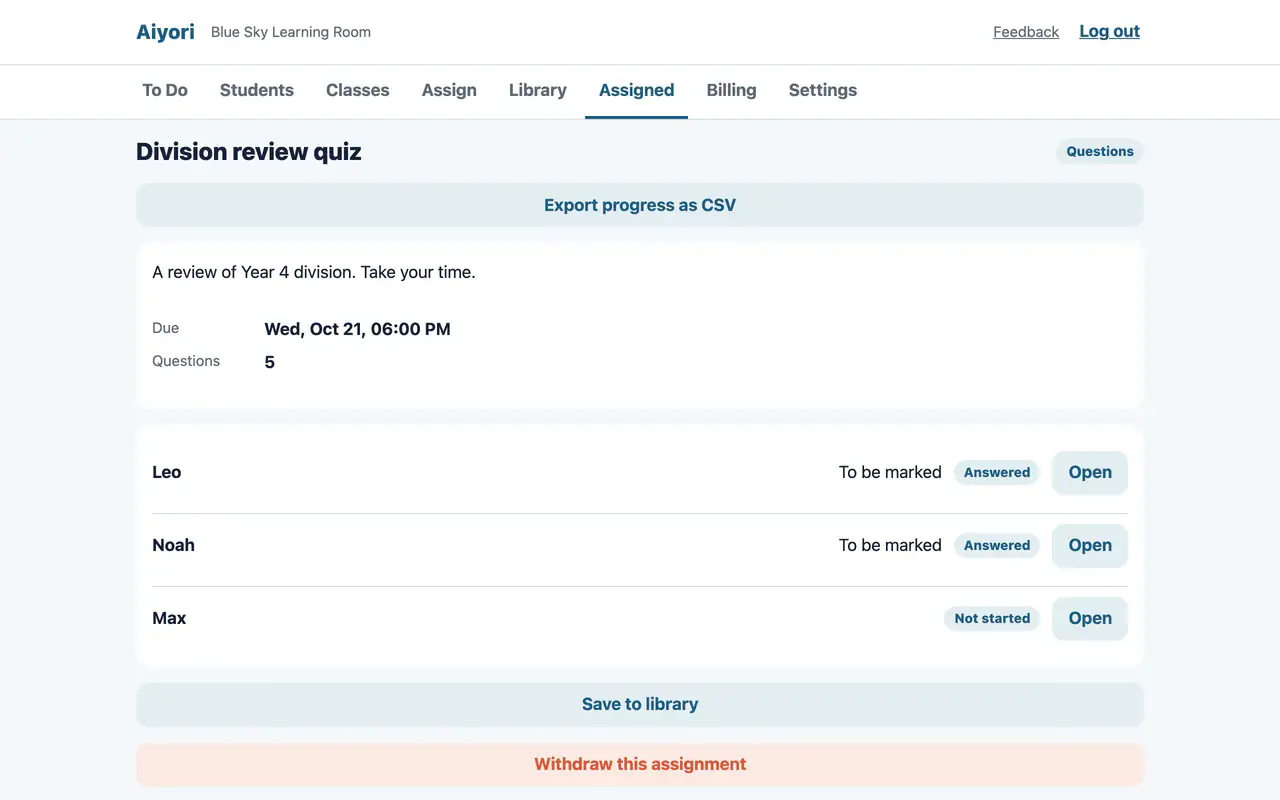
Lists each student’s status (Not started, Opened, In progress, Handed in, Graded, Returned), their score and how much of the video they played.
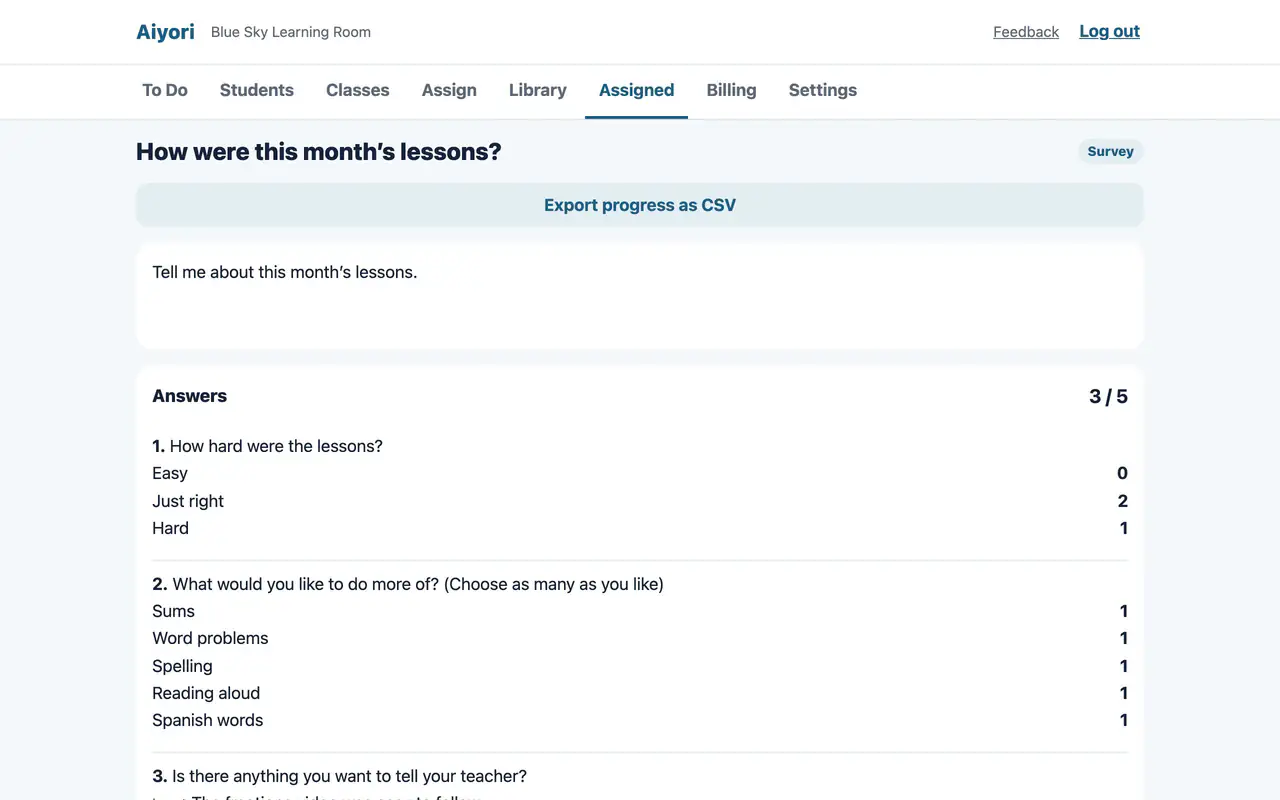
For “Choose”, see the names and the count for each option. For a survey, see the count for each choice and the written answers. You can also see who has not answered yet.
Remove something you handed out by mistake from the students’ screens.
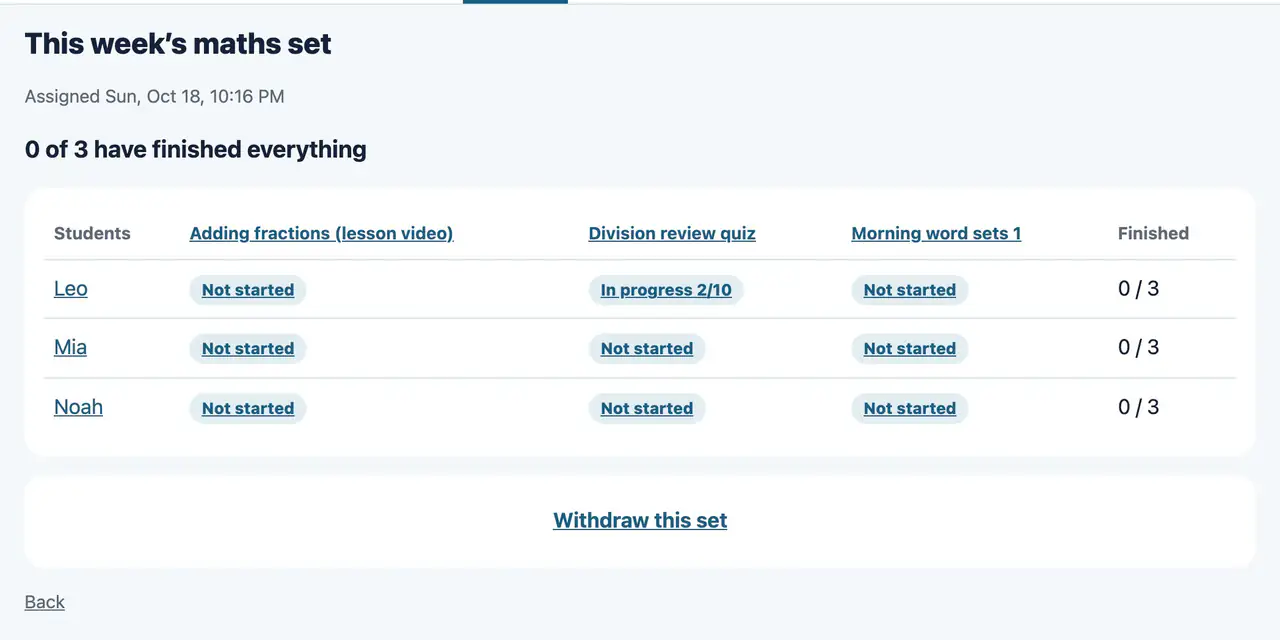
For each group a set was handed out to, shows how many items in the set each student has finished, and how many have finished all of them.
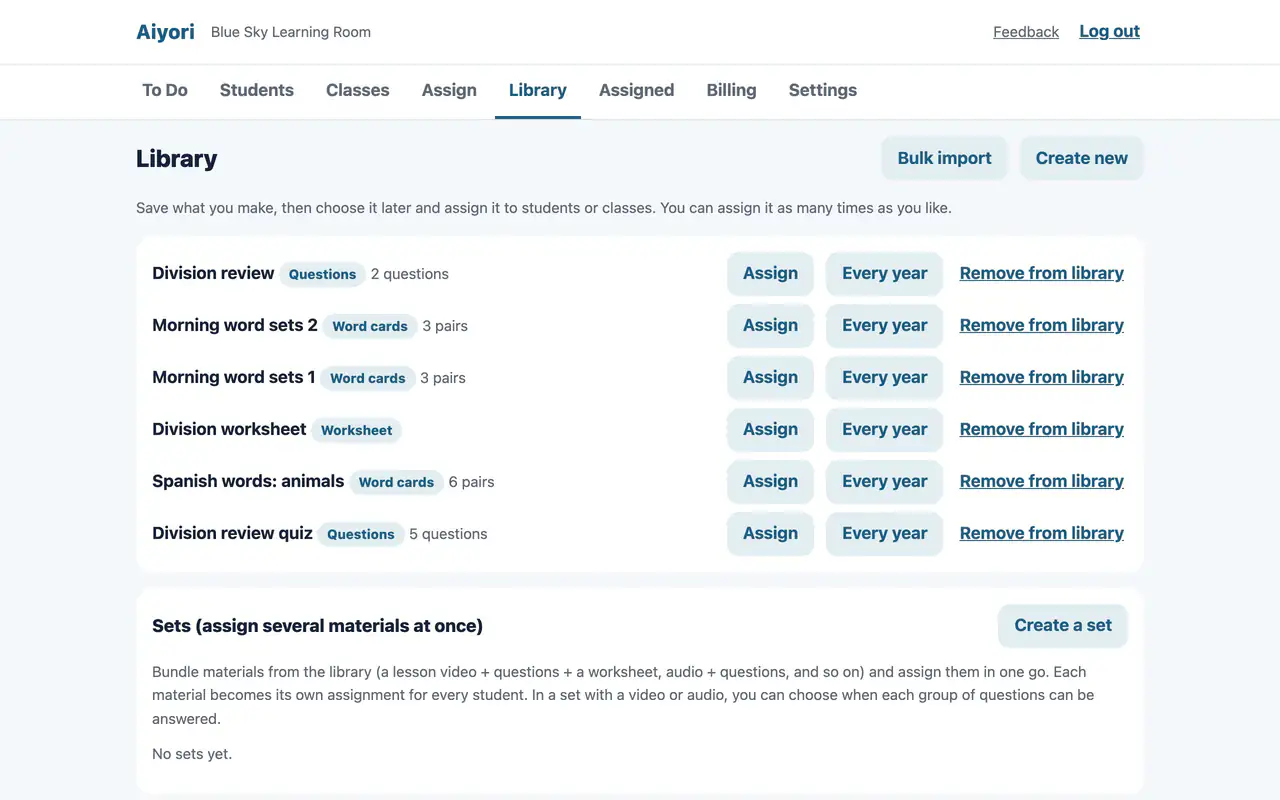
Keep the materials you make in the library, then pick them later and hand them out to students or classes as often as you like. Everything you can hand out, except live lessons, can go in. Only teachers see the library; students receive only what you hand out.
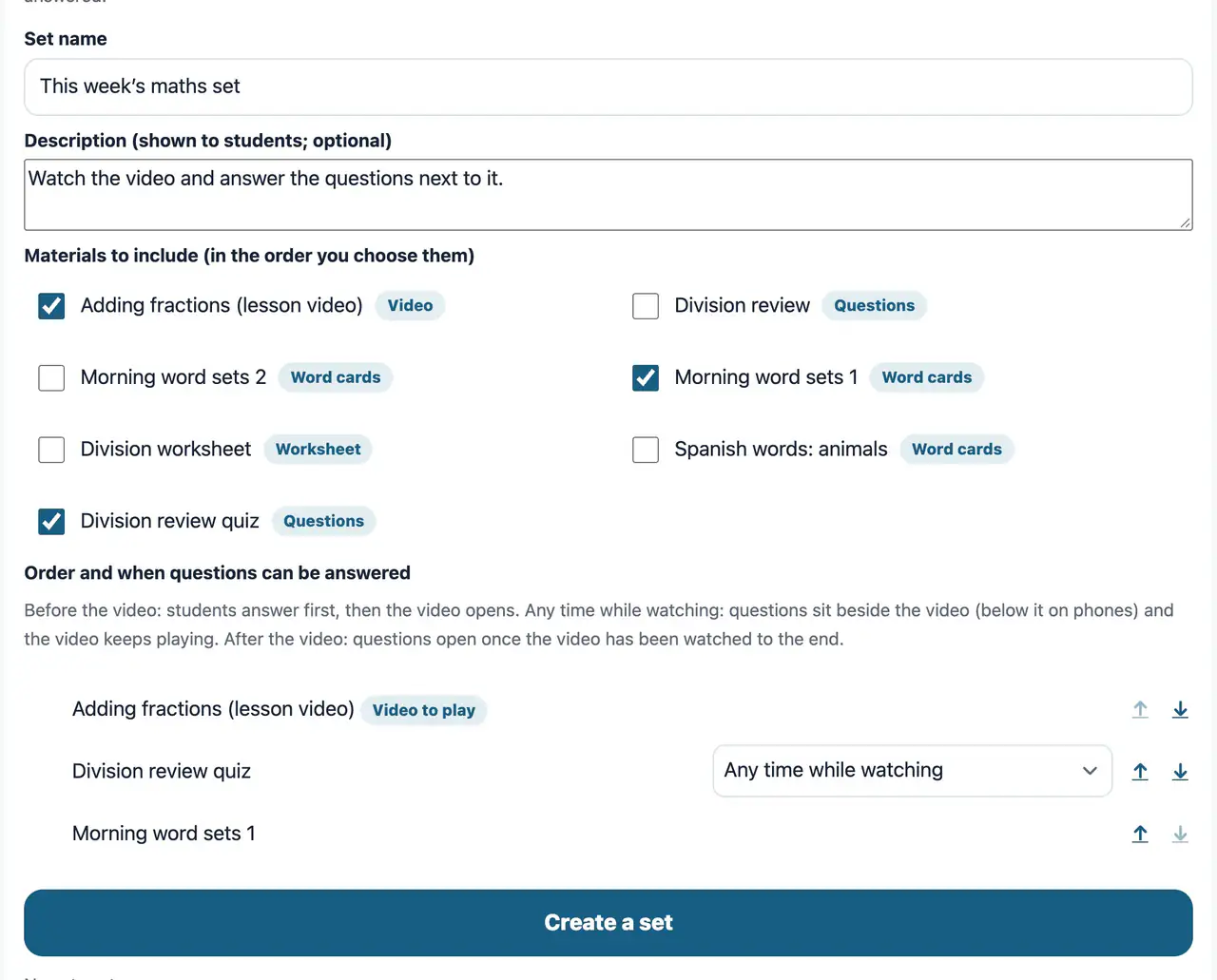
Bundle materials from the library (a lesson video with questions and word cards, audio with questions, and so on) and hand them out at once. On the student’s screen they appear as one group. In a set with a video or audio, choose for each question when it can be answered: before the video, at any time while watching, or after.
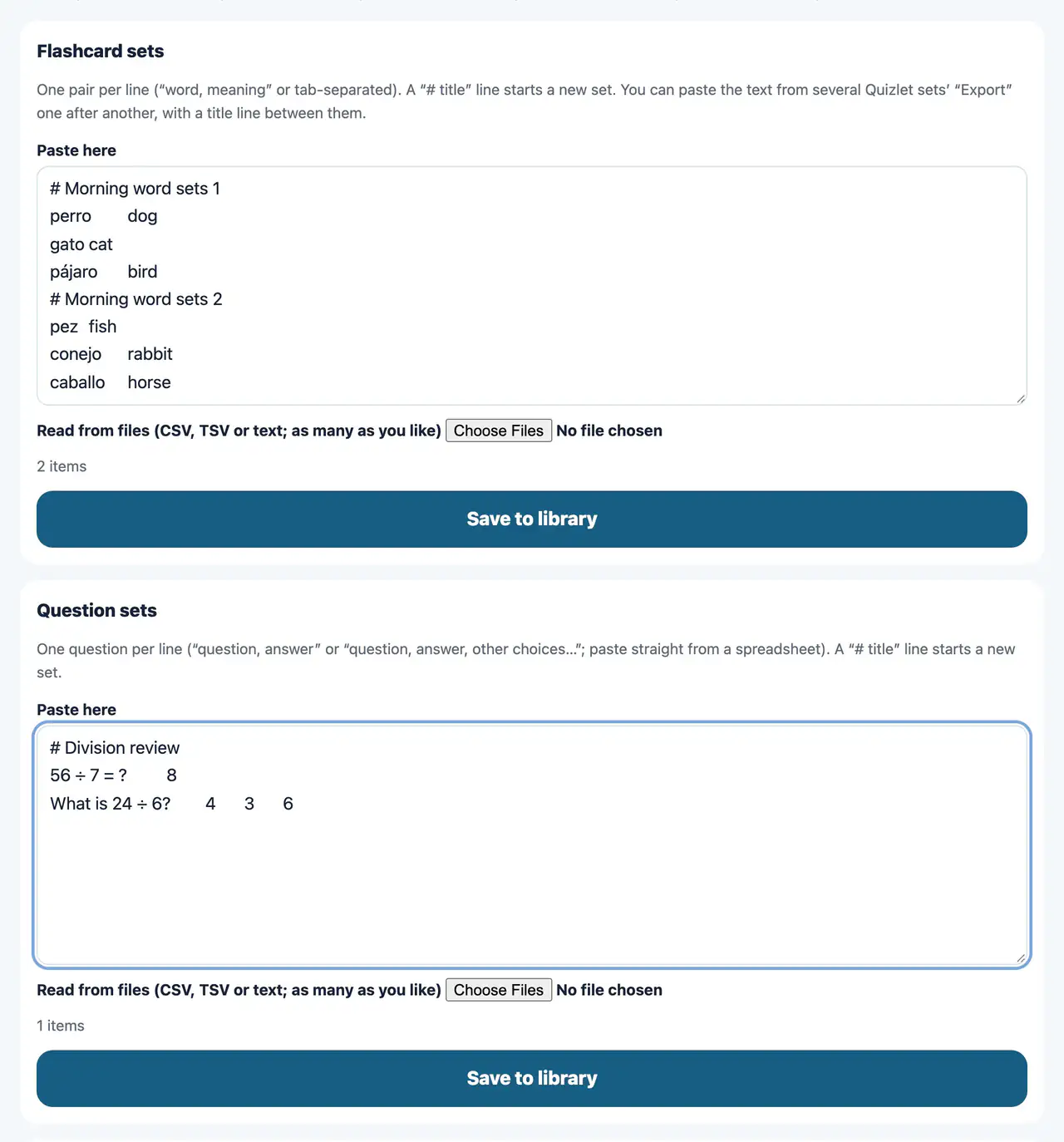
Put word lists such as Quizlet sets, question tables from a spreadsheet, and PDF, image and video files into the library in one go. You can also export the library to a single file and import it in another classroom.
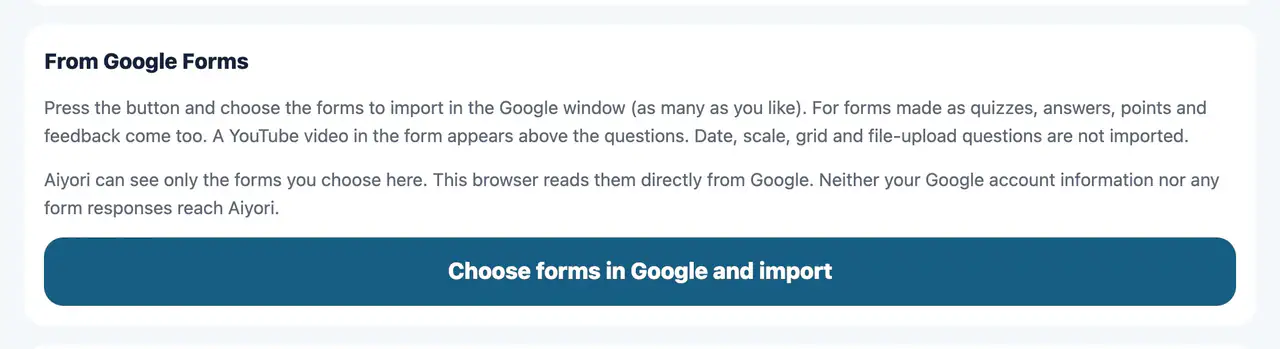
Choose forms you made in Google Forms, and their questions go into the library. If the form was made as a quiz, the answers, marks and explanations come with it. YouTube videos in the form appear above the question.
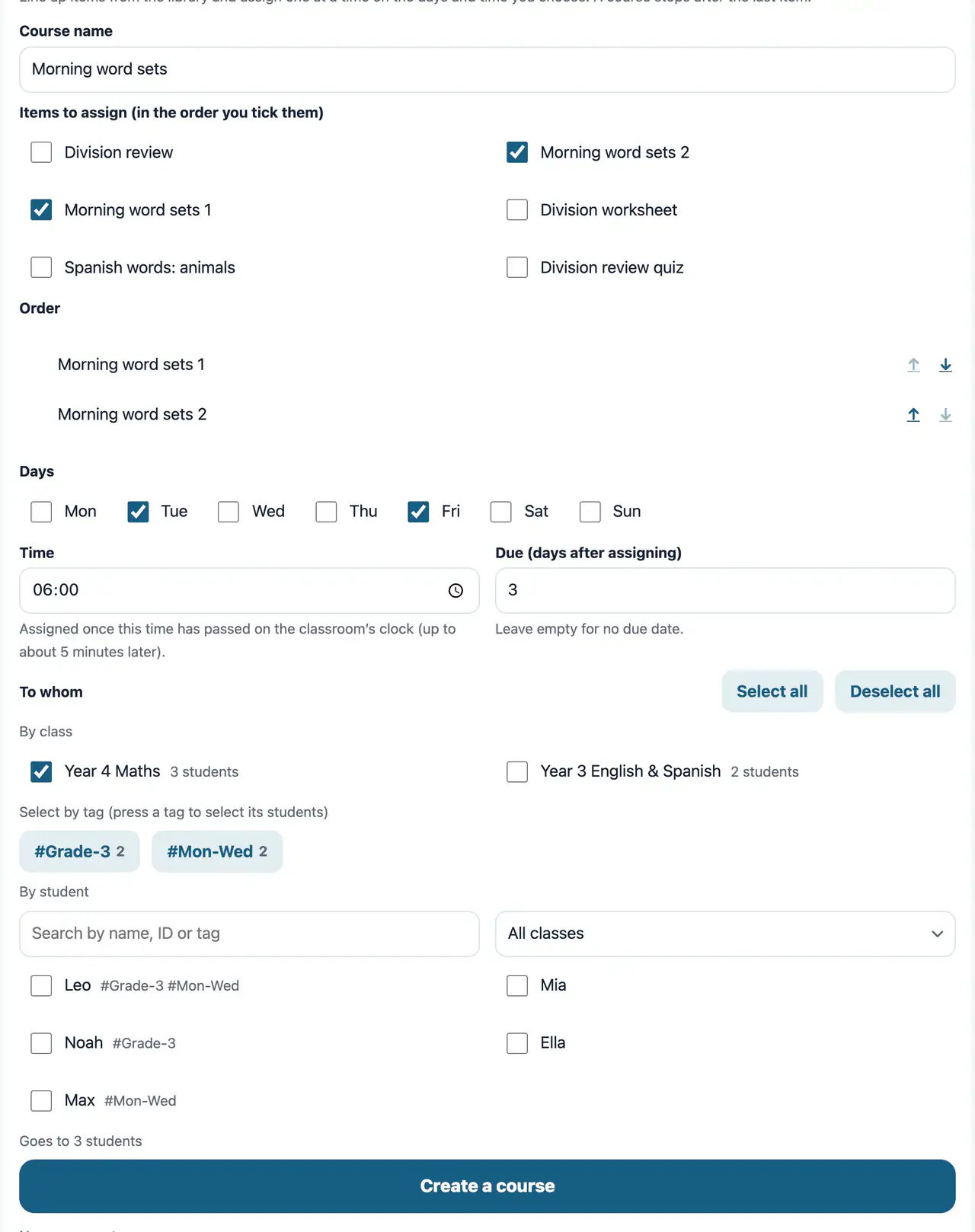
Put library materials in order, and they are handed out one at a time, by themselves, on the days and at the time you set — for example, one word list every Monday and Thursday. When everything has been handed out, the course stops.
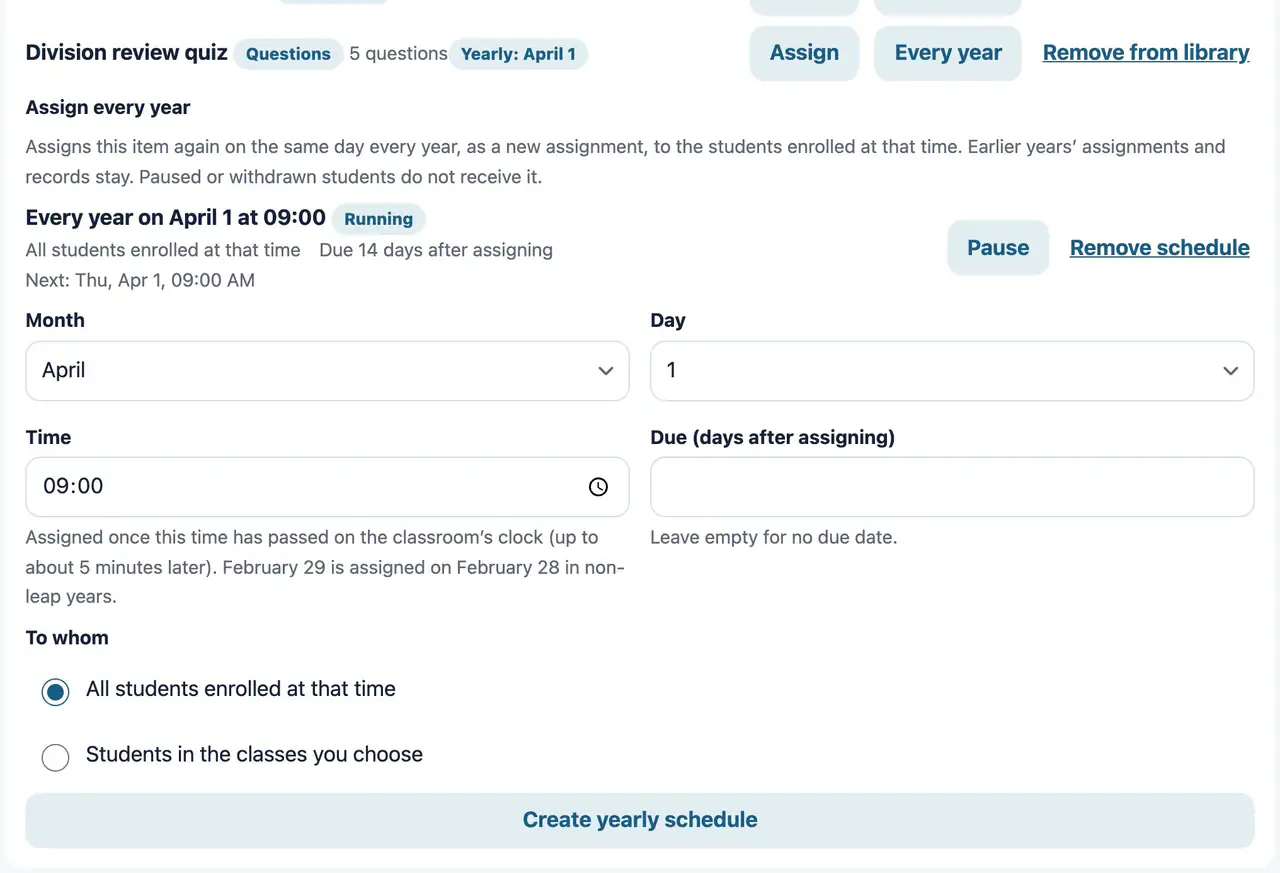
Hand out a library material again on the same date every year, to the students enrolled at that time. What was handed out in earlier years, and its records, stay.
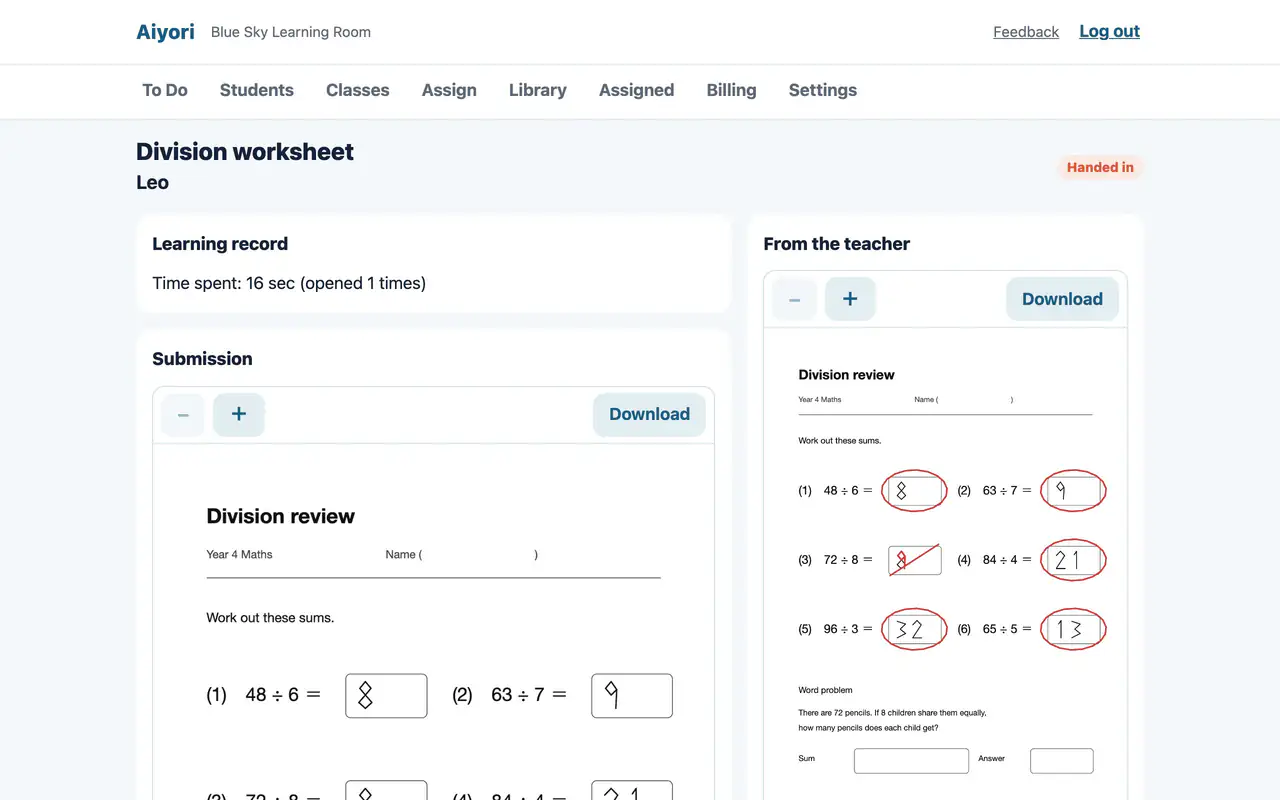
Look at the submission, add a score and a comment, and return it. Returned work appears under the student’s “Returned” and also reaches guardians.
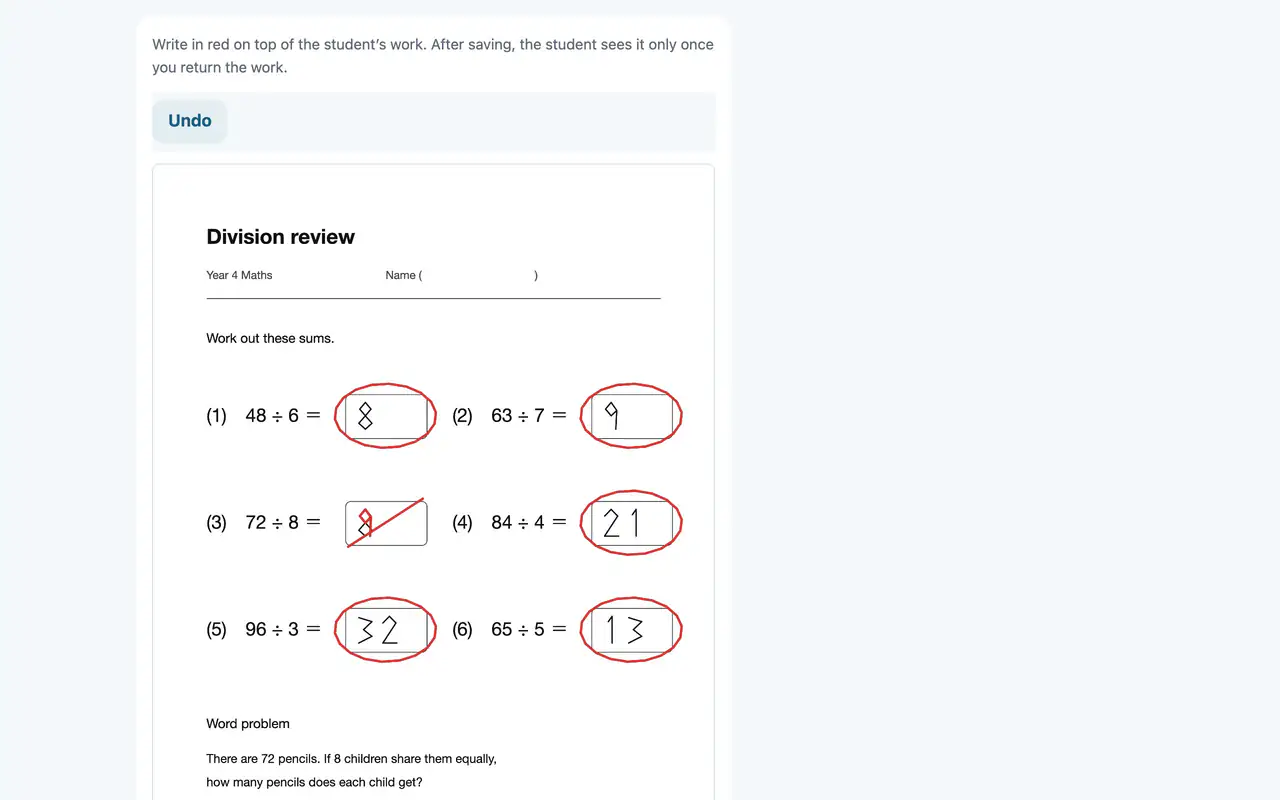
Write in red directly on the worksheet the student handed in. On iPad, you can write with Apple Pencil.
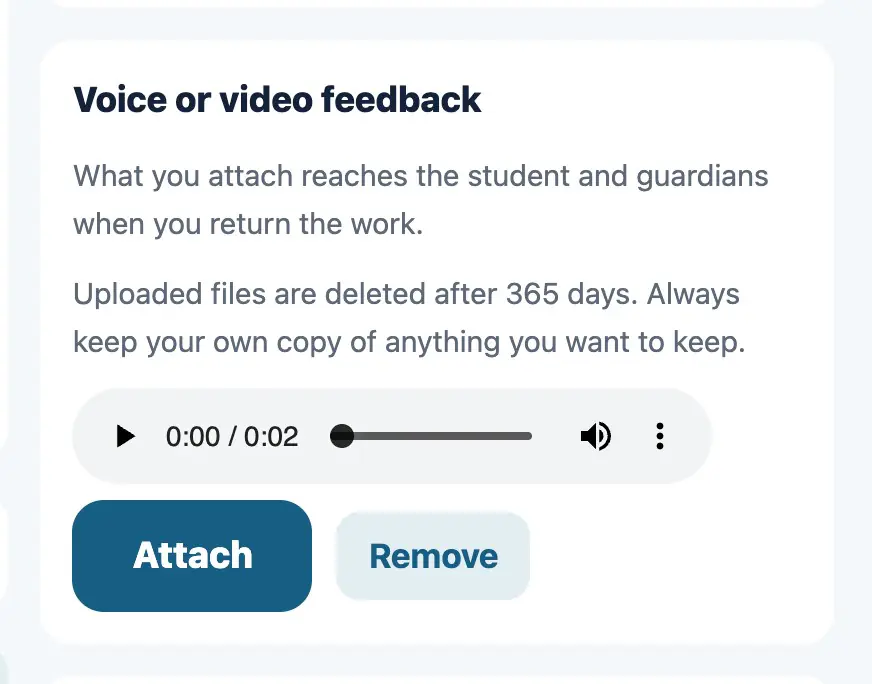
Attach a voice or video message when you return work. Pronunciation and ways of thinking that are hard to put in writing reach the student as they are.
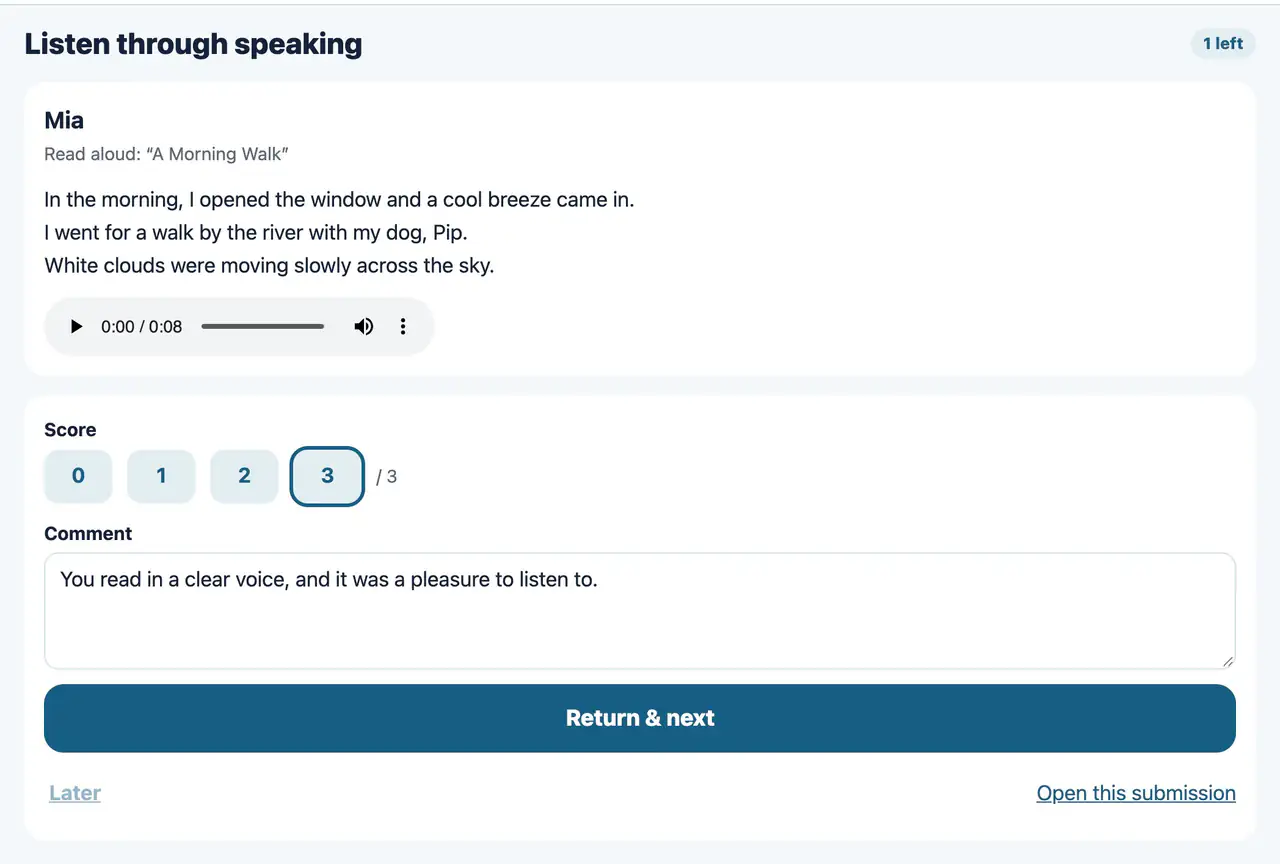
Listen to the speaking recordings handed in, one student after another, without leaving the screen. Return one with a score and a comment, and the next student’s recording comes up.
Choice, number and short-text questions are graded the moment the student answers. The teacher’s screen shows the answer to each question, whether it was right, and the time taken.
Read the written answers one by one and give each a score within its marks.
Use this when you want the work handed in again. The student can then hand in the same assignment once more.
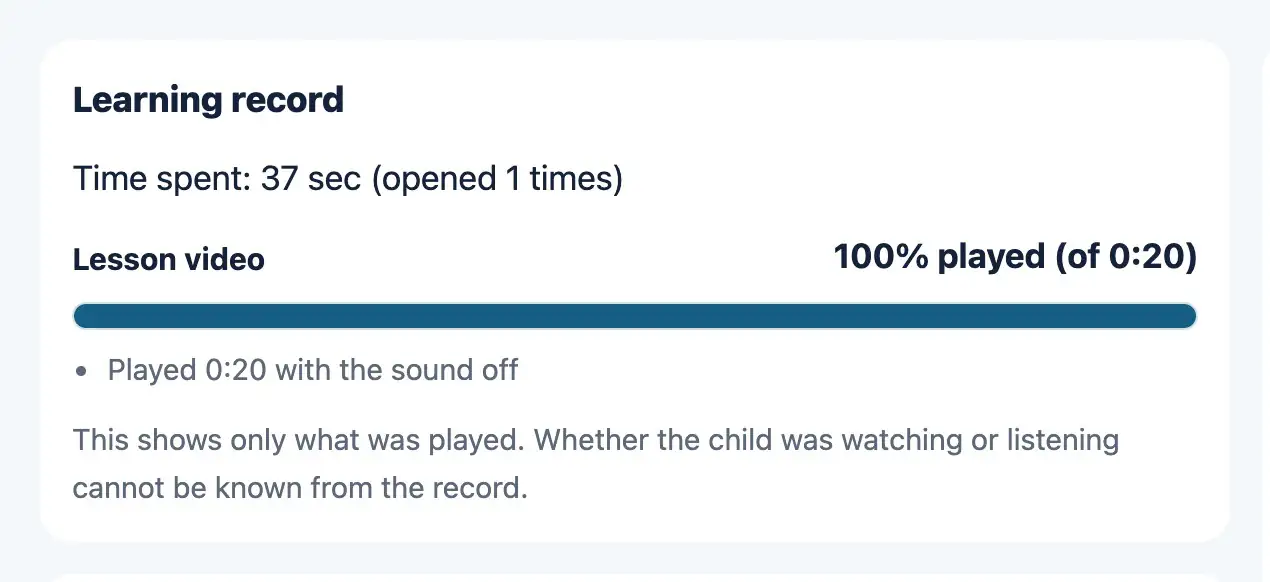
For videos and audio, shows the share that was played, the parts not played, the number of skips ahead, the time played with the sound off, the number of times the student left the screen, and the time spent.
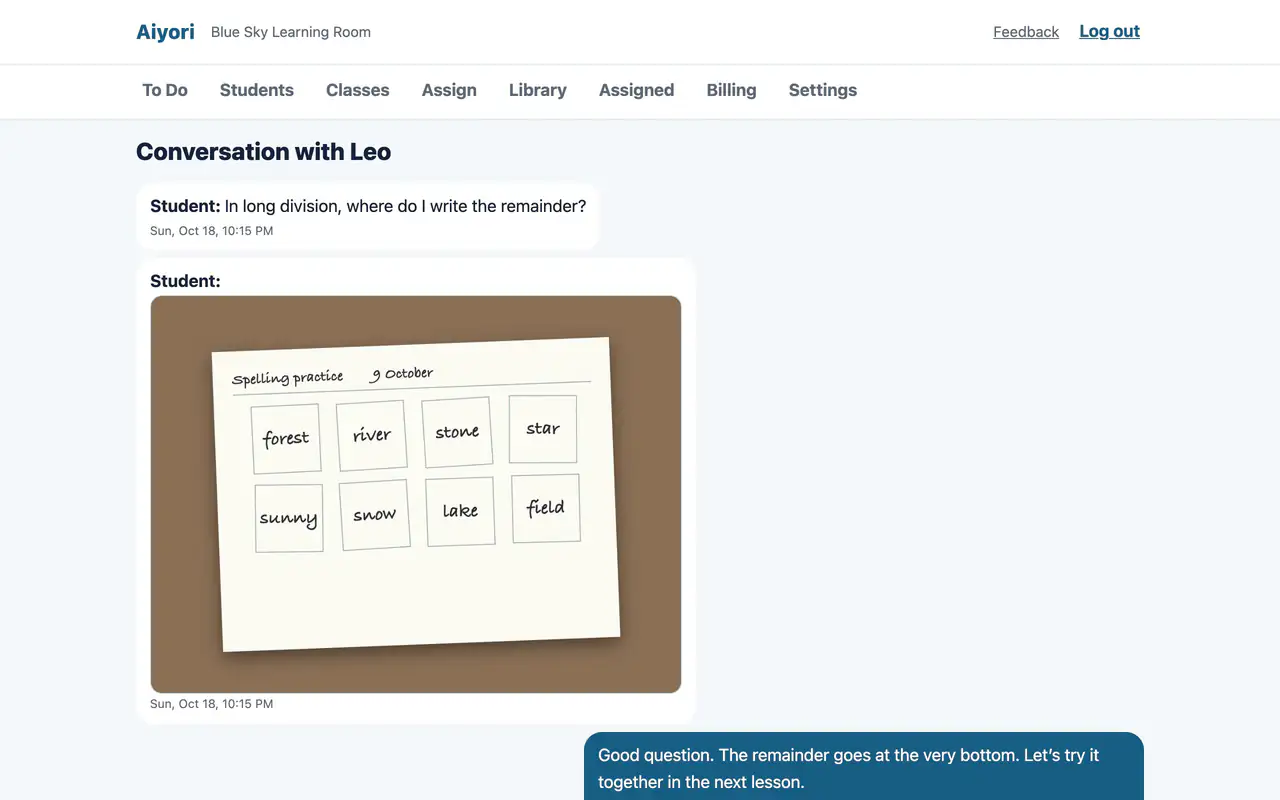
Exchange text, voice, video and photos with each student. Guardians can read all of those messages.
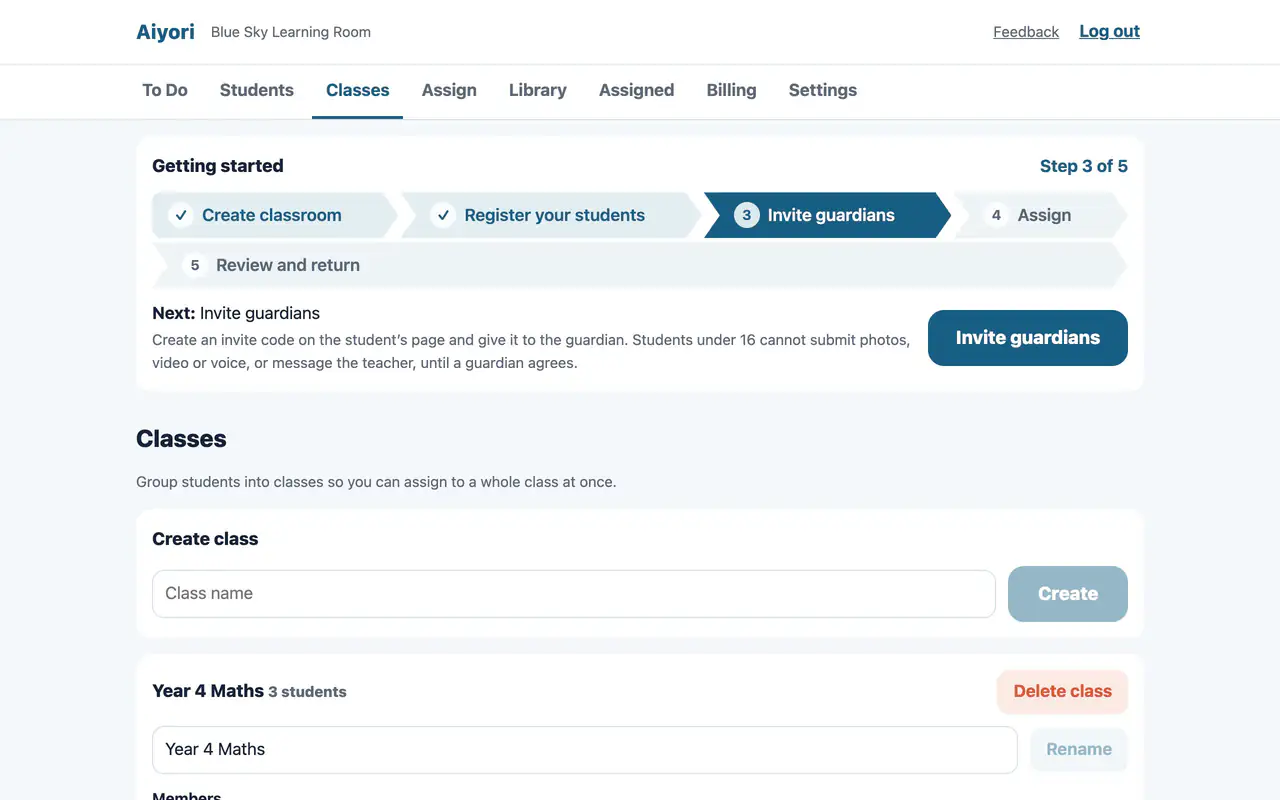
Create a class and add students to it. When you hand something out, you can choose a whole class at once.
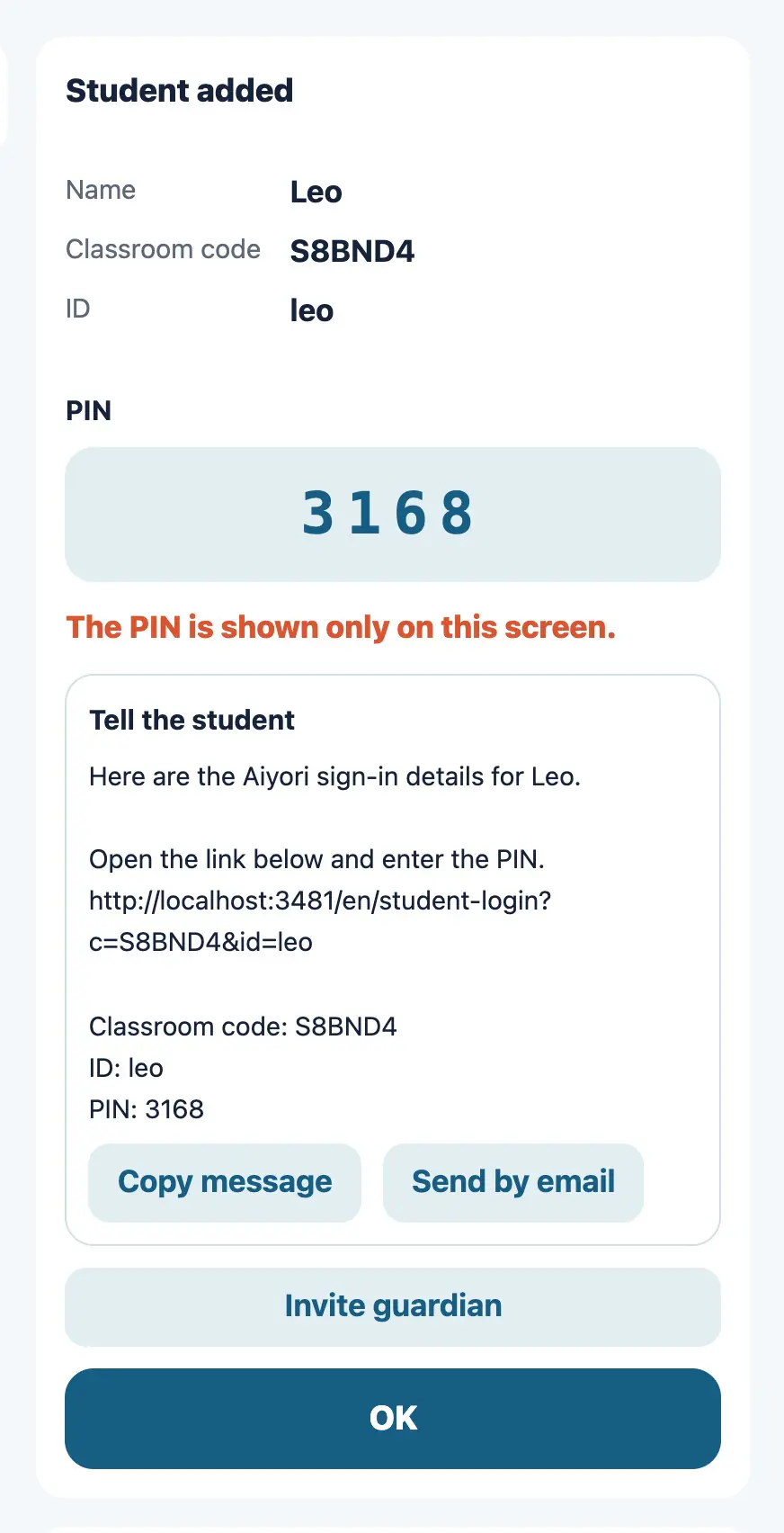
Enter the student’s name, a login ID, and their birth year and month. When you register, the classroom code, ID and PIN are shown.
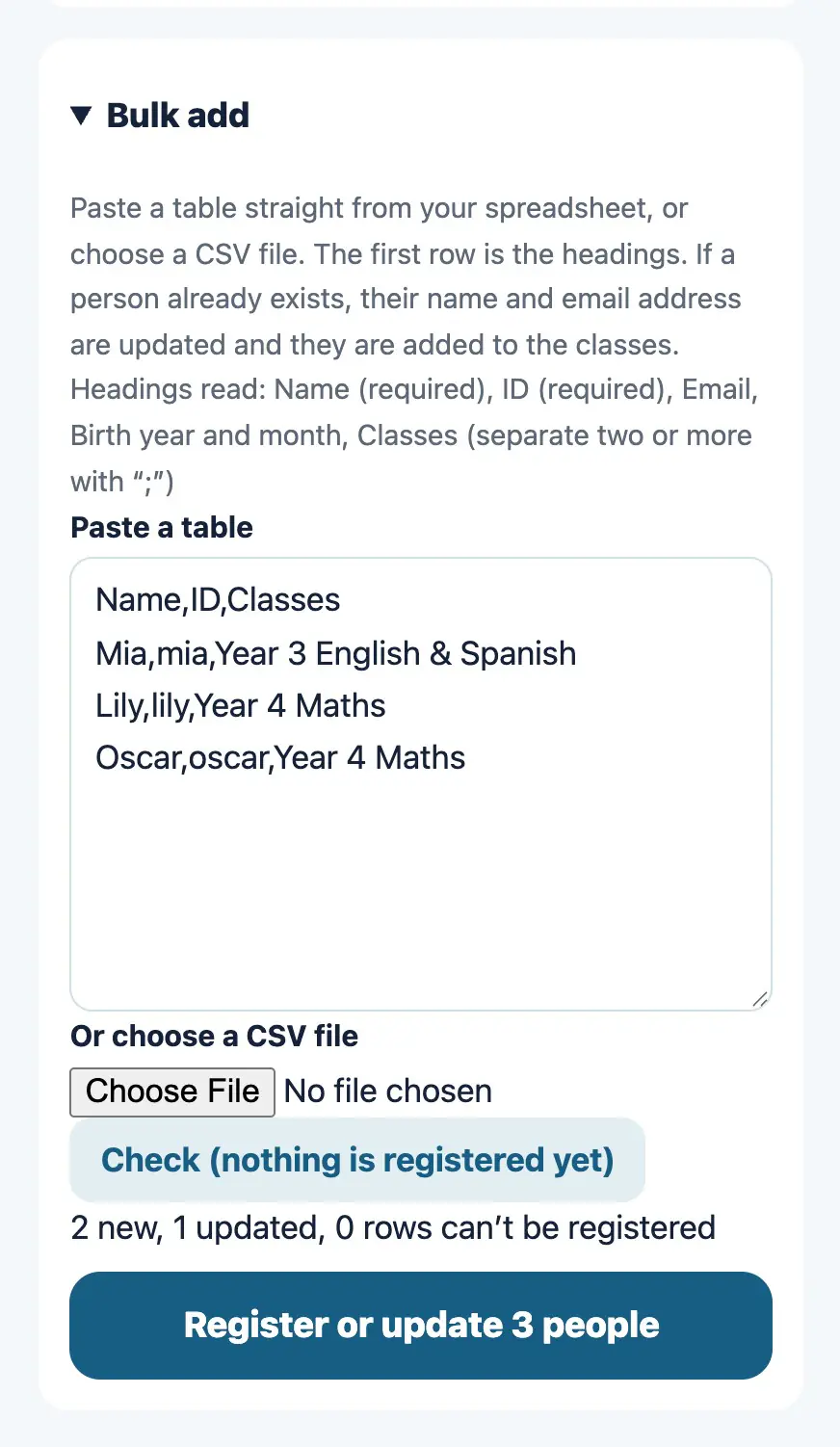
Paste a table from a spreadsheet, or choose a CSV file, to register many students at once. If a person is already registered, their name and email address are updated and they are added to the classes.
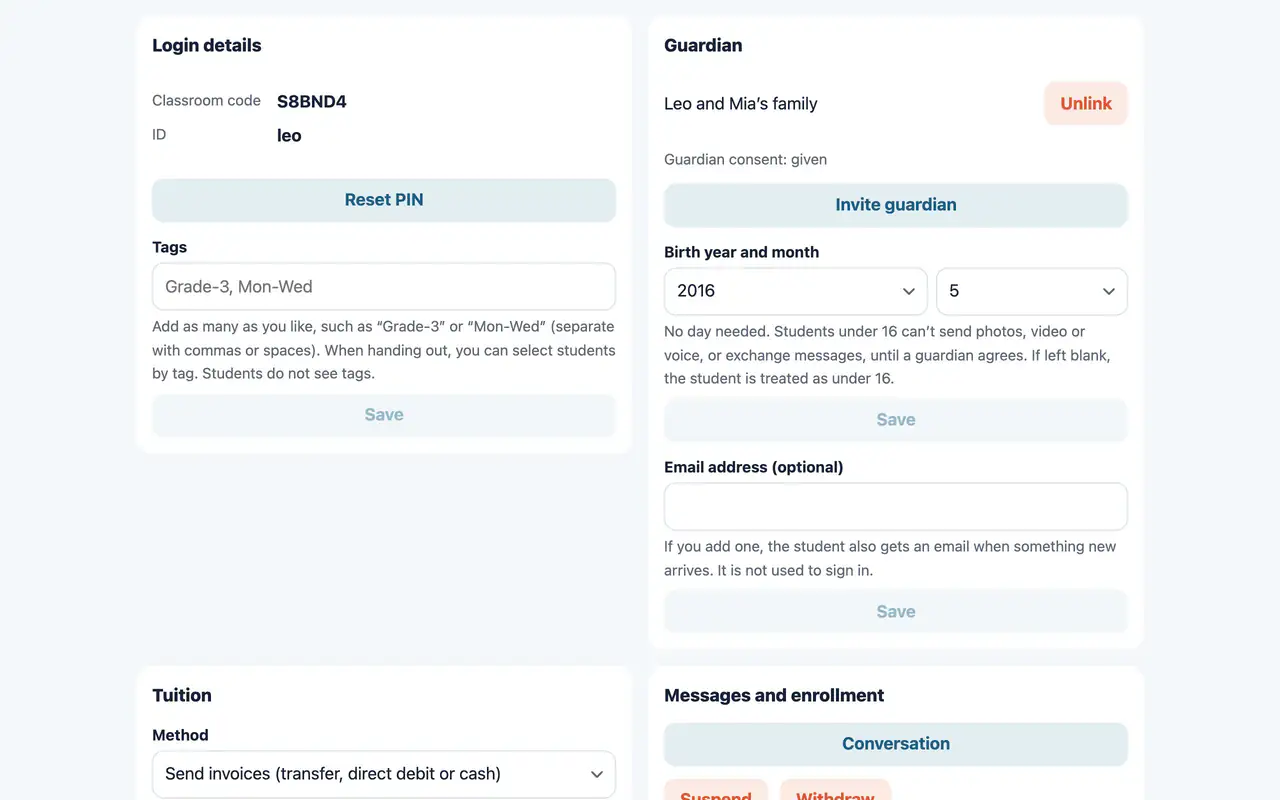
Login details, links to guardians, tuition, messages, assigned work and invoices are together on one page.
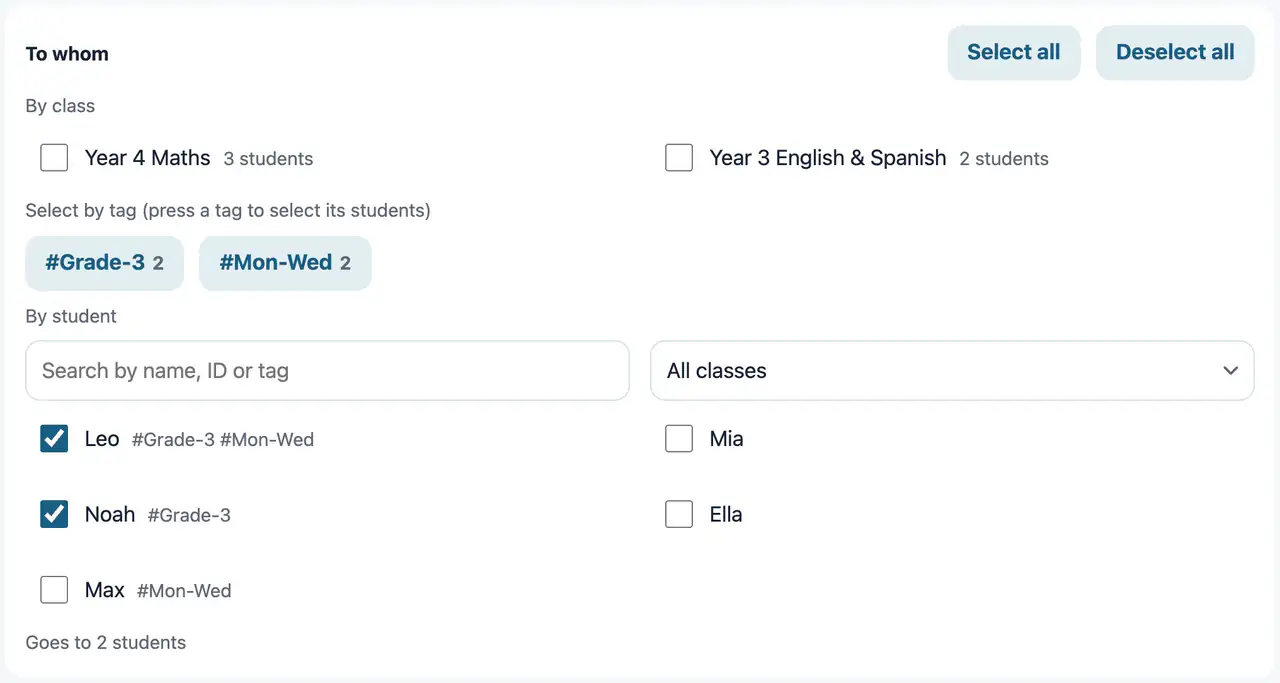
Give students as many tags as you like, such as “Grade-3” or “Mon-Wed”. When handing out, you can select students by tag.
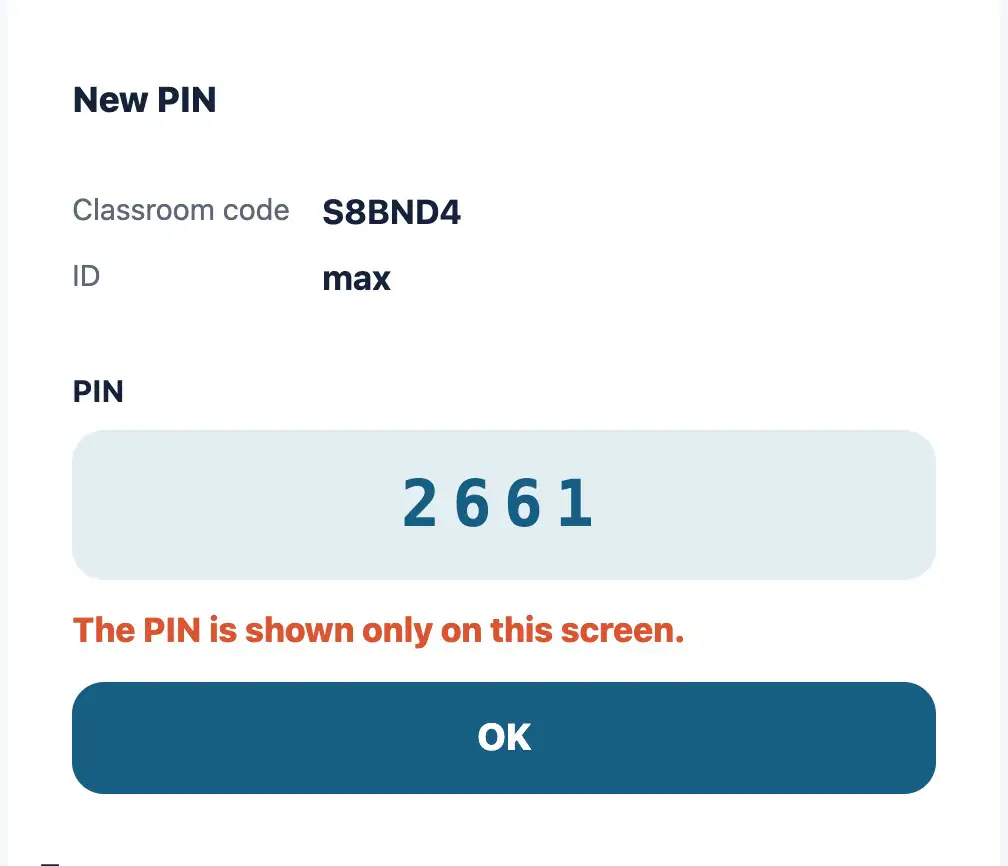
Issue a new PIN when a student forgets theirs.
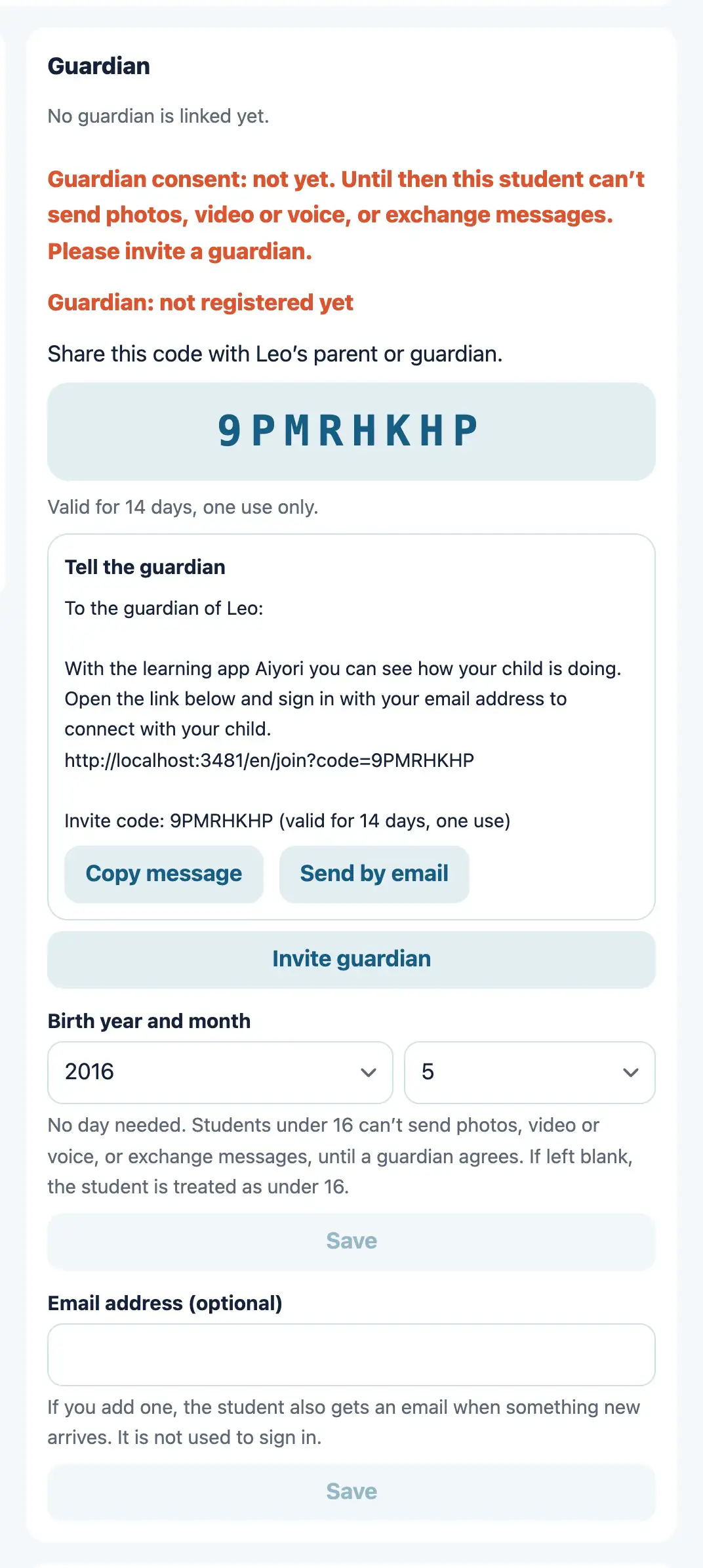
Create an invite code for a guardian. When the guardian enters the code, they are linked to the child.
For each student, see whether guardian consent is given, still needed, or not required because the student is 16 or older.
Suspend a student for a while, bring them back, or withdraw them. A suspended student can only view their assignments.
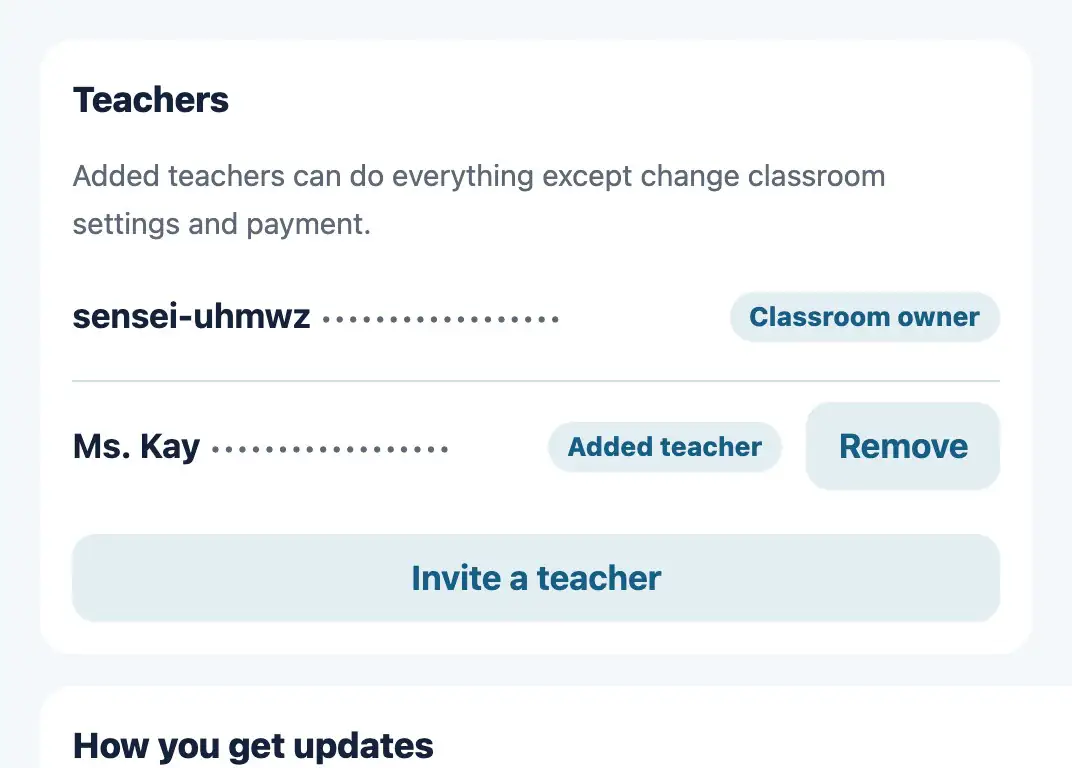
The teacher who created the classroom can invite other teachers to it. Added teachers can do everything except classroom settings and payments.
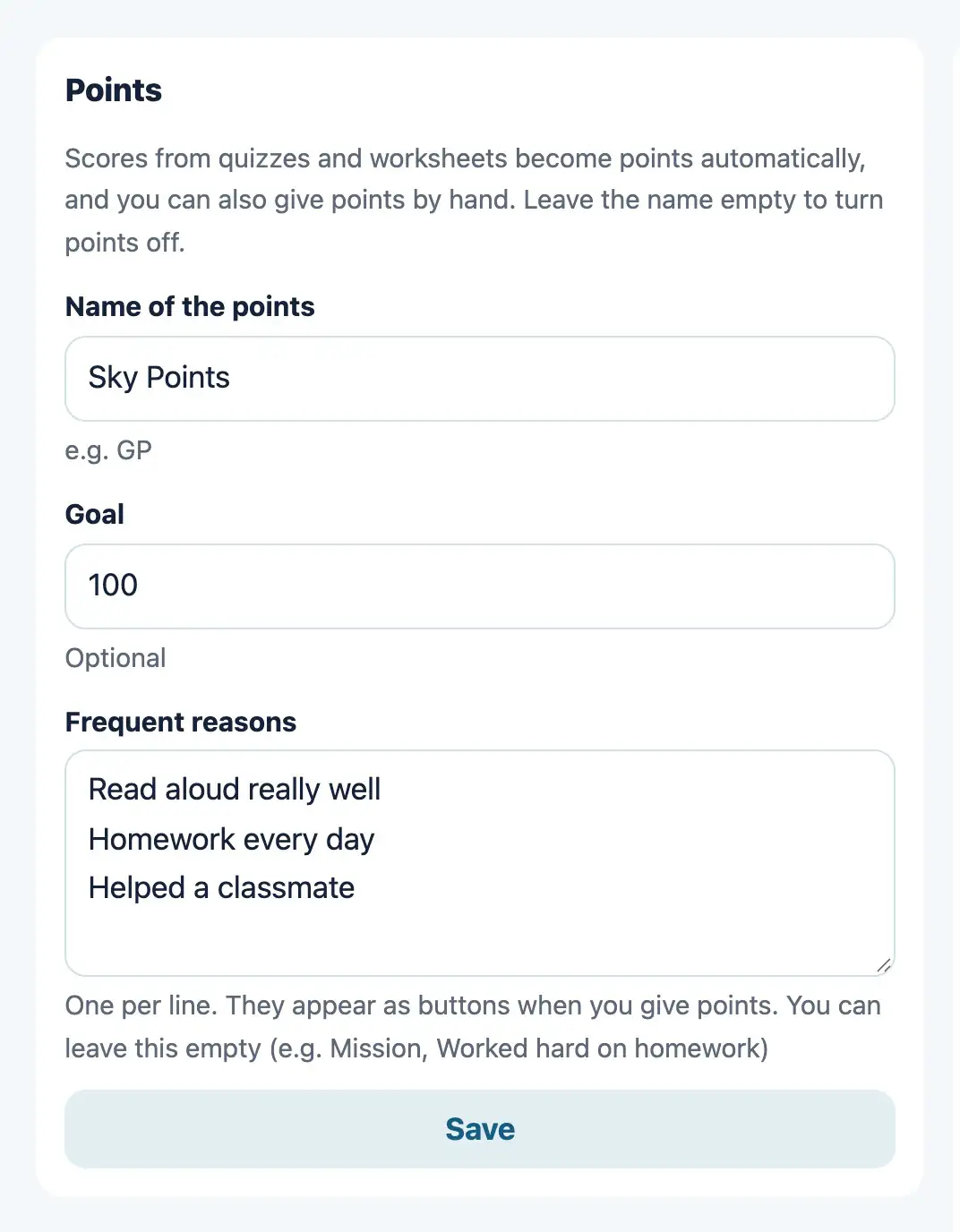
Scores from questions and worksheets add up as points, just as they are. You can set what the points are called and a goal.
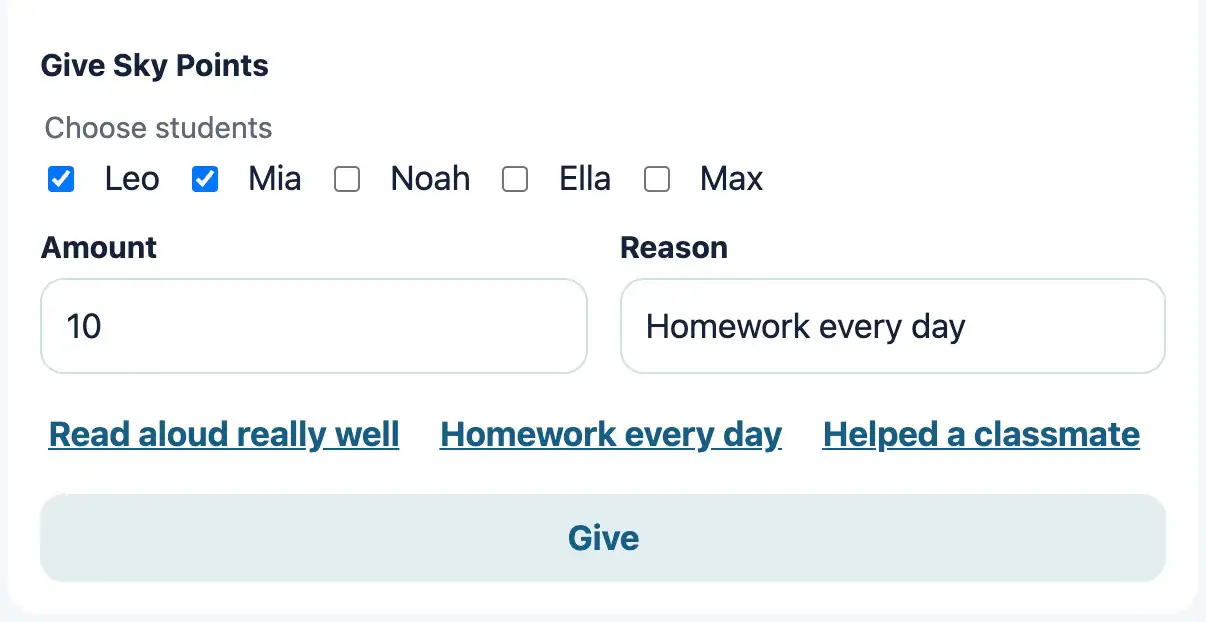
The teacher can give points by hand to students who worked hard. You can choose several students at once.
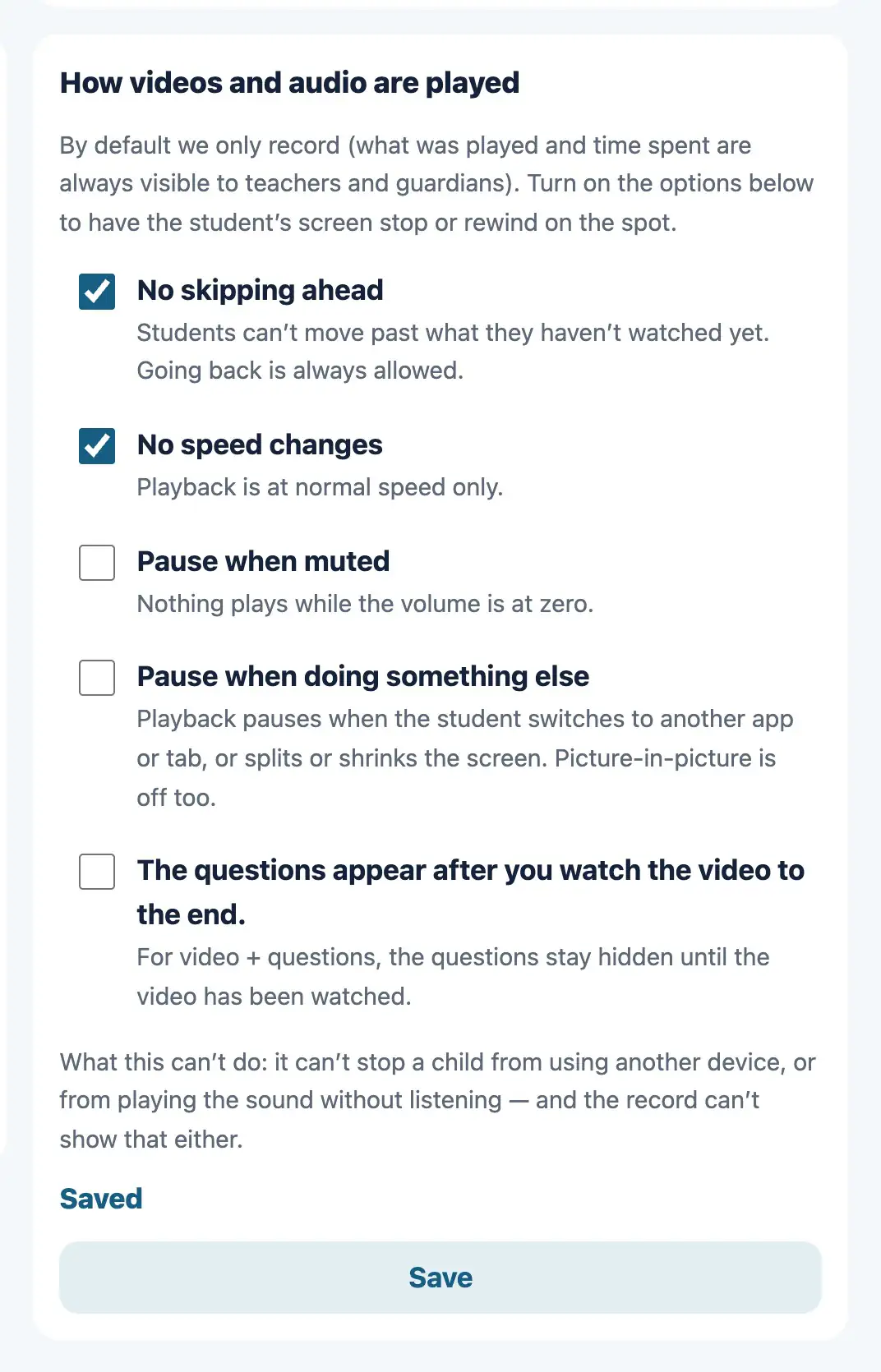
Set how videos and audio are played, classroom by classroom. No skipping ahead. No speed changes. Pause when muted. Pause when doing something else. Hide the questions until the video has been watched to the end.
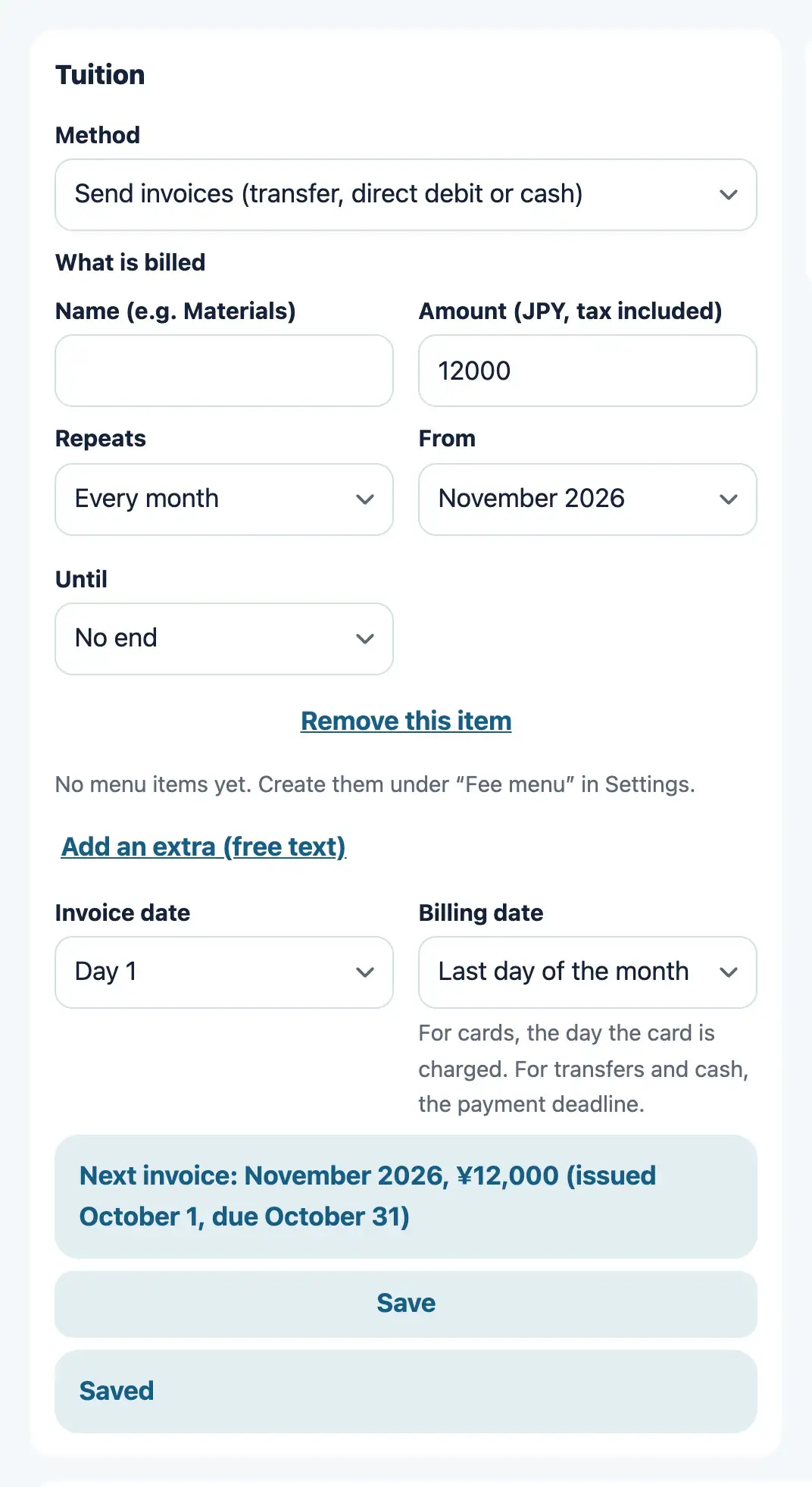
Set the tuition amount and the billing day for each student. For the method, choose transfer or cash (the teacher confirms payment), or no billing. When an invoice is created, the guardian is told by email.
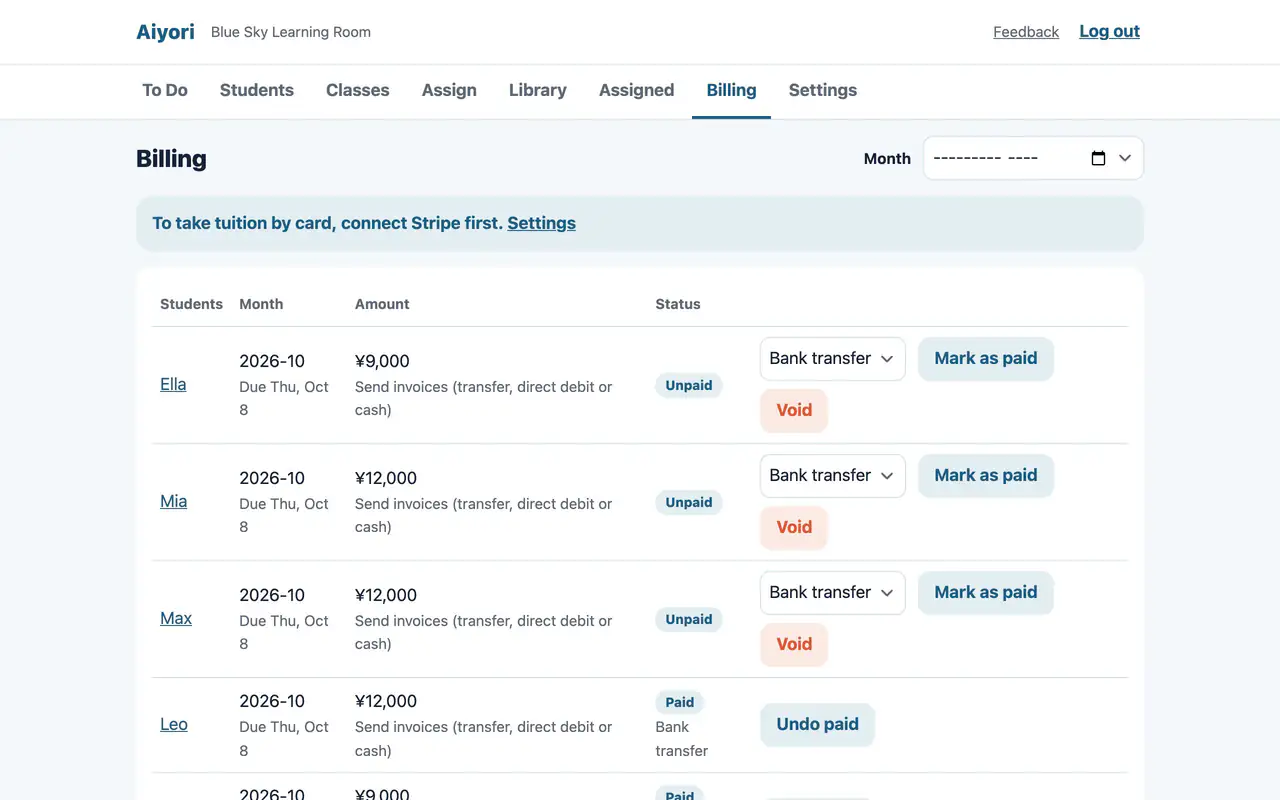
A table of student, month, amount and status (Unpaid, Overdue, Paid). You can filter by month.
When you receive tuition by transfer or in cash, tap “Mark as paid” on that invoice. How it was received (bank transfer, cash or other) is recorded too. The guardian gets a confirmation email.
After the due date, the guardian is reminded by email and notification, up to three times. If there is still no payment, To Do asks “Payment hasn’t been confirmed. Suspend this student?”. The student is not suspended until the teacher decides.
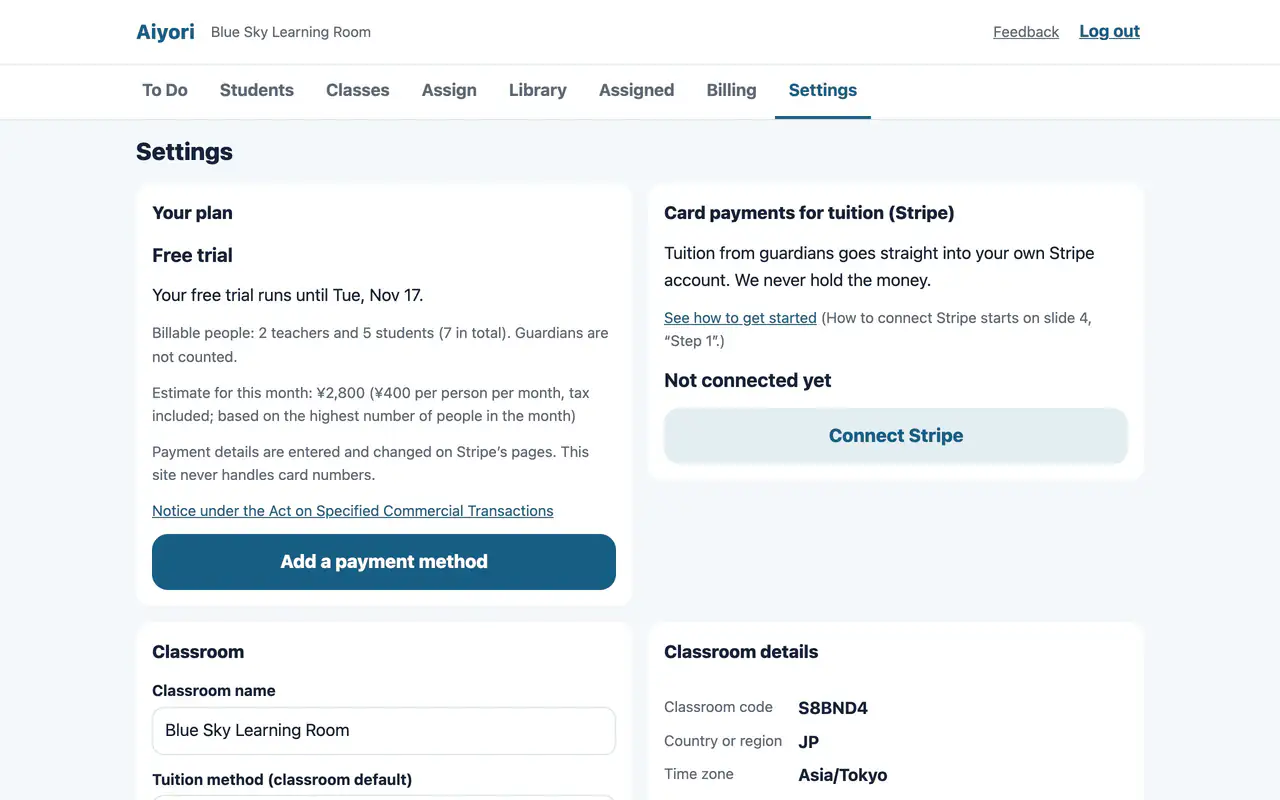
Write a note for the guardian’s screen, such as the account to transfer to or how to hand over cash.
Change the name of the classroom. You can also check the classroom code, country, time zone and currency here.
Shows the current status and the number of active students.
Use this when you stop running the classroom. All students are withdrawn, and all of the classroom’s data is deleted after 30 days.
Open it, and today’s work is lined up in order. Just start from the top.
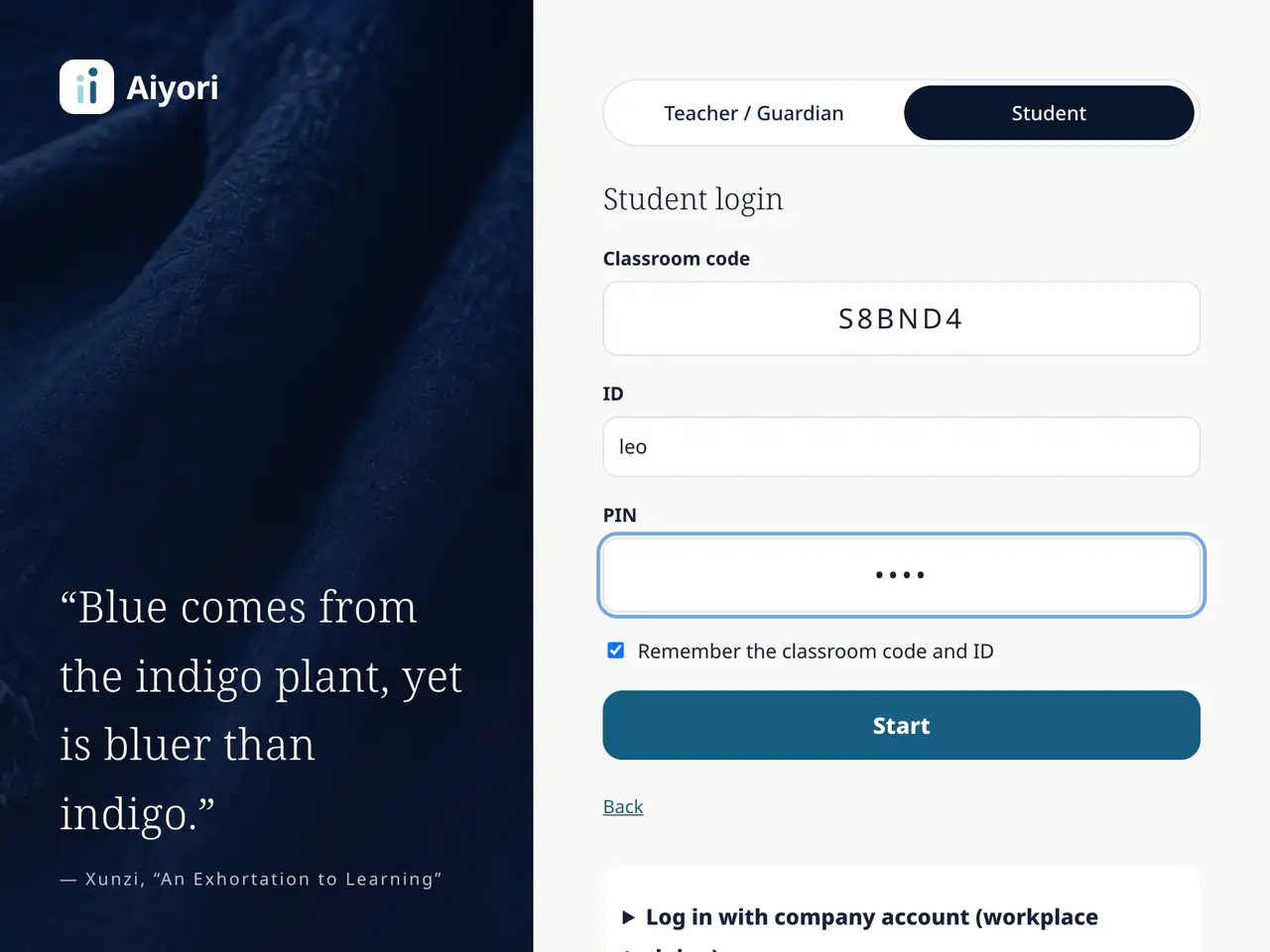
Enter the three things your teacher gave you: the classroom code, your ID and your PIN. No email address is needed.
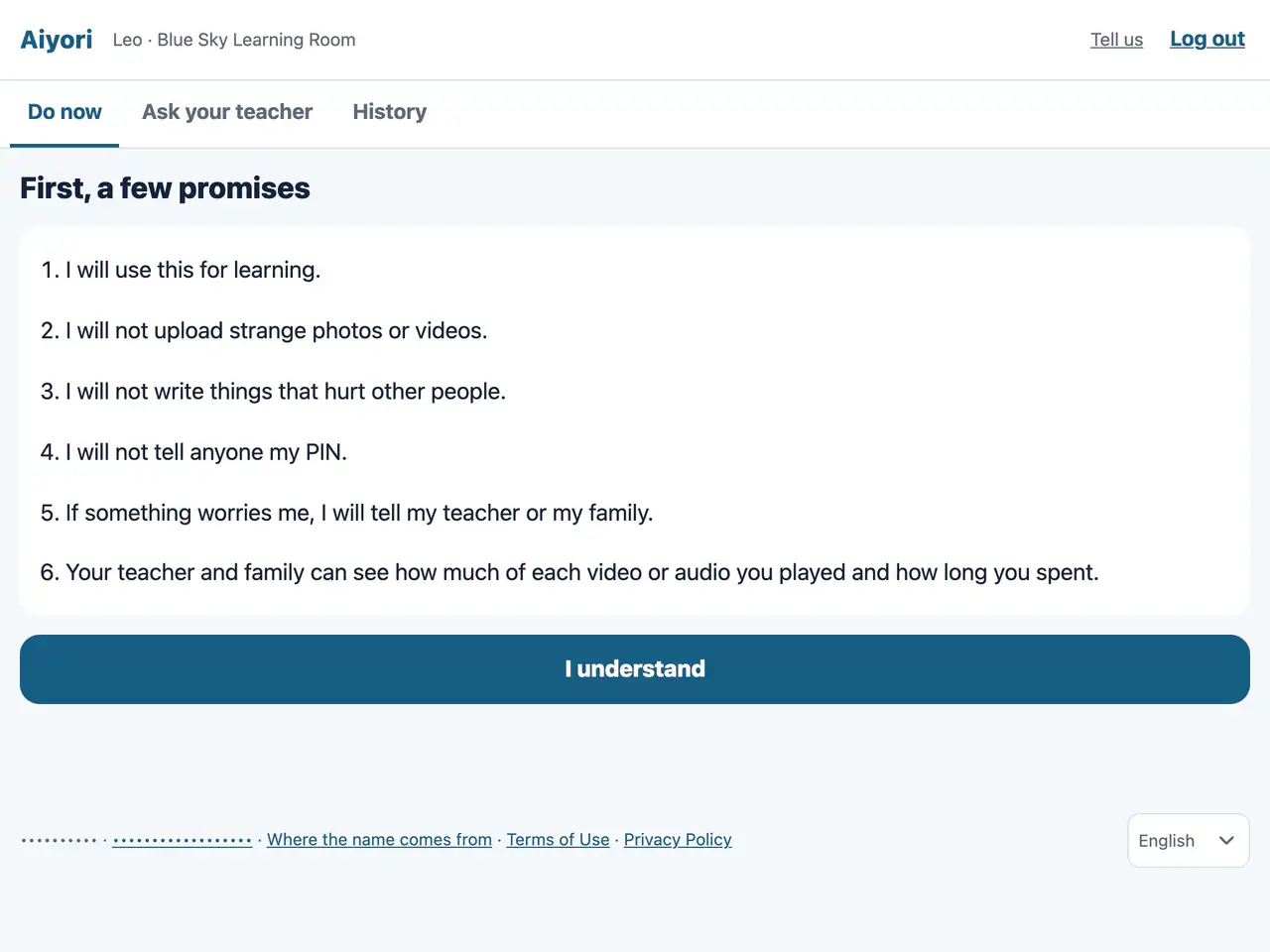
The first time, the student reads six promises. This is also where they are told that their teacher and family can see how much they have played.
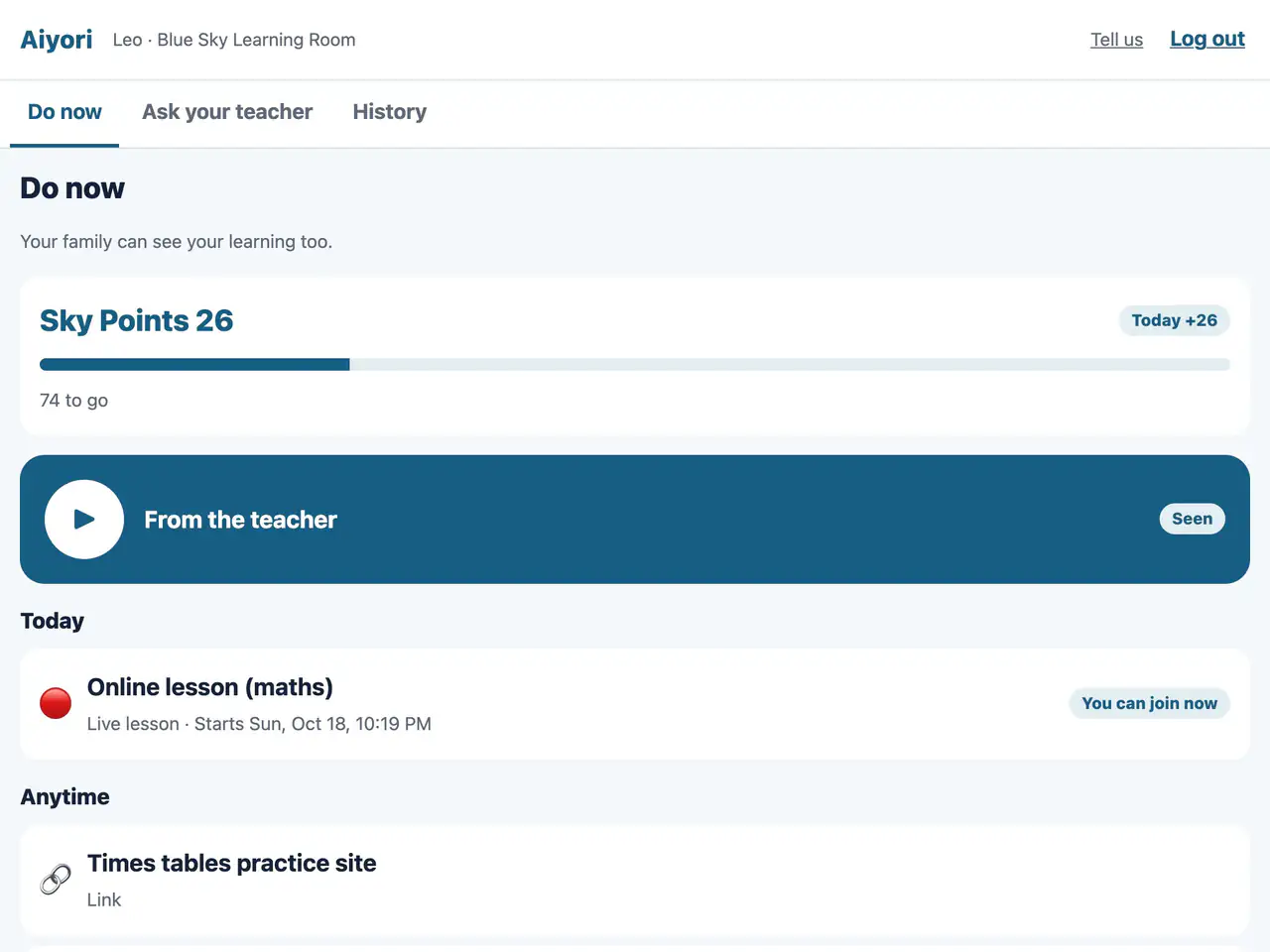
Lessons and assignments are listed under “Today” and “Anytime”, in date order. Voice and video messages from the teacher appear large at the top. When everything is finished, it says “All done for today!”
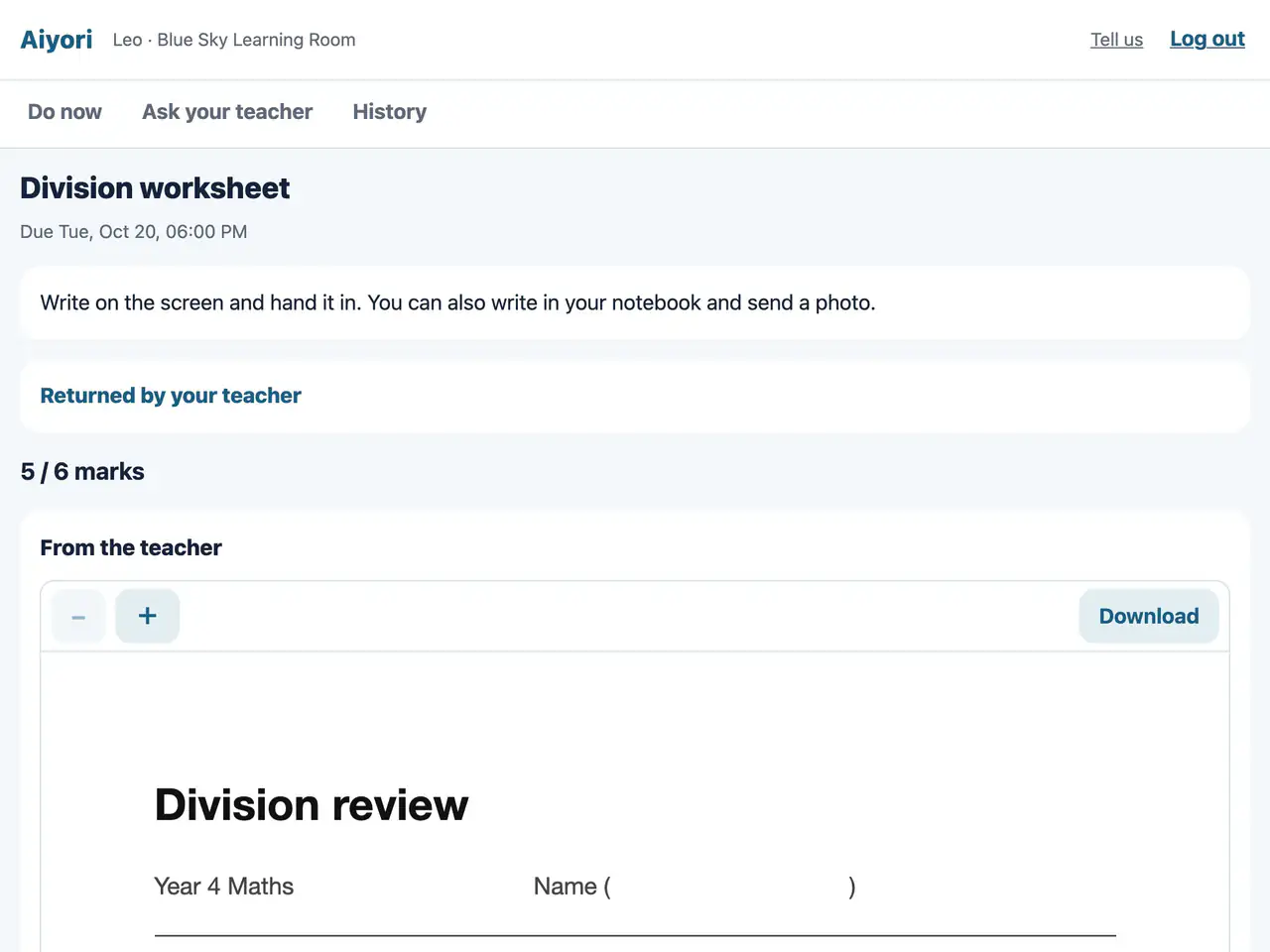
Work the teacher has returned appears in a separate section. Open it to check the red-pen marks and the teacher’s voice message.
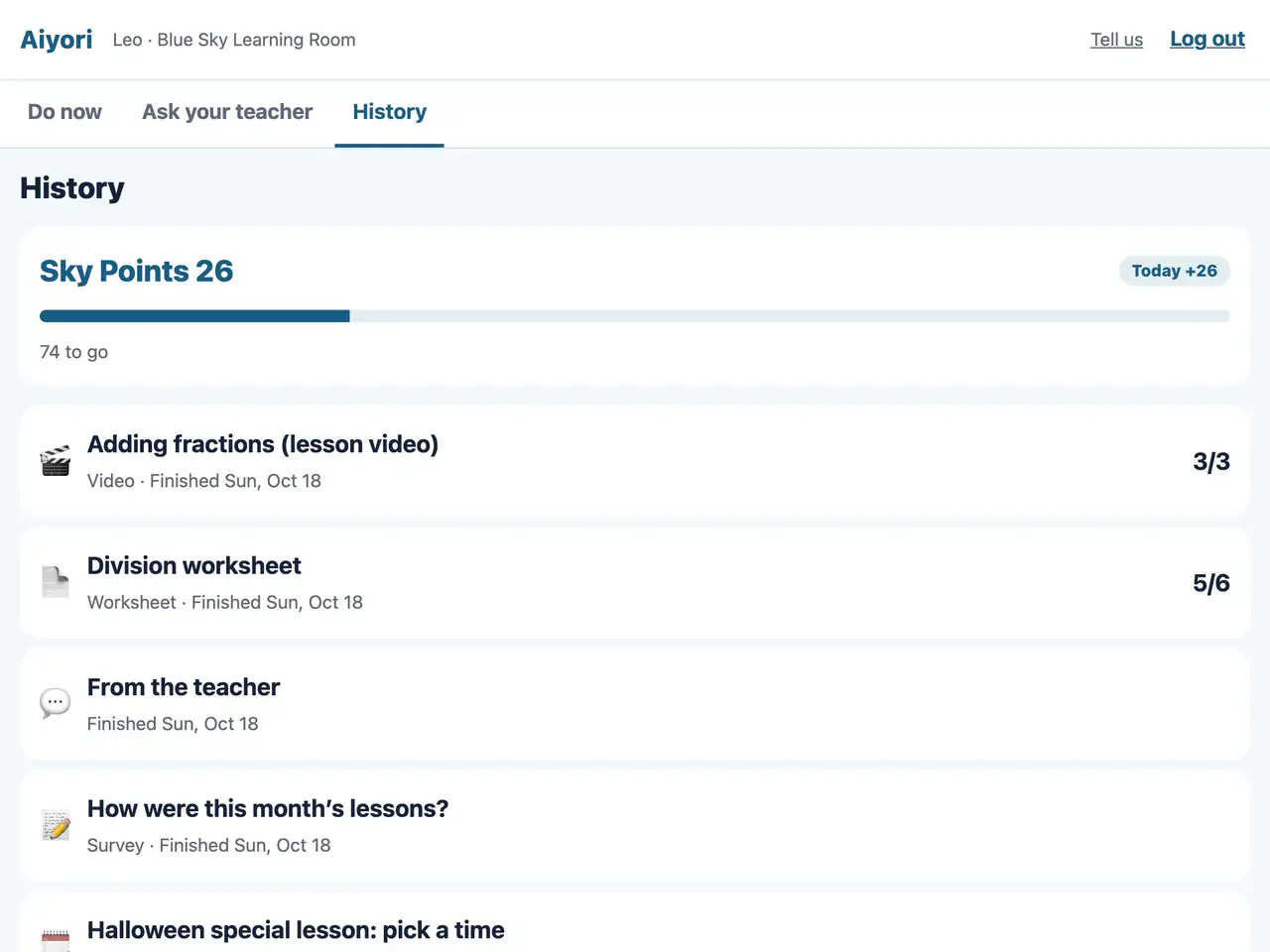
See what you finished, handed in and answered, newest first. Your points history is here too.
Your points now, the points added today and the number left to reach the goal appear at the top of the screen.
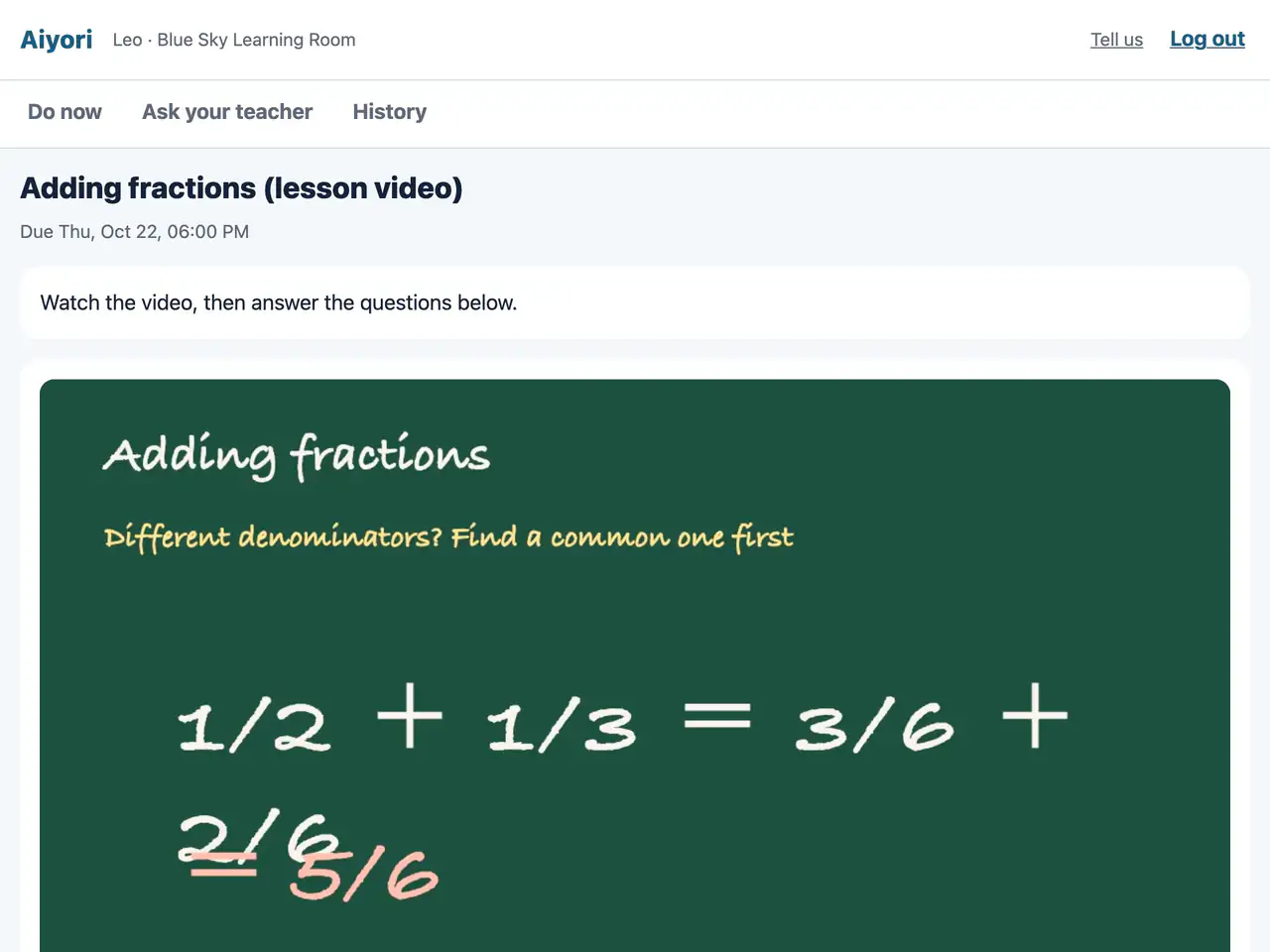
Watch the lesson video. The questions are right below it.
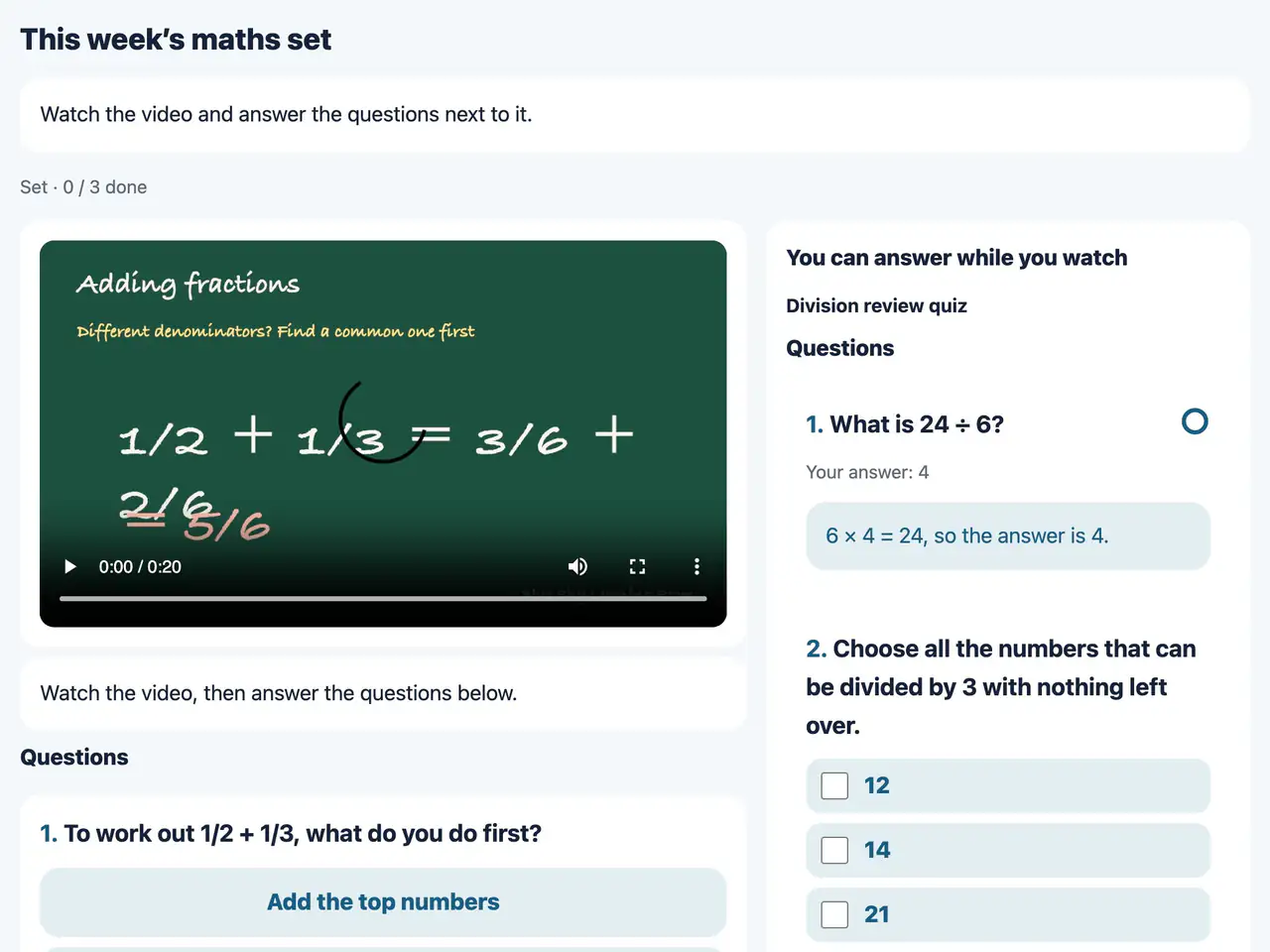
Materials the teacher hands out as a set appear as one group on the home screen, with how many are finished. Open it, and the lesson video and the questions are on one screen.
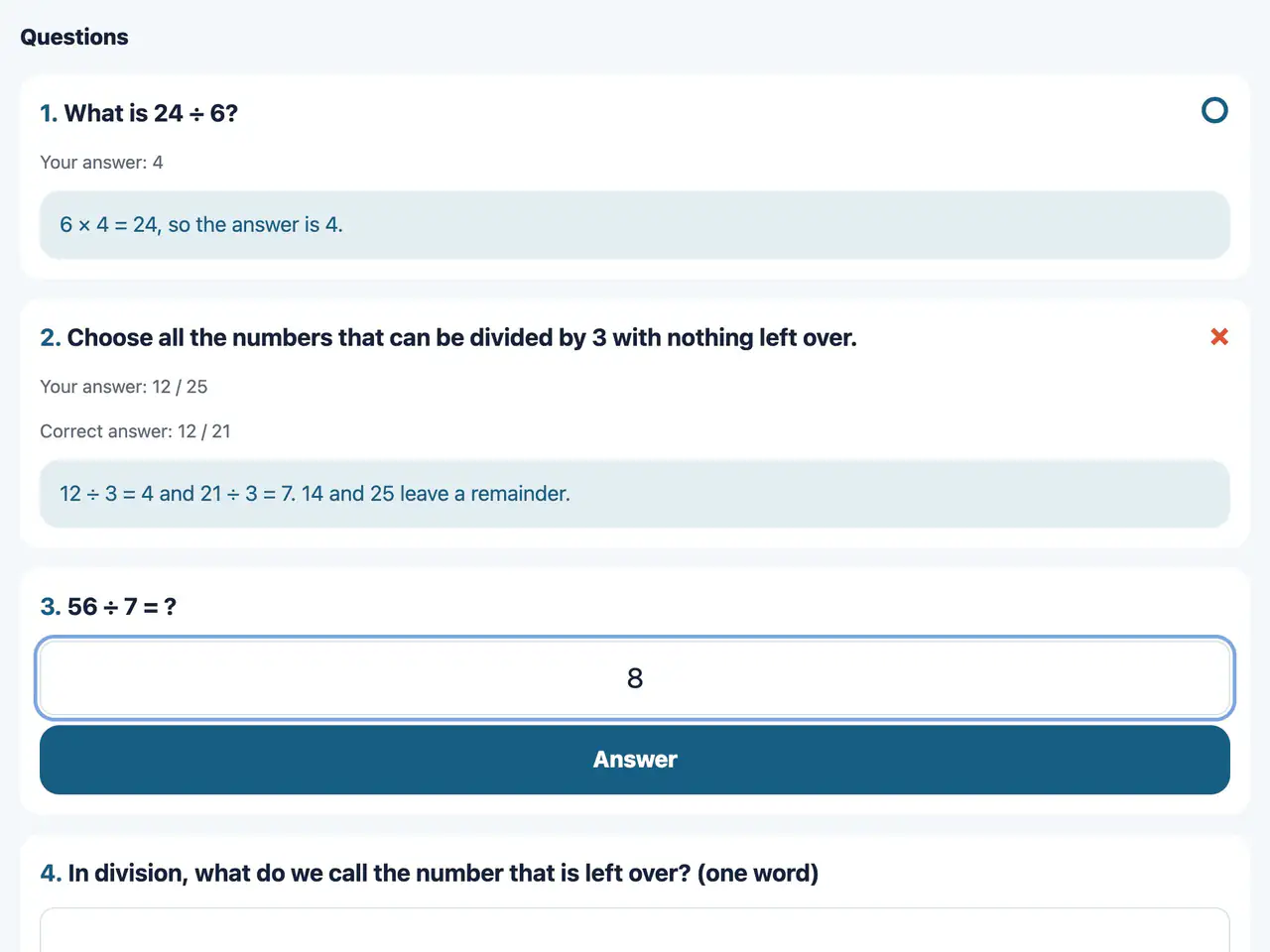
Choose, enter a number, enter a word, or write freely. When you answer, you see right away whether it was right or wrong.
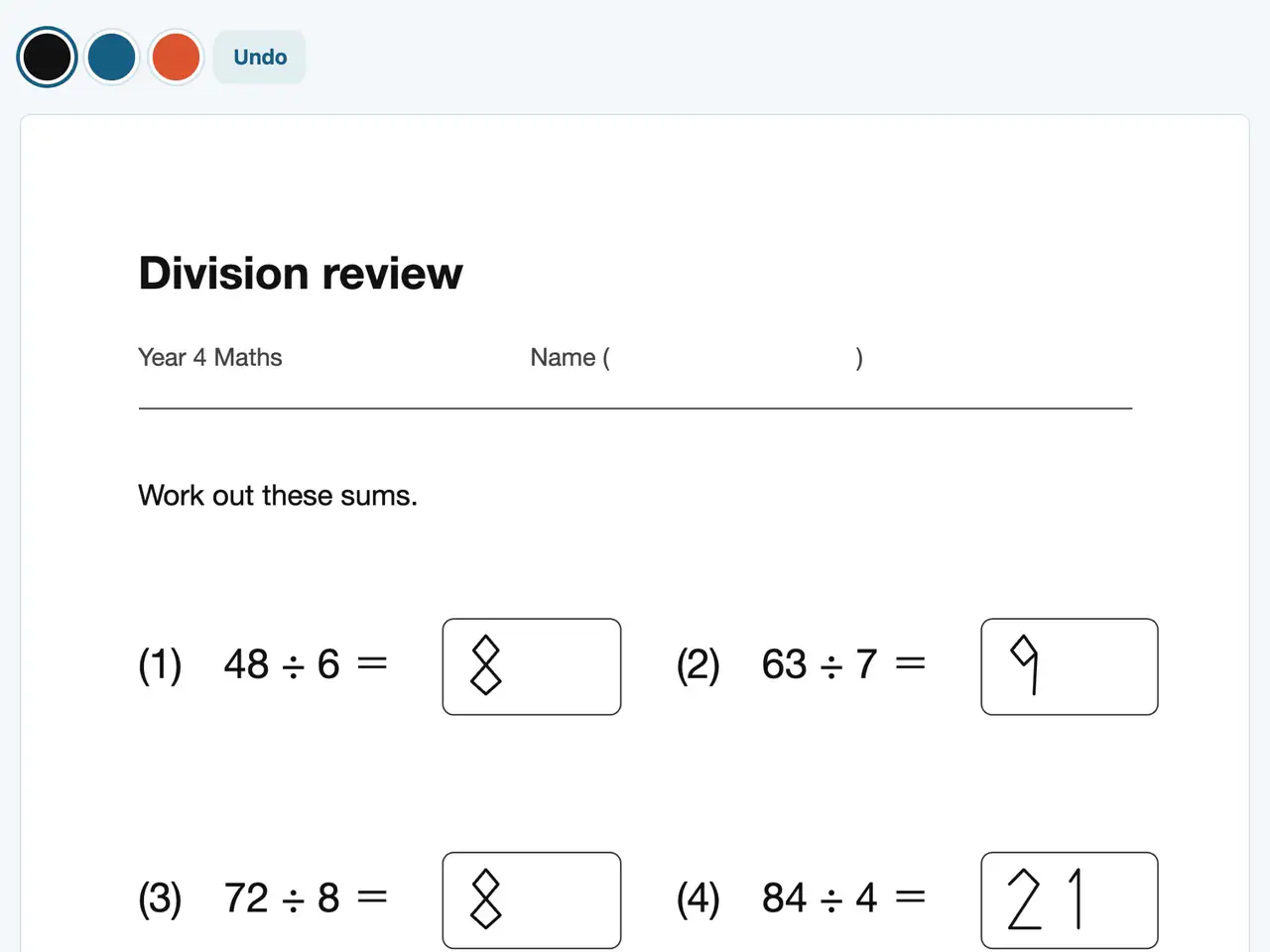
Write on the worksheet with a finger or a pen. On iPad, you can use Apple Pencil.
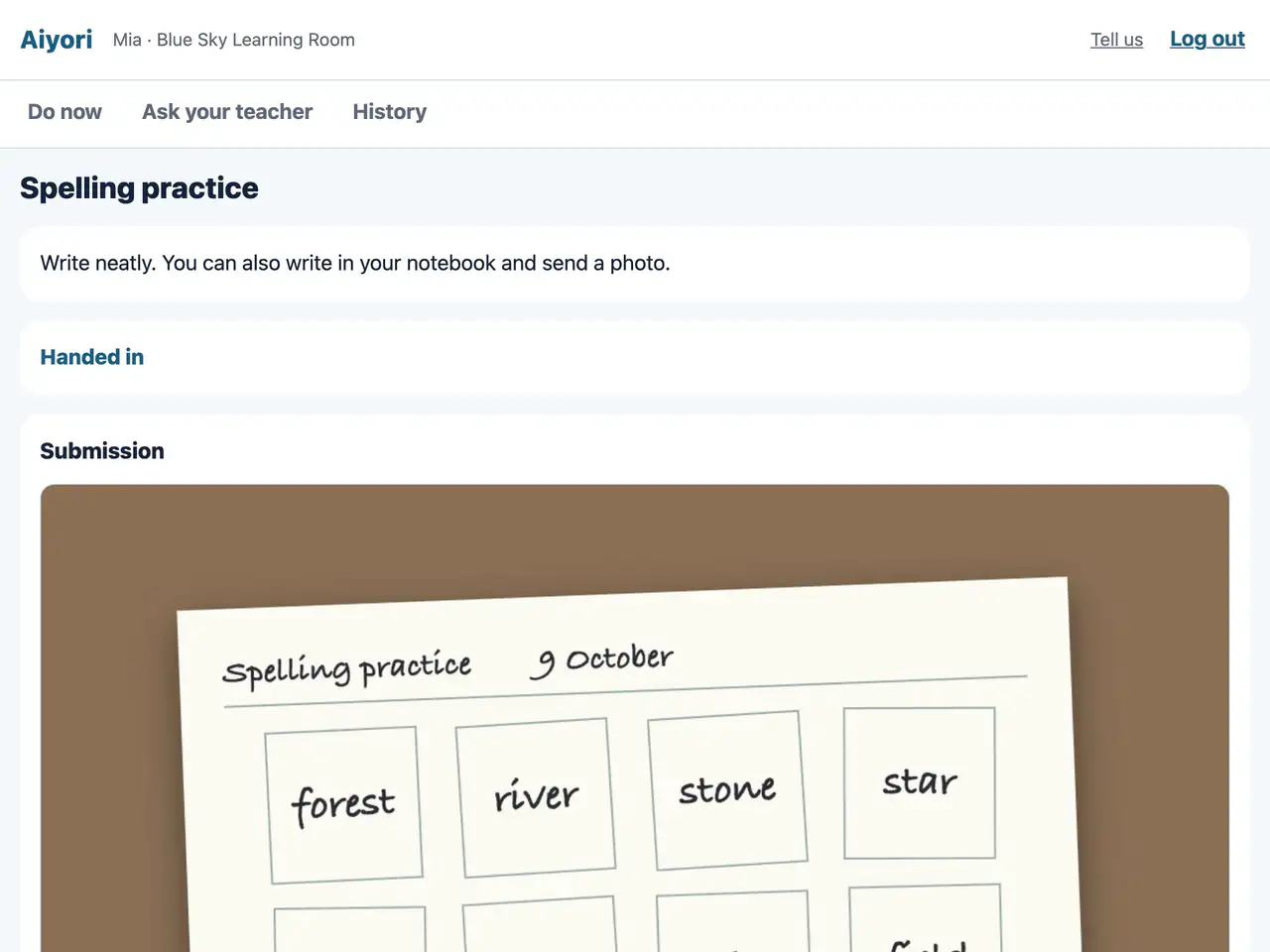
Take a photo of what you wrote on paper and hand it in. You can hand in several photos together.
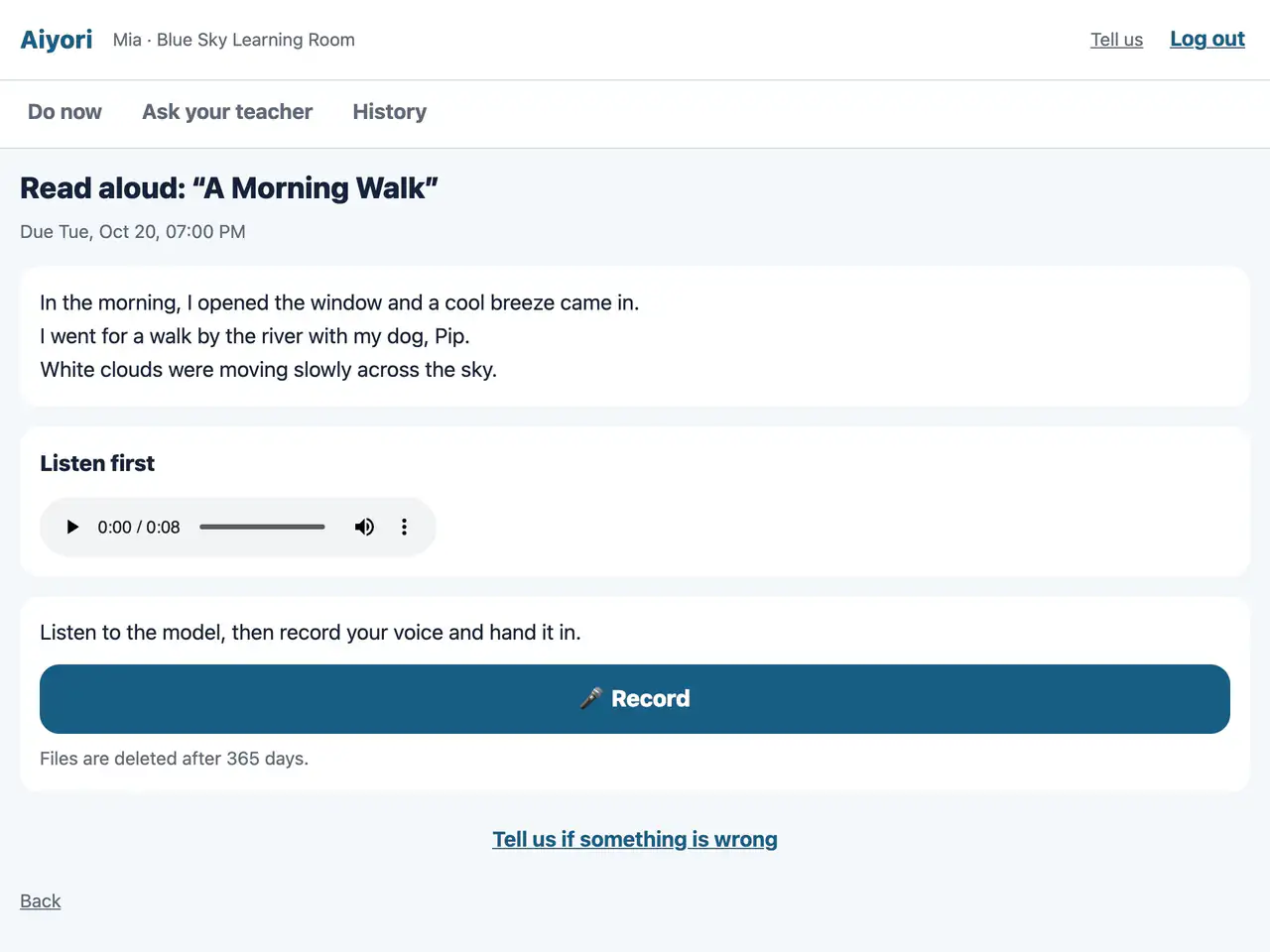
Listen to the model, then record your own voice and hand it in. Three taps are enough: “Record”, “Stop” and “Hand in”.
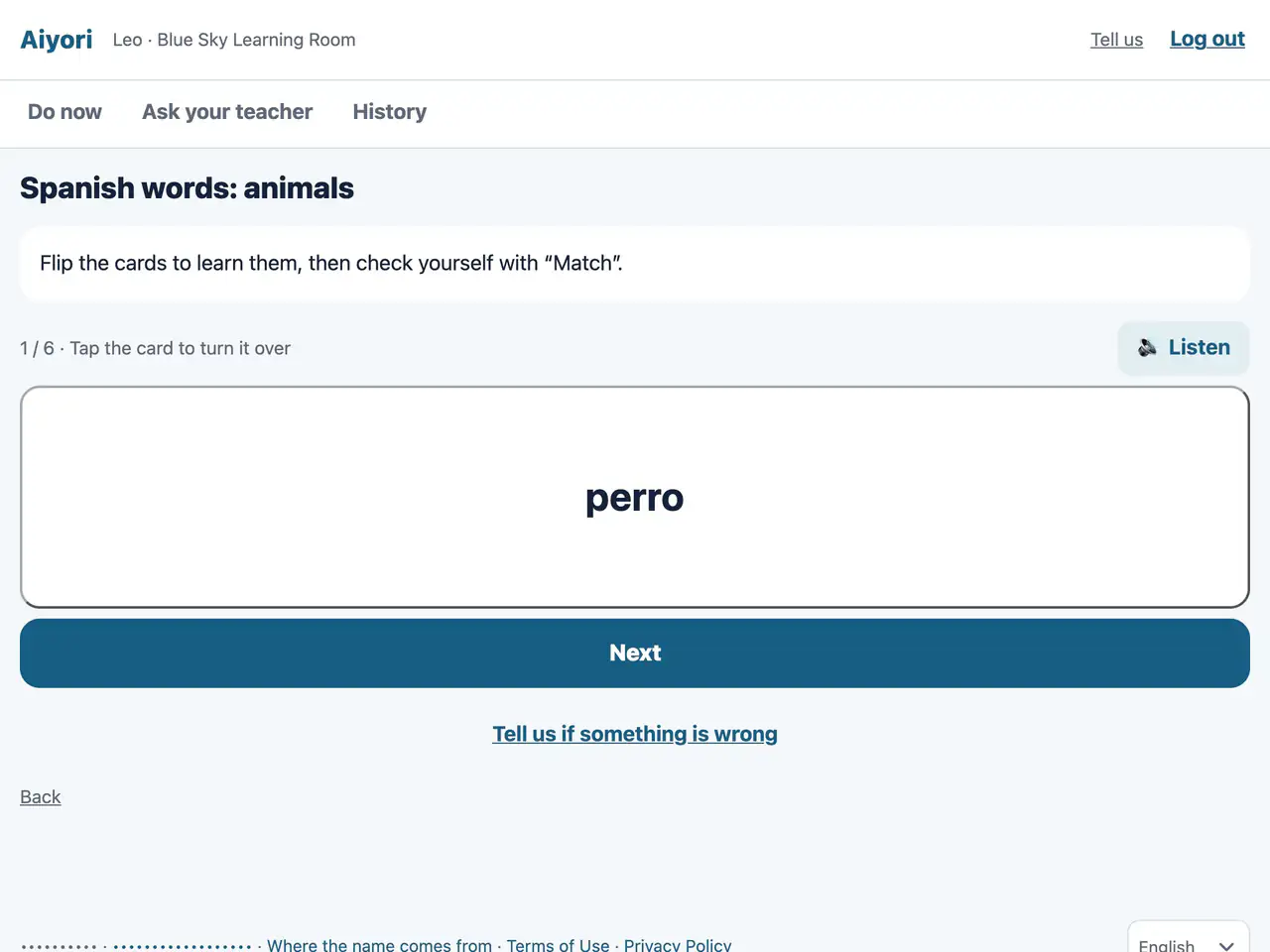
Flip the cards to learn the words and their meanings. The words are read aloud.
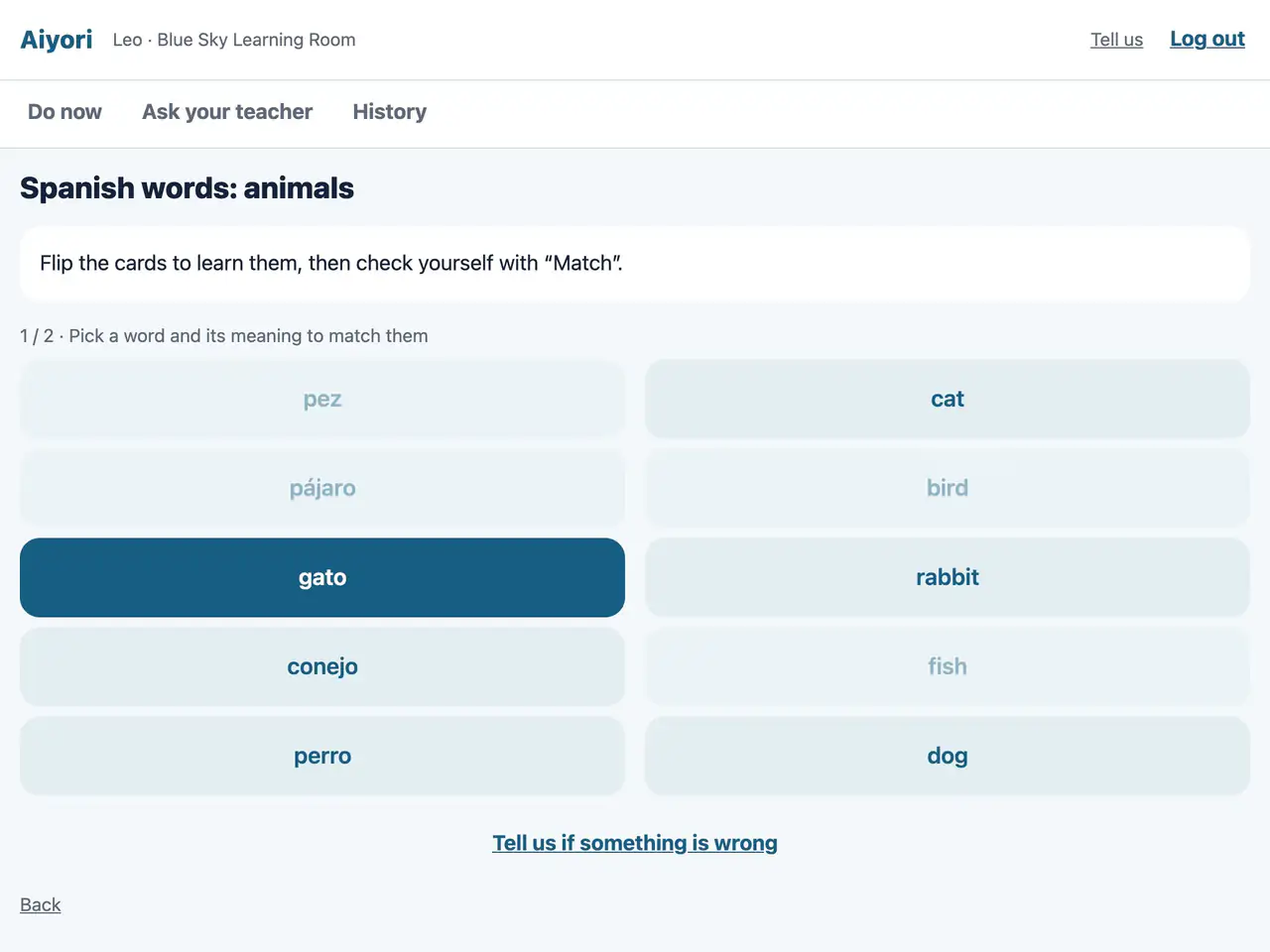
Match each word with its meaning, as if joining them with a line.
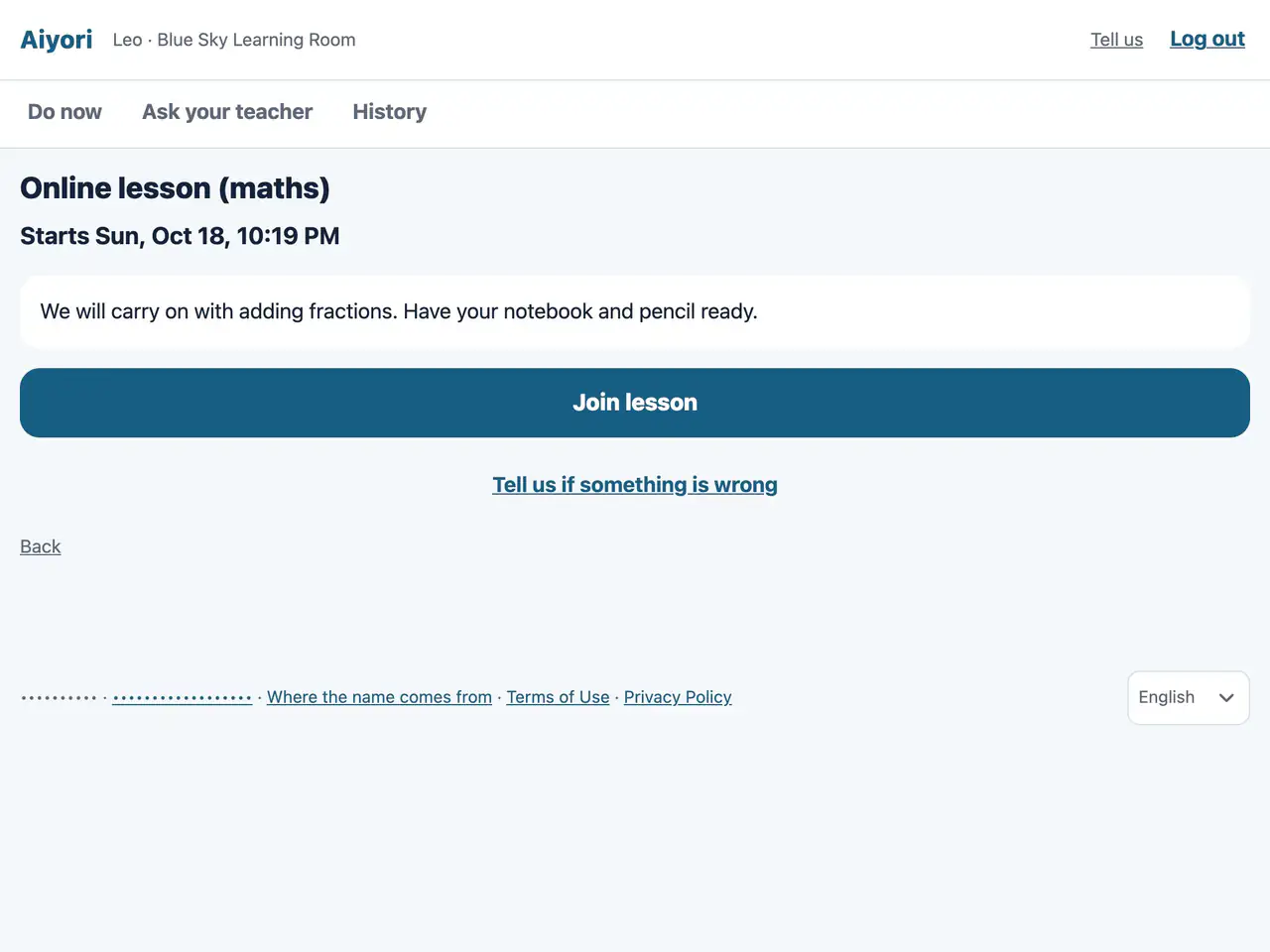
From 10 minutes before the lesson starts, “Join lesson” can be tapped.
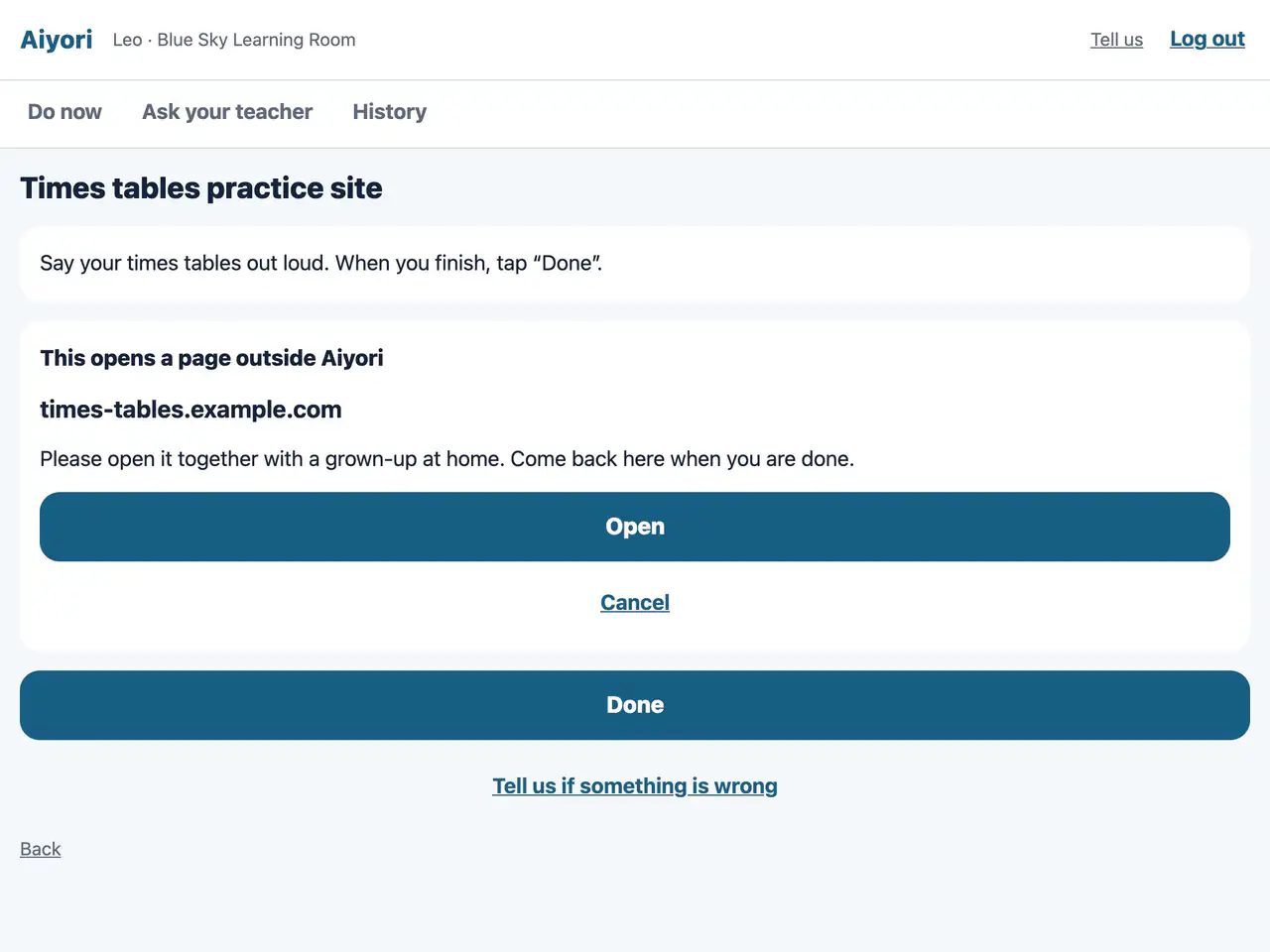
Open another site that the teacher handed out. Before it opens, check where it goes.
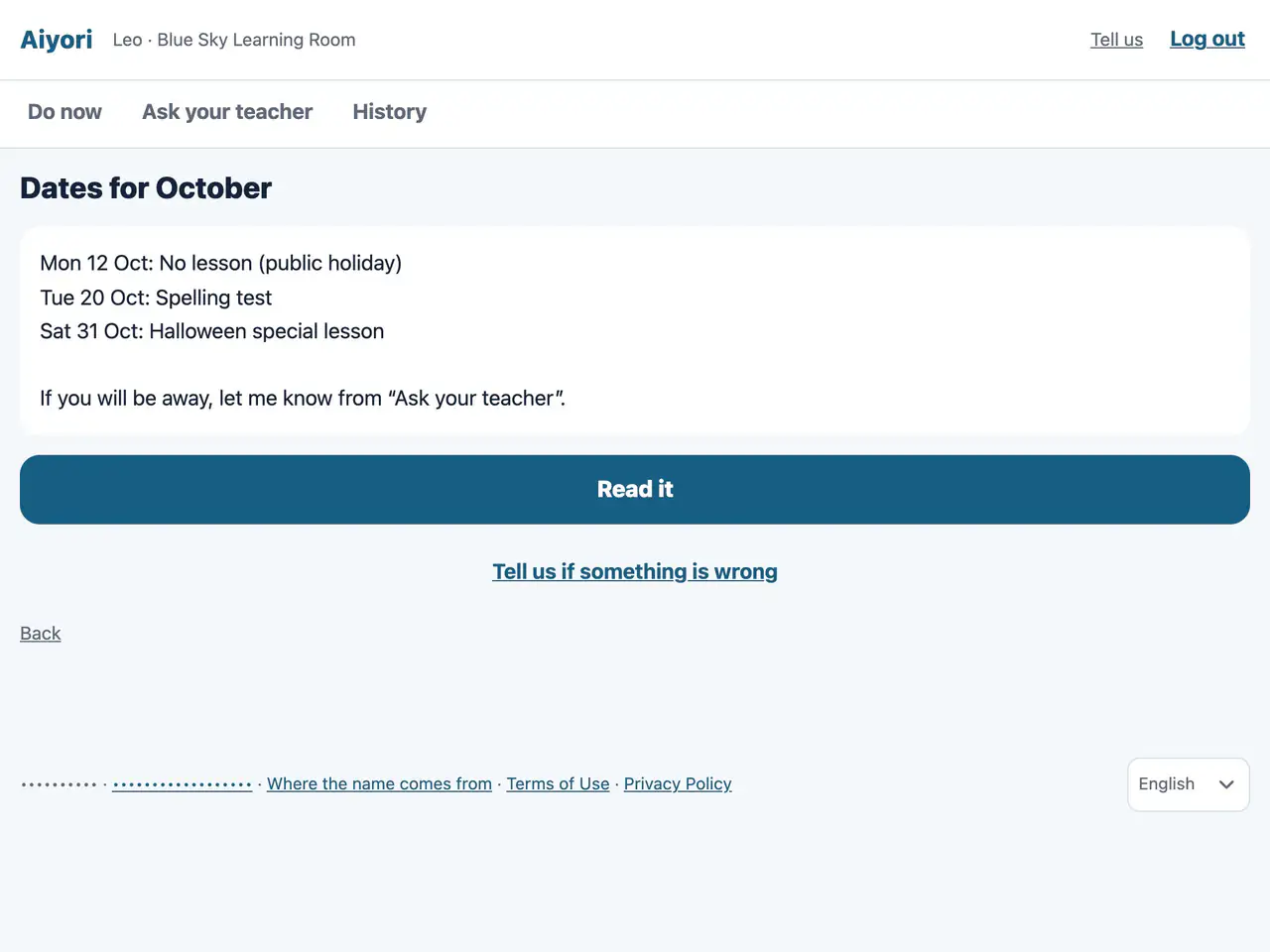
Read a notice from the teacher.
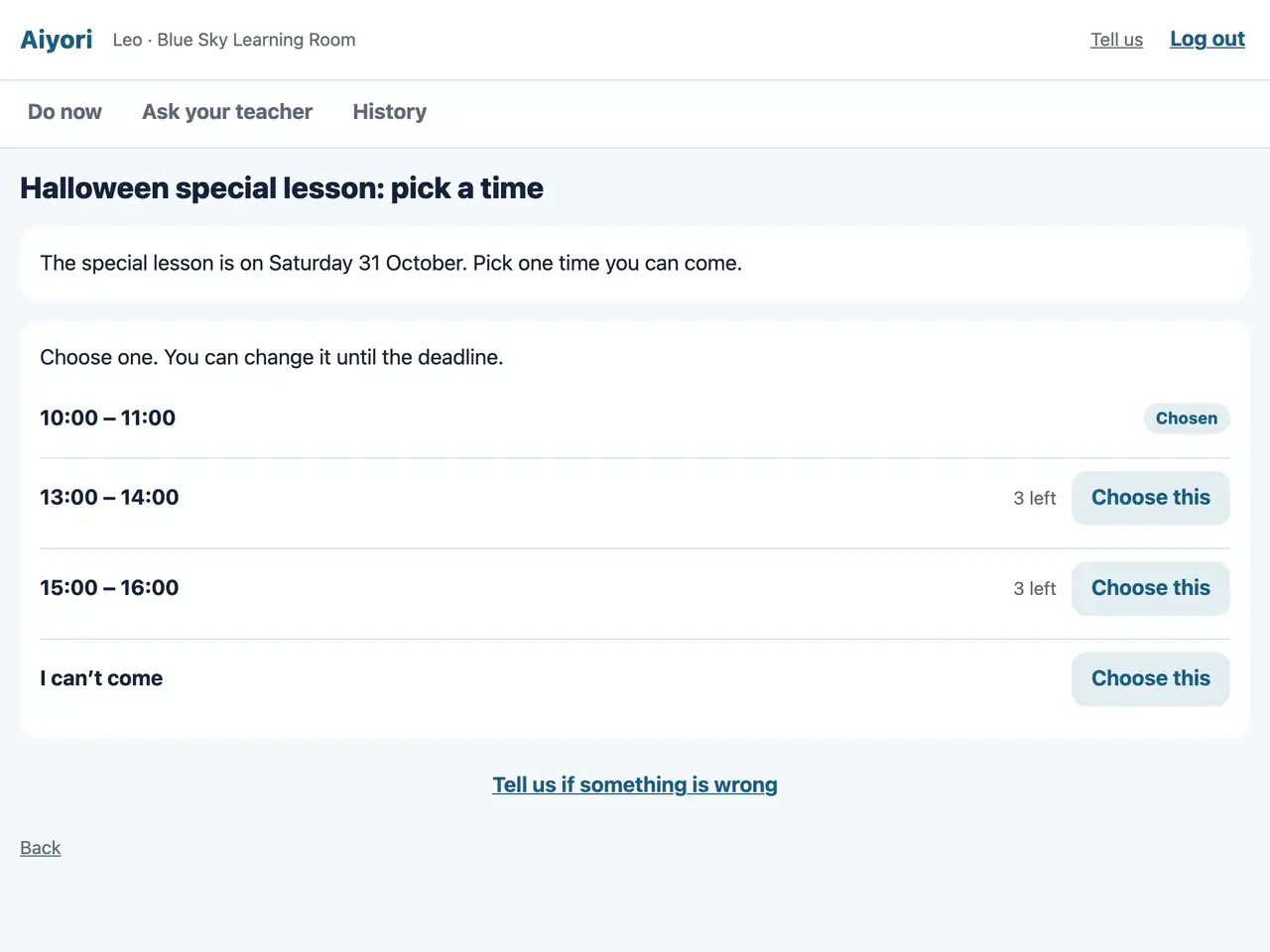
Choose one of the options listed. You can see how many places are left and which options are full.
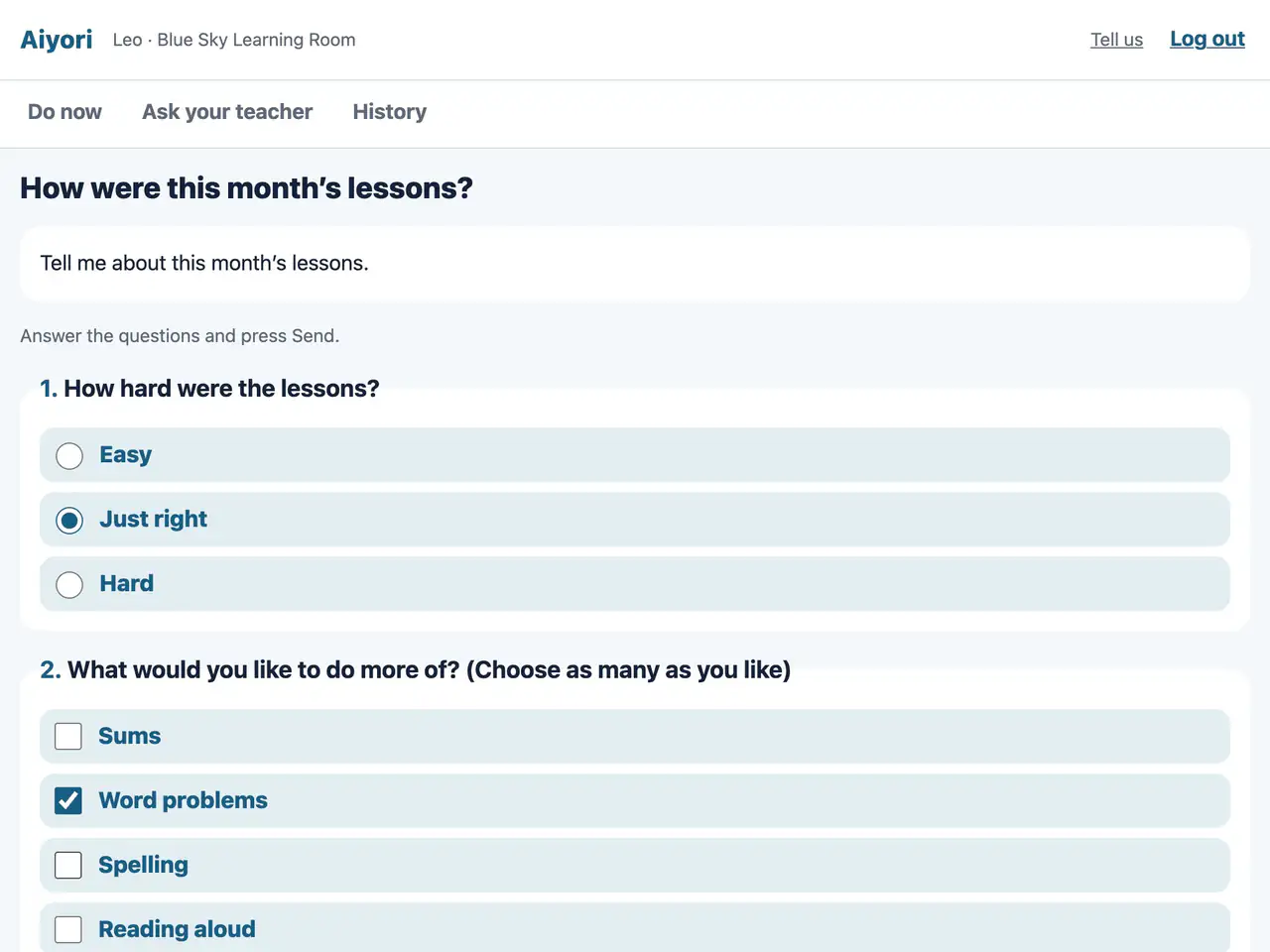
Answer questions from the teacher. There are no correct answers.
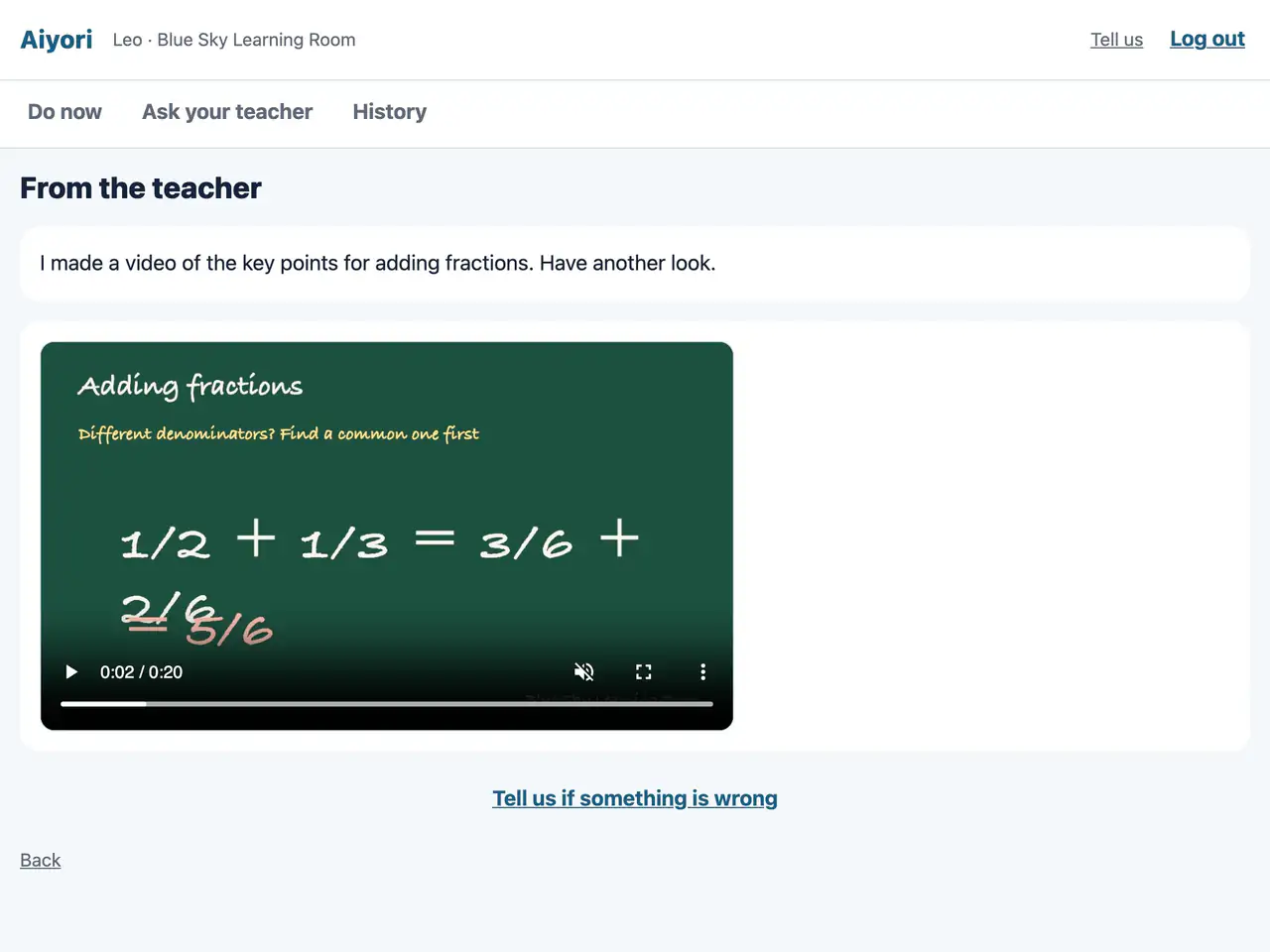
Play the teacher’s voice or video message. When it has played to the end, it becomes “Seen”.
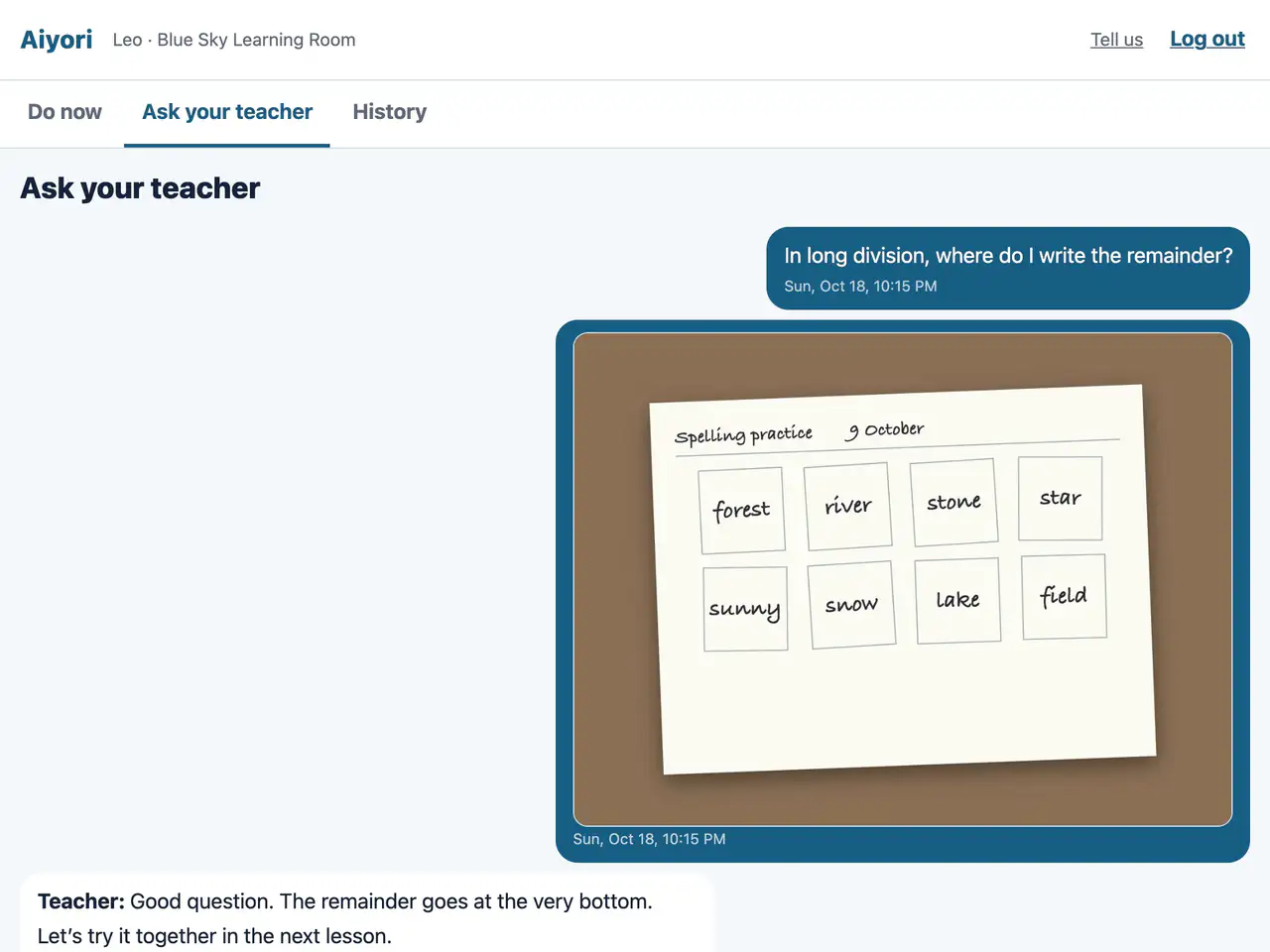
Ask the teacher about anything you do not understand, by text, voice or photo.
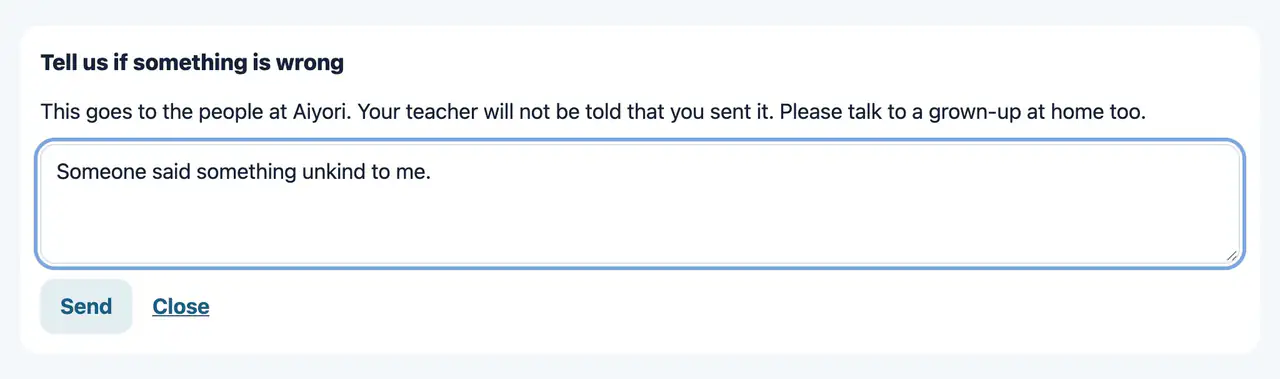
Students can report to Aiyori anything that worried or upset them. The teacher is not told about the report.
What your child has done and what is still left. What they are discussing with the teacher. All at a glance.
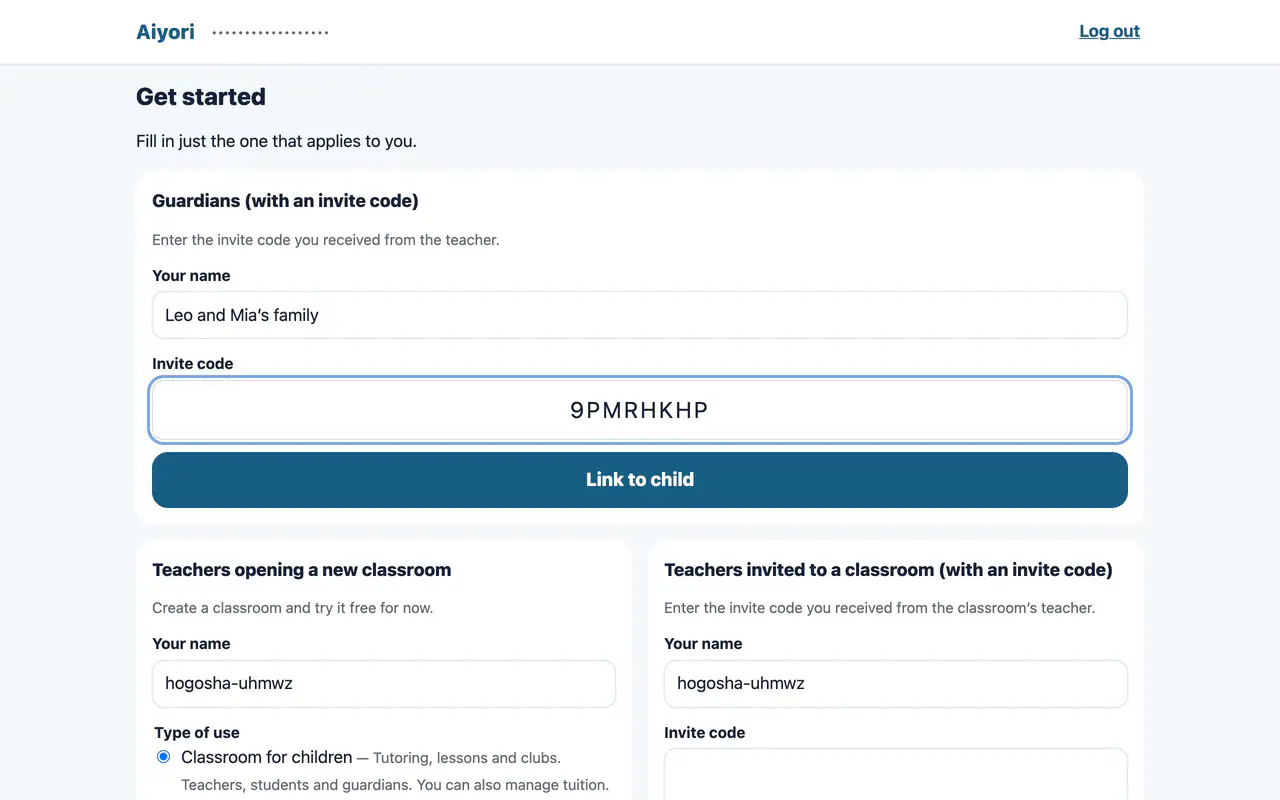
Enter the invite code you received from the teacher to be linked to your child. Brothers and sisters can be seen from the same account.
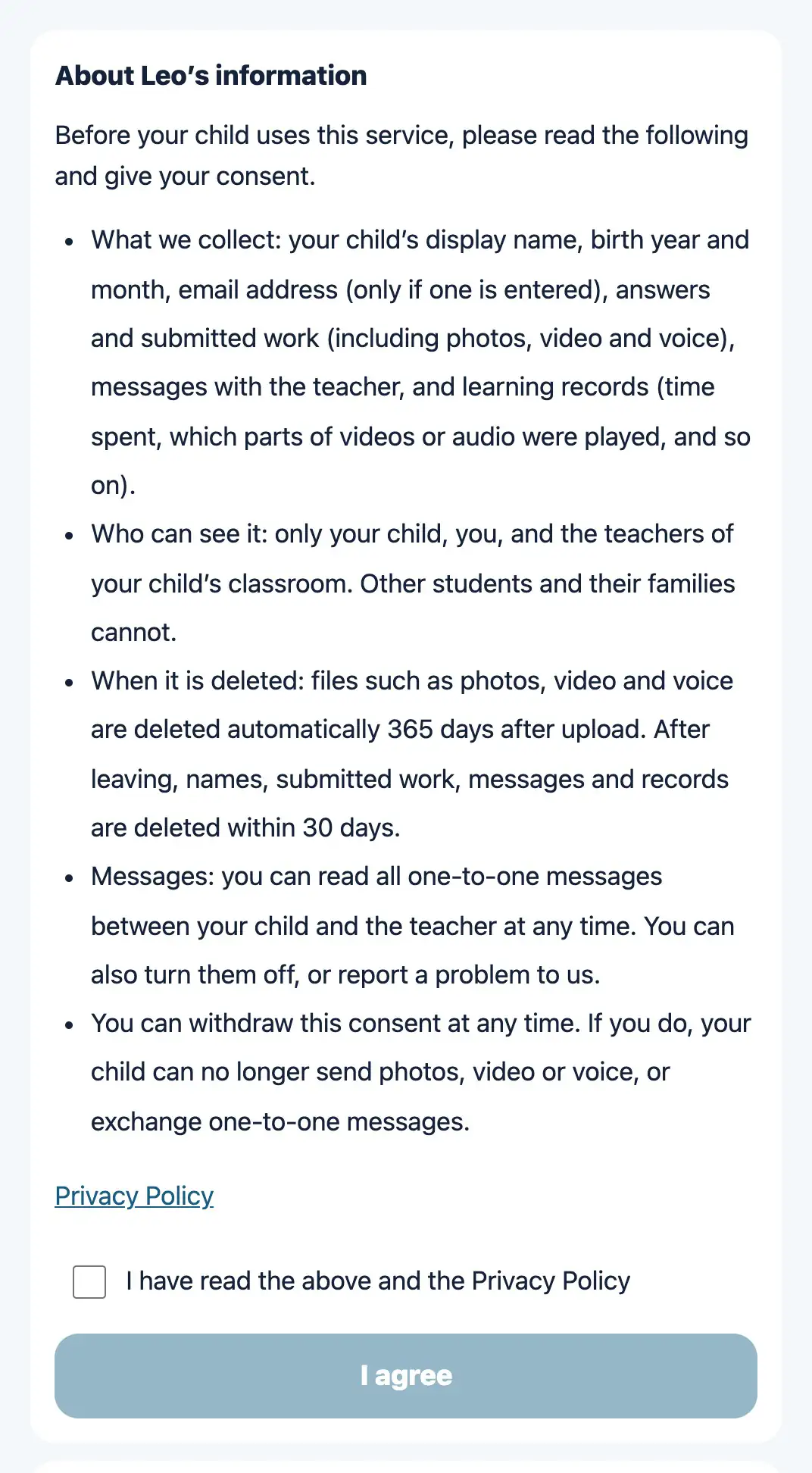
If your child is under 16, we ask for guardian consent before they can hand in photos, video or voice, or start one-to-one messages with the teacher.
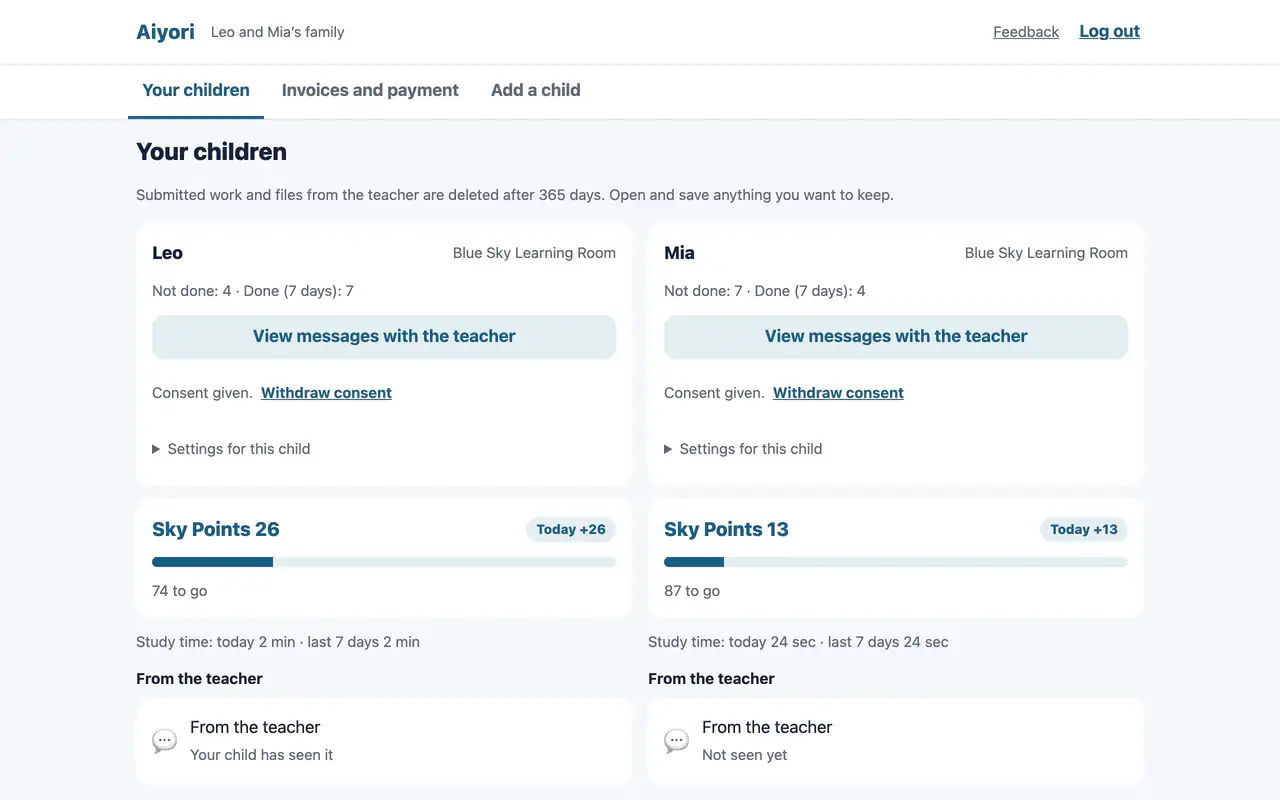
For each child, shows the number not done, the number done in the last 7 days, points and study time (today and the last 7 days). Upcoming lessons, overdue items, items not done and items done are listed too. For a set, it shows how many of its items are finished.
Guardians can also see the voice and video messages the teacher sent to the child. You can see whether the child has played them, too.
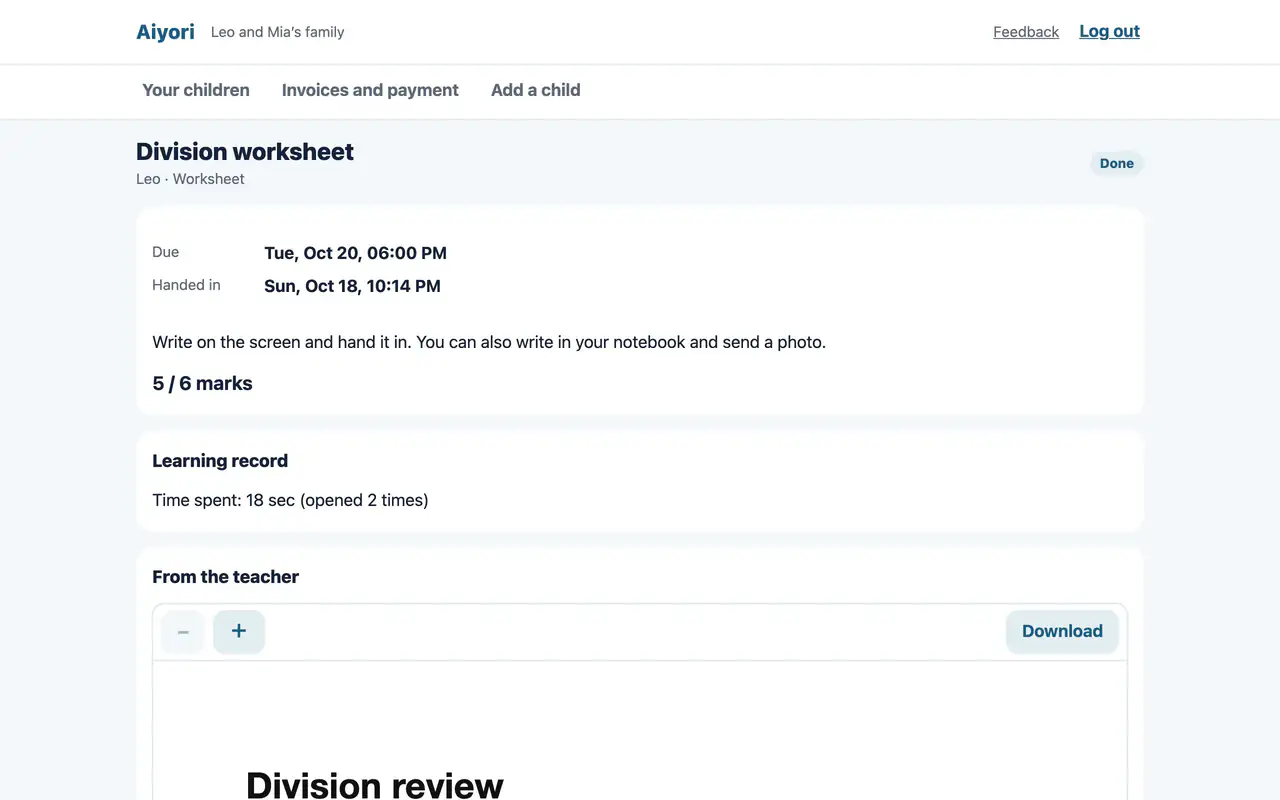
See the submission, the score, the teacher’s comment and red-pen marks, the questions and your child’s answers, and the learning record.
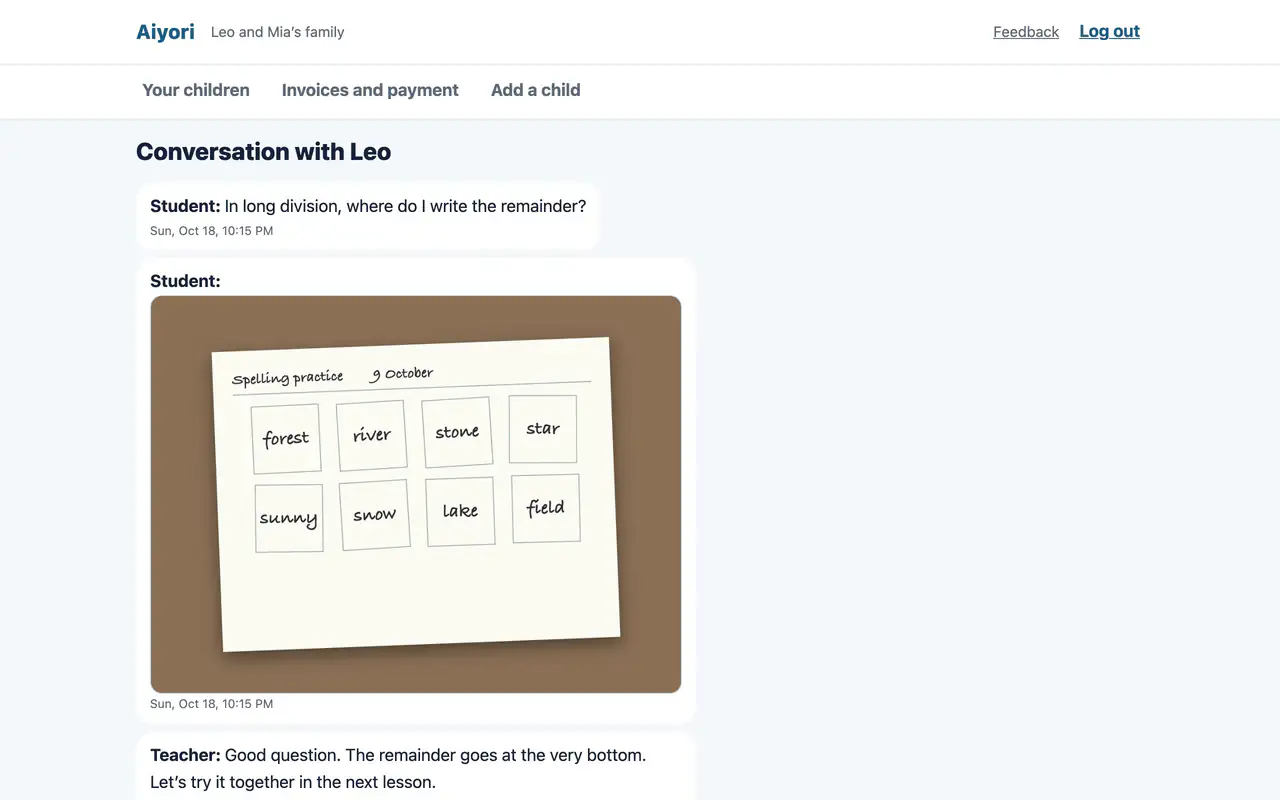
Read all of the messages between your child and the teacher.
Choose a meeting date or answer a survey addressed to guardians. These do not appear on the child’s screen.
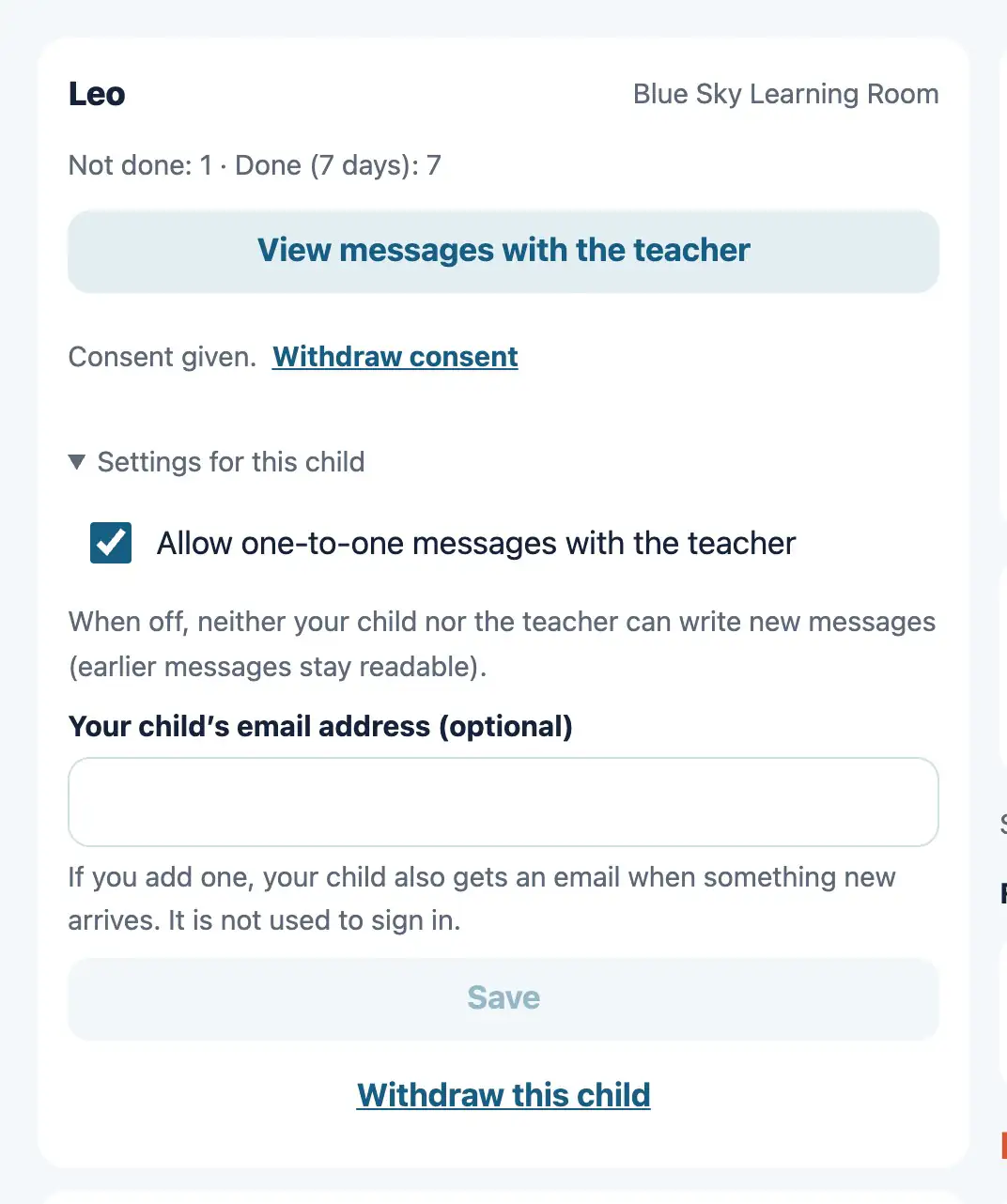
A guardian can turn off one-to-one messages between the child and the teacher. While they are off, neither the child nor the teacher can write new messages.
When your child leaves the classroom, the guardian can withdraw them.
Report to Aiyori anything that worried or upset you or your child.
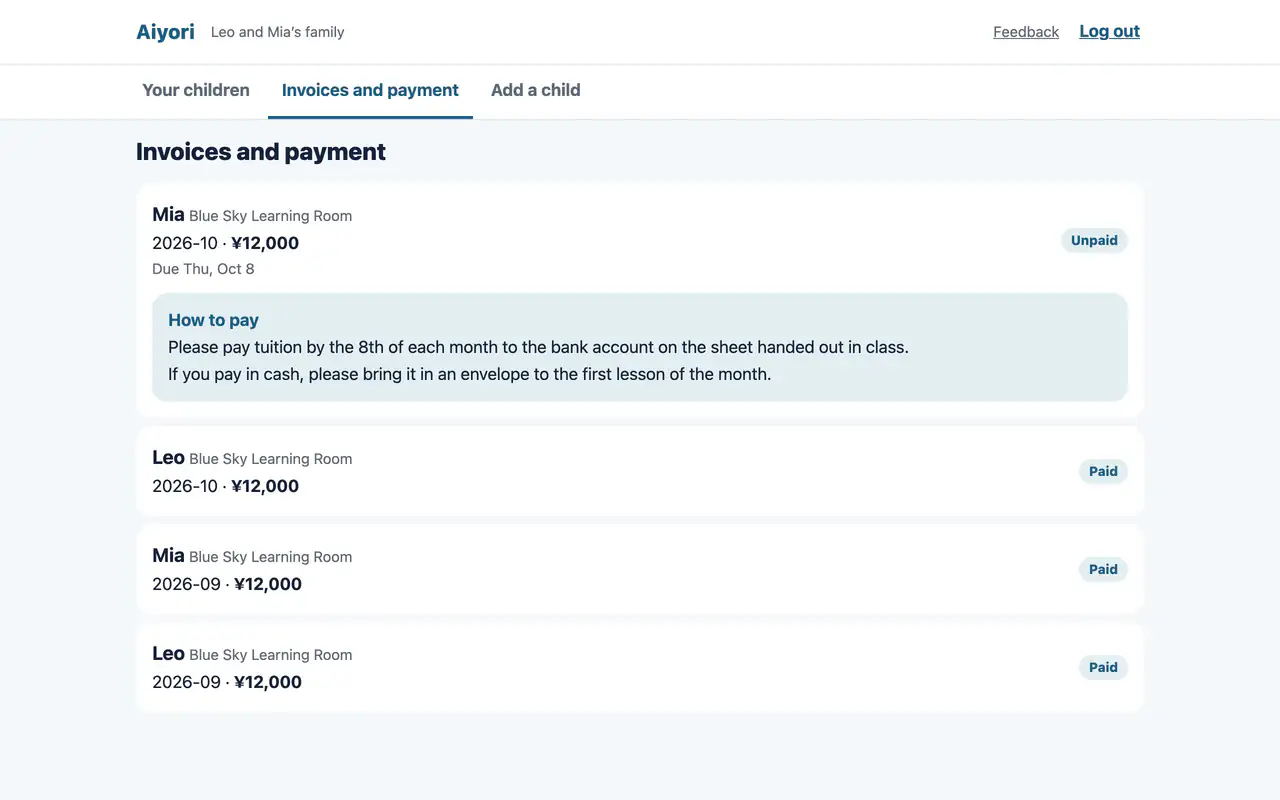
See the amount, due date and status for each child and each month. For transfer or cash, the teacher’s “How to pay” note is shown. You are told by email when a new invoice is created and when a payment is confirmed.
An alarm sounds on the guardian’s device 10 minutes before your child’s live lesson starts. When brothers and sisters have the same lesson, it sounds once.
Protects the guardian and teacher screens with Face ID, Touch ID or the passcode. A child using the device cannot open them.
From the guardian screen, hand the device straight to your child. Your child does their assignments on their own screen without entering a PIN. To go back to the guardian screen, Face ID, Touch ID or the passcode is checked.
Classes that learners attend and pay for themselves. The instructor’s screens are the same as the teacher’s screens above. This part covers only what changes for adults.
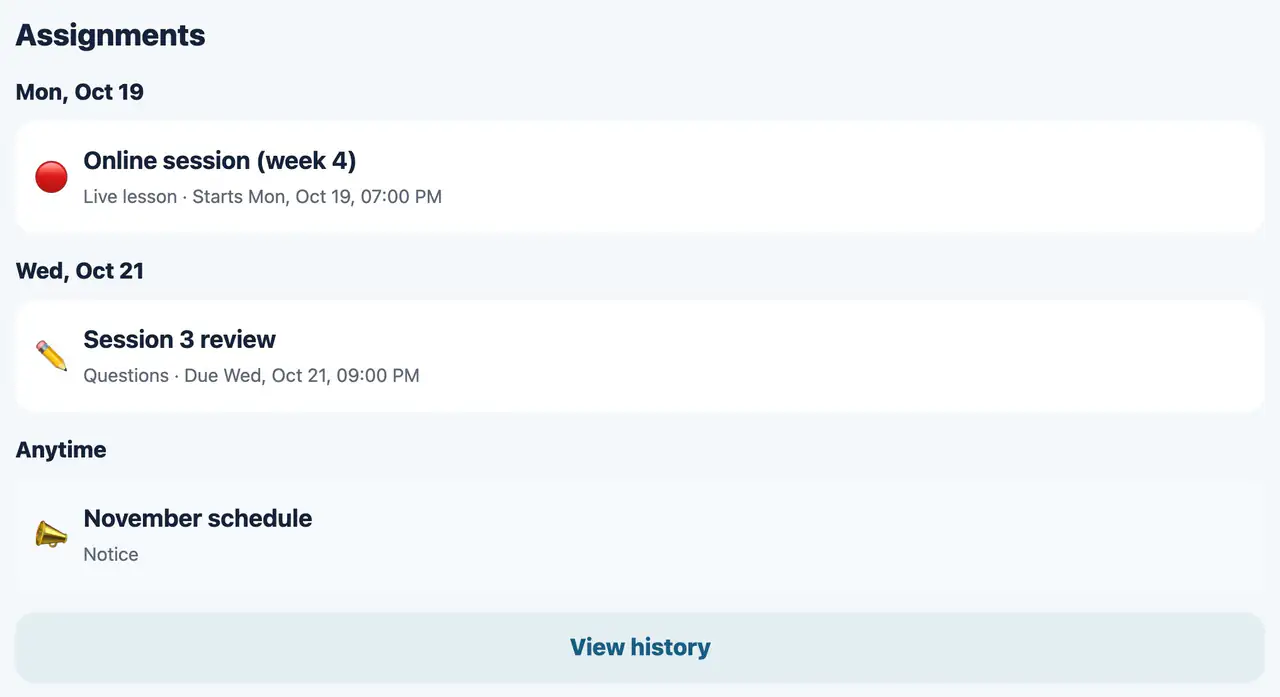
Learner screens use plain wording, without the phrasing for children. Questions, live lessons and notices handed out are listed in “Assignments”, and finished ones stay in “History”.
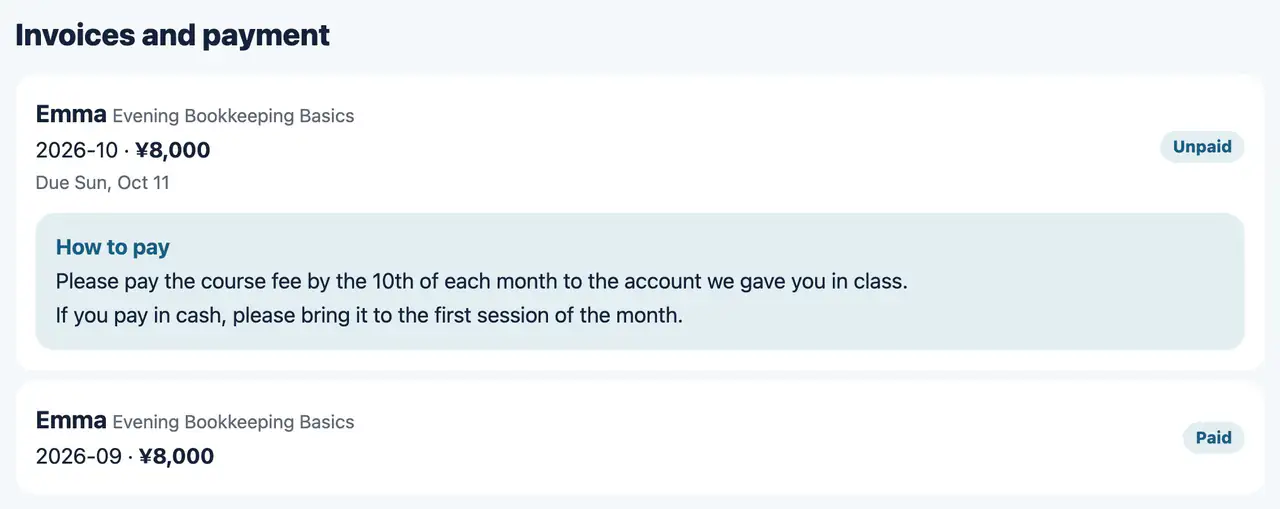
Learners pay their own tuition. In “Invoices and payment” on the web, they see each month’s invoice and the payment instructions written by the instructor.
Screens for trainers, learners and view-only managers. There are no guardian or tuition features. The screens use training words (learners, groups).
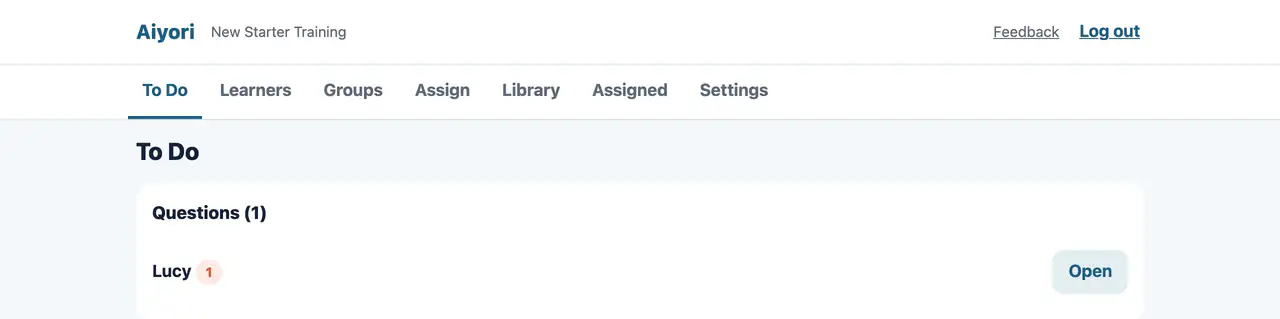
Questions from learners, work to grade and other things to do are gathered on one screen. The menu uses training words (learners, groups).
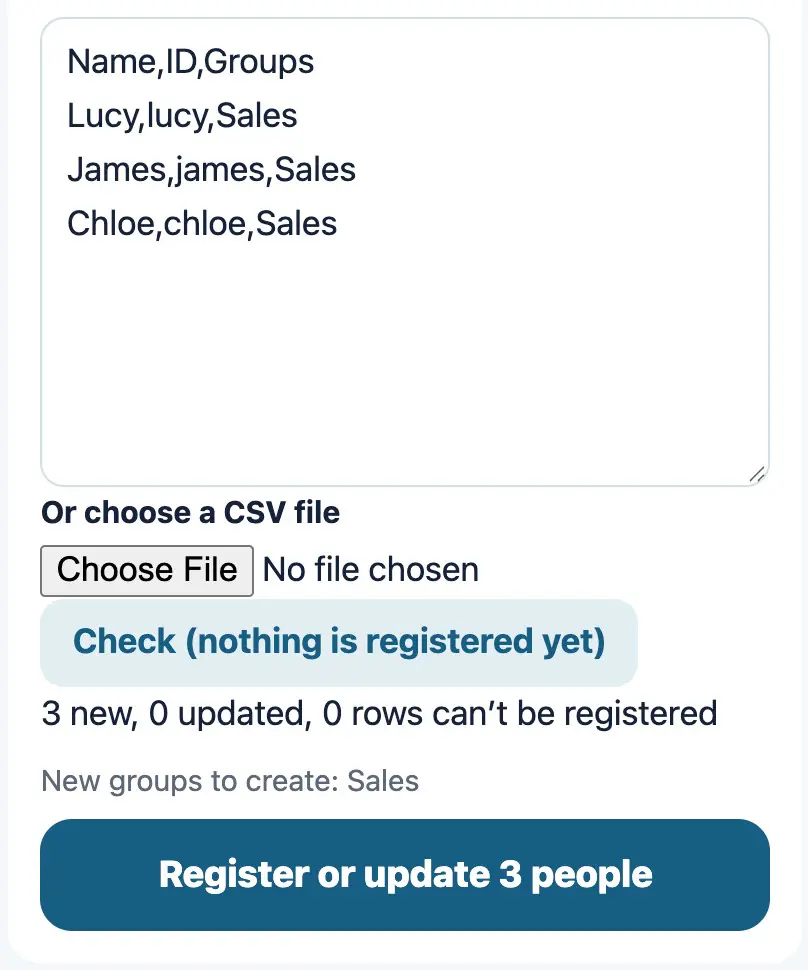
Paste a table from your HR system or a spreadsheet, or choose a CSV file, to add learners and groups in one go. The same person is matched by employee number or email address and updated.
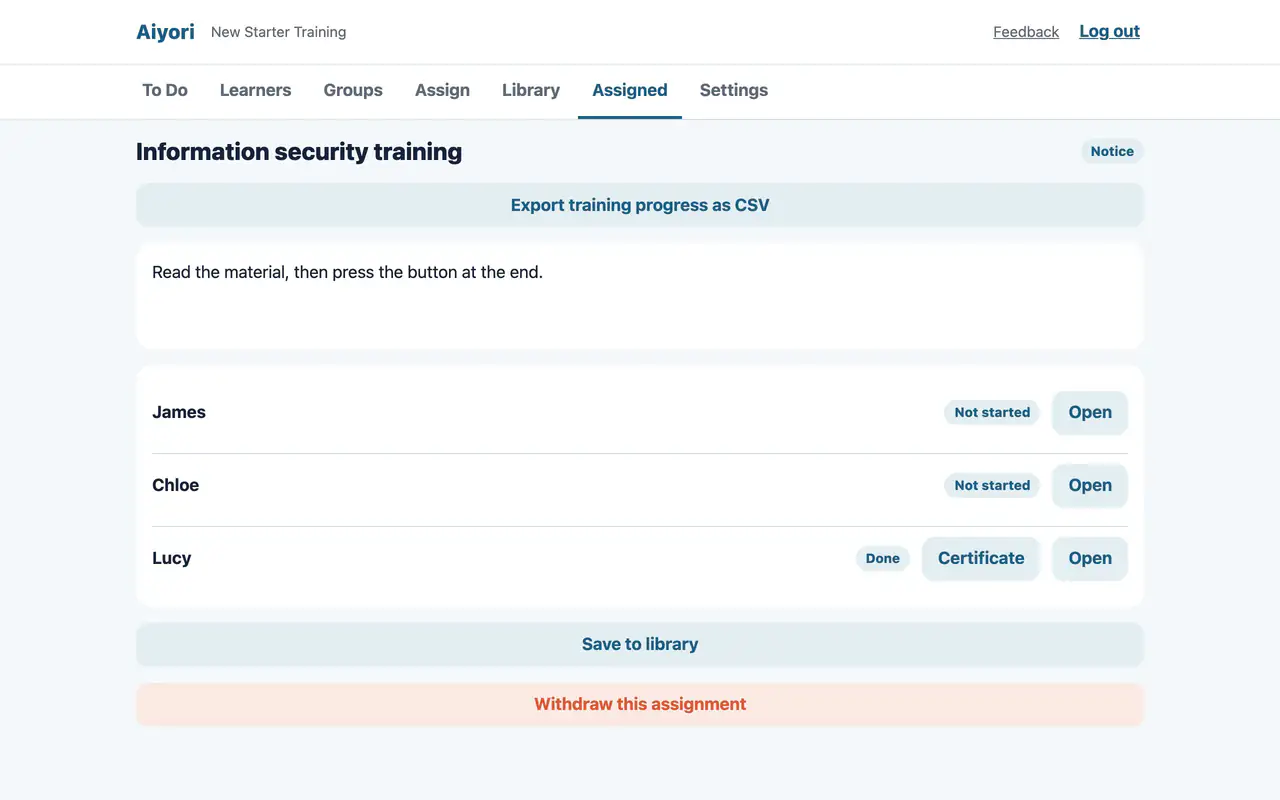
For each training handed out, shows the status of each learner. People who finish a course to the end can be given a certificate. The status can be exported as CSV.
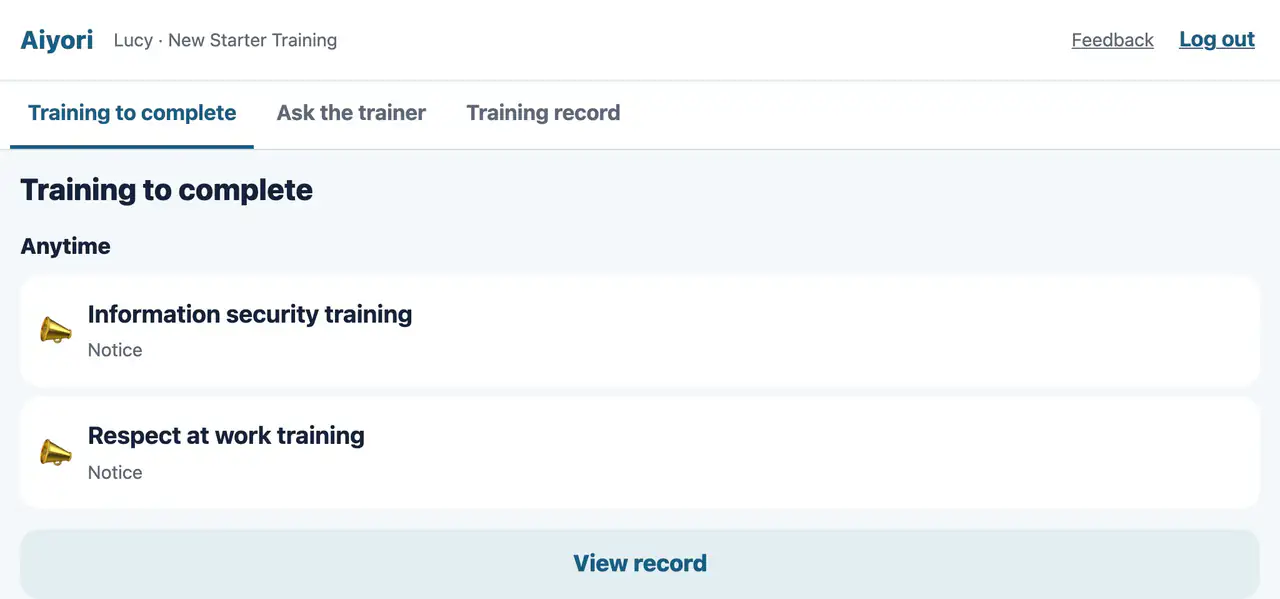
The learner’s screen lists the training handed out, from the top. Finished training stays in “Training record”.
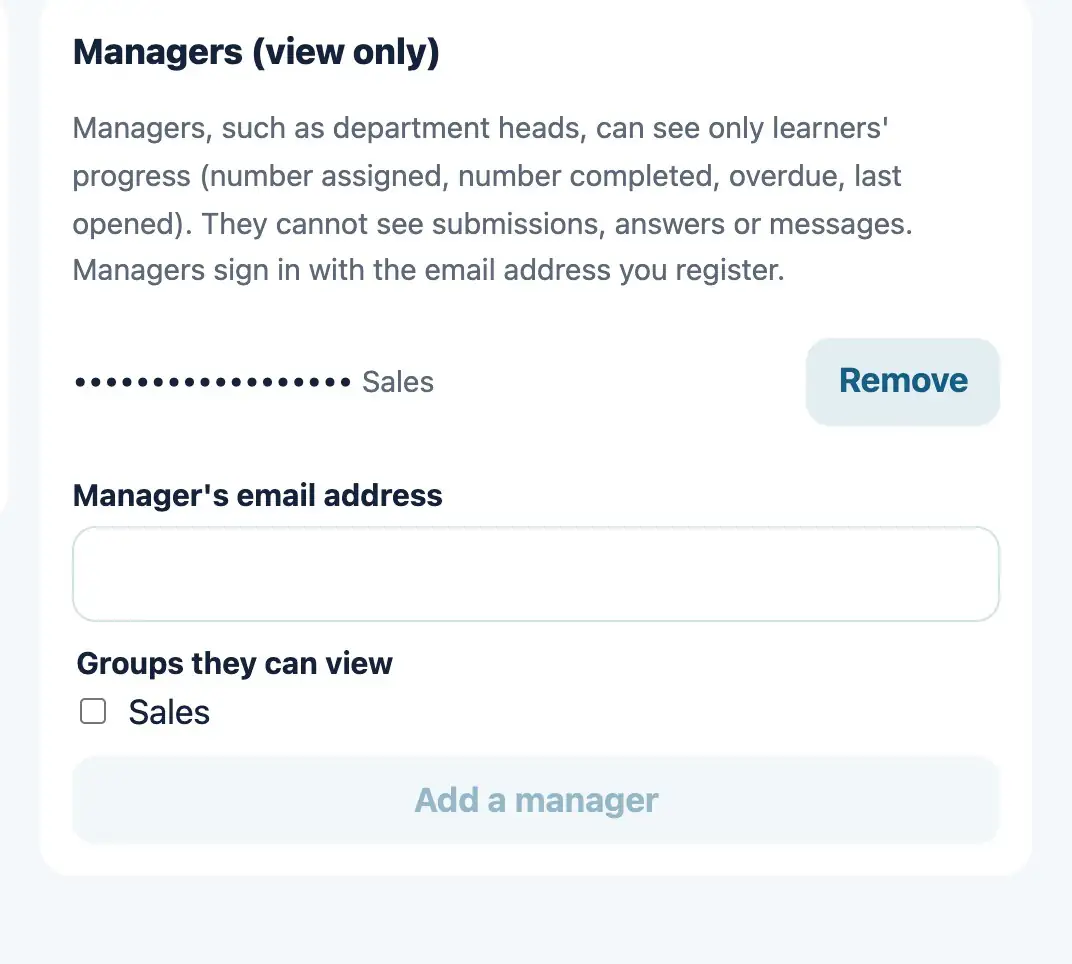
The trainer who created the organization adds view-only managers by email address, choosing which groups they may see.
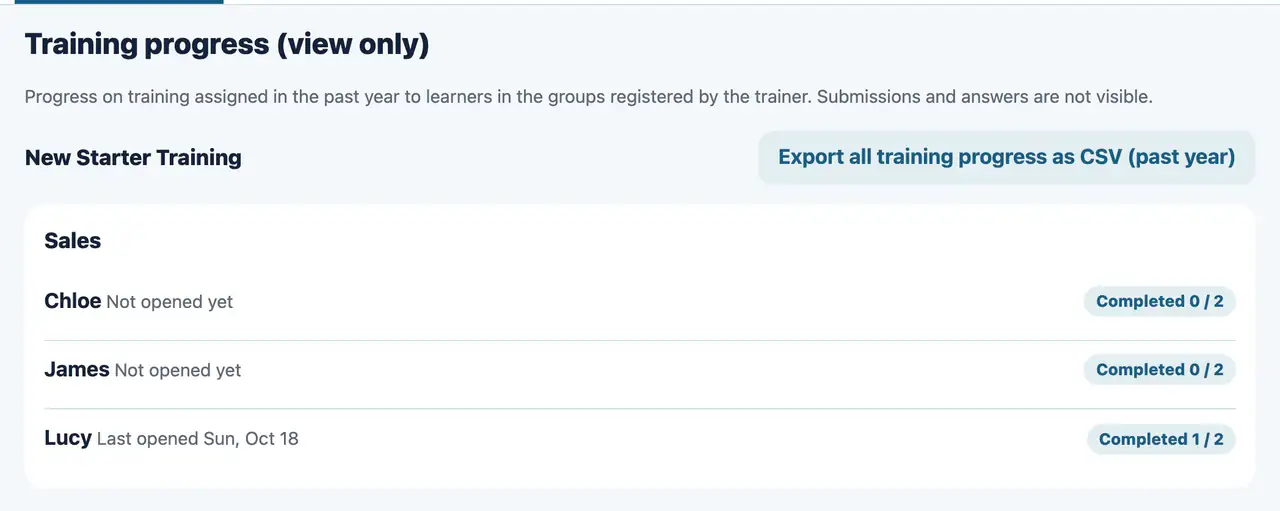
When managers log in with the registered email address, they see, for each learner in their groups, how many items are finished, what is overdue and when the learner last opened it. It can also be exported as CSV.
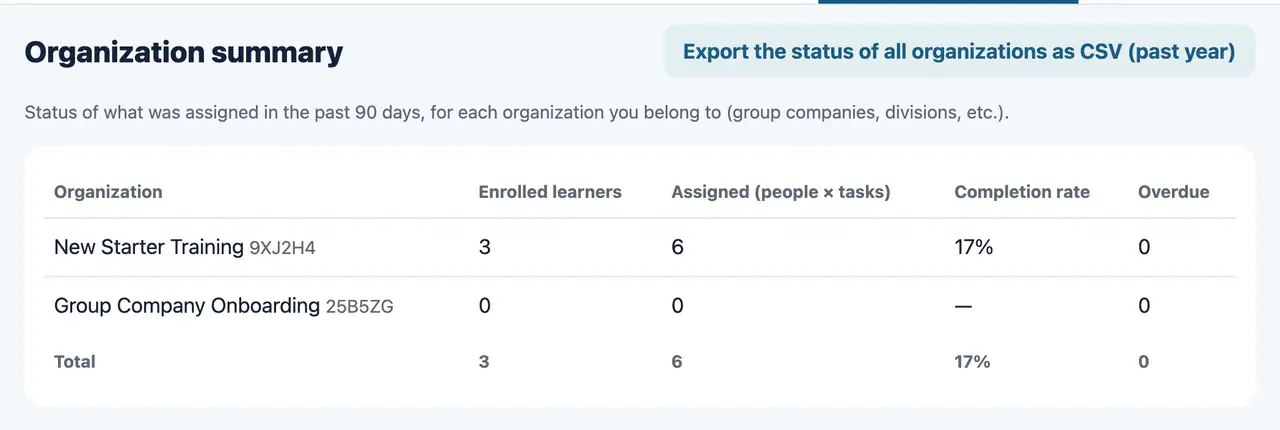
When you use separate organizations for group companies or divisions, a trainer can belong to two or more of them. “Organization summary” lists, for each organization, the enrolled learners, the number handed out, the share finished and what is overdue.
Logging in, language, notifications and how files are handled. These concern everyone, whatever their role.
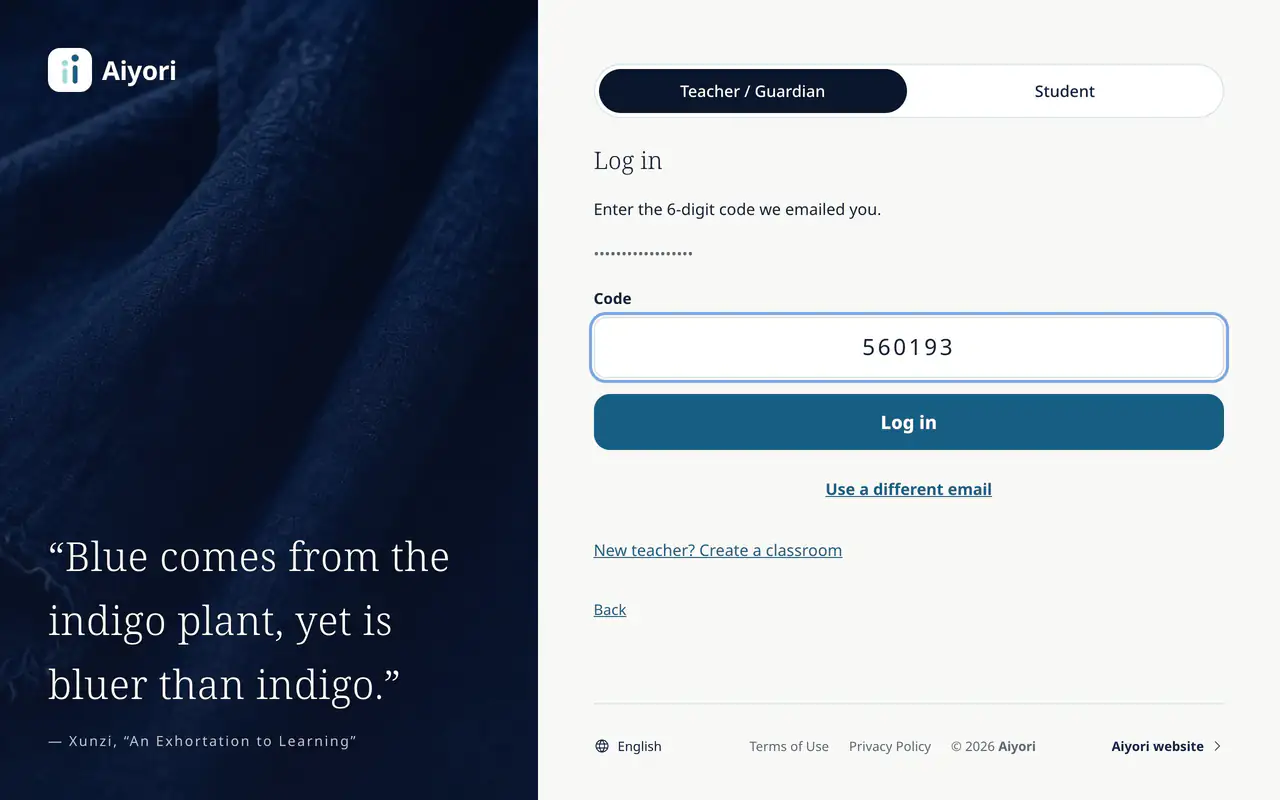
Log in with a 6-digit code sent to your email address. There is no password.
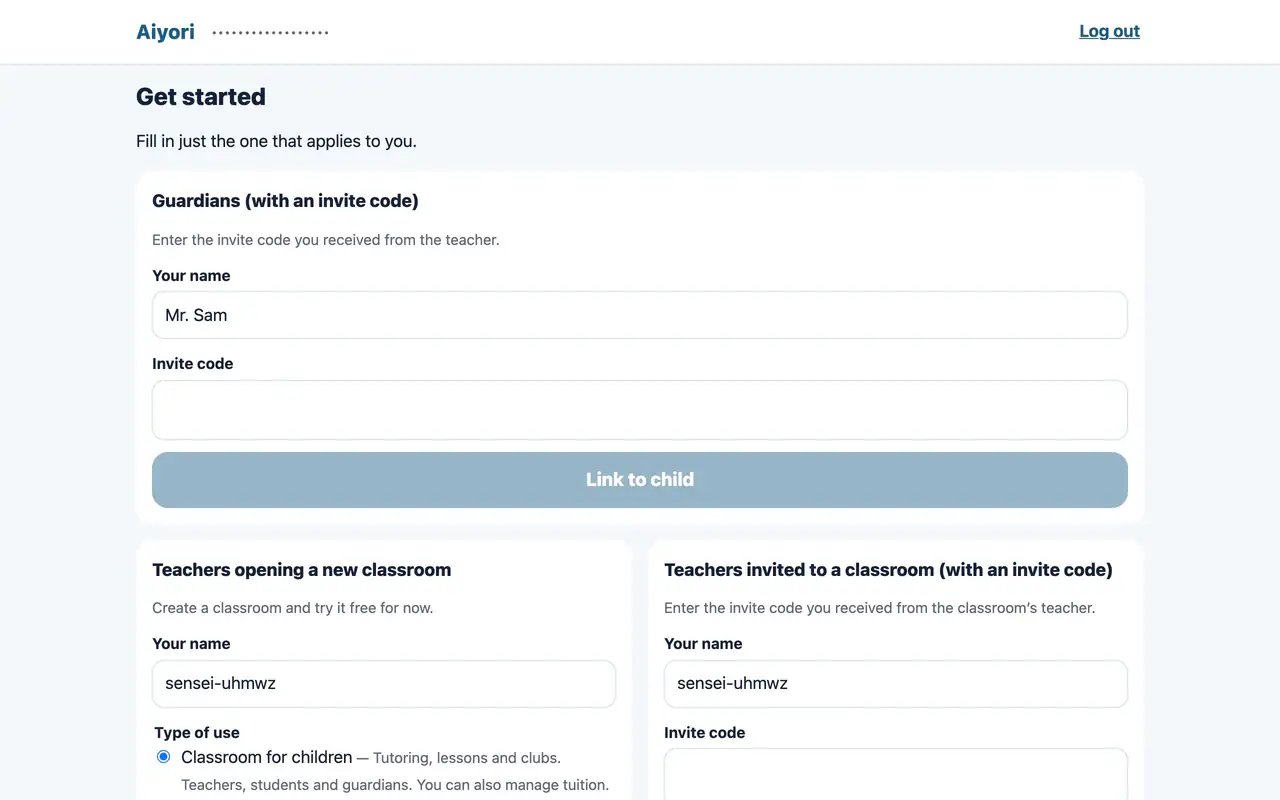
A new teacher creates a classroom by setting its name, country or region, time zone and currency.
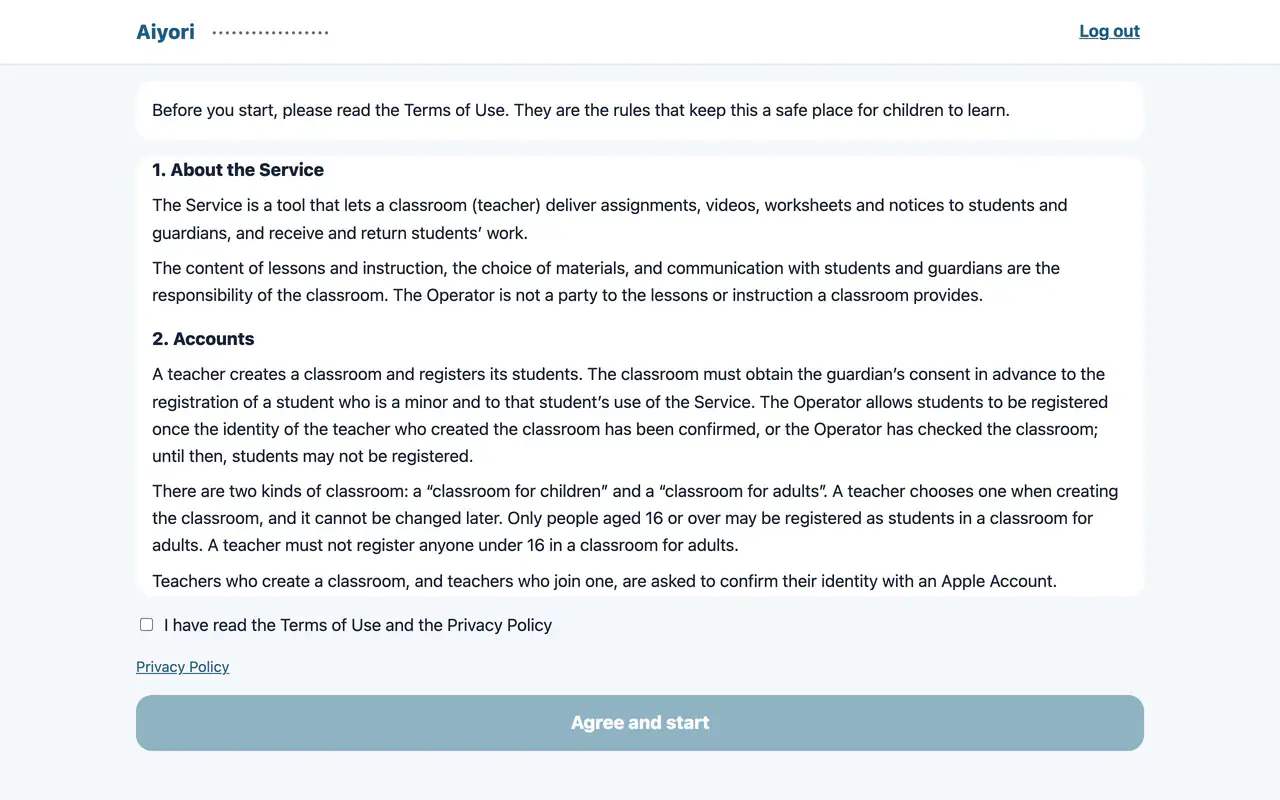
The first time you use Aiyori, and whenever the terms change, read the full text and agree.
If you are both a teacher and a guardian, you can switch screens within the same account.
Teachers and guardians can delete their own accounts. A code sent by email confirms it.
Choose from eight languages: Japanese, English, Simplified Chinese, Traditional Chinese, Korean, Spanish, German and French. Each person chooses their own, and notifications and emails arrive in the same language.
Your device is notified of new assignments, due dates, submissions, returned work, messages, lessons about to start and more. So that you can tell which child and what it is about, a notification includes the child’s display name and the assignment title. It never includes message text, scores, the teacher’s comments or tuition amounts. Guardians and teachers can turn off names and titles in Settings.
A summary of the day is emailed to guardians in the evening and to teachers in the morning. It is sent only on days when there is something to report.
Files such as photos, videos, voice recordings and PDFs are deleted automatically 365 days after upload. Scores, comments and text messages stay.