You don’t know if homework was done until the next lesson.
You see who has handed in and who has not, the same day. Questions are marked on the spot, and you can mark up worksheets on screen and return them.

For Teachers
For teachers at tutoring schools, private tutors, lessons and activities, and classes for adults. Aiyori is an education platform where teachers hand out assignments to students, grade and return them, share progress with guardians and bill tuition, all in one place.
The fee is US$2.99 per person per month (¥400 in Japan), tax included. It is free for 30 days after you create your classroom, and you don’t need to add a payment method. Once your classroom is created, you can start by registering students.
Start free (30 days)Opening a classroomPricingiPhone and iPad app (App Store in Japan)
Common Problems
You see who has handed in and who has not, the same day. Questions are marked on the spot, and you can mark up worksheets on screen and return them.
Each student’s learning record and the classroom progress grid show you who is falling behind.
What the child handed in, with your markings and voice, is visible to families as it is. A daily summary email also goes out.
Handing out, handing in, returning, messages and tuition invoices are all in one place. You never have to give students or families your personal contact details.
Every Day
Homework stops when students cannot tell what to do, and cannot see what they have done. Aiyori makes the daily flow clear, starting from how you hand work out.
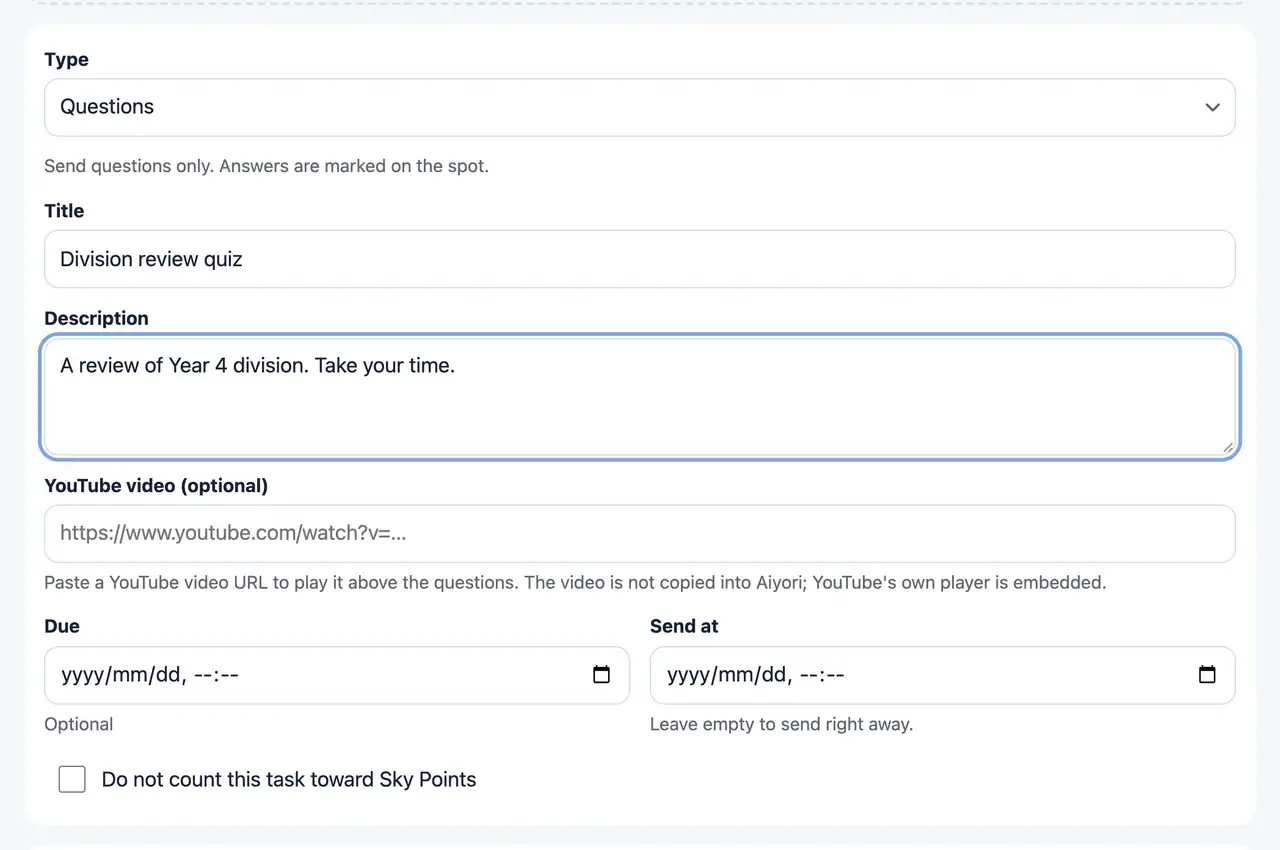
Write answers and hand them in, just look, self-study with the answers, a video with questions, a video with a speaking test. The purpose and steps you choose also appear on the student’s screen.
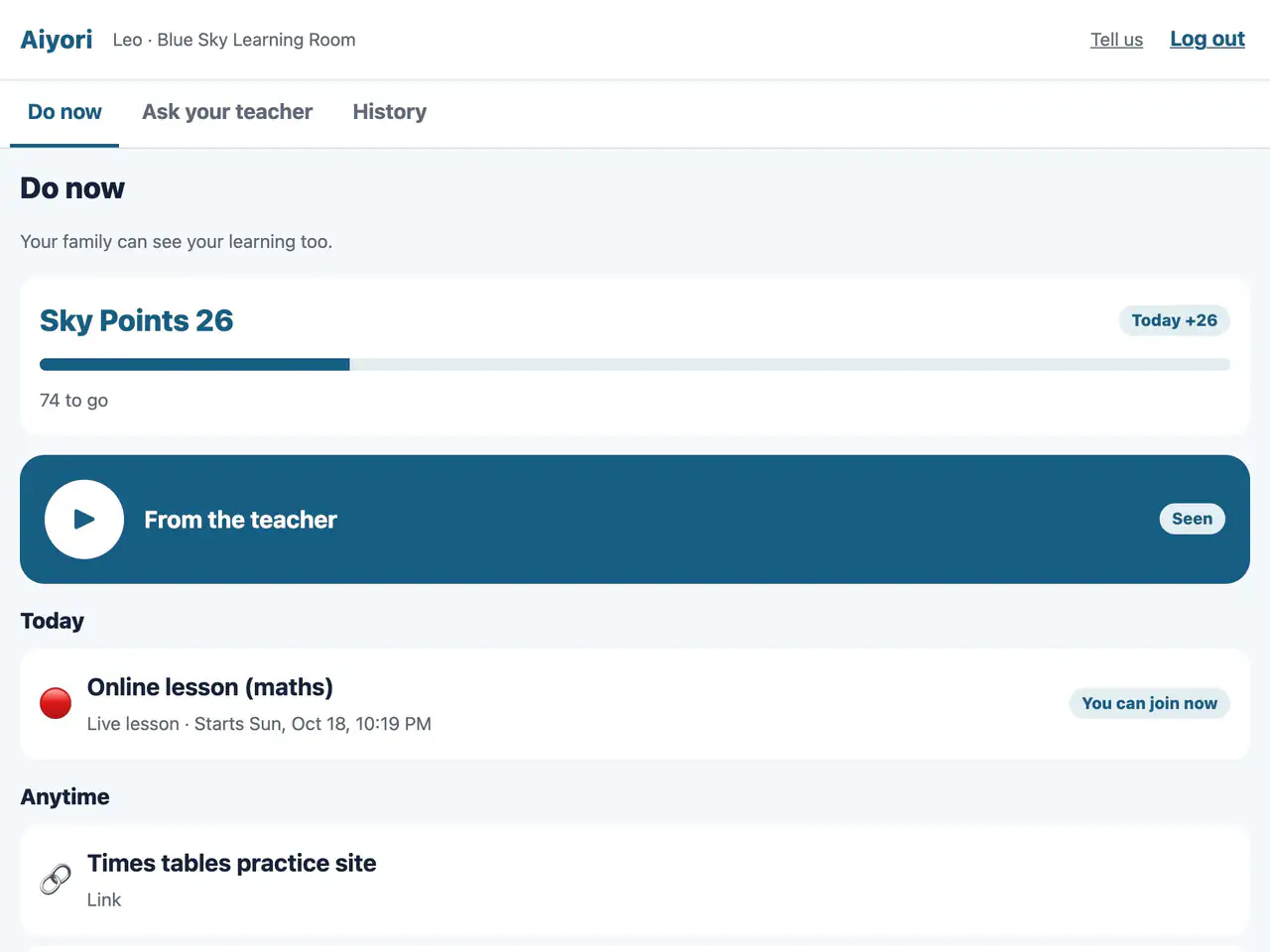
Everything that arrived today is grouped together, with your feedback on yesterday’s work first. Finished items turn green, and students confirm every time before they hand something in.
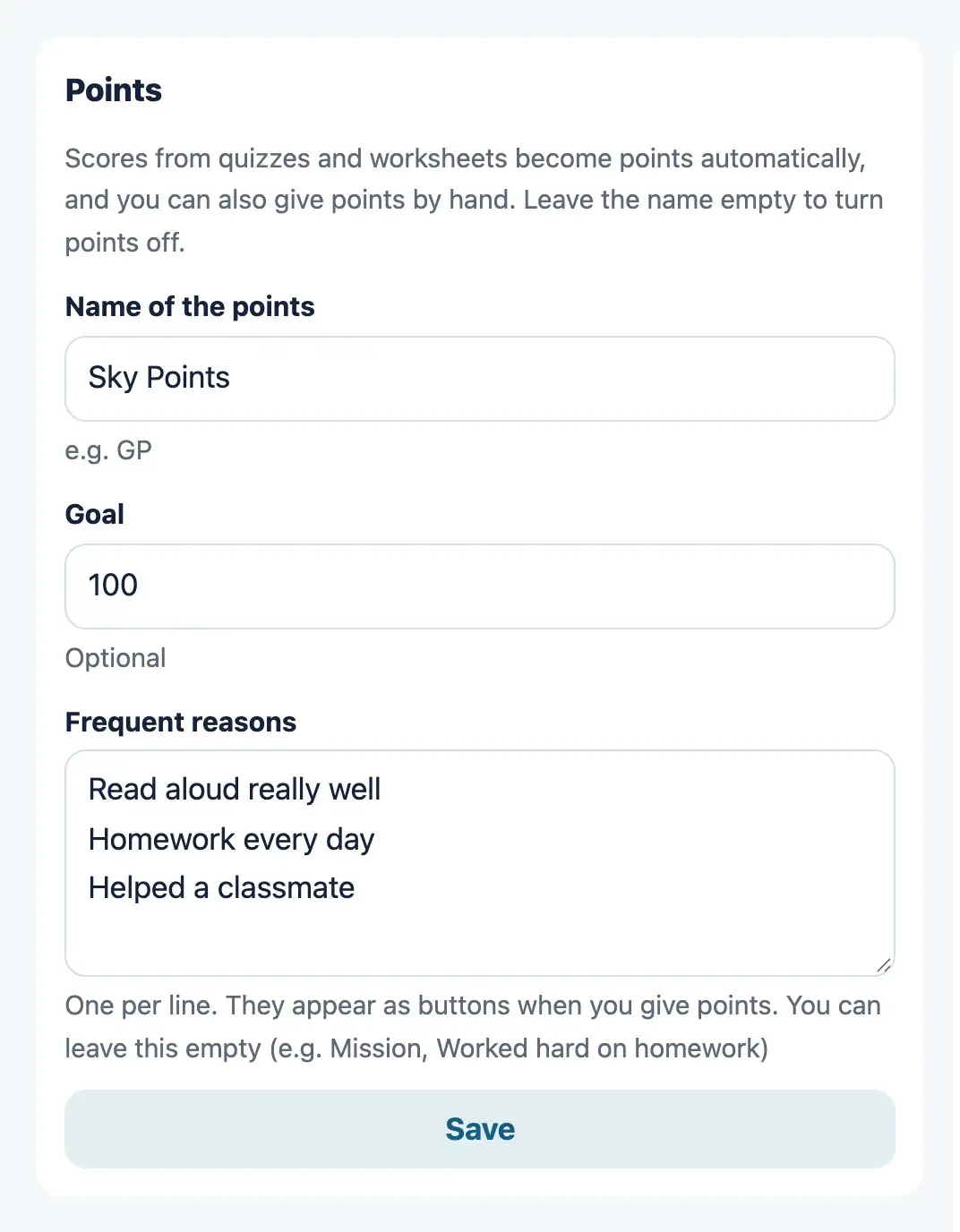
Scores on questions and worksheets become points, under a name your classroom chooses. Each time a student reaches the number you set, they earn a reward. You can also give points by hand.
For English Classes
The daily practice of an English class becomes assignments as it is. Classrooms for other subjects can use it the same way.
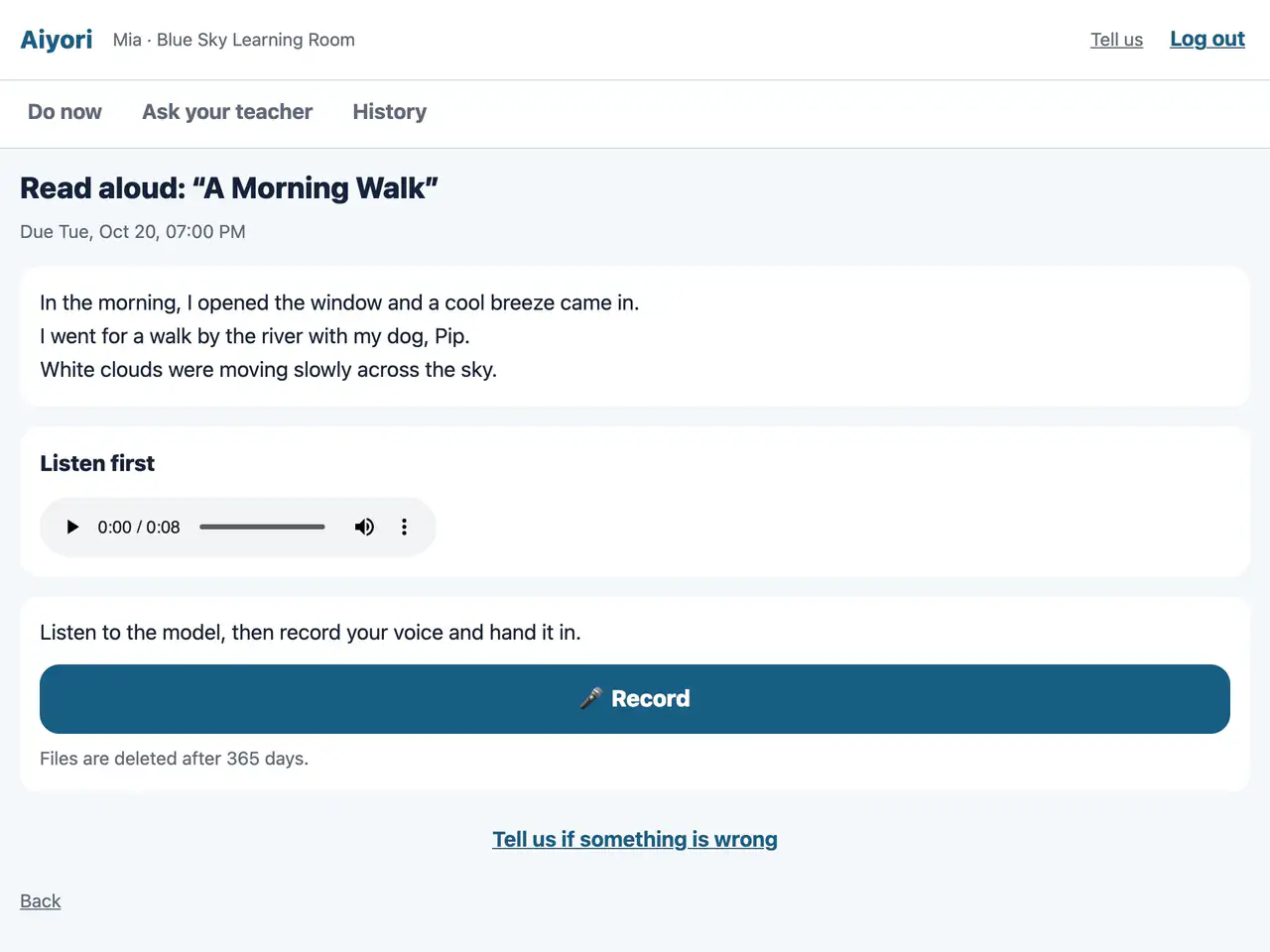
Students listen to a model recording, then record their own voice and hand it in. You listen to one student after another and reply with a score, a comment or your voice.
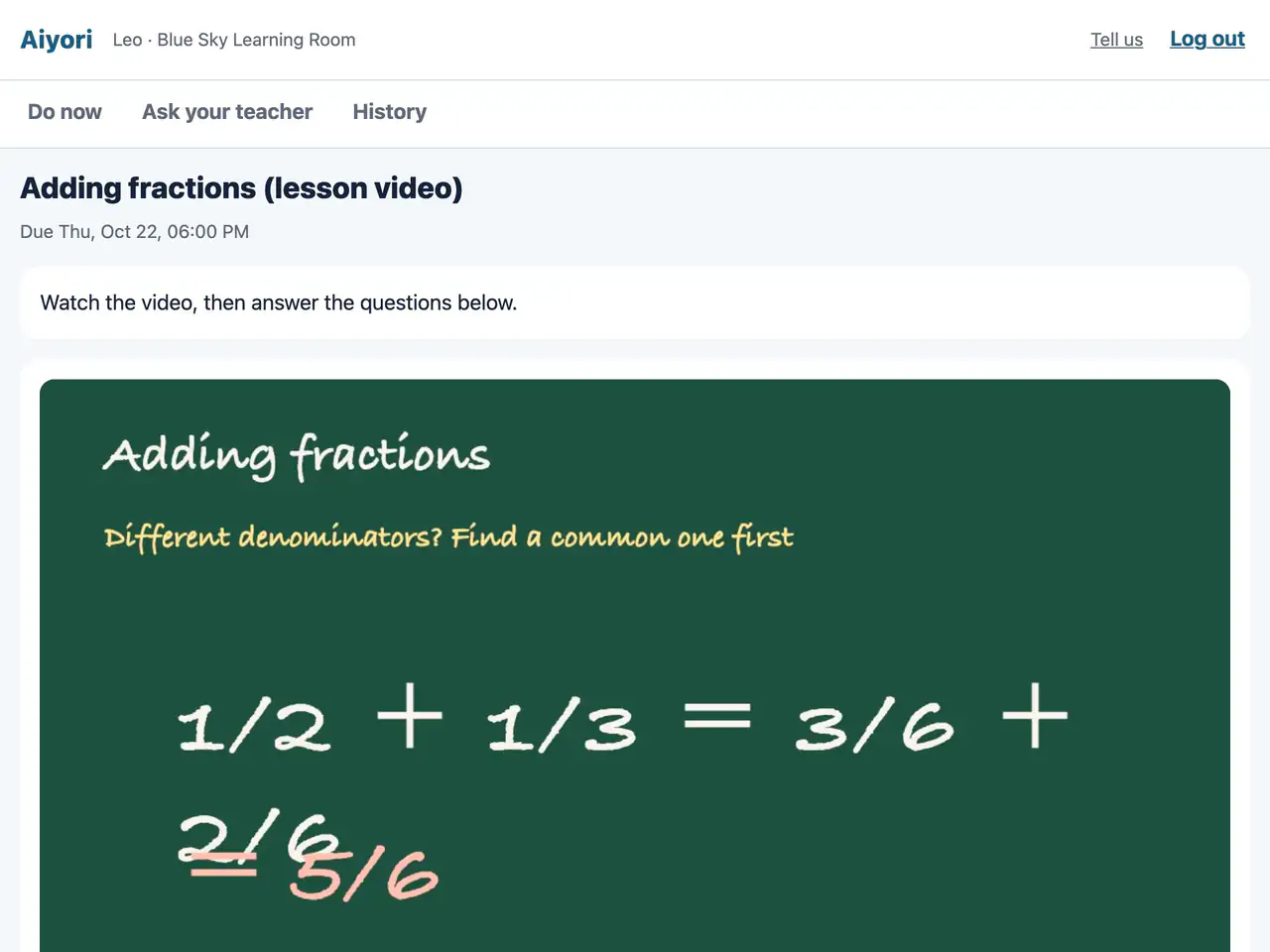
Hand out a lesson video (YouTube videos too) with questions, or with a passage to read aloud. Students answer every question, then hand them all in at once.
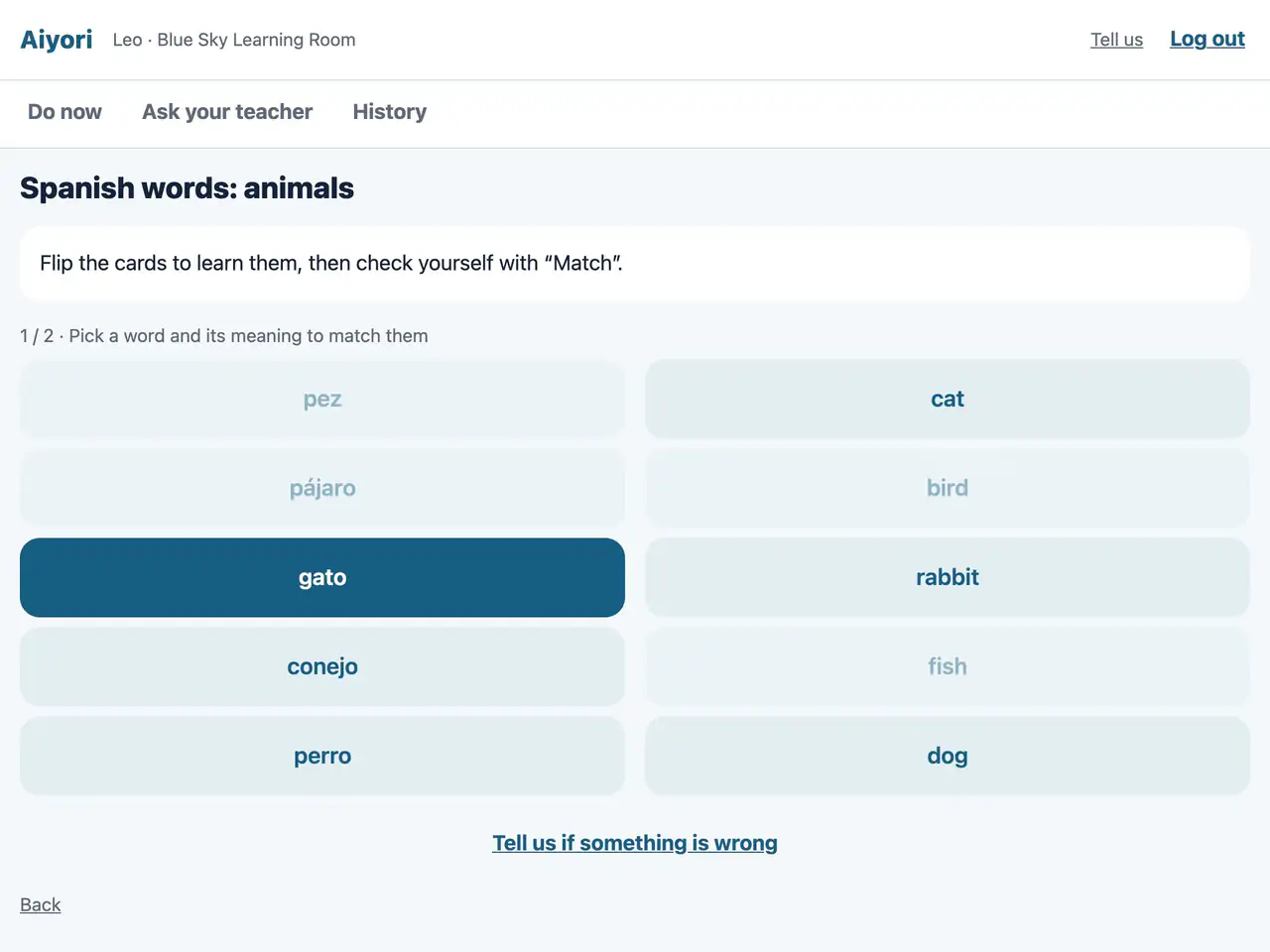
Paste words and meanings, including a Quizlet export. An automatic voice reads them out, and students practice with Flip, Match and Test. A class ranking for Match appears only when you choose to show it.
See Each Student
Who is moving ahead and who is stuck? You know without waiting for the next lesson.
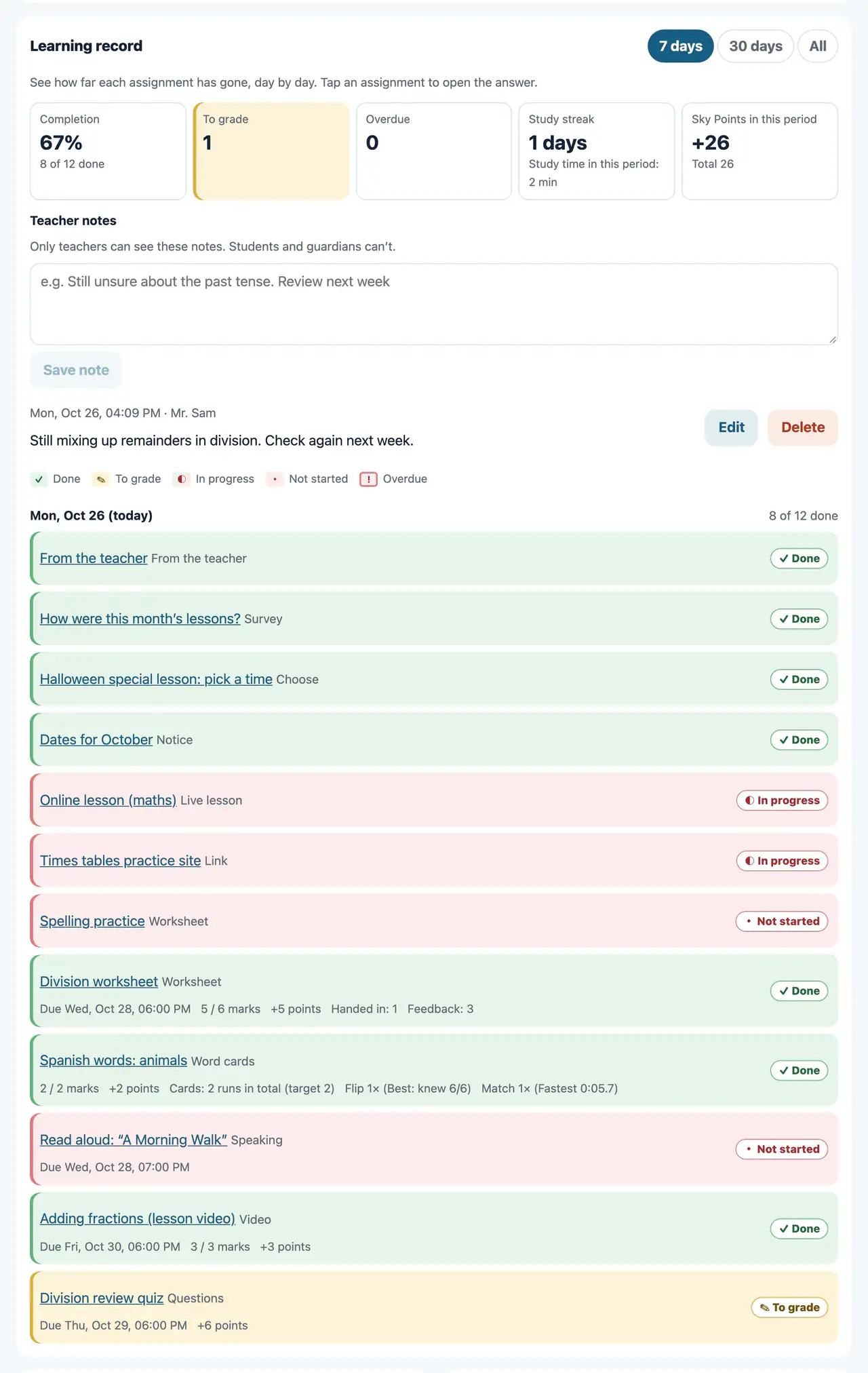
For each student, one page shows the share of work finished, days in a row of study, study time, points, and progress day by day. You can also keep notes that only teachers see.
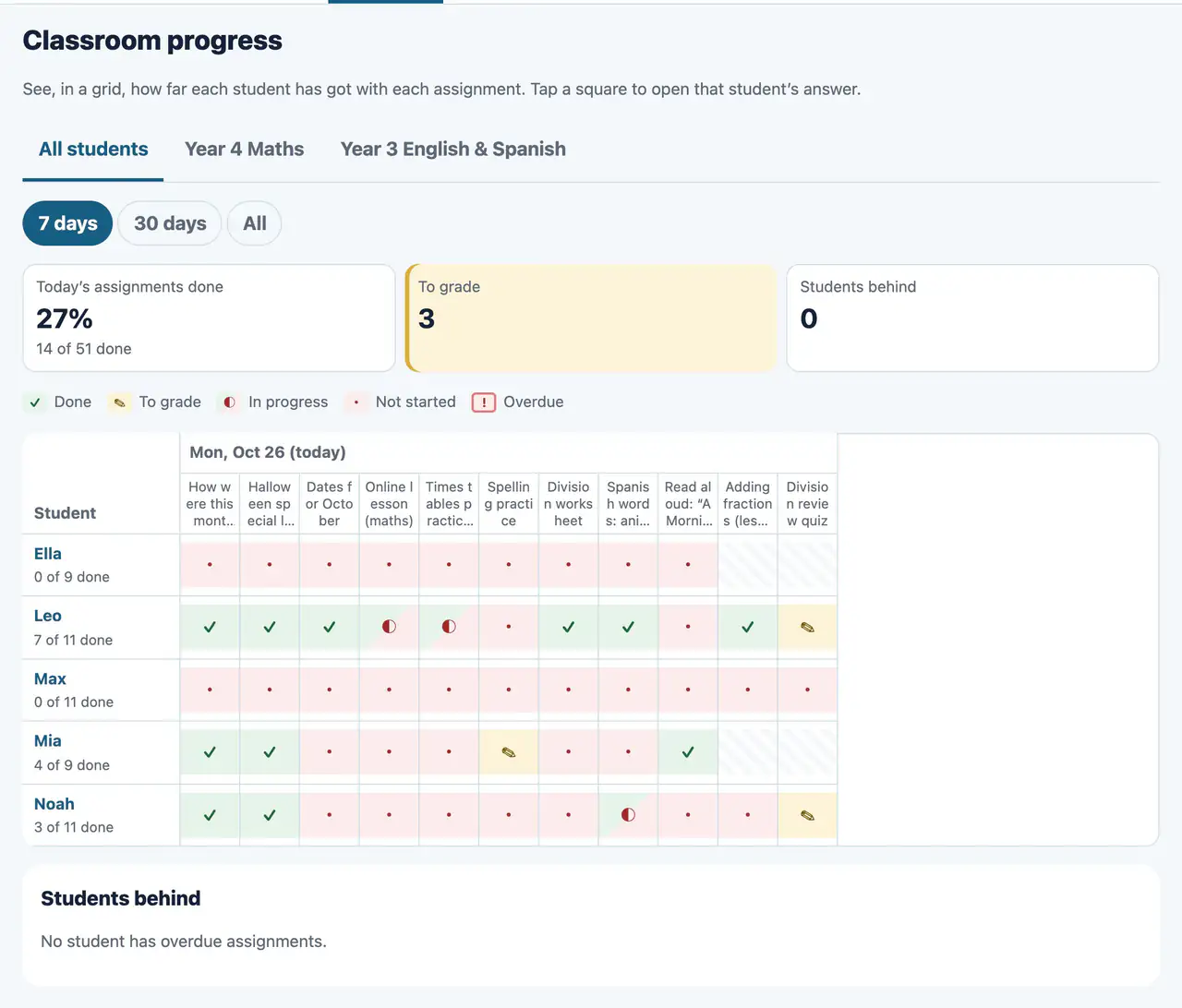
Students and assignments in one grid. You see at a glance how much of today’s work is done and which students have overdue work.
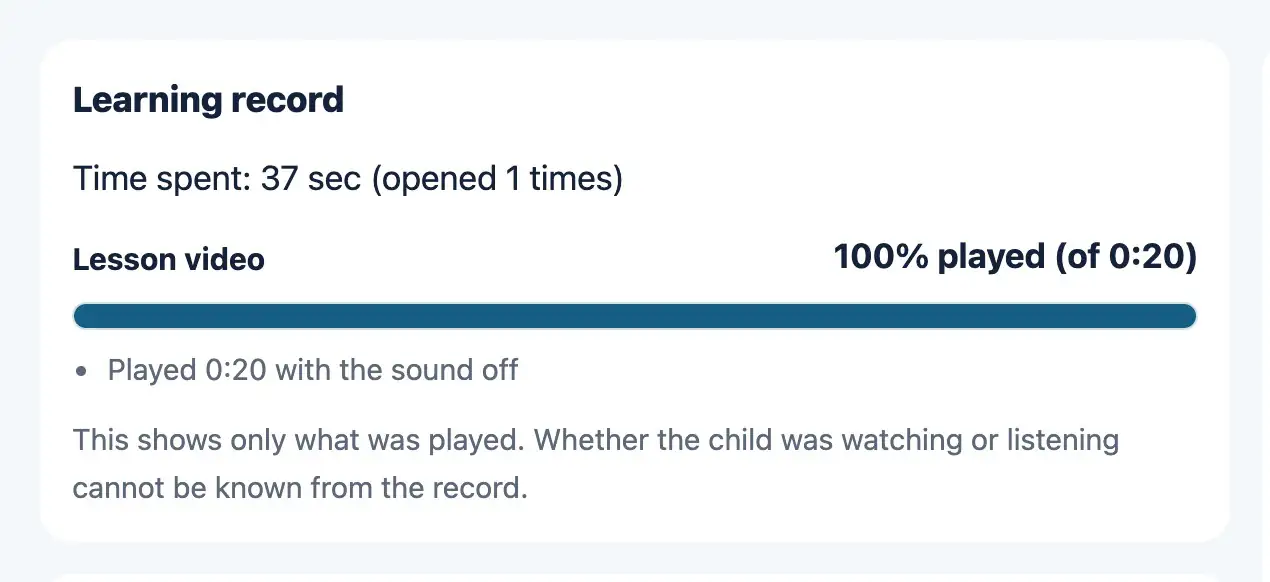
See how long an assignment was open and which parts of a video were played. It shows what was played, not whether the student was watching.
Why Aiyori
What families most want to know is what happens in class. What takes teachers the most effort is reporting it.
Children work, hand it in, and the teacher returns it. That record, with the teacher’s red pen and voice, reaches families just as it is.
Teacher and child are never left one-to-one. Guardians can read every message, at any time.
The Learning Cycle
Skills don’t grow while listening to a lesson. They grow when you work it out yourself, have your mistakes corrected, and try again.
Aiyori was built to run this cycle on one platform. Videos, questions, handwriting, voice and the teacher’s red pen all live in the same place.
The teacher
The student
The teacher
The student and guardian
And on to the next assignment
Live & Recorded
For lessons on Zoom or Google Meet, just hand out the time and the link. They appear under the student’s “Do now” and can be joined from 10 minutes before the start.
Record a lesson and hand it out as a video, just as it is. Students who were absent can watch the same lesson later and answer the same questions.
For videos uploaded to Aiyori, teachers and guardians can see how far each one was played. No ads, and no recommended videos.
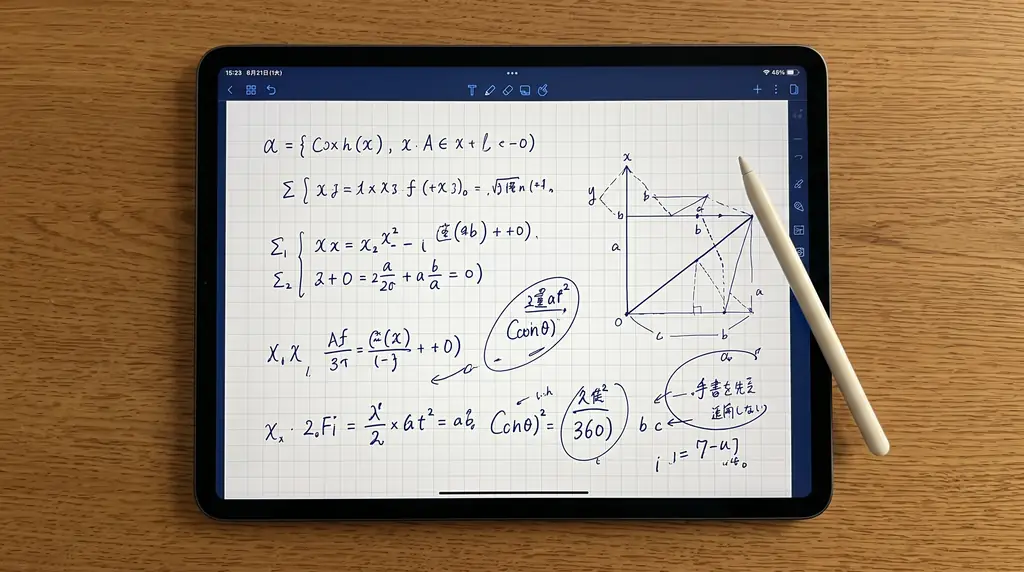

Share videos you recorded, without ads, with questions right below. You can see how much was played.
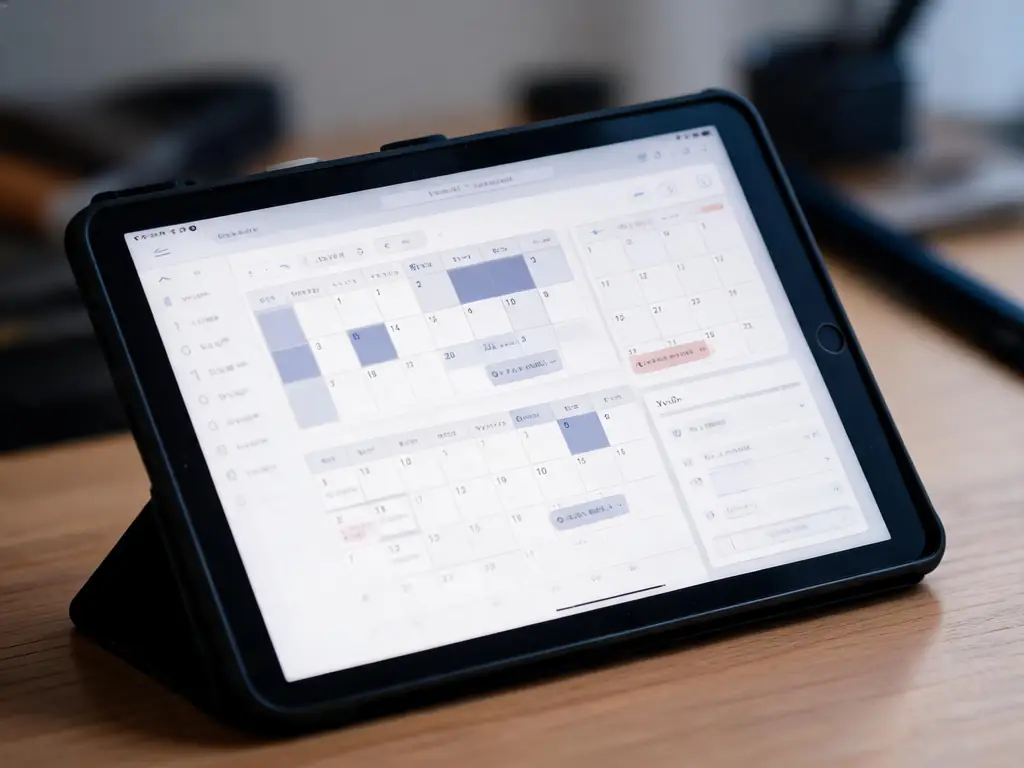
Hand out the time and the link, and the lesson appears in each student’s “Do now” list.
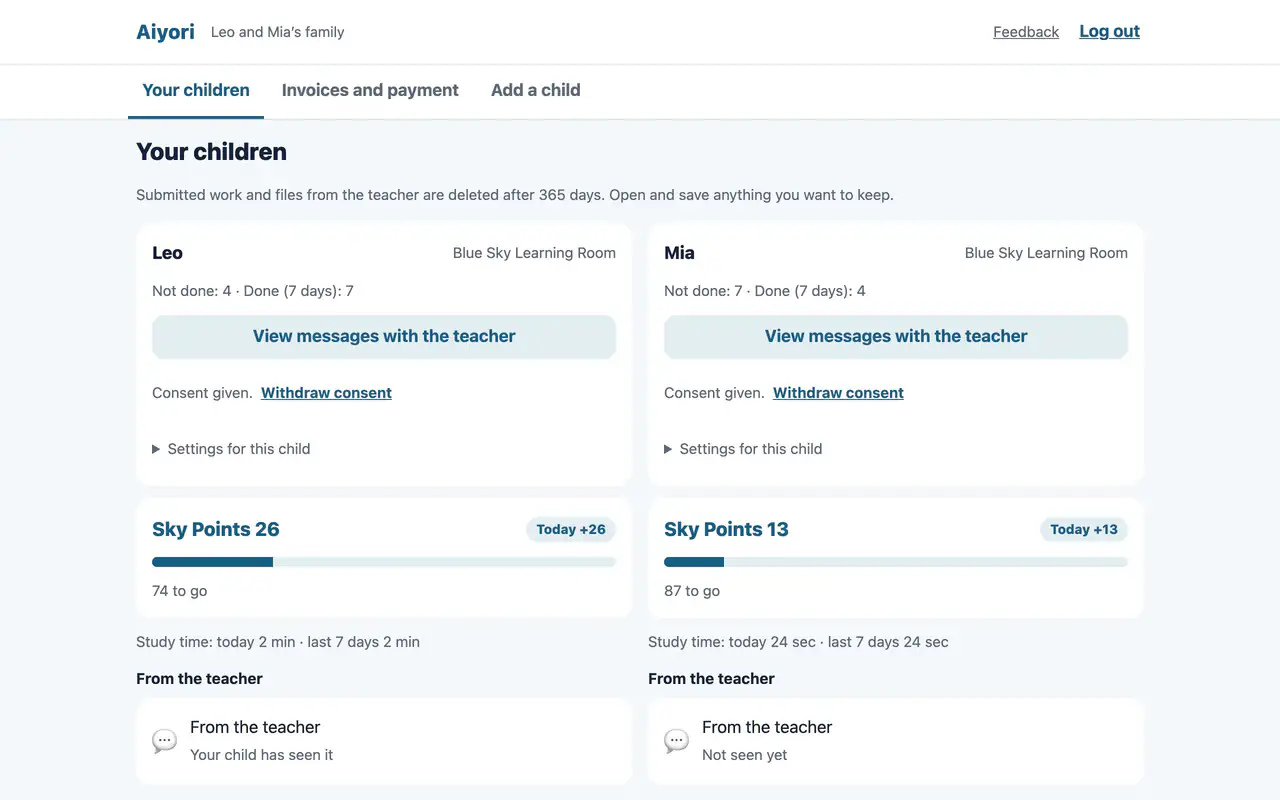
What was done, what is still to do and study time appear on the guardian’s screen.
Monthly invoices are created automatically. Card, bank transfer or cash: see payment status in one list.
Compared
We first surveyed more than 100 services in Japan and abroad, then checked the official pages of the 28 closest ones, one by one. The table below groups the tools into kinds, by who buys them.
Learning tools have no guardians and no tuition. Classroom management tools have no learning.
| What it does | Learning apps for schools | Video and course delivery tools | Classroom admin and messaging systems | Tutor business software (overseas) | Aiyori |
|---|---|---|---|---|---|
| Hand out lesson videos you recorded yourself, with no ads | Mostly | Yes | Only some services, or needs a workaround | Mostly | Yes |
| Mark handwritten submissions in red pen and return them | Yes | Not found in what we checked | Not found in what we checked | Only some services, or needs a workaround | Yes |
| The teacher explains directly, by voice or video | Mostly | Not found in what we checked | Not found in what we checked | Only some services, or needs a workaround | Yes |
| Show guardians, too, how far each video was watched | Not found in what we checked | Only some services, or needs a workaround | Not found in what we checked | Not found in what we checked | Yes |
| Guardians can read, and stop, messages between child and teacher | Only some services, or needs a workaround | Not found in what we checked | Not found in what we checked | Not found in what we checked | Yes |
| Photo and voice submissions stay off until a guardian consents | Only some services, or needs a workaround | Not found in what we checked | Not found in what we checked | Only some services, or needs a workaround | Yes |
| Tuition bills and payment status | Not found in what we checked | Not found in what we checked | Yes | Yes | Mostly |
| An independent teacher can start alone | Only some services, or needs a workaround | Yes | Only some services, or needs a workaround | Only some services, or needs a workaround | Yes |
Based on our own research as of October 2026. For each kind, the mark reflects the best of the services we checked. Where we found no mention on the official pages, we marked “×”; individual services differ. Aiyori’s tuition supports card payments (received in the teacher’s own Stripe account) as well as recording bank transfers and cash.
| Item | Classroom for children | Classroom for adults |
|---|---|---|
| Suited to | Tutoring schools, private tutors, lessons and activities | Classes in English conversation, yoga, cooking, certifications and more (students aged 16 and over) |
| Guardians | Invite them to follow their child’s progress | None |
| Who receives tuition notices | Guardians | The student |
| Student email address | Not needed | Required |
| Student screen | Words that are easy for children to read | Plain wording, without child-oriented phrasing |
You choose the classroom type when you create the classroom, and you can’t change it later. For training at a company, see the Workplace training page.
How you use Aiyori, the country, the currency and the time zone can’t be changed later. Steps with screenshots are in Opening a classroom.
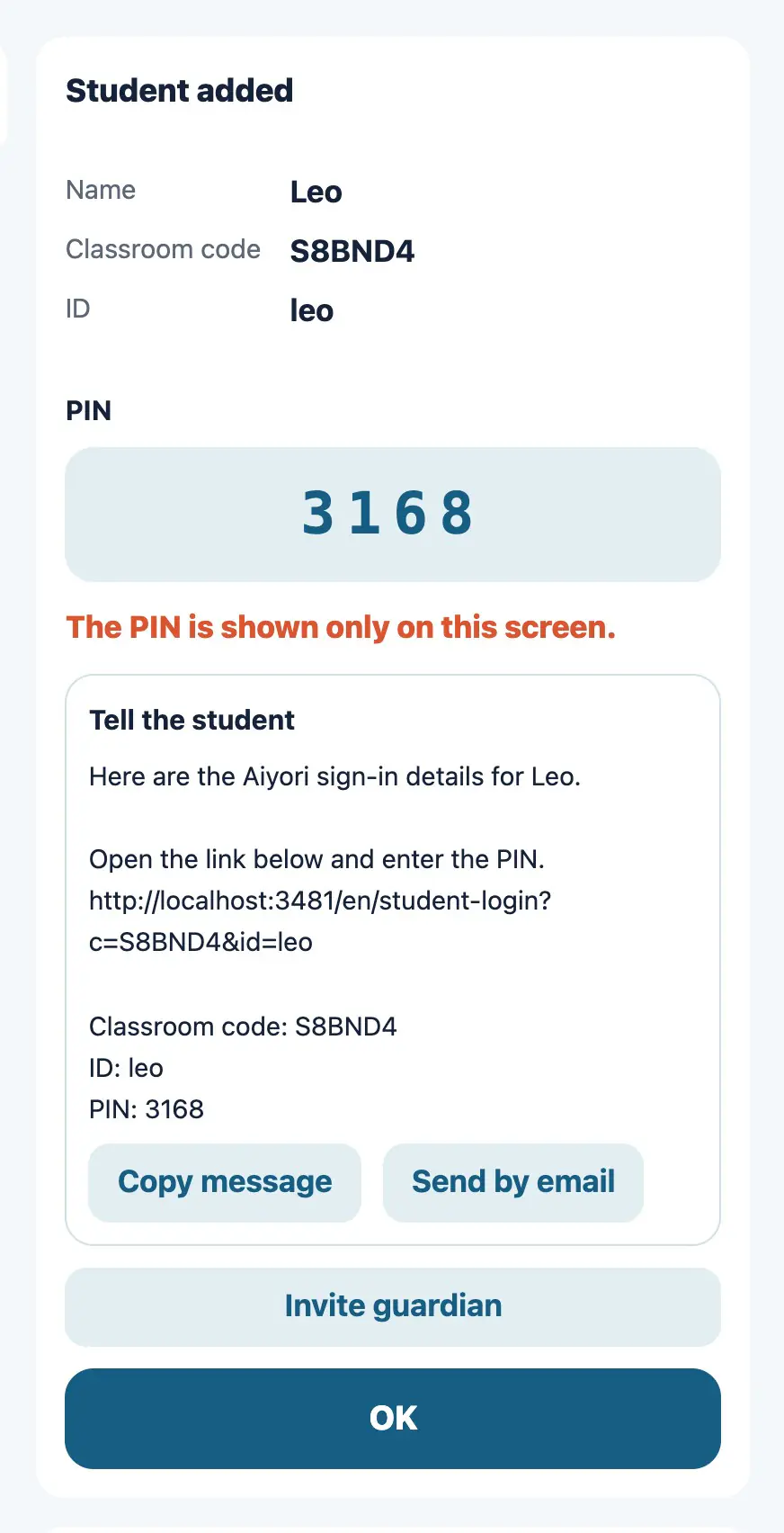
Enter the student’s name, a login ID, and their birth year and month. When you register, the classroom code, ID and PIN are shown.
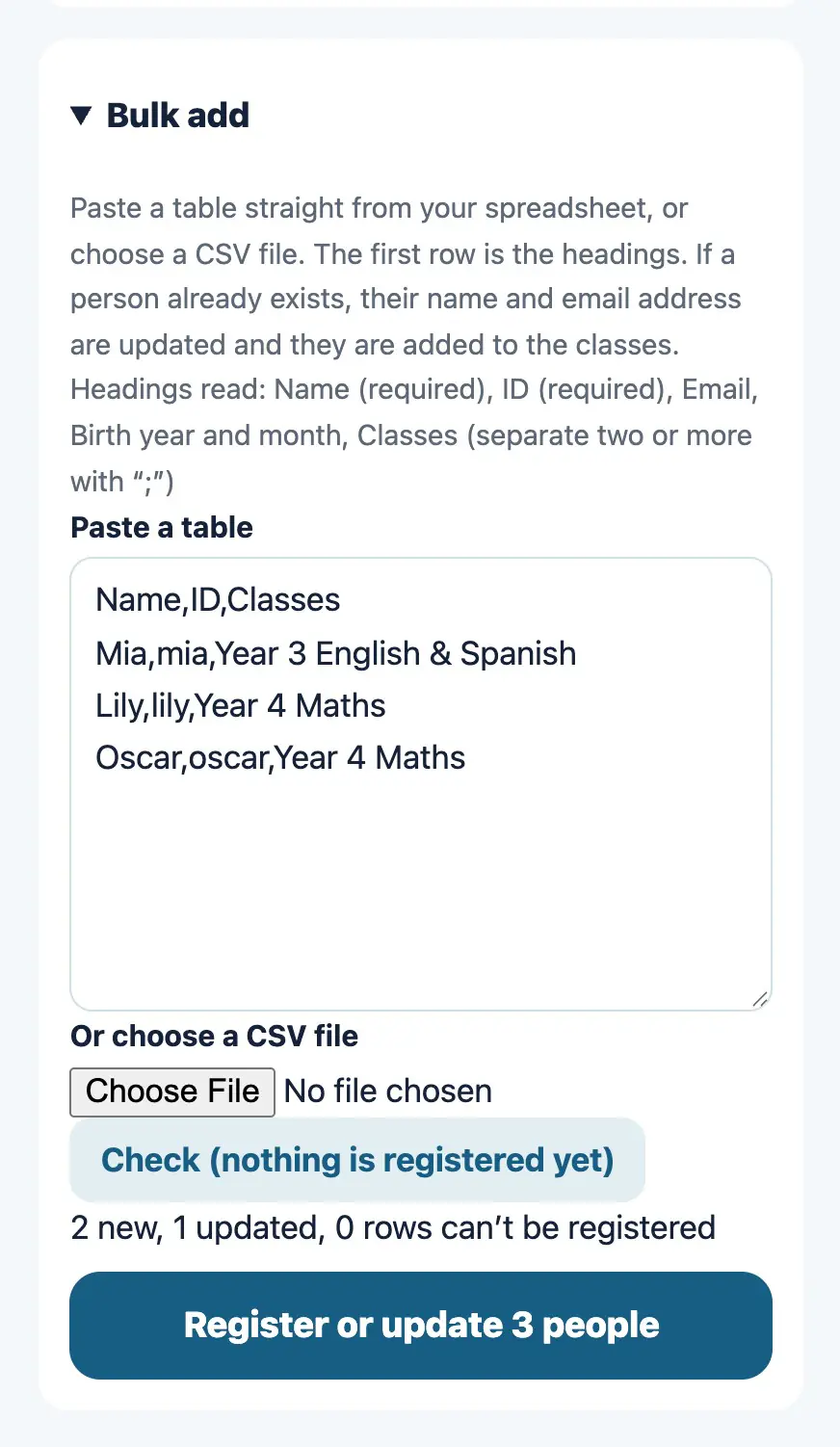
Paste a table from a spreadsheet, or choose a CSV file, to register many students at once. If a person is already registered, their name and email address are updated and they are added to the classes.
A page to give your students: For students
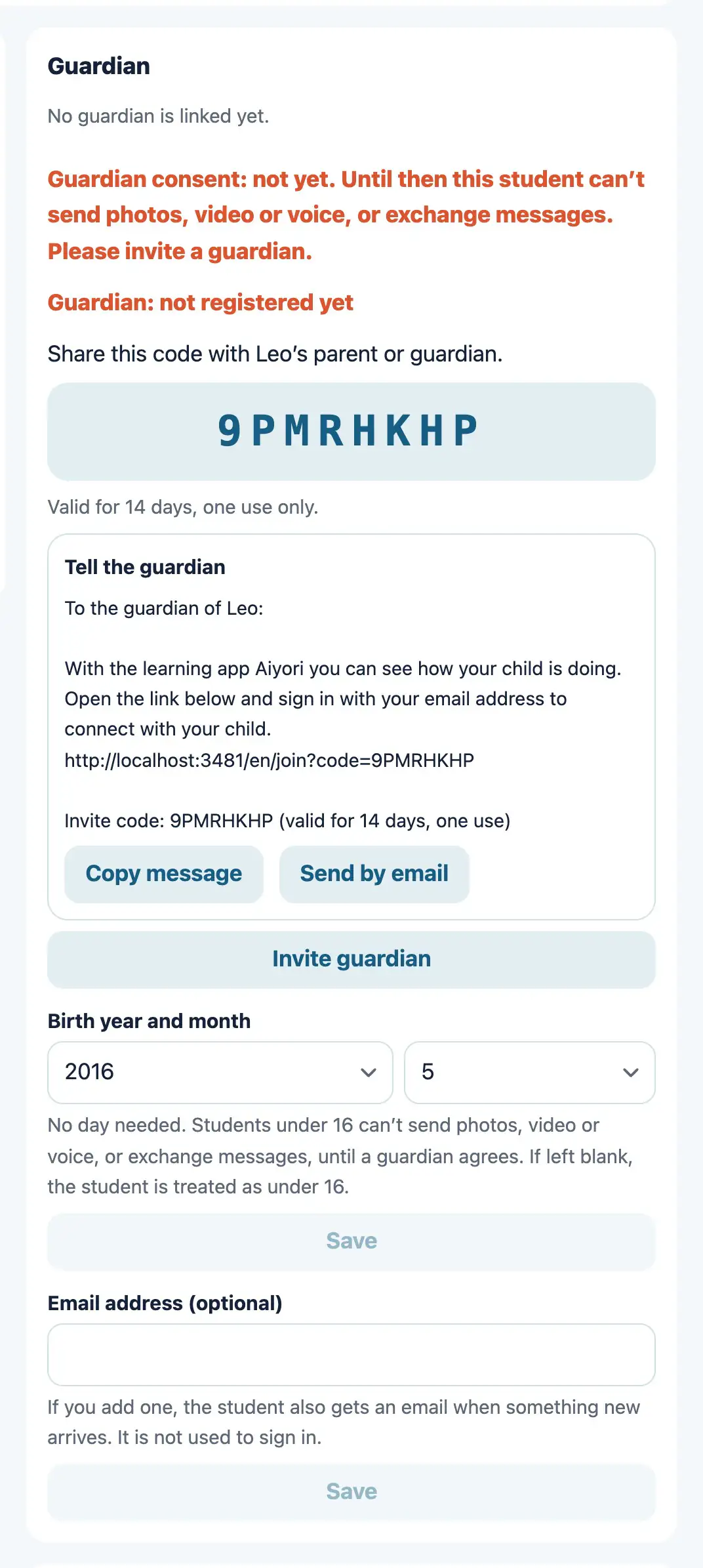
Create an invite code for a guardian. When the guardian enters the code, they are linked to the child.
A page to give guardians: For families
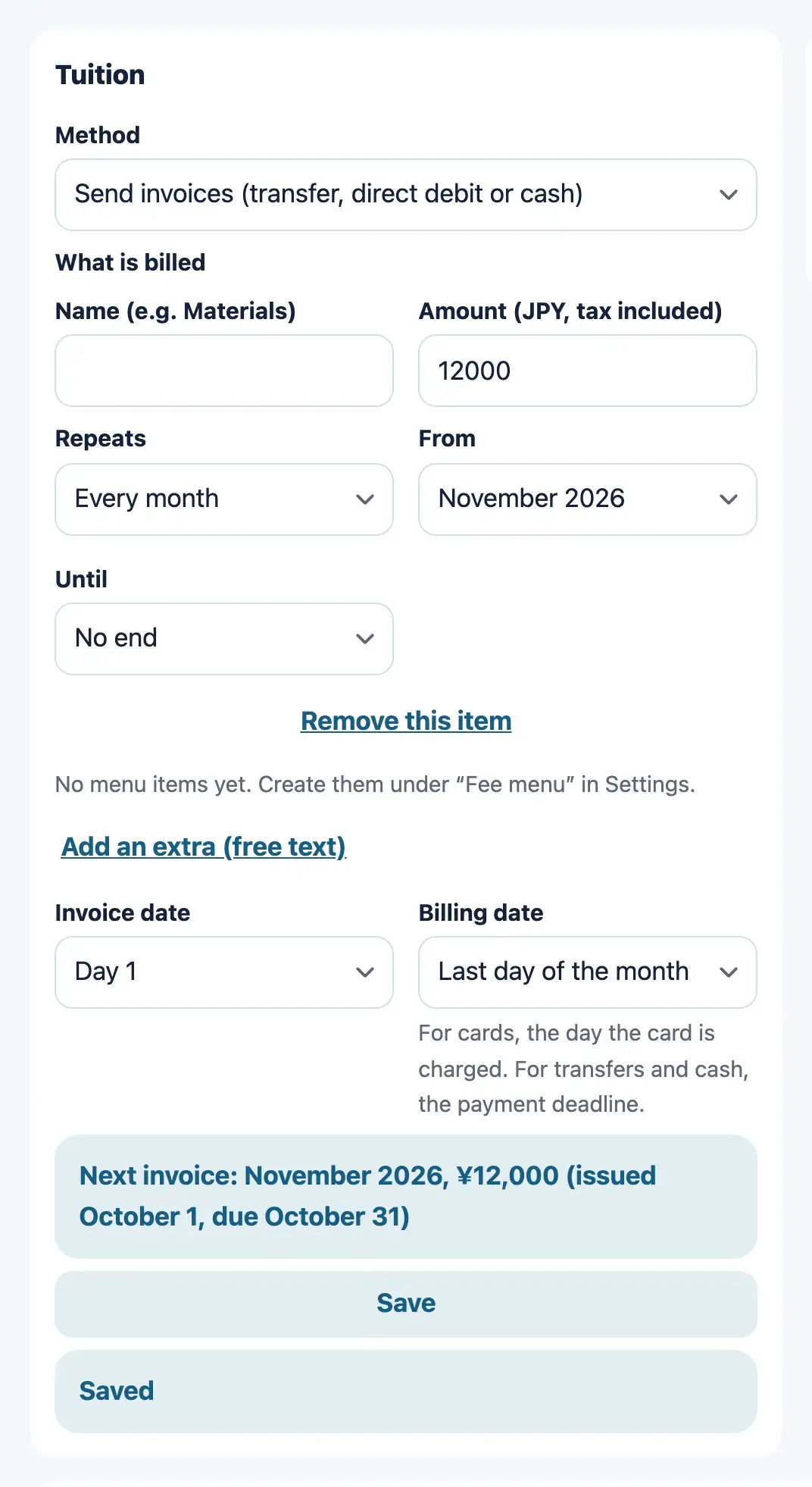
Set the tuition amount and the billing day for each student. For the method, choose card, invoices (transfer, cash and so on; the teacher confirms payment), record only, or no billing. When an invoice is created, the person who pays (the guardian in a classroom for children, the student themselves in a classroom for adults) is told by email.
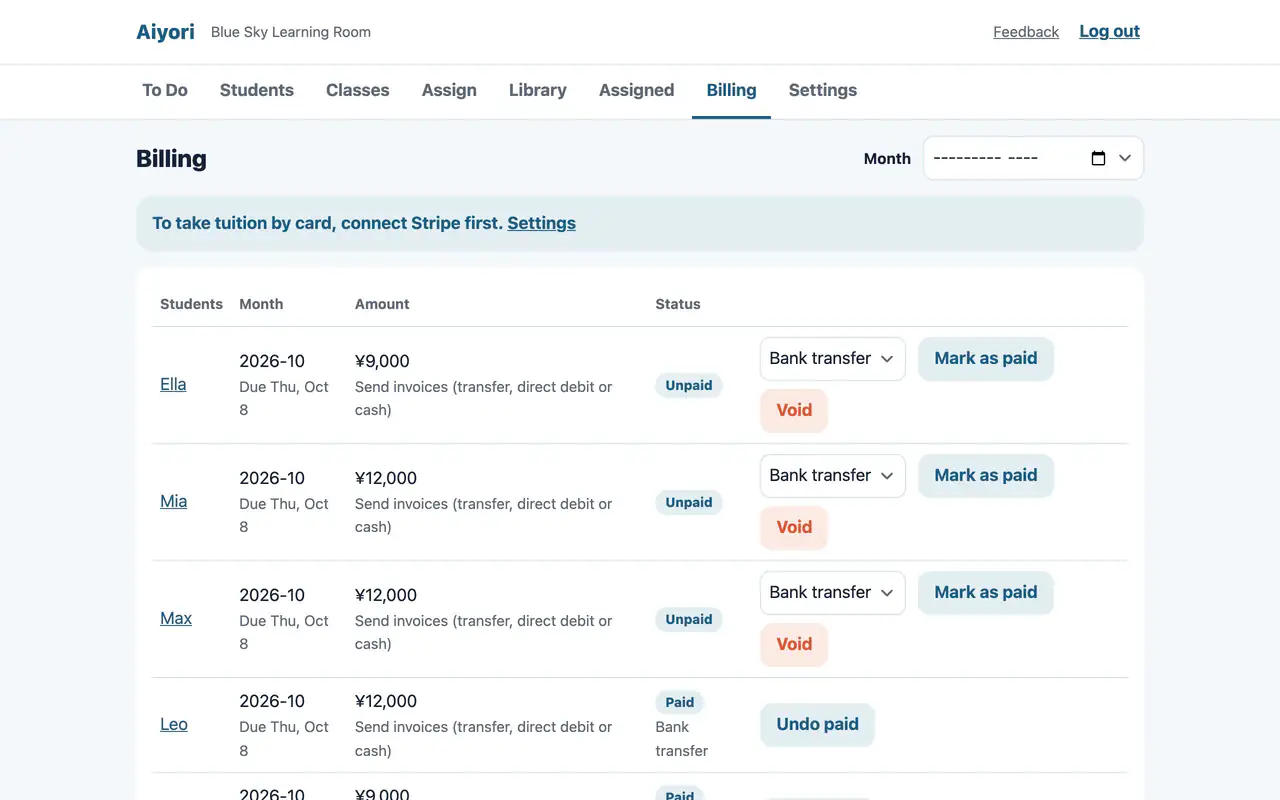
A table of student, month, amount and status (Unpaid, Overdue, Paid). You can filter by month.
For details, see Tuition management and Receive tuition by card.
For details, see the Pricing page.
For details, see the Security page.
Not in a classroom for children. Students log in with the classroom code, their ID and a PIN. In a classroom for adults, students need an email address so they can receive tuition notices.
We let you know 7 days before, 3 days before and on the day it ends. Add a payment method and you can carry on as you are. If 30 days pass without one, the classroom is suspended, and 30 days after that the classroom and its data are deleted. Add a payment method before then and it comes back immediately.
Yes, with an invite code. Additional teachers are counted toward the fee. Only the teacher who created the classroom can change classroom settings, close the classroom, invite teachers and handle payment.
No. You pay the usage fee in the settings on the web. The app shows no prices and has no payment screen.
Yes. Choose “Classroom for adults” when you create the classroom. There are no guardians, and tuition notices go to the students themselves. For details, see the Adult classes page.
No. After the due date, the payer is reminded up to 3 times, and you decide whether to suspend.
Japan, New Zealand, Hong Kong, Singapore, Australia, Canada and Mexico. Each person can choose their screen language from eight.
You can close your classroom in the settings at any time. There is no cancellation fee. Data is deleted 30 days after closing and can’t be restored.
Free for 30 days after you create the classroom (organization). You don’t need to add a payment method during the trial.