Your teacher signs you up for Aiyori. Students don’t apply or make an account themselves.
You log in with three things from your teacher: a classroom code, an ID and a PIN. You don’t need an email address or a password.
Go to student loginiPhone and iPad app (App Store in Japan)
Your teacher gives you the classroom code, ID and PIN.
How to start
- Get a classroom code (6 letters and numbers), an ID and a PIN (a number with 4–6 digits) from your teacher. You may also get a login link or a QR code.
- On the login screen, choose “Student” and enter the three things. In the iPhone and iPad app, choose “Students” on the first screen.
- The first time you log in, read the six promises in “First, a few promises” before you start.
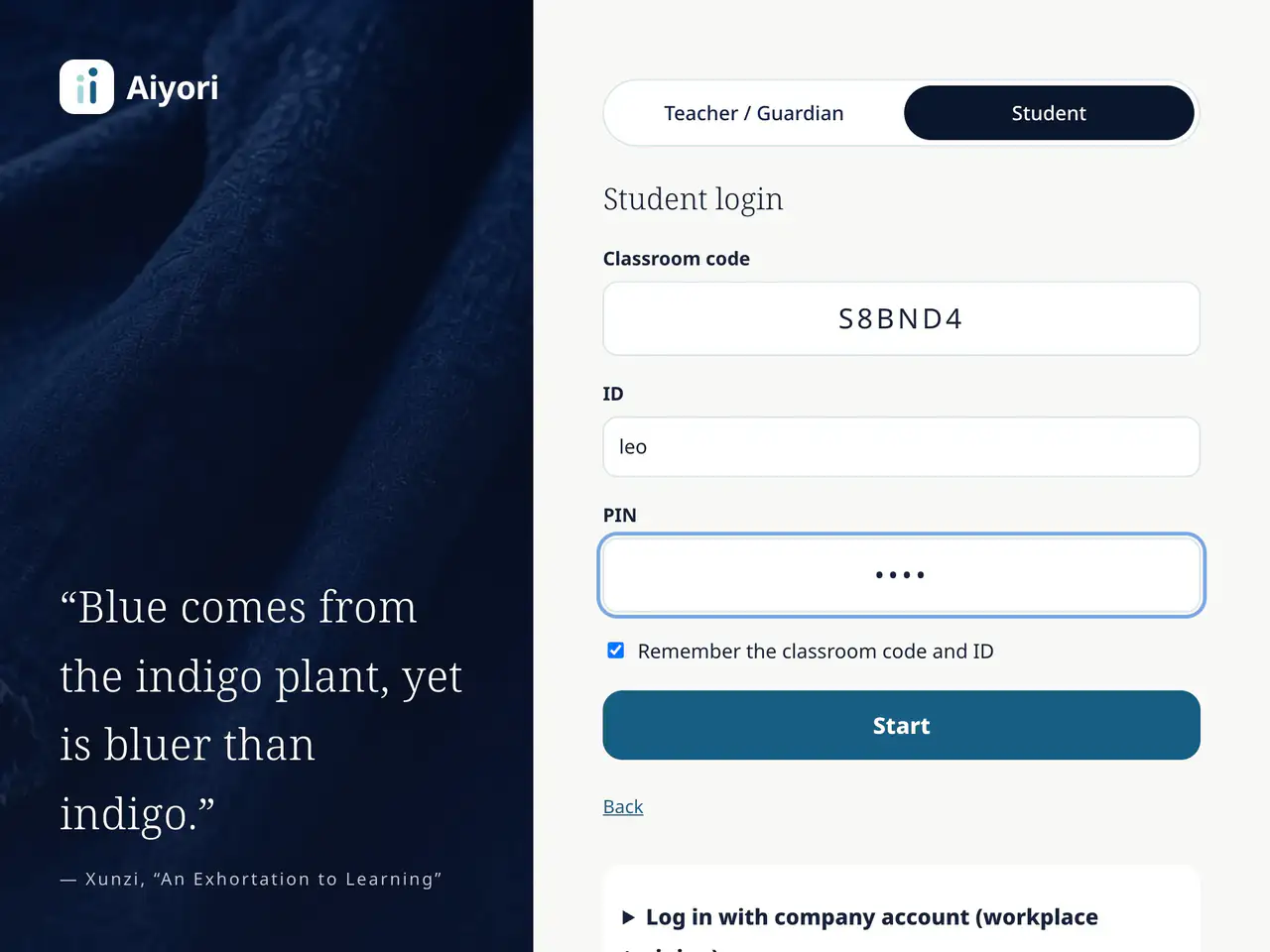
Log in
Web & appEnter the three things your teacher gave you: the classroom code, your ID and your PIN. No email address is needed.
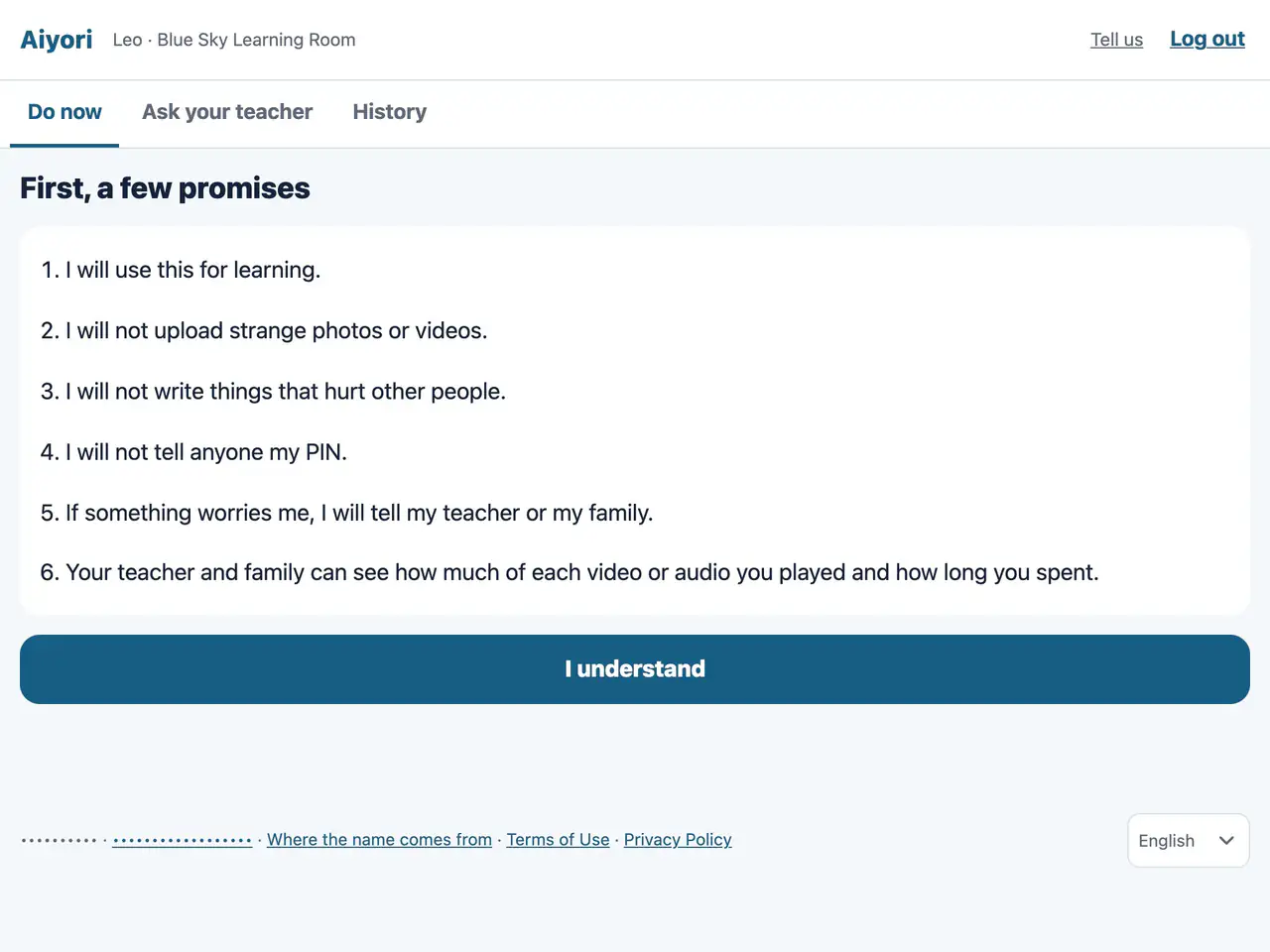
First, a few promises
Web & appThe first time, the student reads six promises. This is also where they are told that their teacher and family can see how much they have played.
Three ways to log in
| Way | What you need | Good to know |
|---|---|---|
| PIN | Classroom code, ID and PIN | This is the basic way. After you log in once, you don’t have to enter them again next time. |
| Login link | A link from your teacher | When you open it, the classroom code and ID are already filled in. Then you just enter your PIN. |
| QR code | A QR code on your teacher’s screen | Scan it with the camera to log in without a PIN. It works for 5 minutes, one time only. |
If everyone shares a classroom iPad, choose “Shared device” on the login screen. Your ID is not remembered, so the next person can log in after you log out.
If you can’t log in
- I forgot my PIN
- Tell your teacher. Your teacher will make a new PIN. After a new one is made, you need to log in again on every device.
- I got it wrong many times
- If you get it wrong several times in a row, you can’t log in for a while. The wait gets longer each time you get it wrong. If you still can’t log in after waiting, tell your teacher.
- I see the “Teacher / Guardian” screen
- Students log in through the “Student” entrance. Please try again from Student login.
- The QR code doesn’t work
- A QR code works for 5 minutes, one time only. Ask your teacher to show it again.
- It says “This classroom is taking a break right now”
- Ask your teacher for details.
Your PIN is saved in a way that neither Aiyori nor your teacher can read. If you forget it, your teacher makes a new one for you.
After you log in
When you log in, you see “Do now”. Assignments that came that day are grouped in “Today’s set”. If your teacher replied to yesterday’s work, that reply shows at the very top.
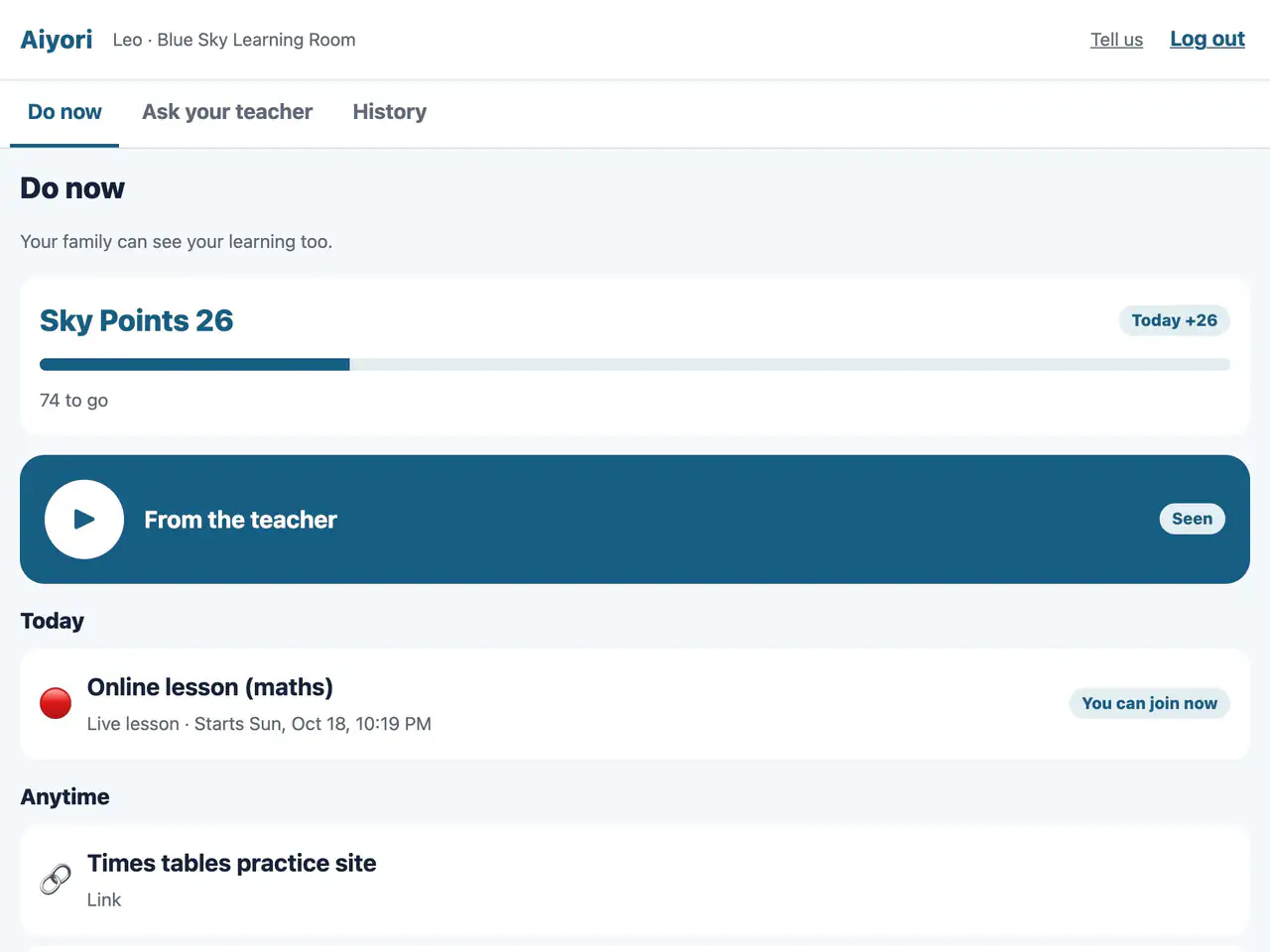
Do now and today’s set
Web & appWhat arrived today is grouped as “Today’s set”, with the teacher’s feedback on yesterday’s work first. Other assignments are listed newest first (anything sent back to redo is at the very top). Finished items turn green, and when everything is done, “Today’s set is done!” appears. Finished work can be looked back on in the history.
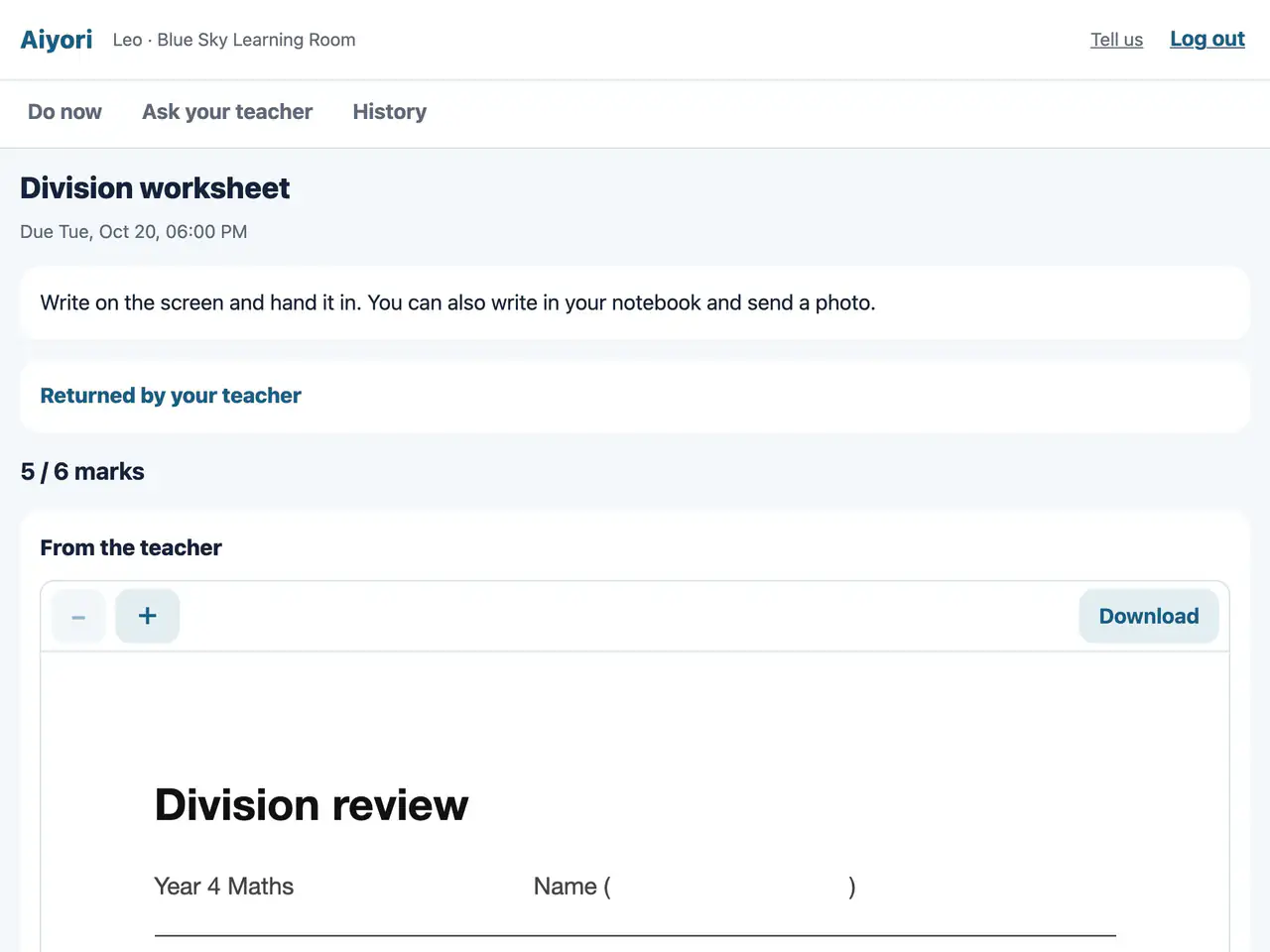
Returned
Web & appWork the teacher has returned appears in a separate section. Open it to check the red-pen marks and the teacher’s voice message.
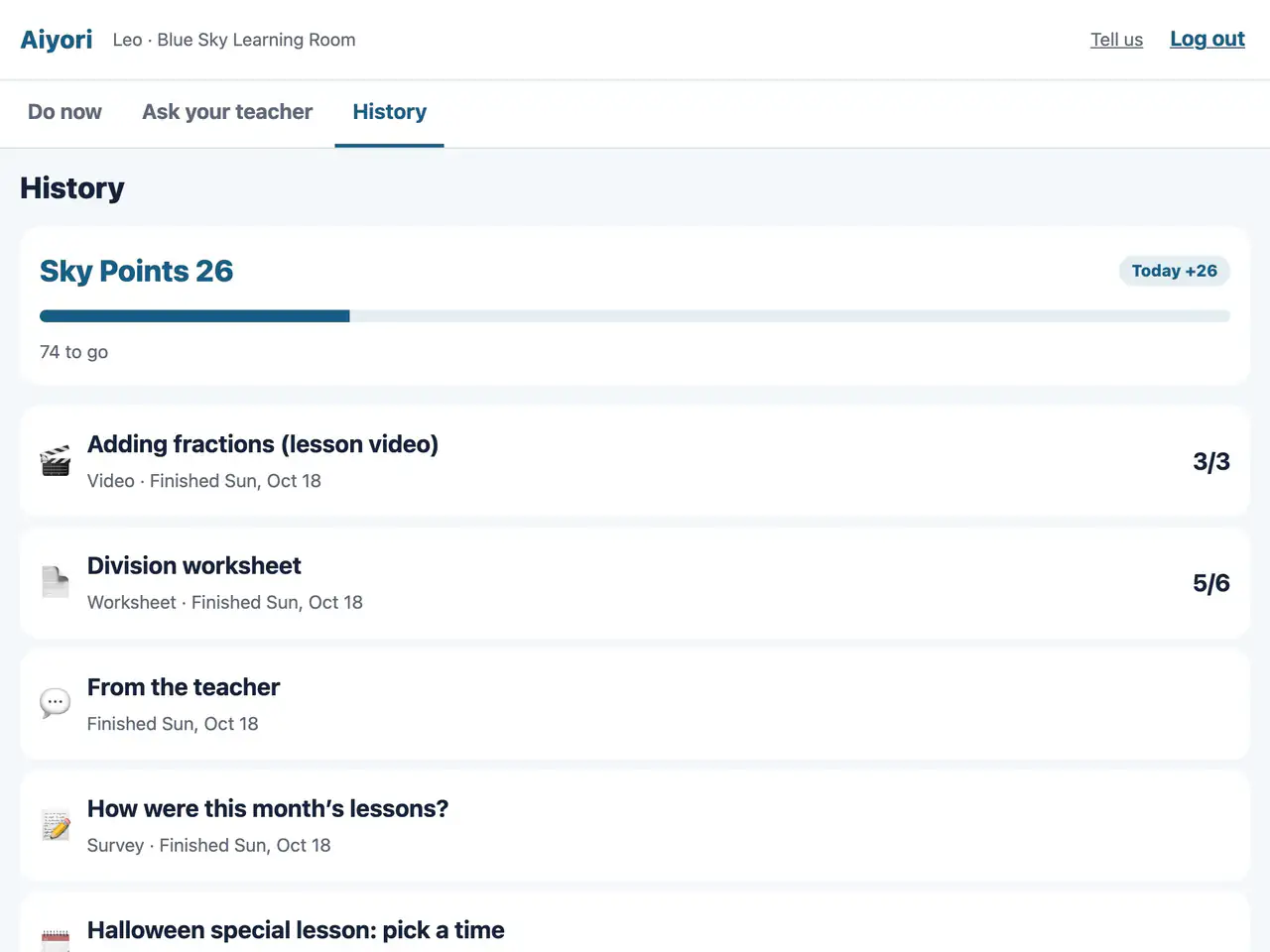
History
Web & appSee what you finished, handed in and answered, newest first. Your points history is here too.
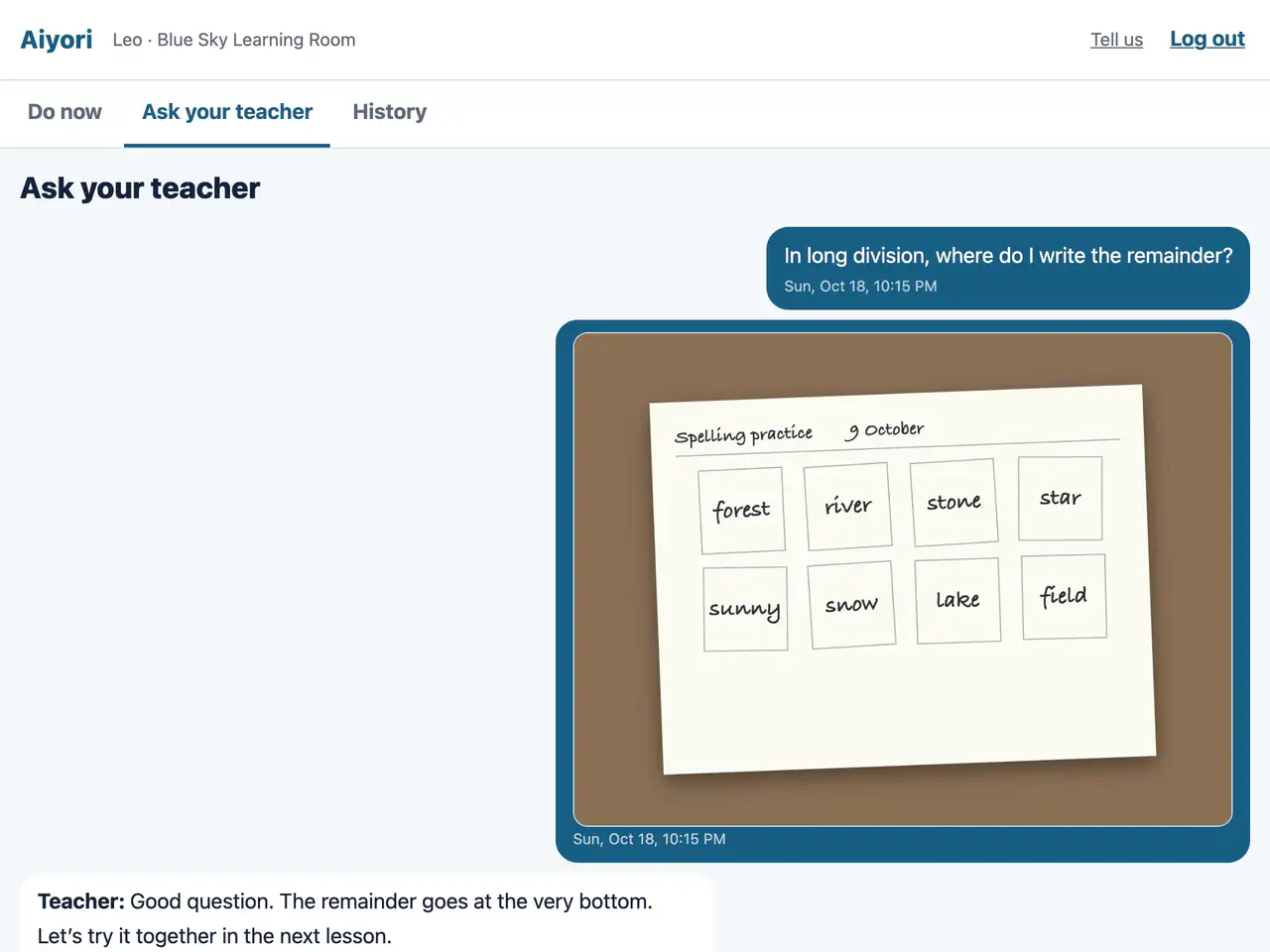
Ask your teacher
Web & appAsk the teacher about anything you do not understand, by text, voice or photo.
Kinds of assignments
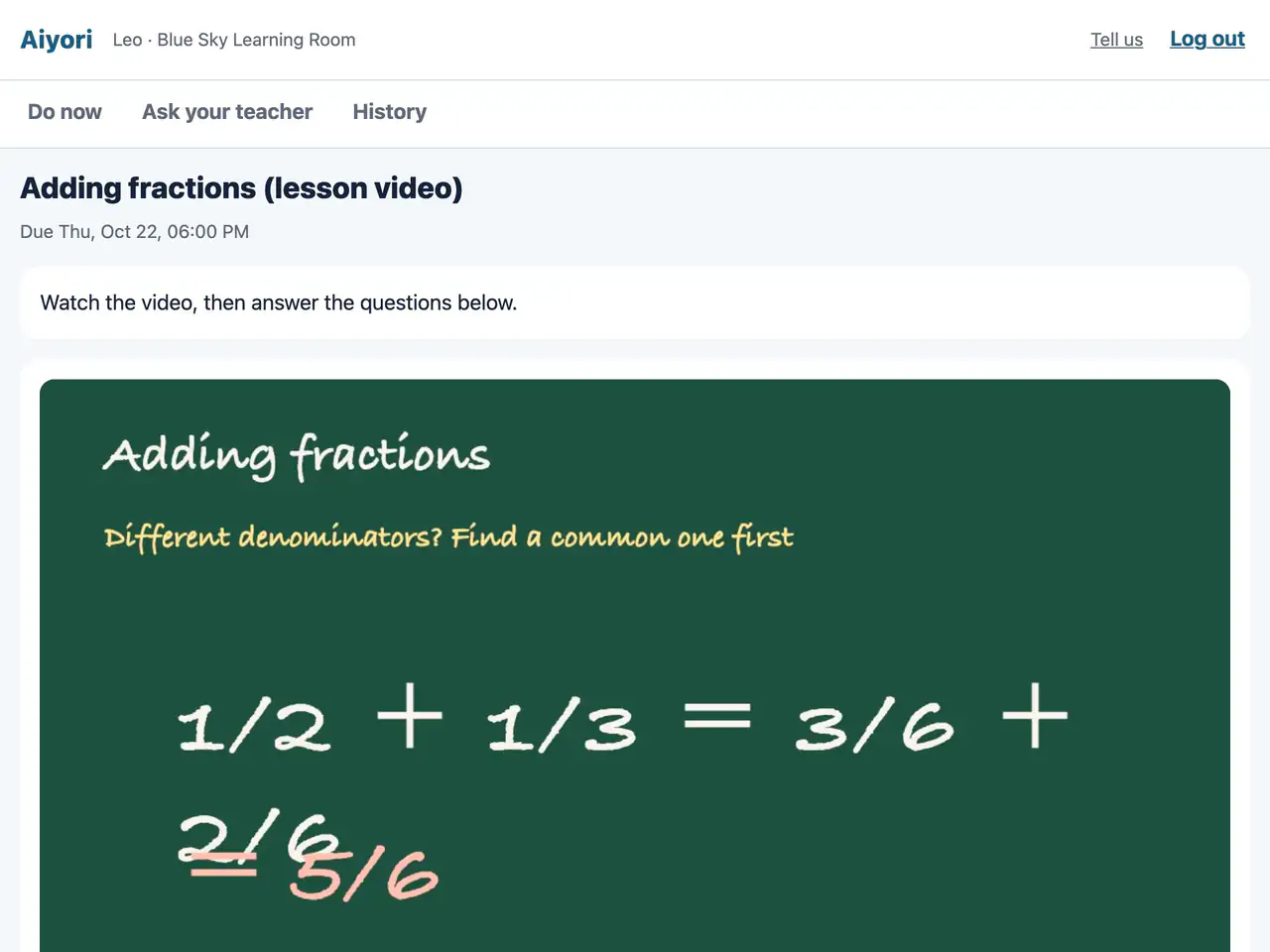
Video
Web & appWatch the lesson video. The questions are right below it.
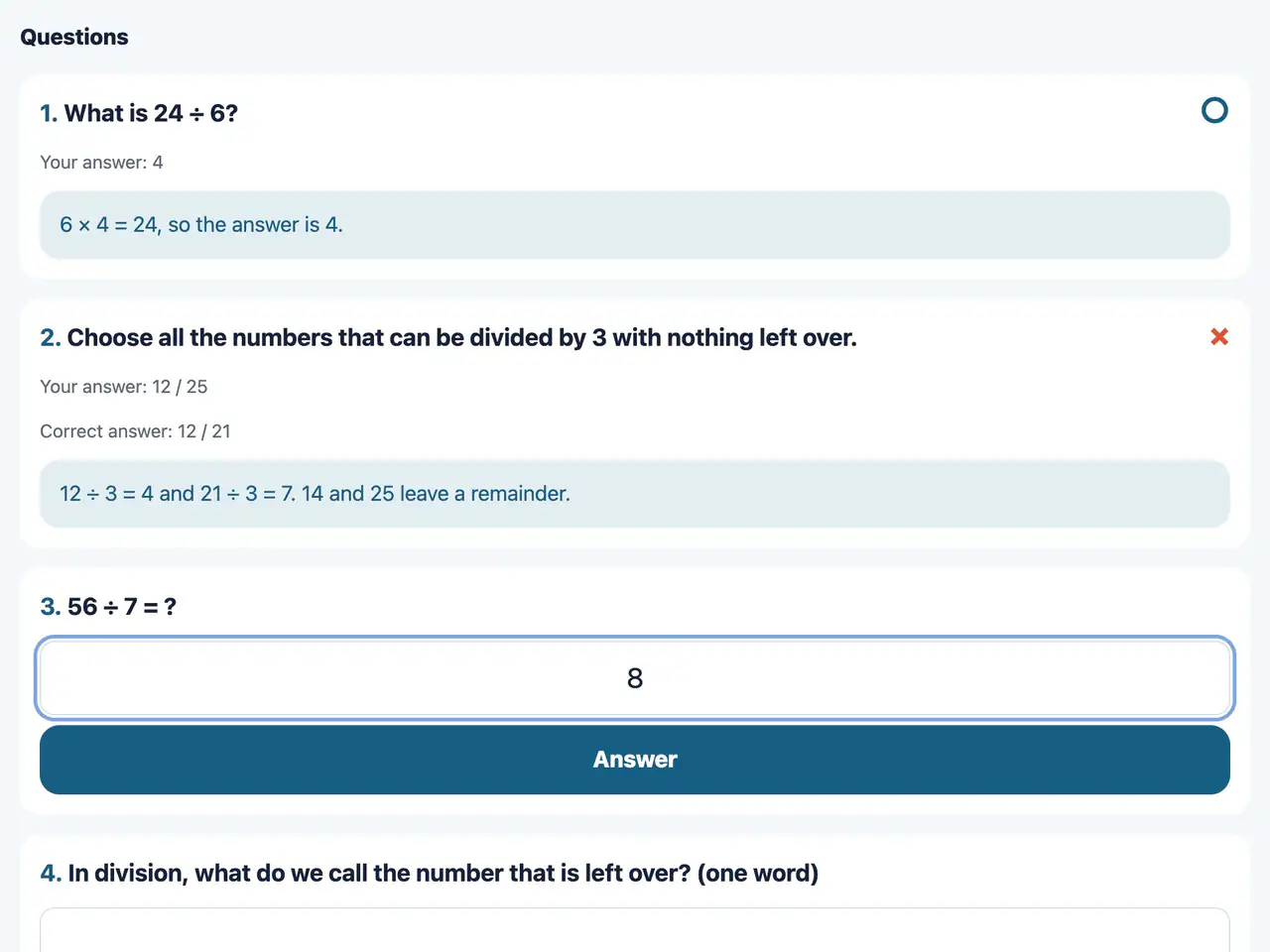
Questions
Web & appChoose, enter a number, enter a word, or write freely. When you answer, you see right away whether it was right or wrong.
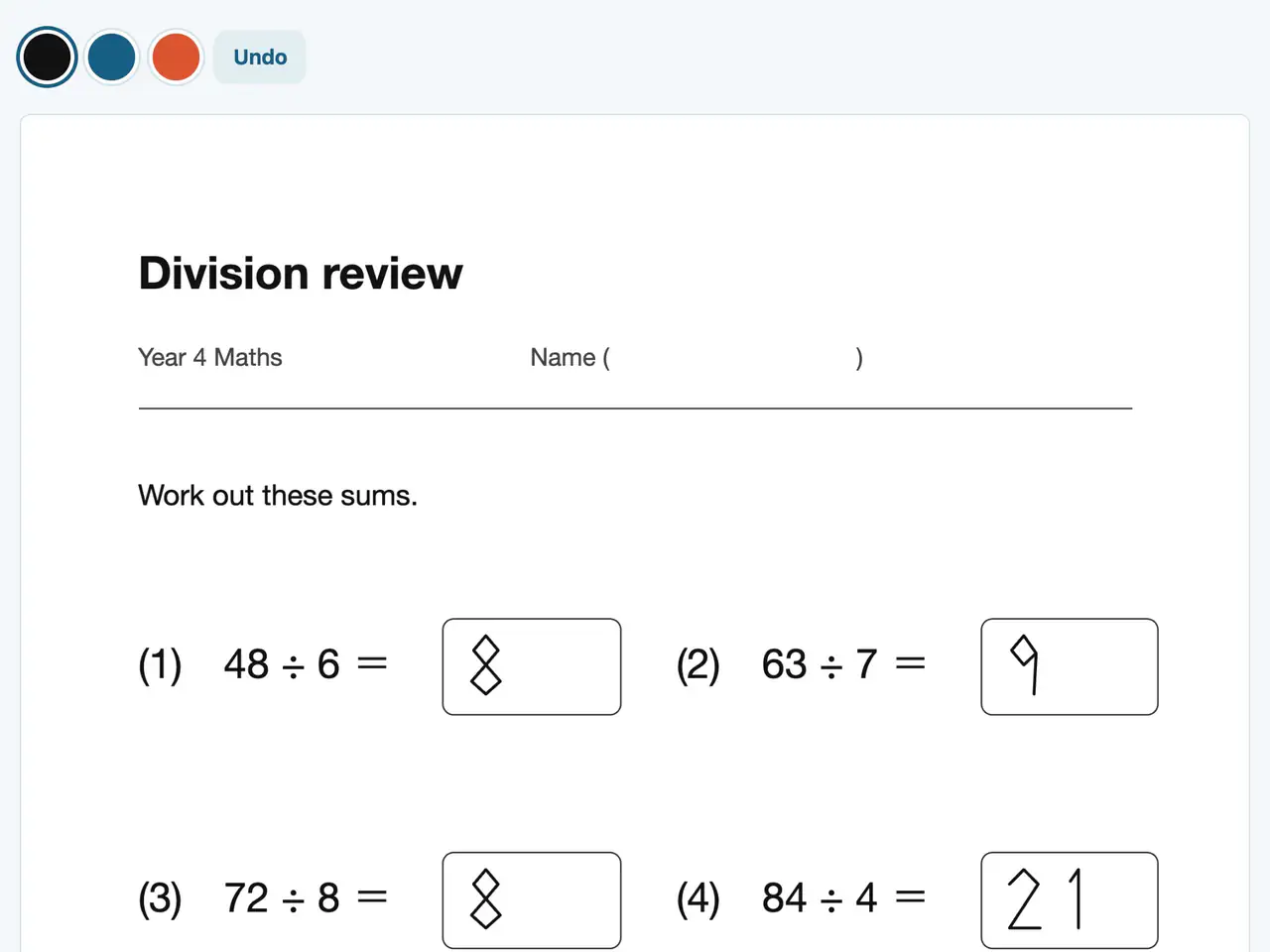
Write on a worksheet
Web & appWrite on the worksheet with a finger or a pen. On iPad, you can use Apple Pencil.
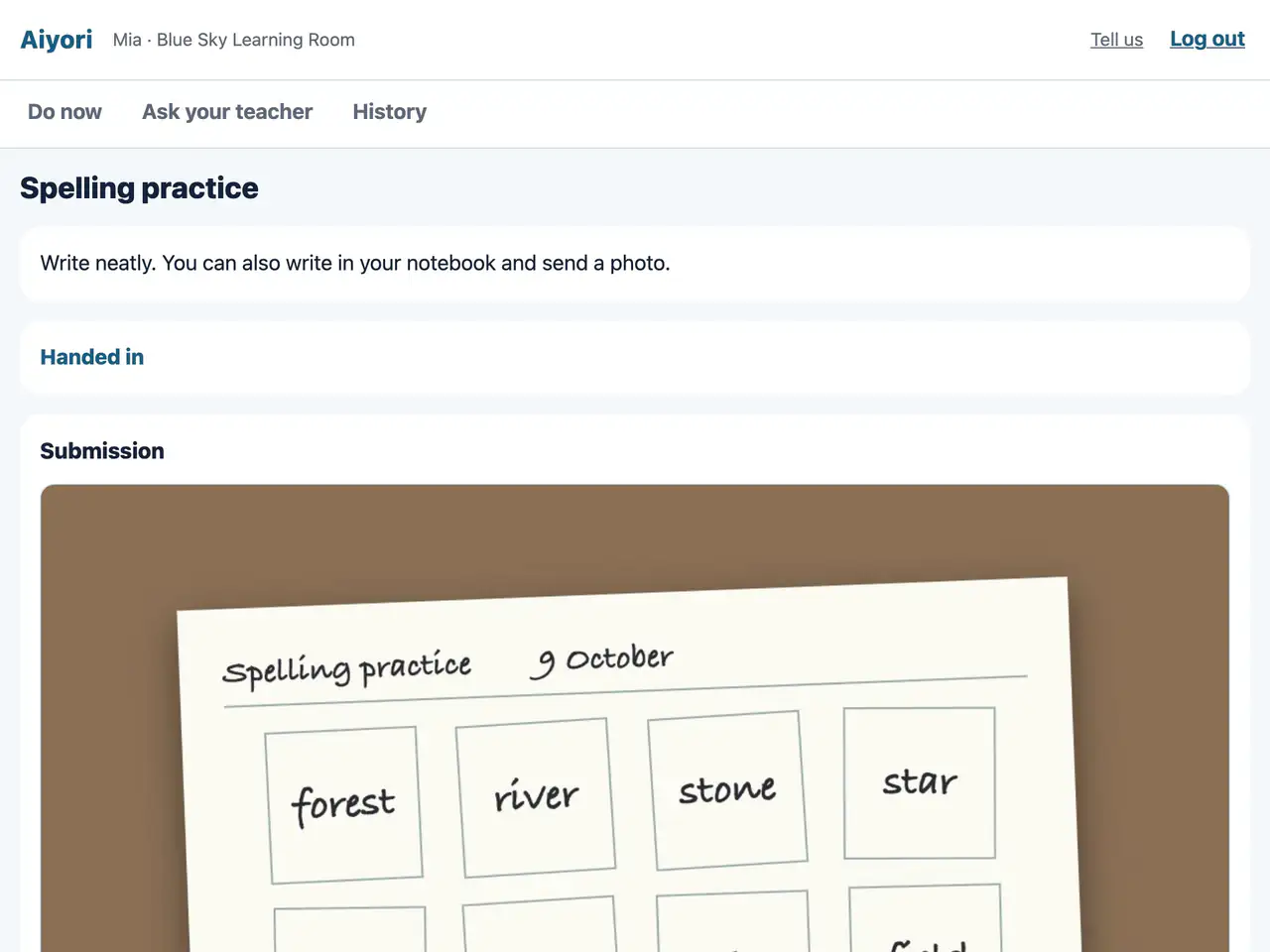
Hand in a photo
Web & appTake a photo of what you wrote on paper and hand it in. You can hand in several photos together.
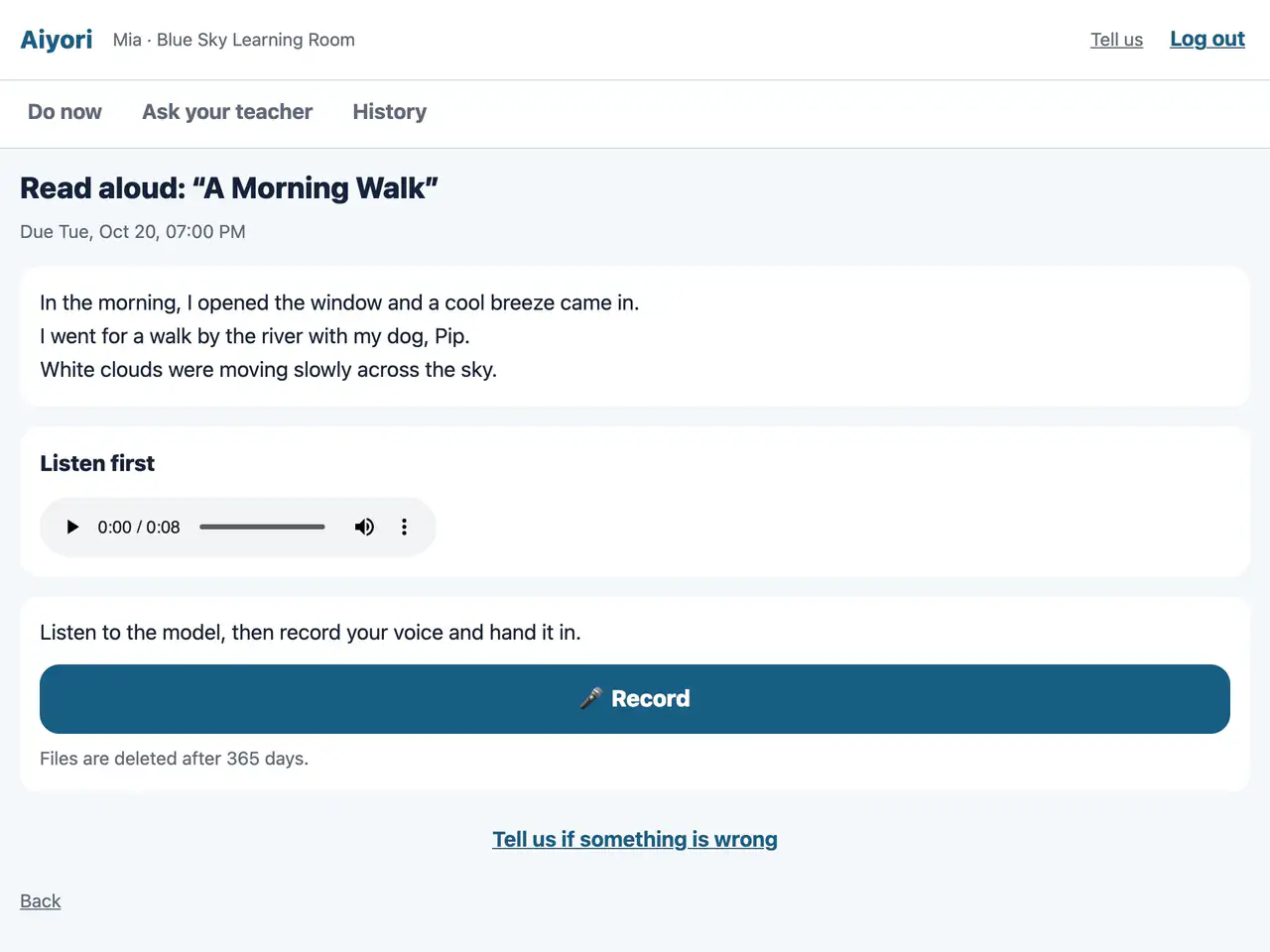
Speaking
Web & appListen to the model, then record your own voice and hand it in. Three taps are enough: “Record”, “Stop” and “Hand in”.
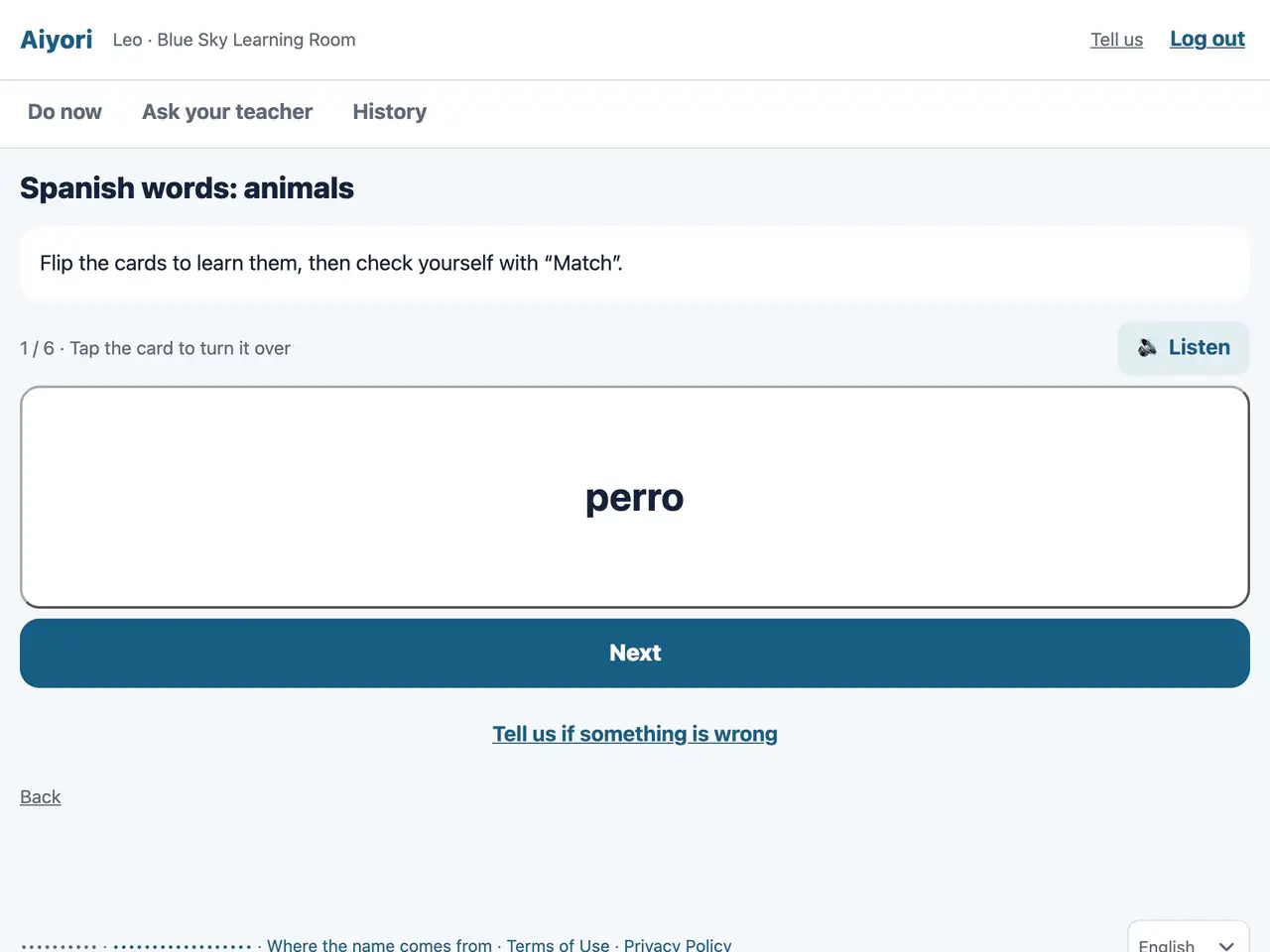
Word cards (Flip)
Web & appFlip the cards to learn the words and their meanings. The words are read aloud.
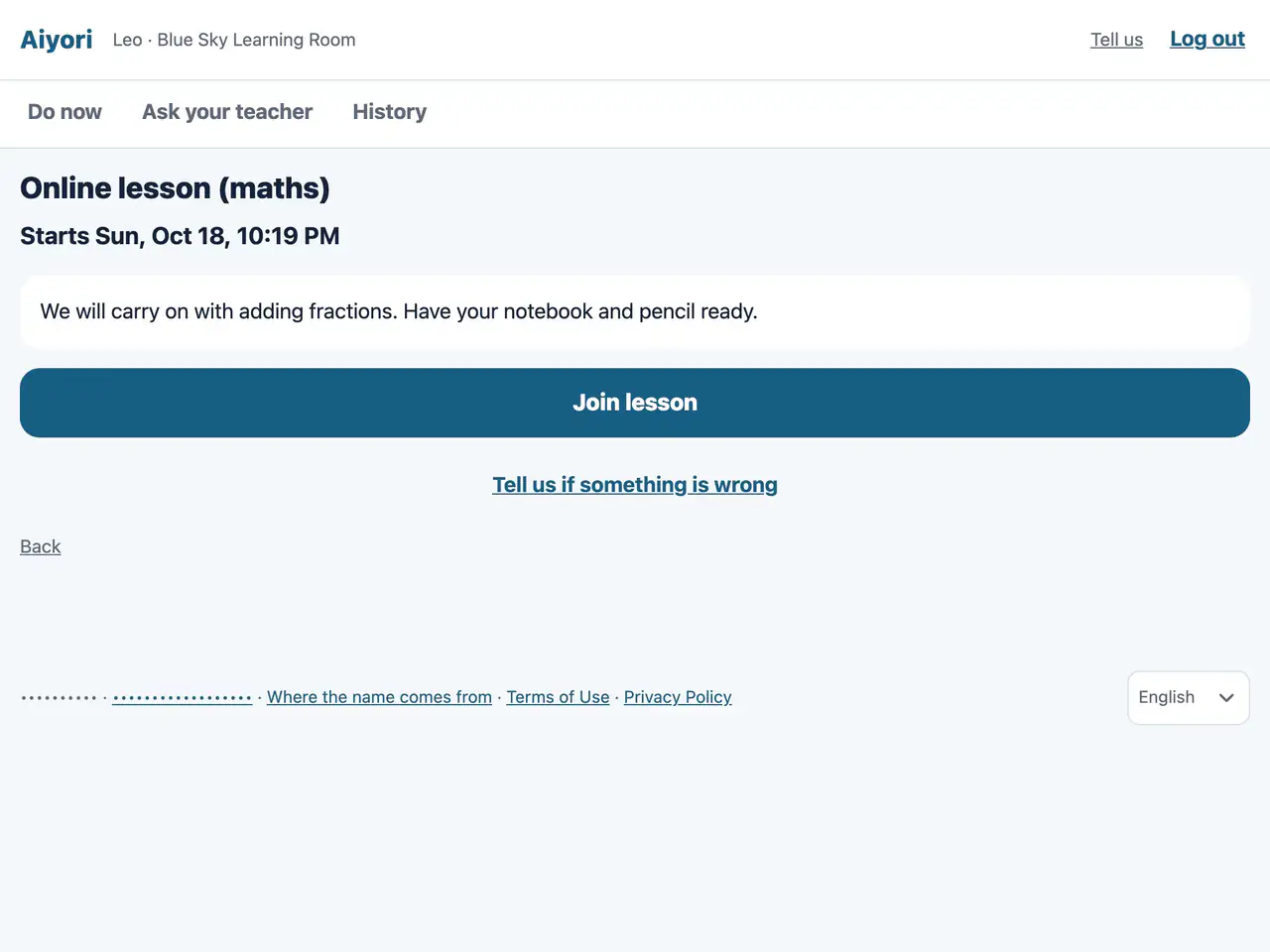
Live lesson
Web & appFrom 10 minutes before the lesson starts, “Join lesson” can be tapped.
Your teacher sets rules for each classroom or assignment, such as videos you can’t skip, or questions that only appear after you finish watching. Aiyori has no video calls. For a live lesson, you join from the Zoom or other link your teacher hands out, from 10 minutes before the start.
Your information
- Who can see it
- Only you, your guardians and your classroom’s teachers. Other students can’t see it. (Only if your teacher chooses, your word card nickname and time can be seen by others who did the same assignment.)
- Messages with your teacher
- In a classroom for children, your guardians can read all your messages with your teacher. Students can’t message each other.
- What is recorded
- Your name, ID, grade, year and month of birth, answers, photos, voice and videos, messages with your teacher, how much of each video you watched, time spent, word card times and nickname, and what you do on the screen (not what you type).
- What is not collected
- We don’t collect your address, phone number or where you are. We don’t use your information for ads.
- When things are deleted
- Photos, voice, videos and other files are deleted automatically 365 days after you hand them in (scores and comments stay). If you withdraw, your records are deleted after 30 days.
- Guardian consent
- In a classroom for children, students under a set age (16 for classrooms in Japan) can’t hand in photos, videos or voice, or send one-to-one messages with the teacher, until a guardian gives consent.
Devices
- Browser
- Use it in the browser on a computer (Windows or Mac), Chromebook, tablet or smartphone.
- iPhone and iPad
- There is an app (iOS and iPadOS 17.0 or later, free to download, on the App Store in Japan). On an iPad, you can write on worksheets with Apple Pencil or your finger.
- Android
- There is no special app. You can use the browser.
- Notifications
- In the iPhone and iPad app, you get notifications for new assignments, deadlines, work handed back, messages from your teacher, and before live lessons.
- Language
- You can choose the screen language from eight. Notifications and emails come in the language you choose.
If you need help
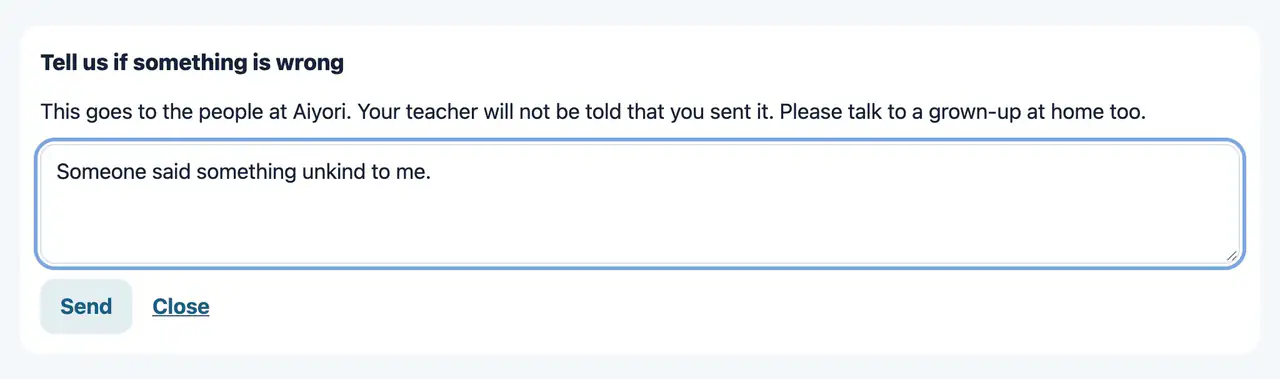
Tell us if something is wrong
Web & appStudents can report to Aiyori anything that worried or upset them. The teacher is not told about the report.
- For questions about logging in or your PIN, ask your teacher.
- If something upsetting happens, you can tell Aiyori from the assignment or message screen. Your teacher won’t be told who sent it.
- If something doesn’t work, you can send a message from “Tell us” on the student screen.
For students in classes for adults
In a classroom for adults (English conversation, yoga, cooking, certifications and so on), the screens use plain wording without child-oriented phrasing. Students need an email address, and notices also arrive by email.
Students pay tuition to the classroom themselves. The teacher sets the amount and how to pay, and Aiyori takes no fee from tuition. You check bills and add or change your card in “Invoices and payment” on the web (it does not appear in the iPhone and iPad app).
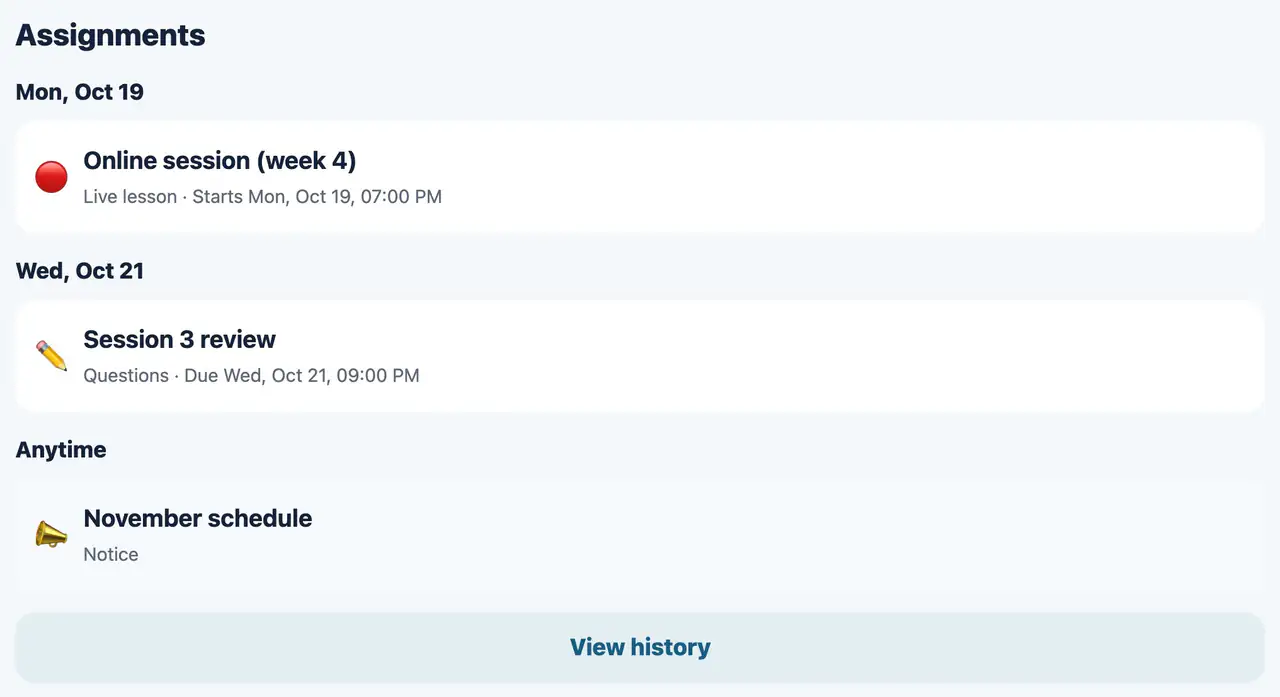
The learner’s “Assignments”
Web & appLearner screens use plain wording, without the phrasing for children. Questions, live lessons and notices handed out are listed in “Assignments”, and finished ones stay in “History”.
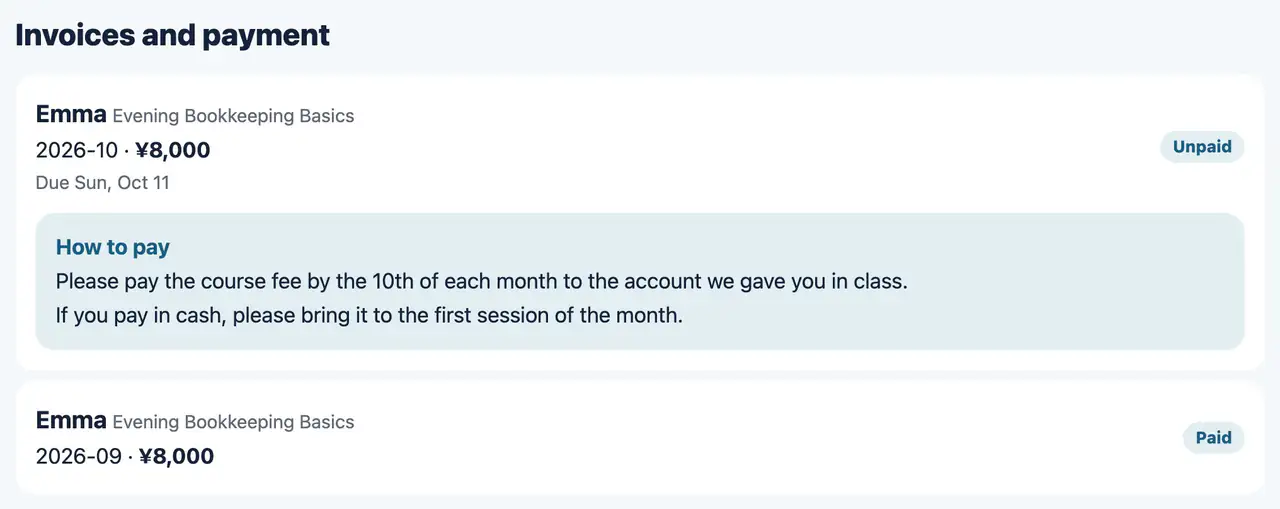
Tuition (paid by the learner)
WebLearners pay their own tuition. In “Invoices and payment” on the web, they see each month’s invoice and the payment instructions written by the instructor.
Students in a classroom for adults log in from Adult student login.
FAQ for students
Do I make my own account?
No. Your teacher signs you up and gives you a classroom code, an ID and a PIN.
Can I log in with an email address and password?
No. Students log in with a classroom code, an ID and a PIN. There is no password.
What do I do if I forget my PIN?
Tell your teacher. Your teacher can make a new PIN on the teacher’s screen.
Can my teacher see my PIN?
Your PIN shows on your teacher’s screen only when it is made or made again, and your teacher passes it to you. After that, your teacher can’t look at it again.
Can students use it on Android?
There is no special app, but you can use the browser.
Can my guardians see my messages with my teacher?
Yes. In a classroom for children, your guardians can read all your messages with your teacher.
Can I quit by myself?
Students can’t delete their own account. Your teacher withdraws you (in a classroom for children, a guardian can also do this).
Does it cost students money?
Students don’t pay Aiyori anything. The classroom pays the usage fee. In a classroom for adults, students pay tuition to the classroom themselves.