Upload the lesson videos you record straight to Aiyori and hand them out. Only the students who were given the video, their families and the classroom’s teachers can watch it.
For live lessons, hand out a Zoom or Google Meet link with the lesson time. If you record the lesson, hand it out later as a video, and students who missed it can watch too.
Record lessons and hand them out
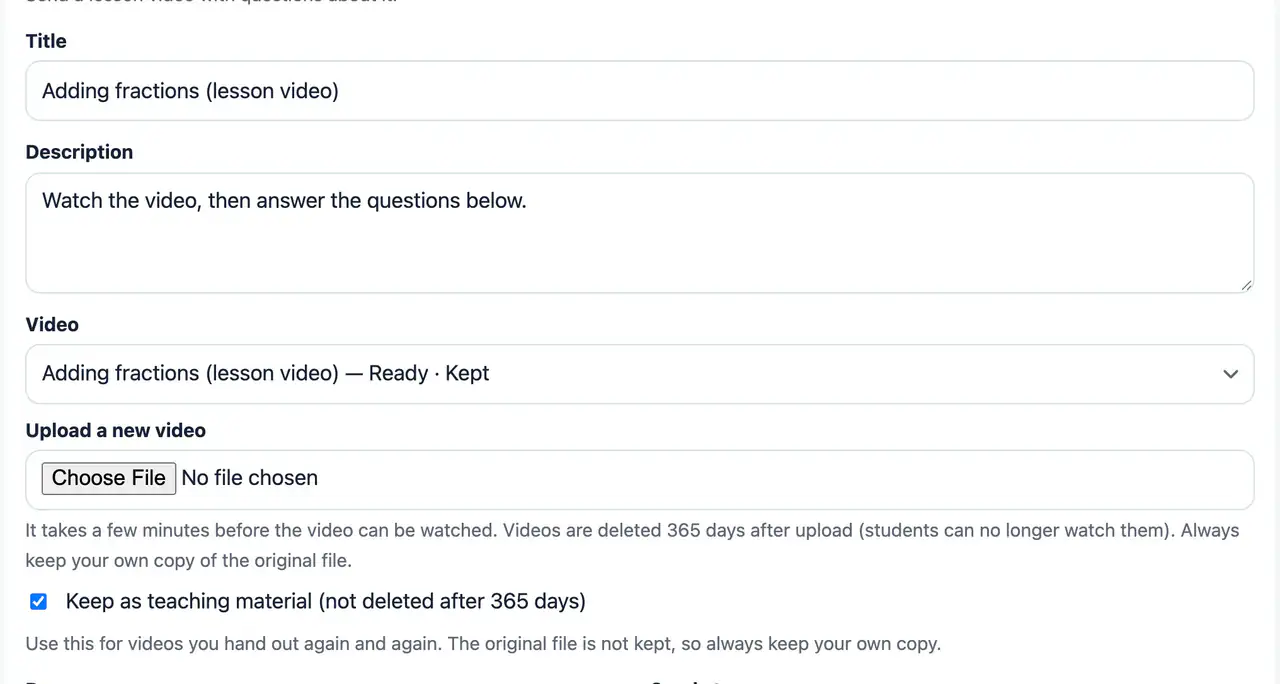
Video (a lesson video with questions)
WebHand out a lesson video together with questions about it. Choose a video you uploaded before, or upload a new one.
Videos are deleted after 365 days. Videos set to “Keep as teaching material” are not deleted. Keep your own copy of the original file too.
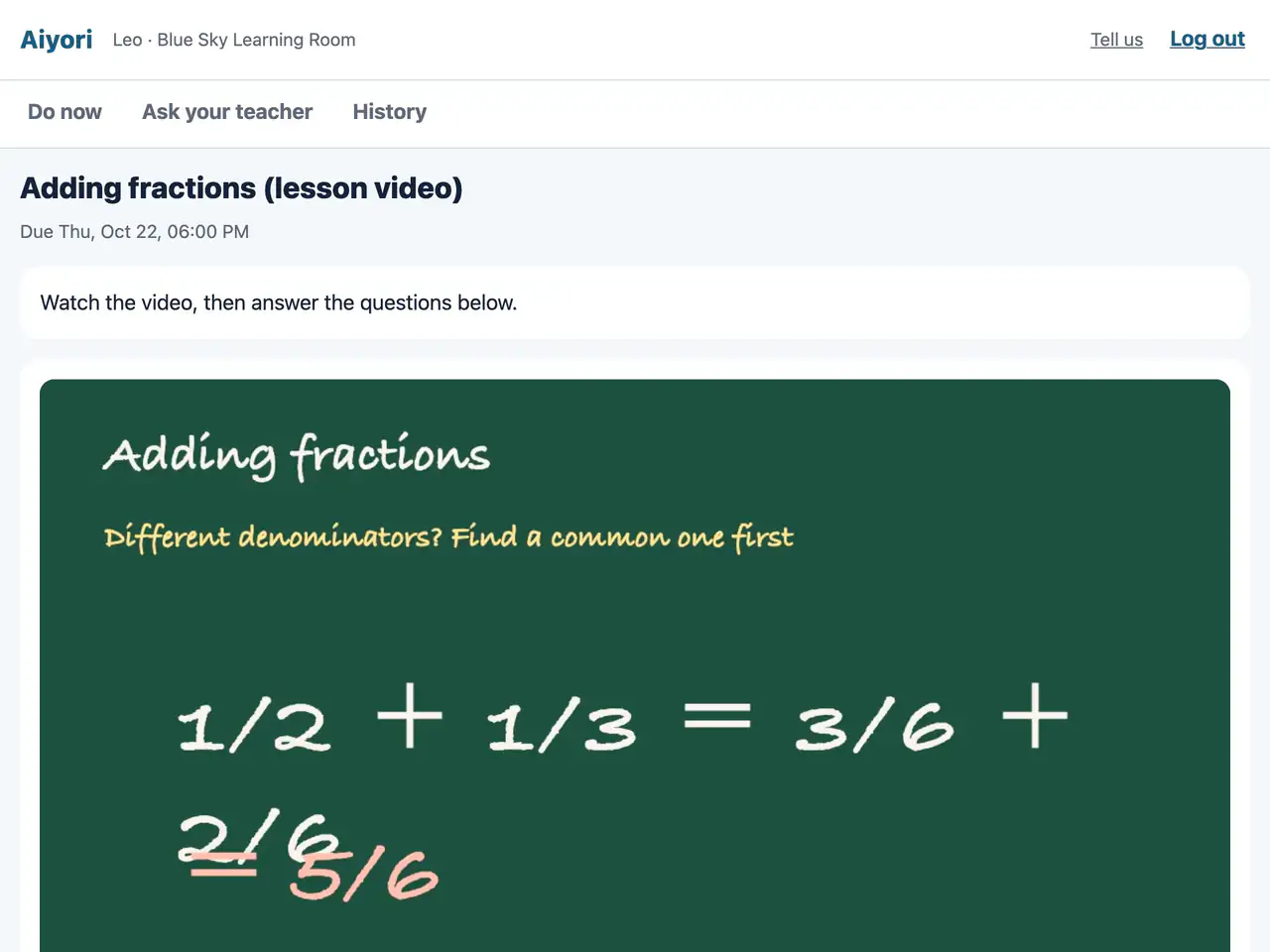
Video
Web & appWatch the lesson video. The questions are right below it.
Depending on the teacher’s rules, you may not be able to skip ahead or change the speed, and the questions may not appear until you have watched the video to the end.
YouTube videos: just paste the URL
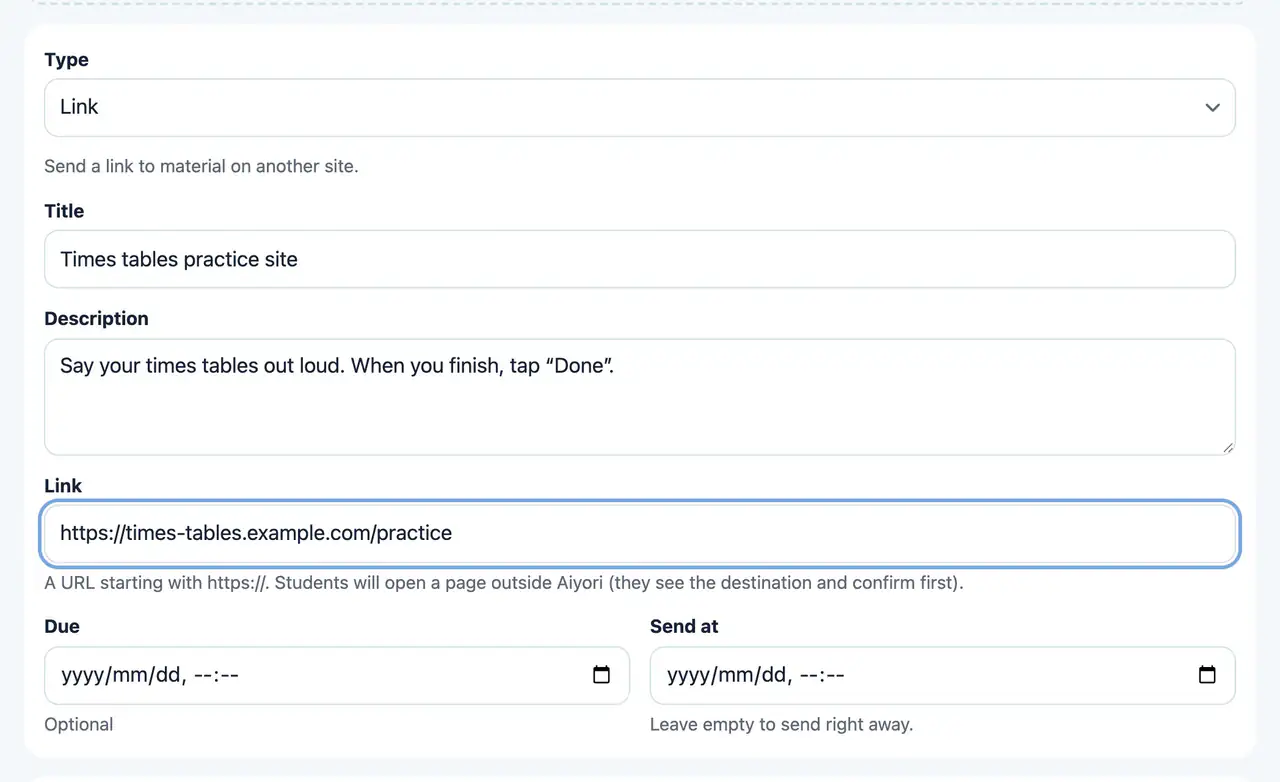
Link
Web & appHand out a link to material on another site. Before it opens, the student sees a screen that confirms where it goes. If the link is a YouTube video, students can play it inside Aiyori.
YouTube videos play inside the screen both on the web and in the iPhone and iPad app.
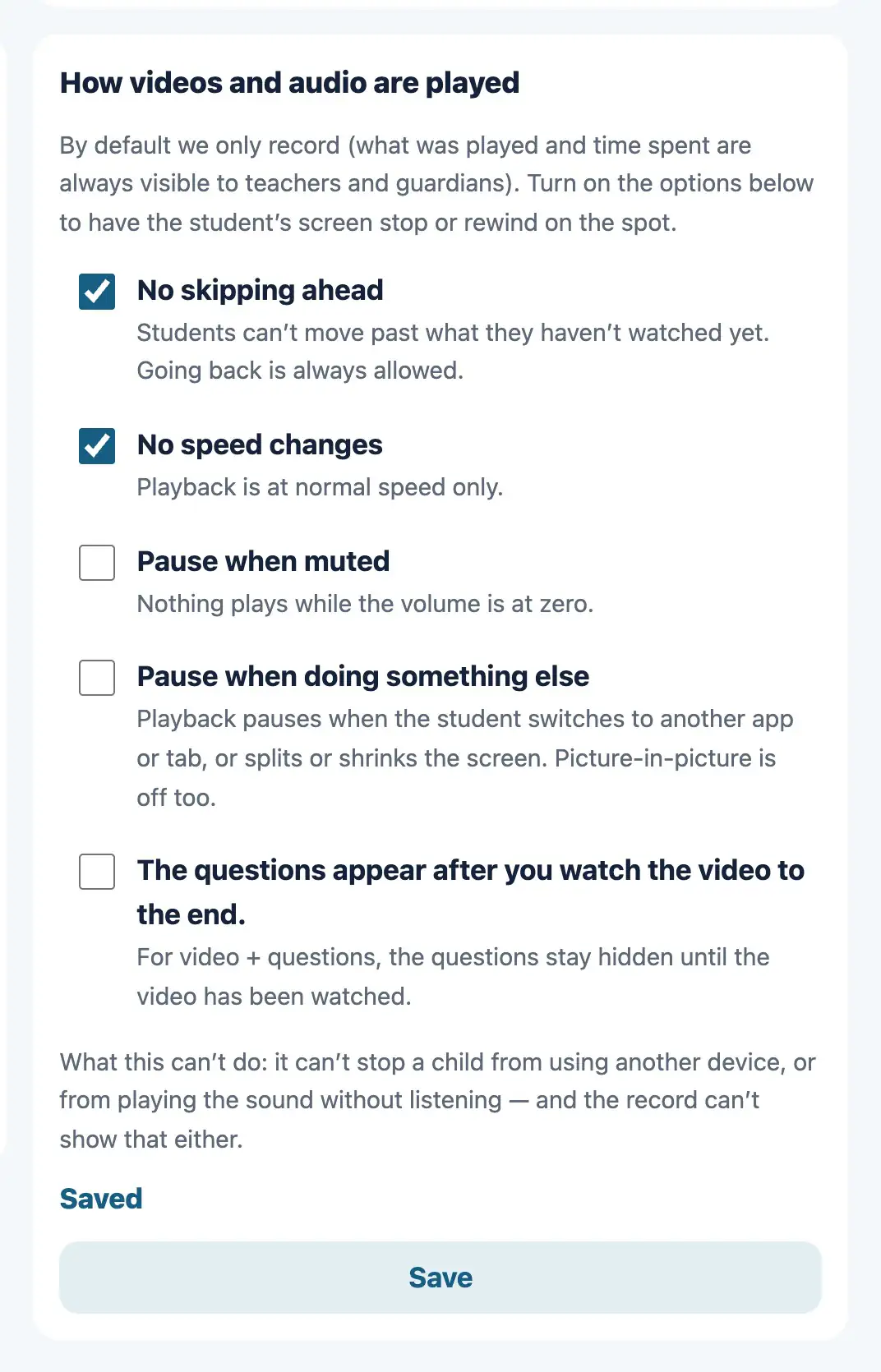
Stop skipping and speed changes
Playback rules
WebSet how videos and audio are played, classroom by classroom. No skipping ahead. No speed changes. Pause when muted. Pause when doing something else. Hide the questions until the video has been watched to the end.
At first every rule is off and playback is only recorded. The rules apply on both the web and the iPhone and iPad app.
Learning record
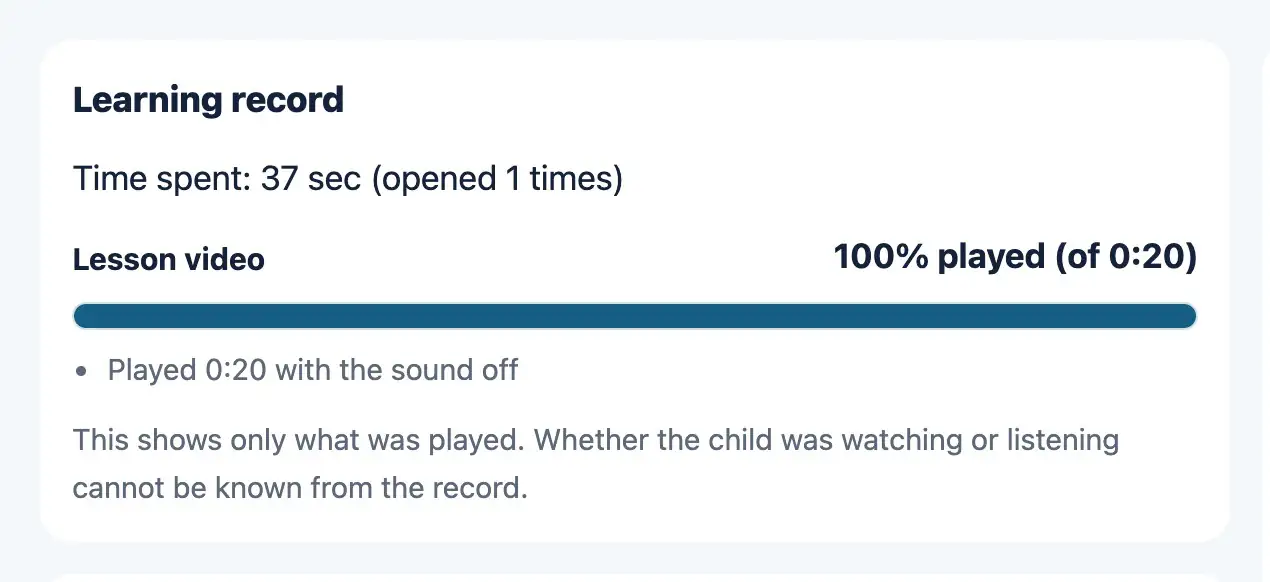
Web & appFor videos and audio, shows the share that was played, the parts not played, the number of skips ahead, the time played with the sound off, the number of times the student left the screen, and the time spent.
This shows only what was played. Whether the student was watching or listening cannot be known from the record.
Live lesson times and links
Live lesson
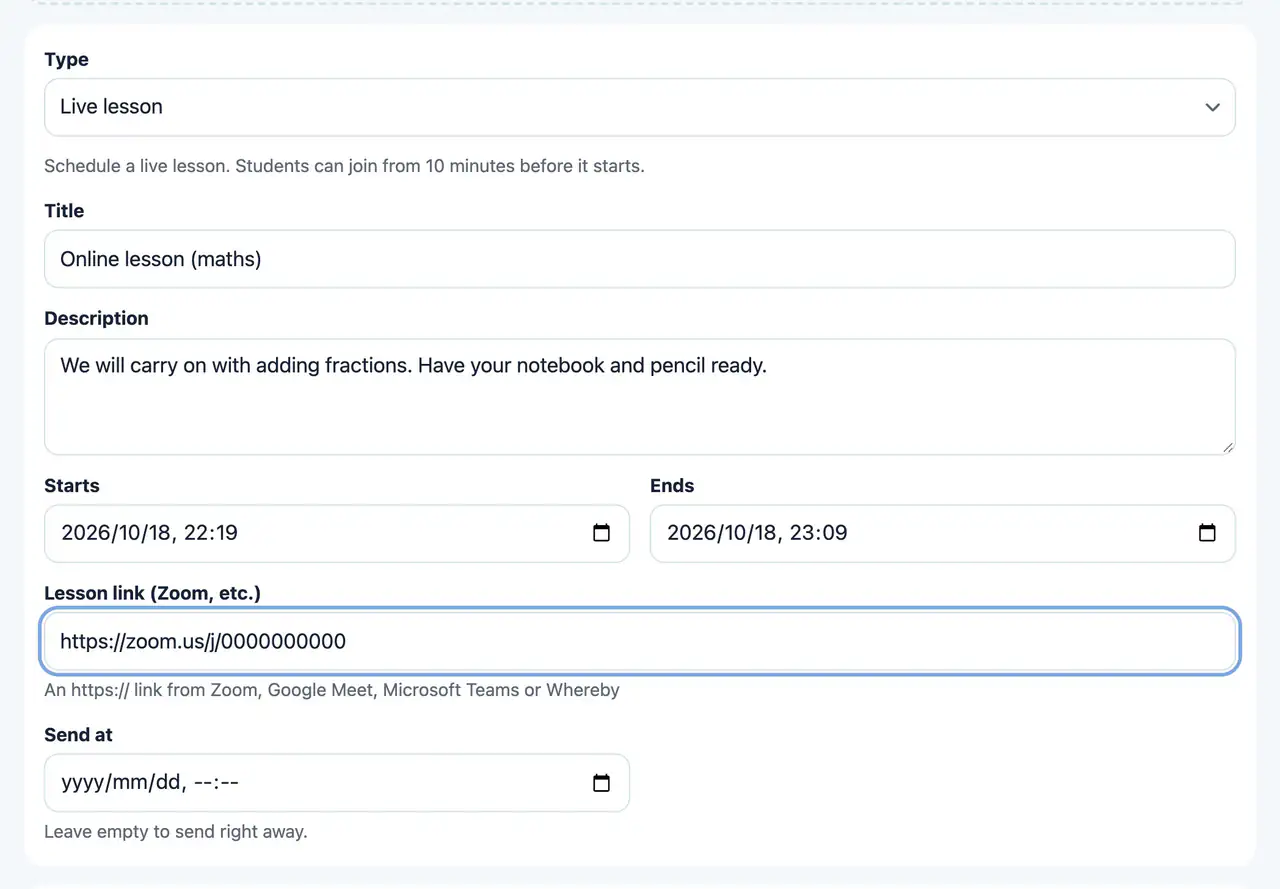
Web & appHand out the start and end times of a lesson and its Zoom or Google Meet link. It appears in the student’s “Do now”, and they can join from 10 minutes before the start.
Zoom, Google Meet, Microsoft Teams and Whereby links can be used. If you record the lesson, hand it out later as a “Video” so that students who were absent can watch it.
Live lesson
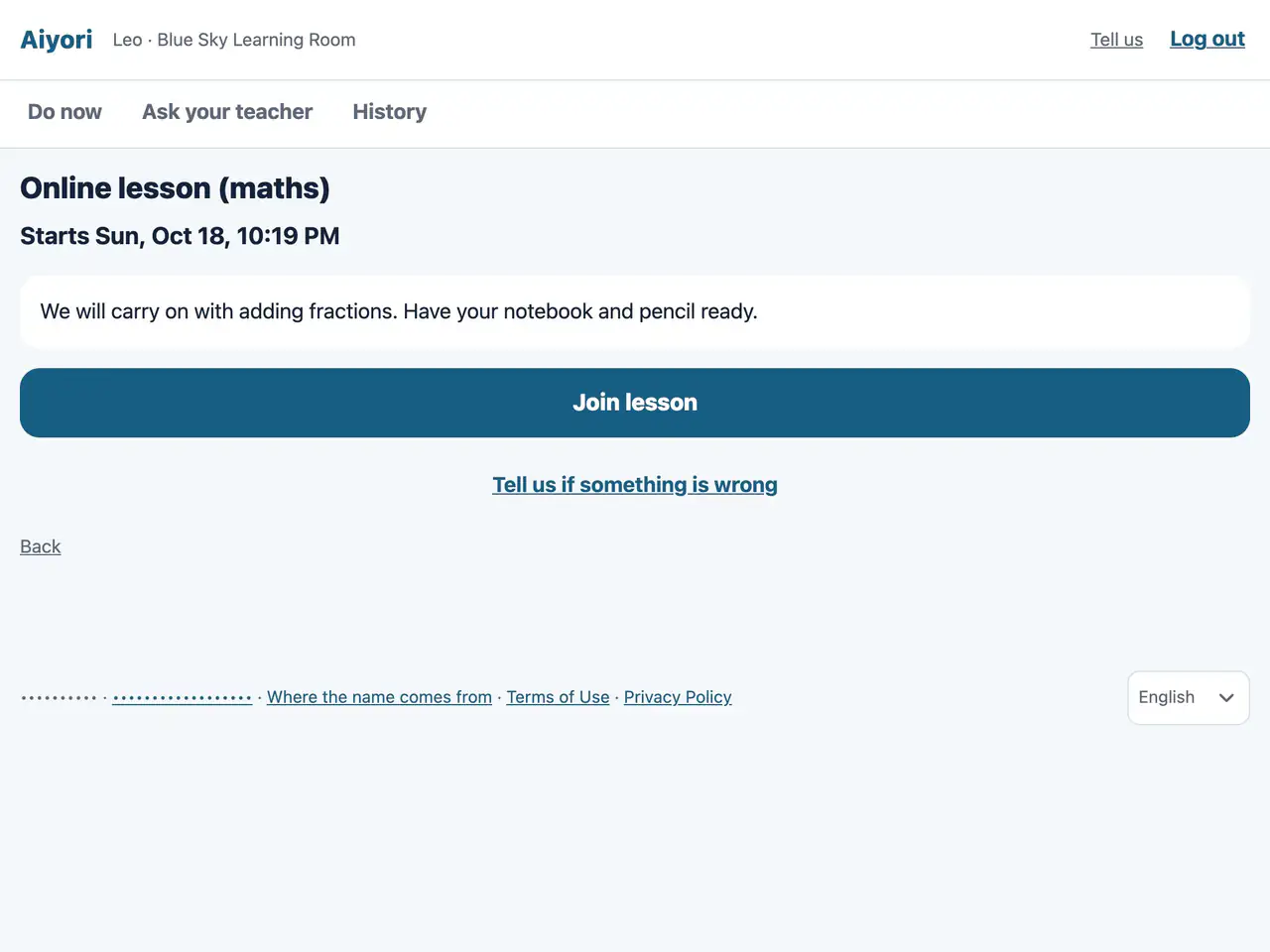
Web & appFrom 10 minutes before the lesson starts, “Join lesson” can be tapped.
The same video and questions for students who missed class
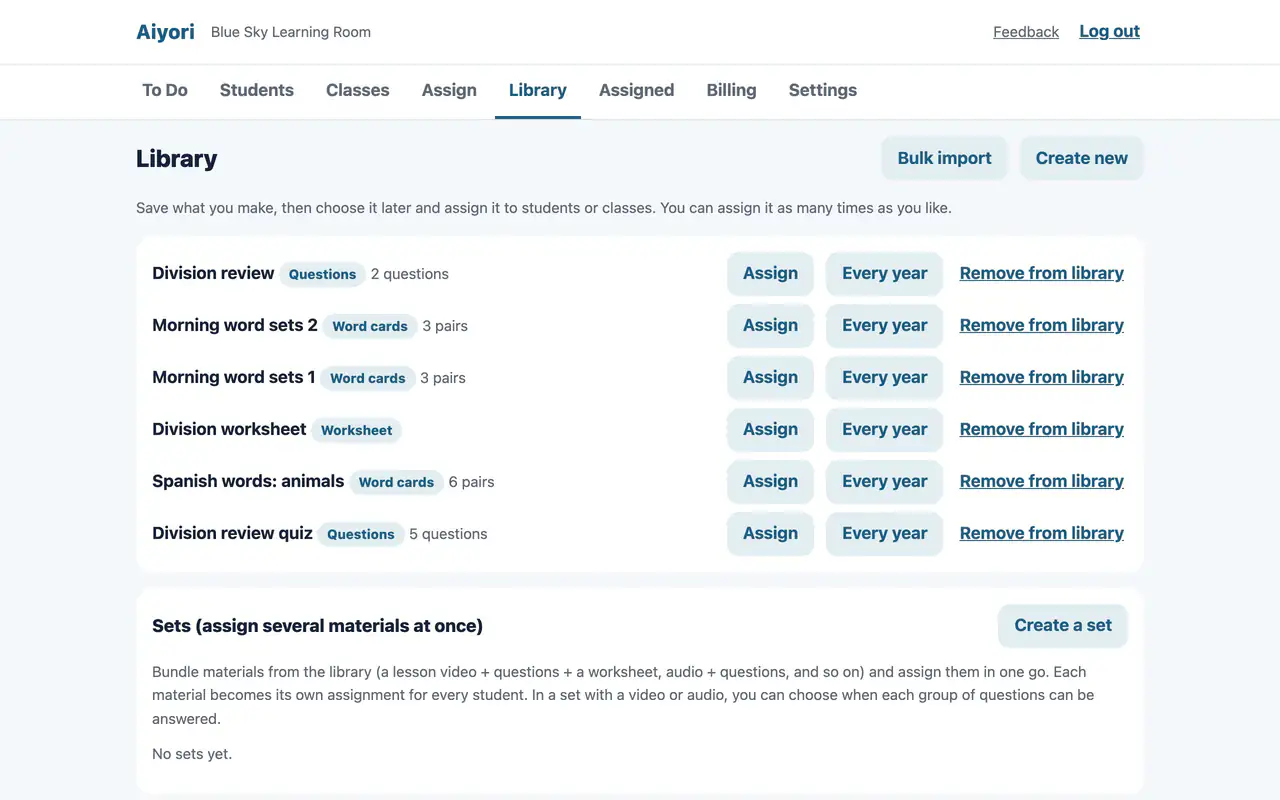
Library
WebKeep the materials you make in the library, then pick them later and hand them out to students or classes as often as you like. Everything you can hand out, except live lessons, can go in. Only teachers see the library; students receive only what you hand out.
Worksheets and videos in library materials are not deleted while they are in the library. Removing something from the library does not remove what you have already handed out.
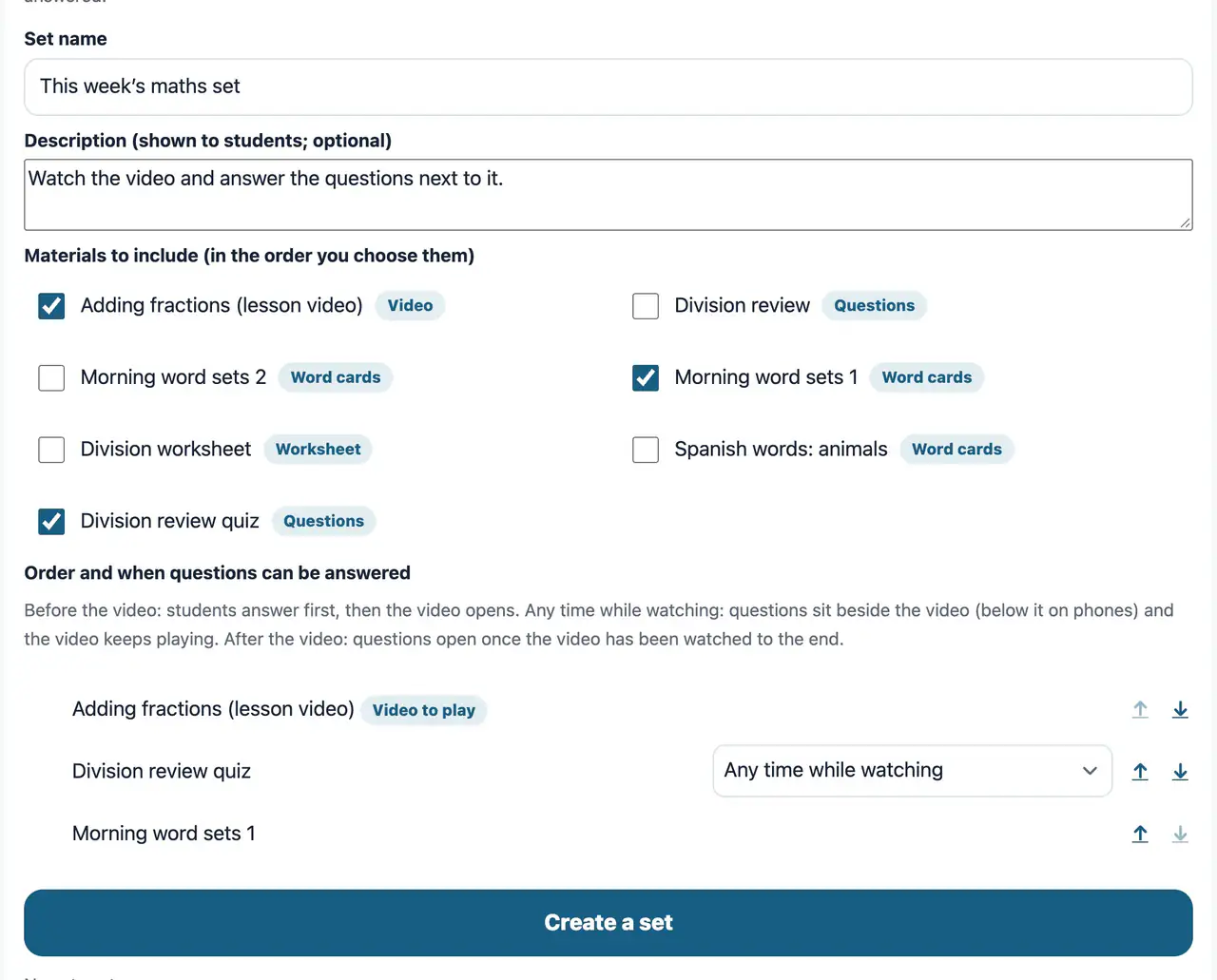
Sets of materials
WebBundle materials from the library (a lesson video with questions and word cards, audio with questions, and so on) and hand them out at once. On the student’s screen they appear as one group. In a set with a video or audio, choose for each question when it can be answered: before the video, at any time while watching, or after.
Start free
Free for 30 days after you create the classroom (organization). You don’t need to add a payment method during the trial.
Start free (30 days)Hand out YouTube videosLibrary and coursesAll features